93.2.1.28 MMS - Shazam Integration
The MMS - Shazam Integration action allows the Etere system to communicate with the Shazam API and retrieve music-related metadata.
The EA1228 (Etere Music Scheduling) sub-license must be included in the Etere license in order to use the Shazam integration. Without this sub-license, the integration will not function correctly.
Note: To access the Shazam API, Etere requires a valid RapidAPI key for the Shazam service provided by Api Dojo.
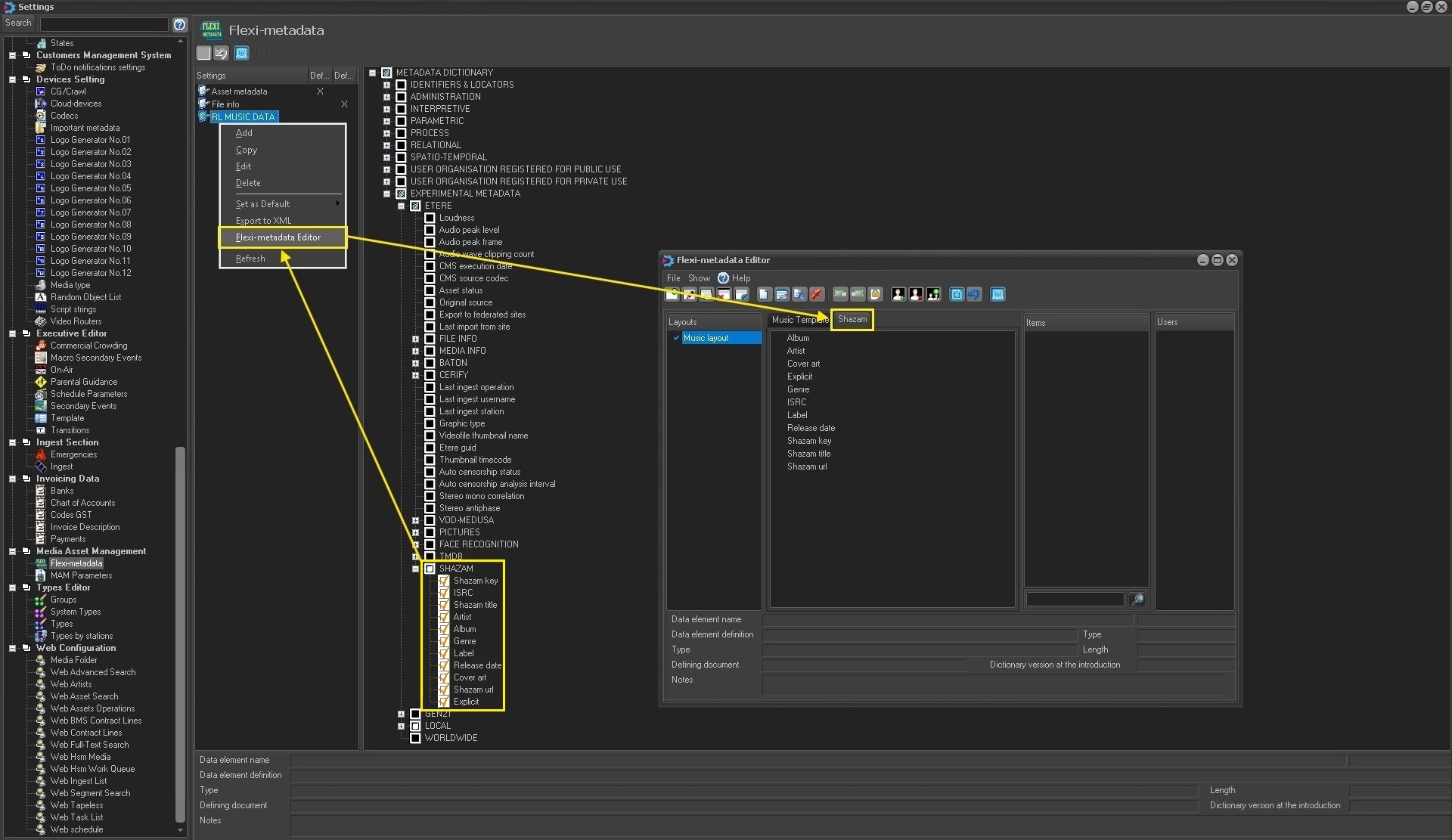
Starting from version 36.1.278.9372, Etere includes a dedicated set of Flexi-metadata fields designed specifically for this integration.
The available Shazam Flexi-metadata (Original Source, Shazam Key, ISRC, Shazam Title, Artist, Album, Genre, Label, Release Date, Cover Art, Shazam URL, Explicit) can be found in:
Etere Configuration → Settings → Flexi-metadata → Metadata Dictionary - Experimental Metadata - Etere - Shazam
For additional information about Flexi-metadata, refer to Chapter 59.2.43.1 - Flexi-metadata.
The Shazam Integration analyzes the audio stream contained in the source media file. As a result, it can identify songs contained in both audio files and music videos and retrieve the corresponding metadata from Shazam. The following file formats are supported:
AAC, AVI, FLAC, M4A, MOV, MP3, MP4, WAV, WMA
The following file formats are not supported:
AIFF, MPG, MXF, WMV
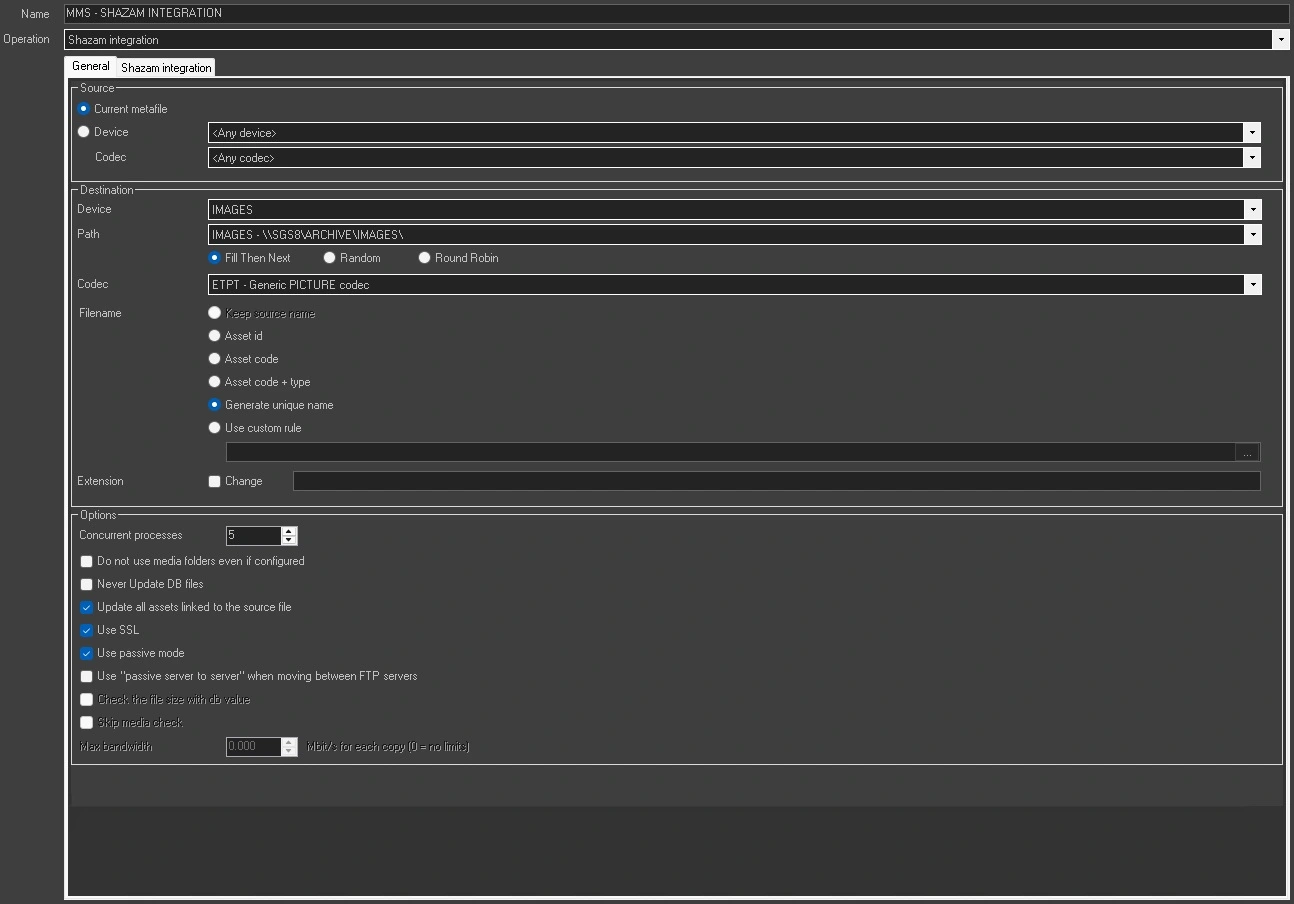
To create an MMS - Shazam Integration action, configure the following parameters.
General Tab
Name: Enter a descriptive name to identify the action.
Operation: Select Shazam Integration.
Source
Current Metafile: Use the metafile currently associated with the workflow.
Device / Codec: Select the source device and codec.
Destination
Device: Select the destination device where downloaded image files will be stored.
Path: If the selected device contains multiple paths, choose the destination path.
Fill Then Next: When enabled, Media Manager Service checks paths sequentially and stores files in the first path with sufficient available space.
Random: When enabled, a destination path is selected randomly from the available paths.
Round Robin: When enabled, Media Manager Service cycles through the available paths sequentially. After reaching the last path, the selection restarts from the first path. The path selection status is shared among all Media Manager Service instances using the same cloud device. For example, if one instance selects the first path, the next instance selects the second path.
Codec: Select the destination codec that will be assigned to the downloaded files.
Note: This codec is used only when no codec is specified in the Shazam Integration tab.
Filename: Defines how the destination filename is generated:
Note: Depending on the type of file being downloaded, a corresponding suffix is automatically appended to the generated filename. For example, downloading the Cover Art image adds the coverart suffix to the filename.
- Keep Source Name: Preserves the source filename. This option is disabled by default for this action.
- Asset ID: Uses the Asset ID as the filename. This option is enabled by default for this action.
- Asset Code: Uses the Asset Code as the filename.
- Asset Code + Type: Uses both the Asset Code and Asset Type.
- Generate a Unique Name: Automatically generates a unique filename based on a UID.
- Use Custom Rules: Generates filenames using database references, Flexi-metadata fields, asset fields, or custom text.
Note: Unsupported operating system characters such as | \ / : * " are automatically replaced with the hyphen (-) character.
Extension: Enable Change to specify a custom file extension.
Note: Although the Extension Change option can be configured, it does not apply to images returned by the Shazam API, as the Shazam Integration action does not include image format conversion. Images are downloaded in their original format, as provided by Shazam.
Options
Concurrent Processes: Specifies the maximum number of simultaneous processes executed by the workstation.
Do Not Use Media Folders Even if Configured: Ignores translated media paths even when configured.
Never Update DB Files: Prevents updates to database file records.
Update All Assets Linked to the Source File: When enabled (default), downloaded files are associated with all assets linked to the source media file. This option is useful when multiple assets share the same media file. If disabled, only the asset that initiated the workflow is updated.
Use SSL: Enables SSL/TLS encryption during FTP transfers. The system attempts the following protocols in sequence:
1) FTP over TLS
2) FTP over SSL
3) Plain FTP
Use Passive Mode: Uses FTP passive mode for upload and download operations.
Use Passive Server-to-Server when moving between FTP servers: Enables passive transfers between FTP servers when both devices support passive mode.
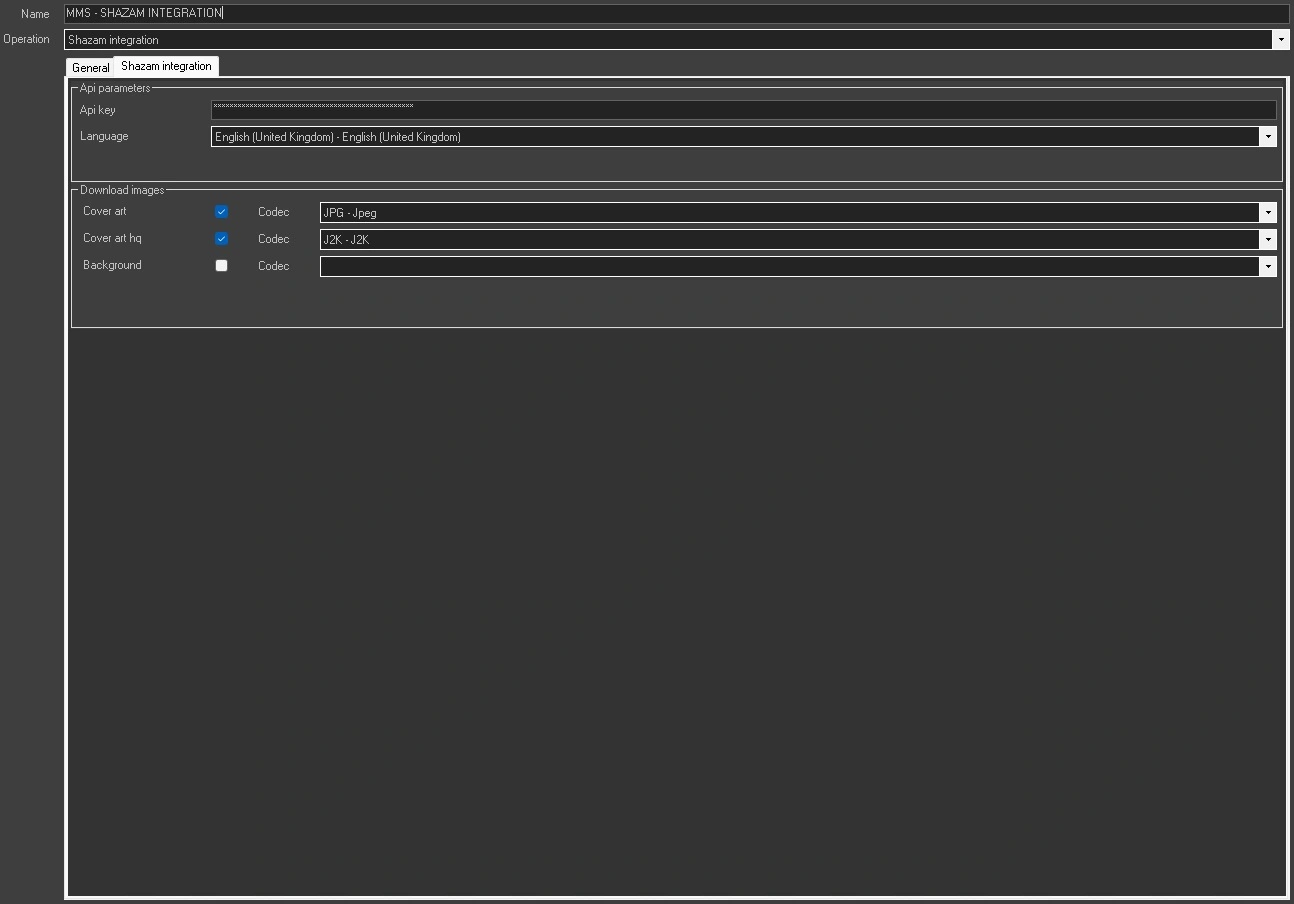
Shazam Integration tab
API Parameters
This section contains the credentials and configuration required for Etere to perform API requests to Shazam and process the returned metadata.
API Key: Enter the API key obtained from the Shazam API on RapidAPI after registering a RapidAPI account, subscribing to a Shazam pricing plan and generating an API key.
Language: Select the language used for metadata insertion.
Download Images
Select which images returned by the Shazam API should be downloaded:
Cover Art: Standard album artwork associated with the identified track.
Cover Art HQ: High-resolution album artwork associated with the identified track.
Background: Background image displayed in the Shazam app after a song has been identified. This image typically features the performing artist rather than the album artwork.
For each image type, a specific codec can be selected. When a codec is specified here, it is used for the corresponding downloaded image. If no codec is specified, the codec configured in the General tab is used as the default.
Processing Results
To identify a song, the integration analyzes the audio contained between 00:00:02 and 00:00:10 of the source media. Therefore, media files with silence, noise, or non-representative audio during this interval may produce inaccurate or unsuccessful recognition results. When a song is successfully identified, the Shazam integration performs a set of automatic updates on the asset and some of its related data: the asset title, its assigned artist, genre and thumbnail, the associated media and all configured Shazam-specific metadata fields.
Metadata Population
All Shazam-related Flexi-metadata fields listed at the top of this manual page are populated with values returned by the Shazam API during processing.
Asset Title Update
The asset title is automatically replaced with the title returned by Shazam.
Note: If preservation of the original asset title is required, users may store its original value in a dedicated Flexi-metadata field before running the Shazam integration. This value can then be used within a T-Workflow to restore the original asset title automatically. Alternatively, it can be restored manually by editing the asset title, after the integration has completed.
Genre Assignment
The genre returned by Shazam is assigned to the asset. If the genre already exists in the Etere database, it is reused; otherwise, a new genre is created and automatically assigned to the asset.
Note: Etere includes more than 500 predefined genres, so the detected genre is typically already available.
Artist Assignment
The artist returned by Shazam is assigned to the asset. If the artist already exists in the Etere database, it is reused; otherwise, a new artist is created and automatically assigned to the asset.
Note: Etere automatically uses the Background image returned by Shazam as the artist profile image. When a new artist is created or when the artist already exists and has no profile image, the image is automatically added to the artist profile, regardless of the Download Images settings. When the artist already exists and has a profile image, the existing image is replaced only when image downloading is enabled.
Image Association
Any images selected in the Download Images section (Cover Art, Cover Art HQ, Background) are downloaded and associated with the asset.
Thumbnail Assignment
When one or more image download options are selected, Etere automatically assigns the asset thumbnail using the highest-priority image among those selected, replacing any existing thumbnail. The priority order is as follows:
1. Cover Art HQ
2. Cover Art
3. Background
If none of the image download options is selected, no asset thumbnail is saved. If Background is the only selected option, the downloaded Background image is used as the asset thumbnail: as explained in the Download Images section, this image generally represents the artist rather than the album cover; therefore, users who prefer to use the album artwork as the asset thumbnail should select Cover Art HQ or Cover Art in the Download Images section.
Note: The Shazam API currently returns images exclusively in JPG format. These images cannot be correctly displayed as asset thumbnails in Etere Media Library, which requires them to be in BMP format. To overcome this limitation, users can run a T-Workflow containing a Media Manager Service action with the Icons Regeneration operation, configured to use one of the downloaded images as the source for thumbnail regeneration. EtereWeb, on the other hand, correctly displays asset thumbnails generated from JPG images without requiring this additional operation.
 Shazam_Flexi-Metadata
 MMS_Shazam_General
 MMS_Shazam_Integration