58.3.14.2 Apply Fade Transition on Clip
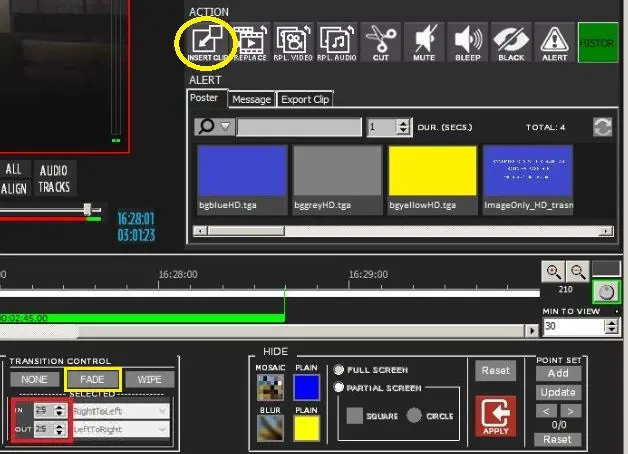
In the "Action" section, positioned at the right panel on the interface, the "Insert Clip" function work corresponding with the "Fade" feature in the "Transition Control" section would enable you to set a Fade transition in a video file during on-air.
Censormx_transition_control_fade_new
First, in the "Transition Control" panel, enable the "Fade" feature to launch the Fade Selection features.
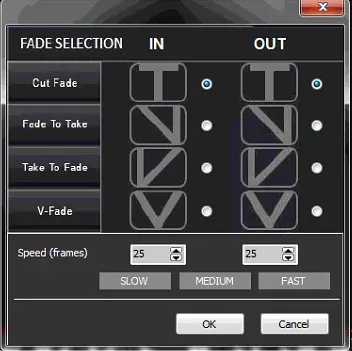
Censormx_fade_effects
In the Fade Selection dialogue, define the fade effects by selecting the various fade feature on the left panel and clicking the IN or OUT bullet points on the right pane. After which, set the speed of the fade effects by entering/selecting the number of frames (per second) in the bottom pane and define one of the speed modes (Slow, Medium, Fast) when displaying the fade effects. Once the selection is confirmed, click <OK> to apply the fade effects.
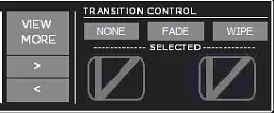
Next, click the "Insert Clip" or "Cut Insert Clip" button to apply the fade effect on the transition. The selected fade results would be displayed in the Transition Control pane indicated by the effect symbols. In the example below, "Take To Fade" effects were applied to the video clip.
Censormx_fade_transition_control
To reset the fade effects applied to the clip, click the NONE button in the Transition Control pane to deselect the effects.
 Censormx_fade_transition_control
 Censormx_transition_control_fade_new
 Censormx_fade_effects