54.5.2.2 Rotation Table
The Rotation Tables section allows scheduling events within a certain period over specific time windows configured for up to three consecutive days on a 'rotating basis' (e.g. 24/03/2011->day1, 25/03/2011->day2, 26/03/2011->day3, 24/03/2011->day1 and so on).
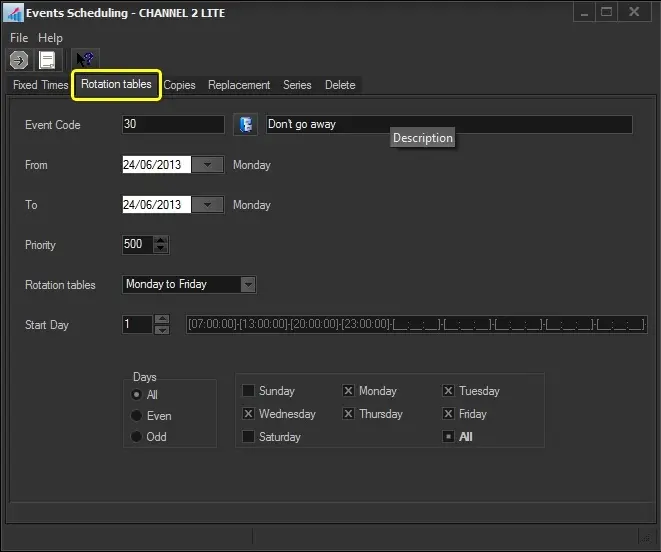
To start rotating an event, search for it using the [Event Code] button and then compile the following parameters:
Rotation_Tables
Event Code: Search for the asset to be scheduled.
From - To: Insert the dates range in which the event will be scheduled. By default, the validity period of the asset is proposed.
Priority: Specify the priority with which the event will be scheduled. An event's priority is the criteria Etere uses to determine its position within a commercial cluster during the scheduling phase. This priority starts from 1 (highest) to 1000 (lowest).
Rotation tables: Select the rotation table to schedule the commercial asset.
Note: Rotation tables are created in Configuration > Settings > Air Sales Lite > Rotation Tables.
Start day: Select the rotation day on which the scheduling will start. Please note that rotation days are custom defined. Therefore, it may occur that "1" doesn't necessarily correspond to Monday.
Days: Select the days for which the event to be scheduled is valid, in which it will be scheduled:
All - On every day of the week, in the period of the dates indicated
Even - Only on even days (e.g. 2-4-6-8...30) in the chosen period, independently of the day of the week
Odd - Only on odd days (e.g. -3-5-7-9...31) in the chosen period
Specific days - Select the weekdays (e.g. Monday and Friday) on which you want the commercial asset to be scheduled
Once all parameters have been correctly set, press the RUN button to proceed with the rotation-scheduling process.
 Rotation_Tables