59.2.4.3 Custom ARC Profiles
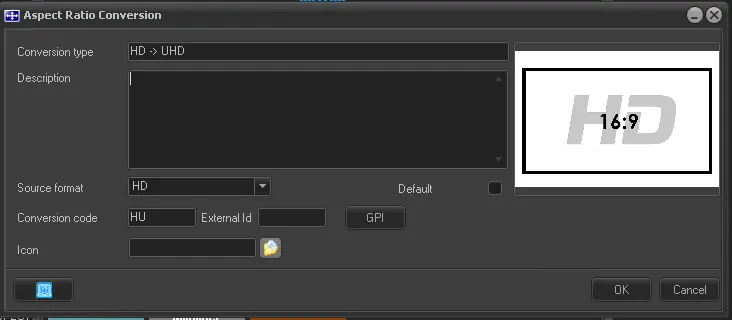
Etere allows users to define new conversion profiles based on custom system characteristics. To define new conversion profiles, click on the [New] button and compile the following properties:
new_arc_profile
Conversion Type - Insert the type of conversion. This text will appear in the Media Library conversions drop-down list.
Description - Enter a detailed description of the conversion if required.
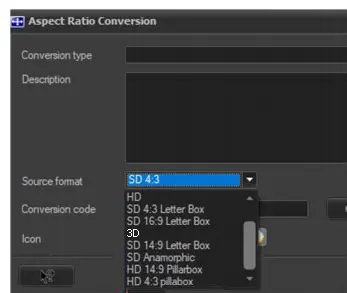
Source format - Select one of the source formats from the list to which the conversion type is related.
configuration_aspect_ratio_conversion_source
Default - Enable it to set the conversion type (e.g. HD 16:9 -> 4:3 Anamorphic) as the default conversion type for a specific source format (e.g. HD). Default conversion types can also be set by right-clicking on a conversion type and selecting the "set as default" function.
NB: If no default conversion is set for a source format (e.g. HD), Etere cannot update (e.g. via T-workflow) all metafiles belonging to that source format.
Conversion code - Give an abbreviation to the conversion profile (e.g. 4X).
External ID - Optionally, insert any eventual string of external devices to identify the conversion profile.
GPI - This parameter has been moved to the Automation > Settings (devices) section.
It allows assigning GPI signal combinations to conversion profiles so that Etere Automation will activate these GPI signals to trigger required modifications.
NB: Automation ARC conversions are explained in the ARC from the Automation chapter.
Icon - Optionally, select an Etere icon to represent the conversion profile. The user can choose an icon among the already available ones or load a custom icon. See chapter Etere Configuration > Settings > Update Workstation > Icons for more information about how to load new icons.
Preview - Optionally, browse and select an image that reflects the conversion profile.
Once compiled, click the [Apply] button to confirm changes.
 configuration_aspect_ratio_conversion_source
 new_arc_profile