59.11 License Update
The License Update module is used every time your system is updated to a new version (e.g. from version 32 to version 33), in case you request to add a new channel to your network or, in general, every time changes involving Etere license have been made.
The license check is launched at the startup of every Etere module, determining if the currently loaded license is valid to run the currently installed Etere version.
Note: From Etere released version 28.2 onwards, license files released from Singapore have “.licence” extension instead of “.sys” to avoid file transmission problems with antivirus. The “.licence” file is backwards compatible with the “.sys” file; if your application requires the old version file, rename the file extension from “.licence” to “.sys”.
From Etere released version 29.2 onwards, the URL path and the license file name are not visible anymore during the update process.
WARNING: The license update is a sensitive operation that will permanently overwrite the information in the database about the old license, and it can't be reverted. Making a database backup and contacting the Etere support team is highly recommended before doing any operation.
LICENSE UPDATE
When updating the Etere license on a workstation, 2 options are available. You can select to load the new license file from your local workstation or download it directly from the Etere website.
Update the license file stored locally
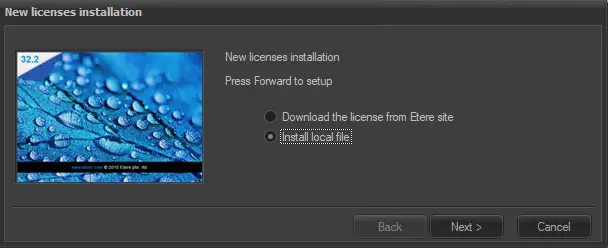
1. When the system requires a license update, or as soon as you launch License update module, the following message is prompted:
New_license_installation_1
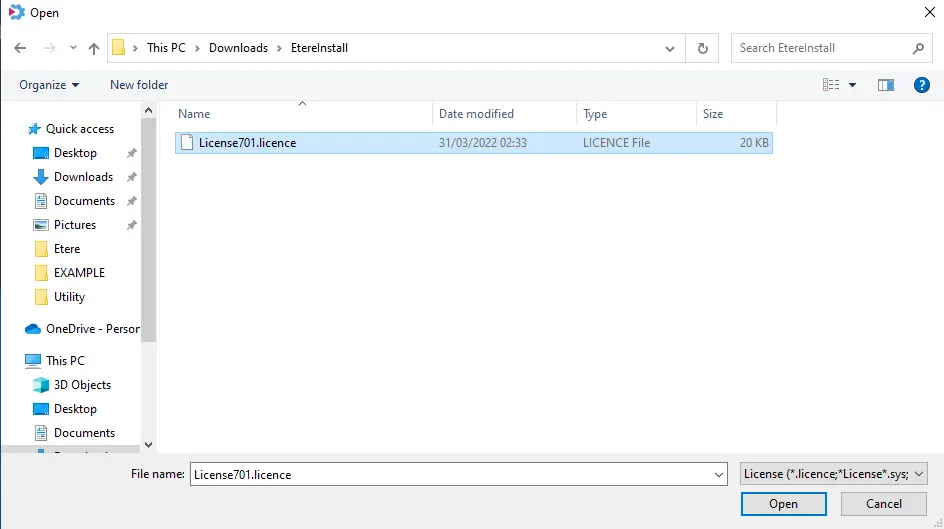
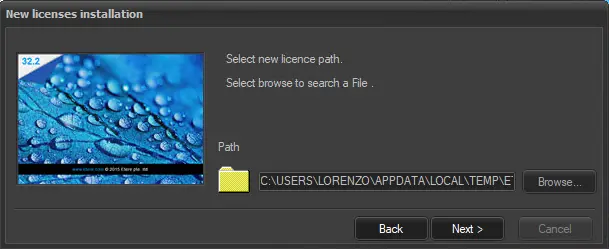
2. Select “Install local file” and click <Next> to continue. In the dialogue box, use the browse button to locate the new license file in the local workstation.
Install_local_file
When selecting an existing license or New license, license files with “.licence” or “.sys” extensions are accepted, whereas “.licence” is preferable.
Select the file and click <Next> to proceed.
New_license_installation_2
3. The license installation takes a few seconds and when it's complete the module prompts a confirmation message. Click <End> to exit from the installation program.
Download the license file from Etere
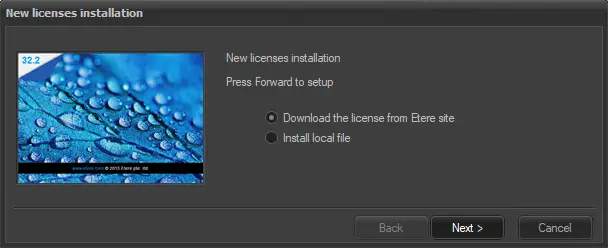
1. From the New License Installation dialog box, select “Download the license file from the Etere site” and click <Next> to continue.
New_license_installation_4
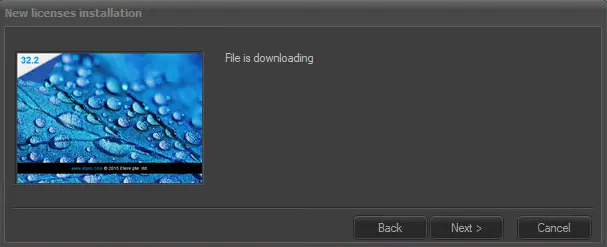
2. Based on the customer code registered in the Etere database, the installation program would match the customer code, download the license from the customer area and directly install it in the database to which the workstation is connected.
New_license_installation_5
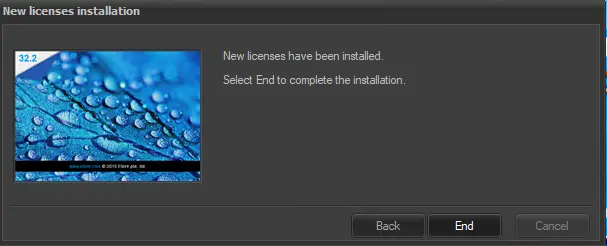
3. When the installation is complete the module prompts a confirmation message. Click <End> to exit from the installation program.
New_license_installation_6
Whatever is the method you use, Etere will ask a restart as soon as License update is closed.
Note: From Etere released version 30.1 onwards, each Etere license contains the license’s creation date (in "yyyymmddhh:mm" format, e.g. "2019121509:30" indicating the license file was created on 15 December 2019 at 9.30 am) in the file header. If you tamper with the creation date in the license file and then you import it, a warning message will be prompted when the customer attempts to launch the Etere applications, which won't start at all.
DIFFERENT LICENSE CODE
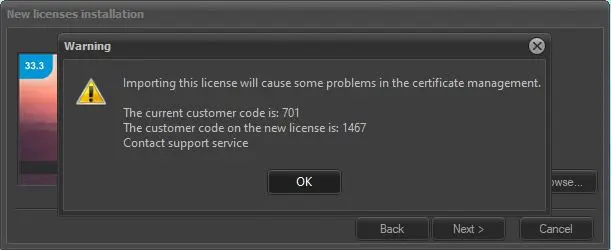
When a user attempts to install a license with a different code, the following alert is displayed, warning the user about the change.
license_code_alert_1
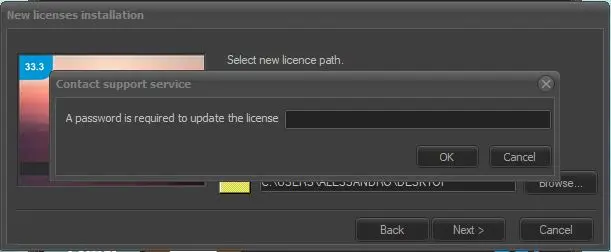
Additionally, a password is required to proceed.
license_code_alert_2
Abort immediately the operation, download the correct license file from the reserved area and repeat the procedure, or contact Etere support team.
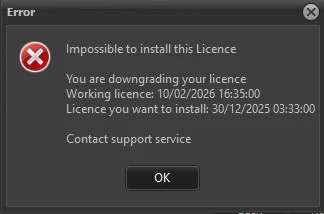
LICENSE DOWNGRADE
license_downgrade
This error appears when the license file you're trying to import is older than the one currently installed. The message in the image, for example, says the license already installed was made on 10/02/2026, while the one the user is trying to install was made on 30/12/2025, and Etere does not allow this operation.
Submit the issue to Etere support team as soon as possible.
 new_license_installation_1
 Install_local_file
 New_license_installation_2
 New_license_installation_4
 New_license_installation_5
 New_license_installation_6
 license_code_alert_1
 license_code_alert_2
 license_downgrade