2.2 Etere SQL Database Failover
This section describes the proper steps to perform the database failover in a disaster. A backup database (disaster recovery) with a similar capacity and configuration must be in place and tested to manage the failover process.
Check Database settings
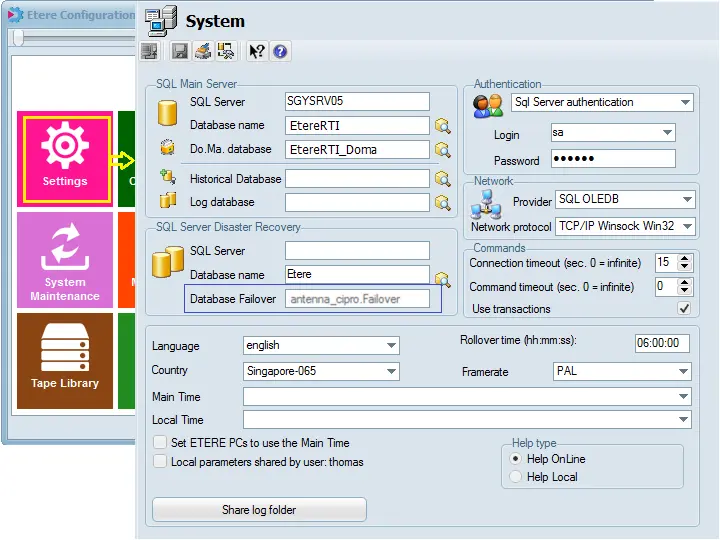
First, You need to understand whether the failover database is configured for this purpose. Launch the Configuration module and click on the Settings icon in the Start menu; a "Database Failover" parameter has been created in System Configuration as the Disaster Recovery database name (the database is named "[database name]. Failover"). This database name cannot be changed.
In the dialogue box, you can view both the "Main" and "Disaster Recovery" database names, but you can only change the working database (Main) to another database when necessary. To change the working database, click the search button beside the "Database name" in System settings and select the desired database. The new database name will be reflected when the network connection to the specified database is established. You would need to relaunch the Configuration module for the changes to take effect.
Switching to Disaster Recovery Database
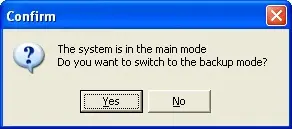
An icon named "Main-Backup Mode" has been deployed in the Etere Configuration module Start Menu for managing Etere SQL Database failover.
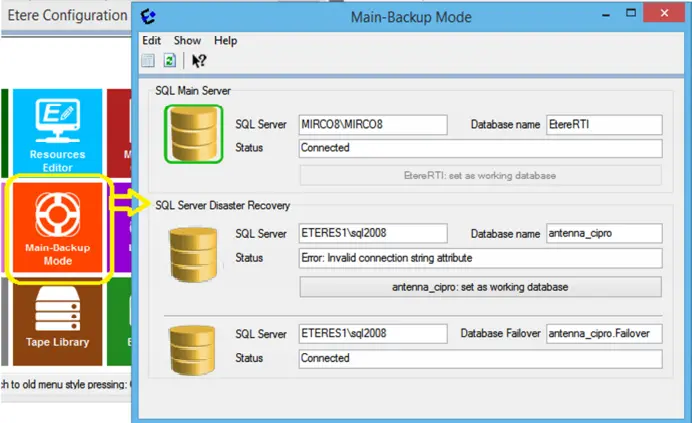
You can click on the "Main – Backup Mode" icon to view the Main and Backup (Disaster Recovery) database settings of the Etere system.
The above-captured screenshot indicates that the Main database is in working condition, and the Disaster Recovery database has been configured. Still, the connection to this database has yet to be established.
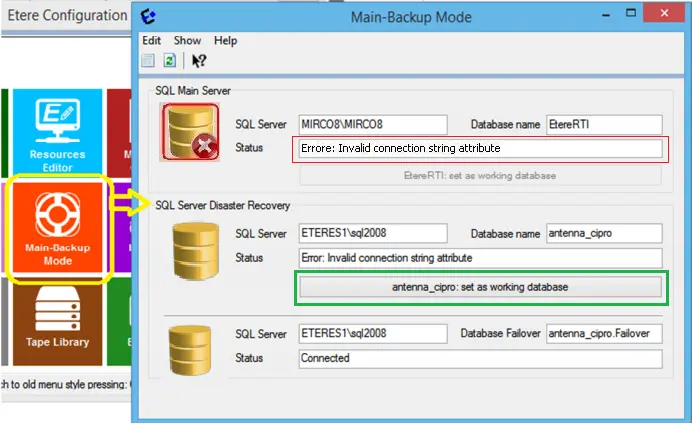
In the event of a disaster, the Main database would be shut down, and connection to the Main database would be interrupted with the error message "Invalid connection string attribute" displayed in the Status box. Meanwhile, the Disaster Recovery database has been activated, and a connection has been established.
To resume the operations on the Disaster Recovery database, click on the "set as working database" button on the SQL Server Disaster Recovery section to promote the disaster recovery database as a central database and redirect all the connections to this database.
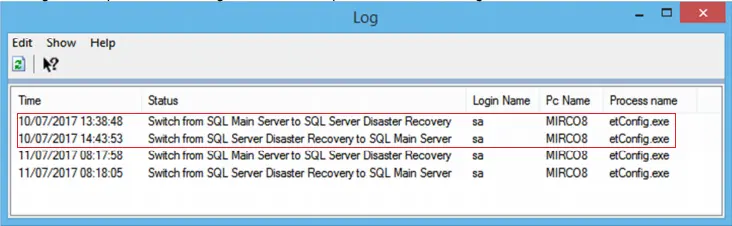
The database switching process would be recorded in the SQL Log for the attention of the System Administrator.
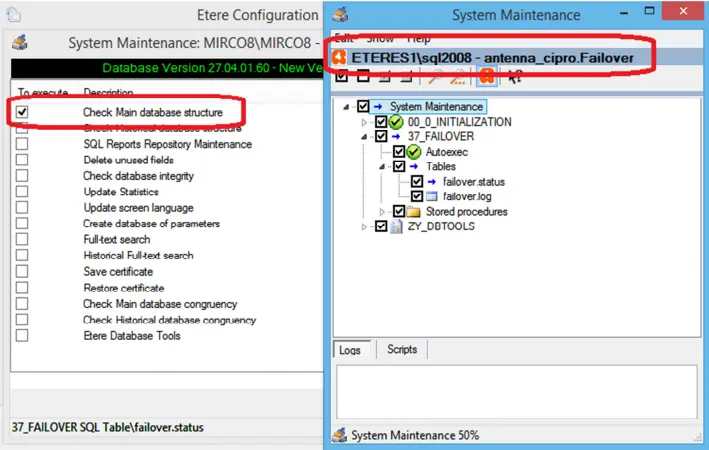
After the Disaster Recovery database has resumed the role of the Main database, you would need to run the System Maintenance task immediately to initial the database structure. Select "Check Main database structure" from the maintenance task list to perform maintenance on the Disaster Recovery database to resume all operations on this database.
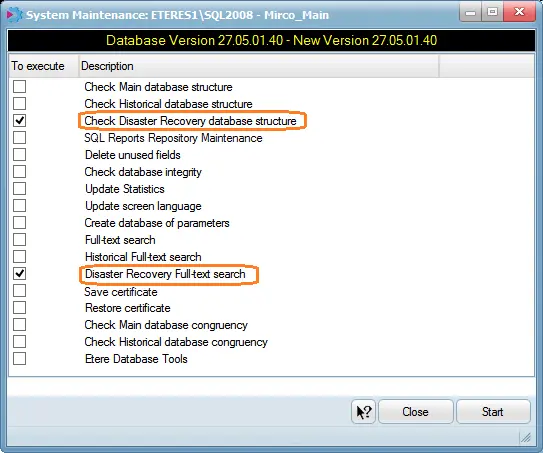
The above System Maintenance task is necessary only if the Disaster Recovery database is not accessible before. Otherwise, you can run the "Check Disaster Recovery database structure" and "Disaster Recovery Full-text search" System Maintenance tasks along with the "Check Main database structure" task. The above System Maintenance task is necessary only if the Disaster Recovery database is not accessible before. Otherwise, you can run the "Check Disaster Recovery database structure" and "Disaster Recovery Full-text search" System Maintenance tasks along with the "Check Main database structure" task.
 Database_Failover
 Main-Backup_Mode
 Main_and_Backup
 Invalid_connection_string_attribute
 set_as_working_database
 Check_Main_database_structure
 Check_Disaster_Recovery_database_structure