84.2.4.21 Secondary Object Show Menu
In the top part of the Secondary Object window, the Show menu contains some key functions to improve the management of secondary events:
Media Library [F7]: Open the Media Library, loading the asset related to the primary event for which the secondary event is being defined.
Preview: Simulate the execution of the secondary event against the proxy file linked to the current primary event.
Note: This function requires a proper resource assigned for previewing (see Etere Configuration > Resources).
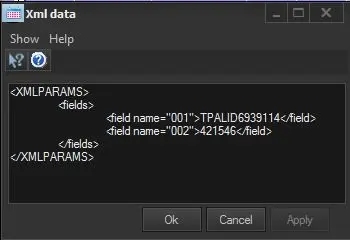
XML data: Allows advanced users to manually edit the <XMLparams> field that contains data imported from external systems, using the Etere Scheduling > Export/Import > Generic XML function:
4984_XMLparams
<XMLPARAMS>
<fields>
<field name="001">TPALID6939114</field>
<field name="002">421546</field>
</fields>
</XMLPARAMS>
Note: This function is useful to edit data of secondary events exported to "Vizrt Multichannel (MCP) engines".
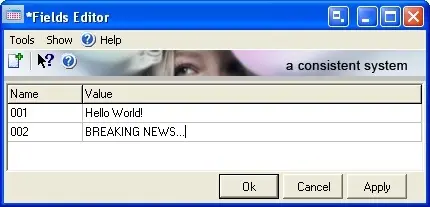
Fields Editor: Allows standard users to perform two different actions depending on if the <xmlparams> field has been imported or not using the "Etere Scheduling > Export/Import > Generic XML" import function:
4978_Generic_XML
▪ Imported: Edit the values of imported <xmlparams> strings.
▪ Not imported: Create and modify the names and values of <xmlparams> strings.
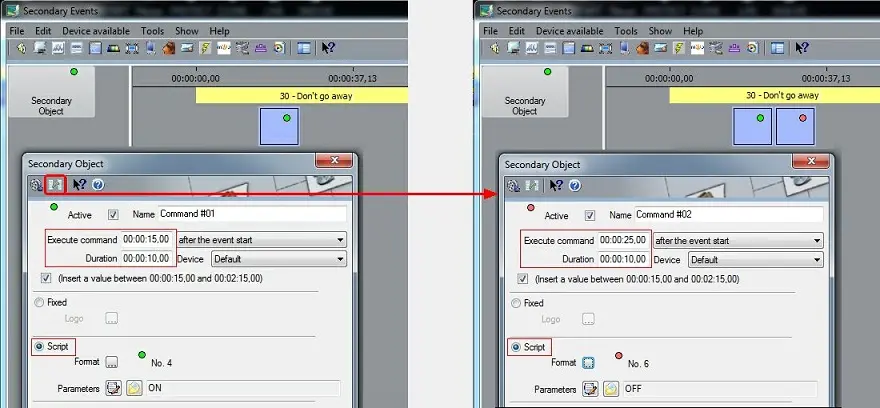
Add another event at the end of the current one: Insert a second "secondary event" (e.g. script that sets off a logo) to be sent at the end of the current one (e.g. a script that sets on a logo).
4980_sets_off_logo
Once pressed, a new "secondary event" will be created starting at the end of the original "secondary event":
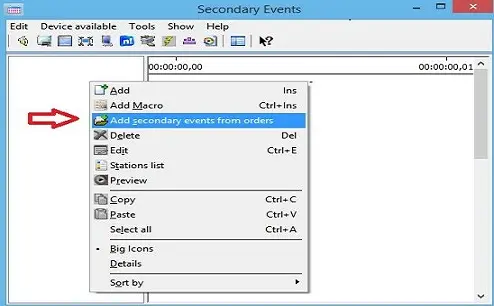
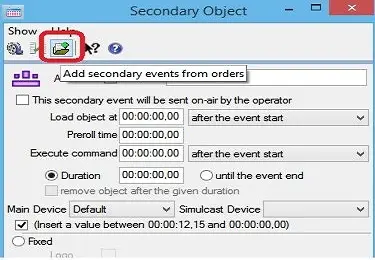
Add Secondary events from orders: Insert a Logo or Ctm from Order Line as shown in the screenshot below. This function is available in Secondary Events form and in Secondary Object form.
4985_Add_Secondary_events
4986_Add_Secondary_Object
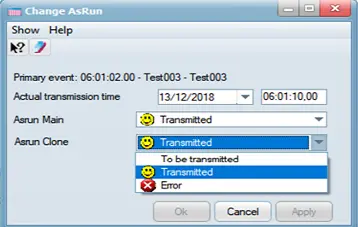
Change AsRun: This function allows you to manage the AsRun secondary events associated to the Primary event.
4983_Change_AsRun
• Actual Transmission Time: You can change the transmission date and time of the selected secondary event, making reference to the start time of primary event.
• AsRun Main: Change the transmission status of the secondary event in the Main Server in cooperation with the changes in actual transmission time.
• AsRun Clone: You can also change the transmission status of the secondary event in the Clone Server.
Click <Apply> to confirm changes and click <OK> to exit from the Change AsRun function. You would need to refresh the Secondary Event form to update the changes in the schedule.
Note: This function is only accessible for user with Supervisor / Administrator privileges. Moreover, when changing AsRun for manual secondary events the option “This secondary event will be sent on-air by the operator” must be enabled.
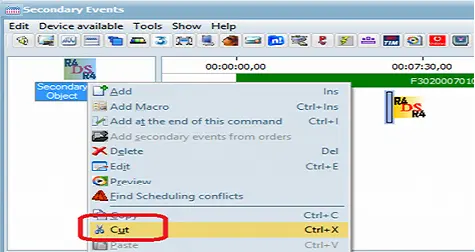
Cut: Unlike the “Cut” function in Executive Editor’s Edit mask which “cut” all the secondary events, the “Cut” feature present here allows to cut the specific single secondary event without intefere with other secondary events. The cut secondary event would be indicated by an overlay icon in the Secondary Events view as well as in the “Secondary Events” column of Executive Editor’s view.
4981_Cut
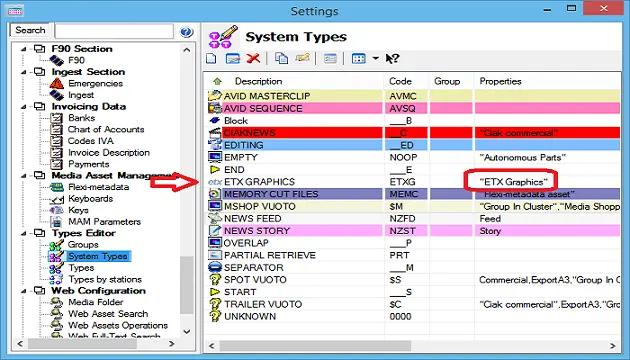
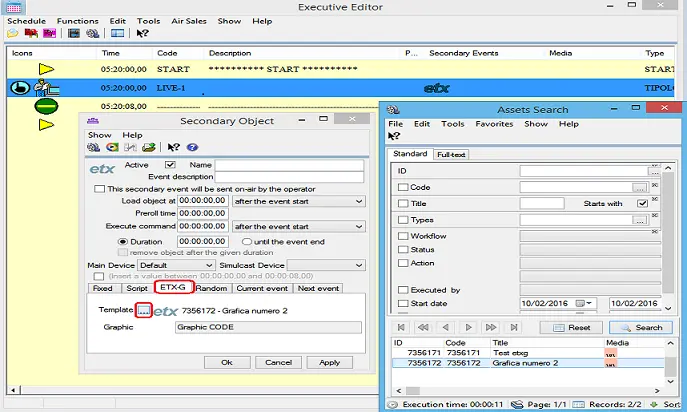
Add ETX-G Section in Secondary Object: To add ETX-G as a secondary event, Add ETX-G secondary event.
Added a type property called “ETX Graphics” (oiEtxG). Added a system type ETXG.
4982_ETX_Graphics
In the secondary object form, it is possible to search only for an asset with "ETX Graphics" property.
The secondary object will be saved with asset ID and metafile name.
4987_Executive_Editor
In TSEC Table fields are filled as follow:
COD_TYPE : ‘G’
CODE: ID_FILMATI of FILMATI table
PARAMS: FILE_ID of FS_METAFILE table
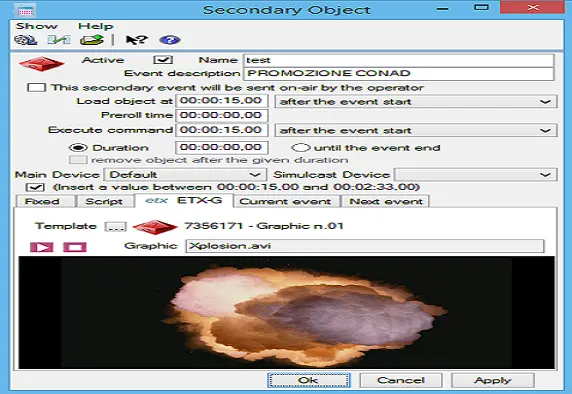
Function: Add Graphic Preview in ETX-G Section
Description: In the ETX-G section of the secondary object form, the preview panel shows the preview of the graphics.
The buttons "Play" and "Stop" are also added.
The EXT-G tab is visible only if at least an asset with "ETX Graphics" property in its type exists.
When you select “Apply”, the graphics are inserted in primary event of the schedule and will go onair by STMan.
4975_Preview_in_ETX-G
NB: If the duration of the inserted secondary event is set till the end of the event, STMan would treat the duration equal to the primary event and remove the secondary event’s logo when the event ends.
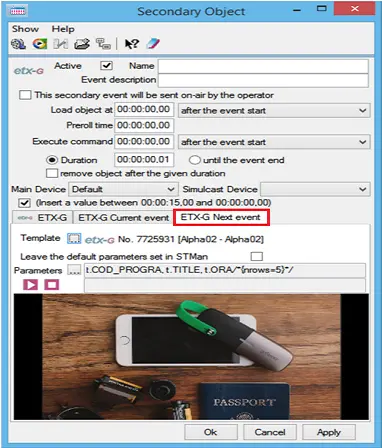
Function: View ETX-G Current Event and Next Event
Description: If the workstation is installed with ETX-G license, you can preview the current and upcoming ETX-G secondary event scheduled by STMan in this tab, without changing the STMan parameter associated to the scheduled event. For ETX-G next event, specify the path in the Parameter and click the <Play> button to start previewing next ETX-G secondary event.
4977_ETX-G_Current_Event
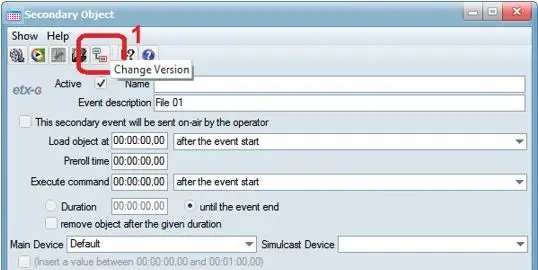
Function: Change version of graphic for secondary object
Description: In the Secondary Object Toolbar, an ETX-G tab has been deployed to change the version of the graphic object to be linked to the asset. This tab is visible only if license EA3213 is installed.
4974_Change_version
When importing a single graphic object into Media Library, the media name of the object is the asset ID. The extension of the object could be .avi, .mov, .tga, .swf.
When importing multiple graphic objects into Media Library, the group of files must contain a file with extension *.ml-cgc, else the importation process would failed with error message “Graphics project not supported by ETX-G”.
During Playout and preview, it must call asset in metadevicepath\id\media name.
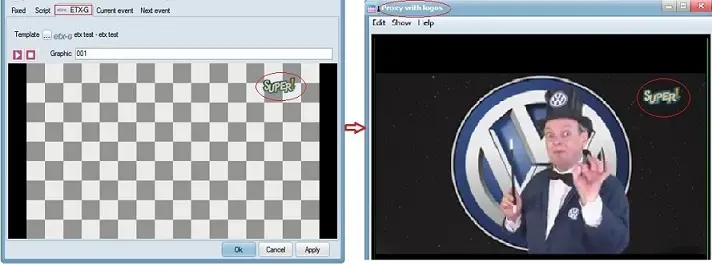
Under the <ETX-G> tab, it is now possible to preview ETX-G graphic using the Preview with Logo function, as shown in below screenshot.
4976_ETX-G
The ETX-G global repository of all graphics are defined in global parameter “Destination folder where graphics will be stored” in the Executive Editor > Schedule Parameters section.
Note
By default, the [Edit] and [Fields Editor] buttons are disabled, they can be enabled by right-clicking on the toolbar and selecting the customize menu.
 4984_XMLparams
 4978_Generic_XML
 4980_sets_off_logo
 4985_Add_Secondary_events
 4986_Add_Secondary_Object
 4983_Change_AsRun
 4981_Cut
 4982_ETX_Graphics
 4987_Executive_Editor
 4975_Preview_in_ETX-G
 4977_ETX-G_Current_Event
 4974_Change_version
 4976_ETX-G