86.1 Edit Function
This chapter describes the functions available in all panels of the Edit tab in Studio Player.
Edit
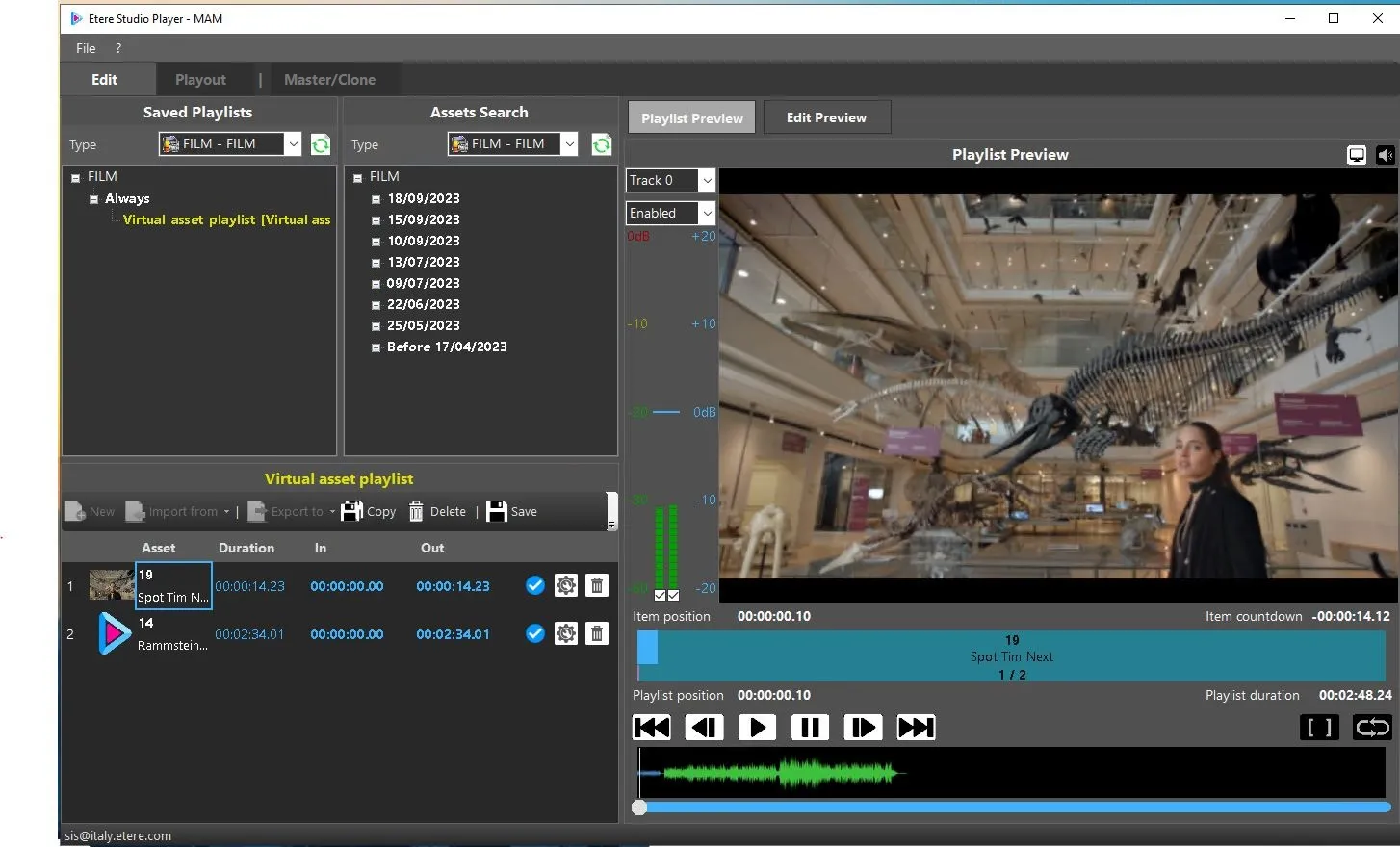
SAVED PLAYLIST PANEL
In this panel, all saved playlists that are allowed to be viewed by current logged-in user are displayed on the workstation. The playlists are determined by workstation, each workstation has its own playlists allocated.
Playlists are displayed in a tree-menu structure, sorted by its validity dates. It's possible to filter the search by type and by text, writing the playlist name or part of it inside the text box. You can double-click on a playlist to open it in Playlist panel.
The Always node contains the saved assets frequently used by the user, without a need to re-create the asset. If the Production date of the ingested file is set as “01/01/1900” it would be grouped in the Always node.
In both Saved Playlists panel and Playlist panel, the selected playlist would be highlighted in blue for easy reference.
Saved Playlists
Upon modification, you must respond appropriately to popup message before exist from playlist, otherwise changes in playlist would not apply.
You can click the Refresh icon to update the list. Upon refreshed, the layout in the panel (whether it is collapsed or expanded) would remain intact.
If changes are made to playlists, the last-saved Type of playlists would be reloaded when the player is relaunched.
Copy playlists structure
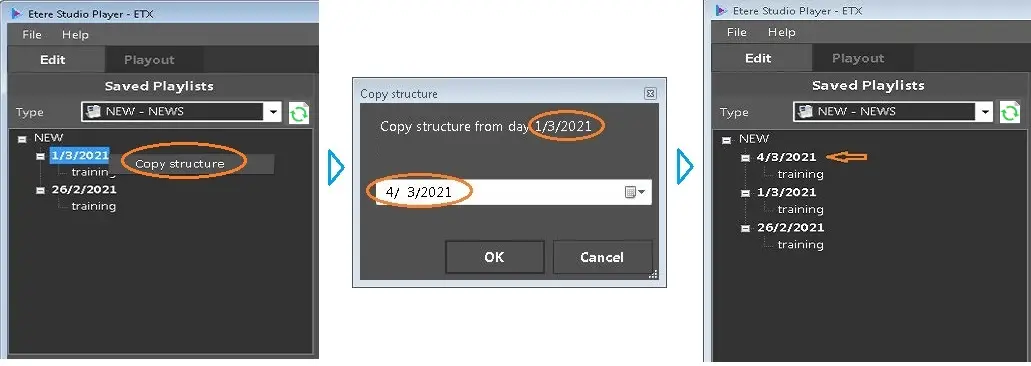
If the playlists structure of the day is similar for a period of time or the playlists structure is repeated, you can copy the playlists structure of a day to be used on another day.
Studio_player_copy_structure
• In the Saved Playlists panel, select the date to copy the structure from, right-click and select function Copy Structure.
• Next, select a destination date in calendar where the playlists structure would be copied to. Click <OK> to confirm.
• Upon copy, the new date appeared in Saved Playlists panel which contains the same structure from the target date.
Please note that only the structure of the day would be copied, the playlists are not copied to destination date. If the destination date contains playlists, the playlists would not be overwritten.
ASSET SEARCH PANEL
In the Assets Search panel, select a media type (e.g. Film) to search for media related to the same type. The type allowed to be selected are based on the access rights defined in Etere Rights Management.
In the Always node, you can find the assets frequently searched by the user to expedite the search process. Assets with Production date set as "01/01/1900" are group in the Always node.
You could also drag-and-drop a media asset to the Saved Playlists item view to be displayed in the Playlist panel.
When the Studio Player in relaunch, the last searched playlist type would be reload in the Assets Search panel.
You can always click the Refresh button to update the search panel. Upon refreshed, the layout in the panel (whether it is collapsed or expanded) would remain intact.
Button Filters
- Search also expired assets (not checked by default)
- Not Ok to broadcast (not checked by default)
PLAYLIST PANEL
Functions available in this panel includes:
New: This function create a new playlist.
Import from: This function create a new playlist from the selected virtual asset.
Export to: This function create a new virtual asset from the current playlist.
Copy: This function copy a current playlist to a new playlist, if copying from a virtual asset playlist, it will create also a new virtual asset with the same clips linked.
Delete: This function delete the current playlist. If playlists from virtual assets are deleted, the virtual assets used still remain in database.
Save: This function save the changes made to the current playlist.
Cancel: Cancel the changes made to current playlist and return to previous playlist.
Properties: This function display/hide the properties panel of the playlist.
To add item to the playlist, simply drag the playlist from the Asset Search panel and drop into the Playlist view.
Upon added to playlist, you can view the drag-and-drop items in Properties tab with proper numbering assigned to the items.
In the Playlist view, you can view the asset information as below:
Thumbnail: It display the thumbnail of the asset.
Asset: It display asset code and asset description.
Duration: The duration of the asset, as indicated in Media Library.
In: It indicate the starting point (SOM) where the asset would be played. You can click on the timecode to edit the SOM.
Upon modified, the SOM would be updated to the asset in playlist, but the changes would not populate to asset in Media Library.
Out: It indicate the ending point (EOM) of the asset in playlist. You can click on the timecode to edit the EOM.
Upon modified, the EOM would be updated to the asset in playlist, but the changes would not populate to asset in Media Library.
Valid: This icon indicate a valid file in the asset.
No valid: This icon indicate there is no valid file in asset.
Edit: This icon allow you to edit the selected asset file in Edit panel.
Remove: This icon remove the playlist from the Playlist view.
In Studio Player interface, the playlist selected for editing is outline with a blue rectangle box in Asset column in Playlists panel.
Studio_player_playlist_in_edit
Edit panel
The Edit panel allows you to modify the asset in the Playlist panel.
The available edit features includes:
Description : In the audio mater, it display the audio track and channels volume:
•You can enable/disable the audio track using the top checkbox.
•You can enable/disable the channel using the bottom checkbox.
•You can set the audio gain for each channel by moving the cursor.
NB: The number of available channels are defined in the playlist.
Shortcut key :
Description : Enable/Disable the video preview on workstation.
Shortcut key :
Description : Enable/Disable audio preview on workstation.
Shortcut key :
Description : Play the playlist.
Shortcut key : <Enter>
Description : Pause the playlist
Shortcut key : Spacebar
Description : Back to previous frame
Shortcut key : “<” arrow key
Description : Go to next frame
Shortcut key : “>” arrow key
Description : Go to MarkIn
Shortcut key : Ctrl + “<”
Description : Go to MarkOut
Shortcut key : Ctrl + “>”
Description : Set the MarkIn
Shortcut key :
Description : Set the MarkOut
Shortcut key :
Description : Discard all changes made to the playlist.
Shortcut key :
Edit Features -
Description : Save all changes made to the playlist.
Shortcut key :
Save GUI settings
If you had change the GUI window size and position, the changes would be saved when you exist from Studio Player. The saved GUI layout would be present when Studio Player is relaunched.
 Studio_player_copy_structure
 Edit
Edit