77.14 UNC Path Access for INGEST and BROKER Services via SYSTEM-Level Network Drive Mapping
1. Purpose of this chapter
INGEST and BROKER services operate in a non-interactive Windows context and, even when configured with a dedicated service account, they do not share the same execution environment as user sessions.
Modern Windows systems implement Session Isolation, where services execute in a separate runtime context compared to interactive user logins. This separation implies that resources such as mapped network drives are not globally available across execution contexts.
Because of this architecture:
- drive mappings created in an interactive session are not visible to services
- services execute in an isolated session context with its own device namespace
- relying on user-level mappings introduces inconsistency in resource availability
As a consequence, any dependency on mapped drives (e.g. R:\) cannot be considered reliable for service execution.
In contrast, UNC paths (\\server\share) are resolved directly by the operating system network layer and are not tied to any specific session. However, in environments where UNC paths are abstracted into drive letters by the application layer (such as ETERE path translation), a consistent and deterministic drive mapping must still be provided at system level.
To ensure this consistency, the mapping must be:
- created at system startup
- executed in the same context used by services
- available before INGEST and BROKER initialization
This is achieved by enforcing a startup procedure that prepares the required network mapping before service execution begins.
2. Operating principle
INGEST and BROKER services operate in a non-interactive execution model and therefore:
- cannot rely on user session resources
- do not inherit interactive network drive mappings
- require a deterministic network resource exposure mechanism
For this reason:
- network resources must be made available through a system-level mapping process
- the mapping must be initialized automatically during system startup
- execution timing must ensure network availability prior to service startup
3. Mapping script creation
3.1 Working folder creation
Create a local folder, for example: C:\Scripts
The folder name and location can be changed as required, provided the configuration is consistent.
3.2 Batch file creation
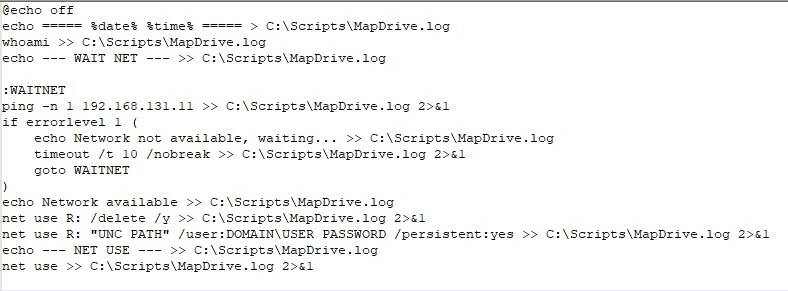
Inside the folder, create the following file: MapDriveR.bat
The letter “R” can be changed depending on available drive letters.
3.3 Batch file content
Edit the .bat file and insert the following script.
Remember to replace the highlighted placeholder values (IPADDRESS, UNC PATH, DOMAIN, USER, and PASSWORD) with the parameters corresponding to your environment.
@echo off
echo ===== %date% %time% ===== > C:\Scripts\MapDrive.log
whoami >> C:\Scripts\MapDrive.log
echo --- WAIT NET --- >> C:\Scripts\MapDrive.log

:WAITNET
ping -n 1 IPADDRESS >> C:\Scripts\MapDrive.log 2>&1
if errorlevel 1 (
    echo Network not available, waiting... >> C:\Scripts\MapDrive.log
    timeout /t 10 /nobreak >> C:\Scripts\MapDrive.log 2>&1
    goto WAITNET
)
echo Network available >> C:\Scripts\MapDrive.log
net use R: /delete /y >> C:\Scripts\MapDrive.log 2>&1
net use R: "UNC PATH" /user:DOMAIN\USER PASSWORD /persistent:yes >> C:\Scripts\MapDrive.log 2>&1
echo --- NET USE --- >> C:\Scripts\MapDrive.log
net use >> C:\Scripts\MapDrive.log 2>&1
3.4 Operational notes
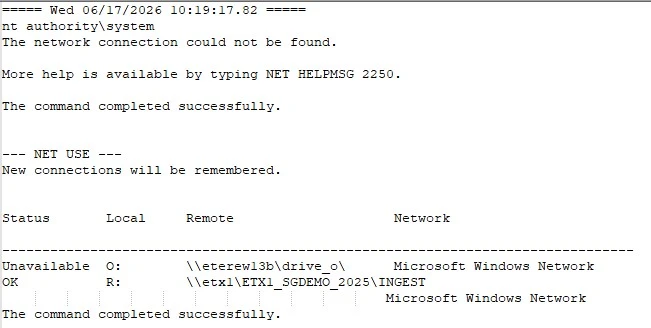
The script generates a full execution log: C:\Scripts\MapDrive.log
- The log can be used for troubleshooting and validation purposes
- A network availability check is performed using
ping - The drive mapping is executed using
net usein SYSTEM context
4. Creating a SYSTEM-level Scheduled Task
4.1 Opening Task Scheduler
- Press
WIN + R Type: taskschd.msc
- Press Enter
4.2 Task creation
Select “Create Task…” (not “Create Basic Task”)
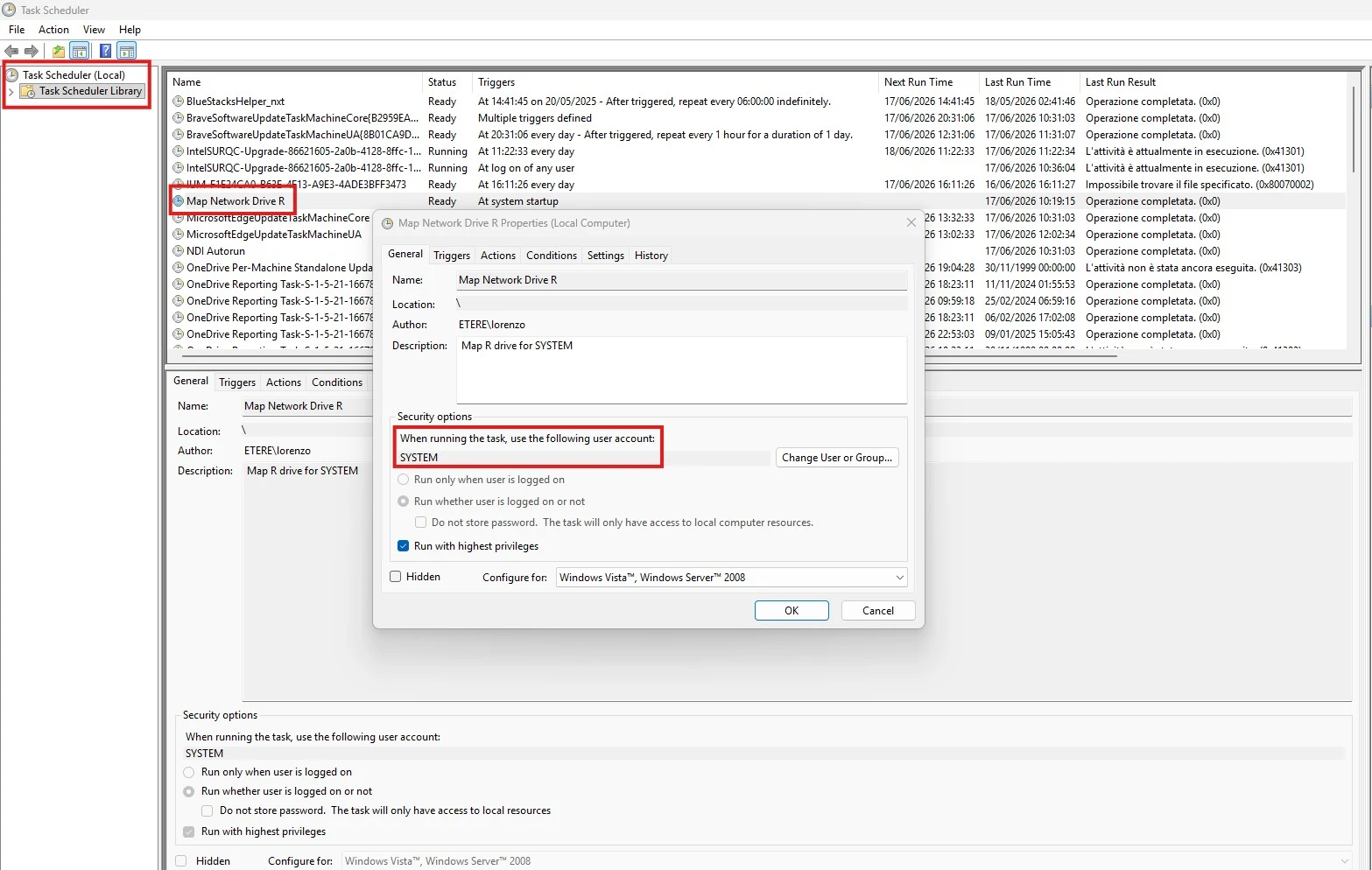
4.3 General tab
Configure as follows:
- Name:
MAPDRIVERR - Enable:
- “Run whether user is logged on or not”
- “Run with highest privileges”
- “Run whether user is logged on or not”
- Configure for: select the appropriate Windows version
Under Security options:
- Click “Change User or Group…”
Enter: SYSTEM
- Confirm
4.4 Triggers tab
- Click New
- Choose the desired trigger:
- At startup
- At logon
- On a schedule
- At startup
- Confirm with OK
4.5 Actions tab
- Click New
- Action: Start a program
Program/script: C:\Scripts\MapDriveR.bat
4.6 Conditions tab
- Disable if required:
- “Start the task only if the computer is on AC power”
4.7 Settings tab
Enable:
- “Allow task to be run on demand”
- “Restart the task if it fails”
Save with OK
5. Task XML structure
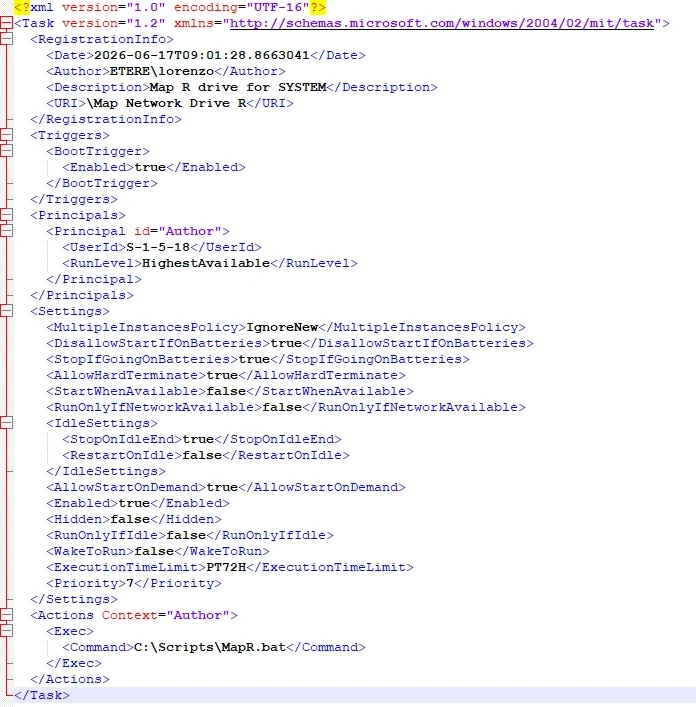
The scheduled task should follow this structure:
<?xml version="1.0" encoding="UTF-16"?>
<Task version="1.2" xmlns="http://schemas.microsoft.com/windows/2004/02/mit/task">
  <RegistrationInfo>
    <Date>2026-06-17T09:01:28.8663041</Date>
    <Author>DOMAIN\USER</Author>
    <Description>Map R drive for SYSTEM</Description>
    <URI>\Map Network Drive R</URI>
  </RegistrationInfo>
  <Triggers>
    <BootTrigger>
      <Enabled>true</Enabled>
    </BootTrigger>
  </Triggers>
  <Principals>
    <Principal id="Author">
      <UserId>S-1-5-18</UserId>
      <RunLevel>HighestAvailable</RunLevel>
    </Principal>
  </Principals>
  <Settings>
    <MultipleInstancesPolicy>IgnoreNew</MultipleInstancesPolicy>
    <DisallowStartIfOnBatteries>true</DisallowStartIfOnBatteries>
    <StopIfGoingOnBatteries>true</StopIfGoingOnBatteries>
    <AllowHardTerminate>true</AllowHardTerminate>
    <StartWhenAvailable>false</StartWhenAvailable>
    <RunOnlyIfNetworkAvailable>false</RunOnlyIfNetworkAvailable>
    <IdleSettings>
      <StopOnIdleEnd>true</StopOnIdleEnd>
      <RestartOnIdle>false</RestartOnIdle>
    </IdleSettings>
    <AllowStartOnDemand>true</AllowStartOnDemand>
    <Enabled>true</Enabled>
    <Hidden>false</Hidden>
    <RunOnlyIfIdle>false</RunOnlyIfIdle>
    <WakeToRun>false</WakeToRun>
    <ExecutionTimeLimit>PT72H</ExecutionTimeLimit>
    <Priority>7</Priority>
  </Settings>
  <Actions Context="Author">
    <Exec>
      <Command>C:\Scripts\MapDriveR.bat</Command>
    </Exec>
  </Actions>
</Task>
6. Application services configuration
Open Windows Services and configure:
- ETERE INGEST SERVICE
- BROKER
Set both services to:
- Startup Type:
Automatic (Delayed Start)
7. System reboot
A full workstation reboot is required to apply the configuration correctly.
8. Important ETERE configuration note
It is mandatory to correctly configure path translation inside ETERE, ensuring that enabled workstations use the mapped drive (R:) instead of direct UNC paths.
This ensures:
- compatibility with SYSTEM-level service execution
- proper network resource handling
- stable operation of INGEST and BROKER workflows
 Example_BAT
 Example_Task
 Task_Scheduler
 Example_Logs
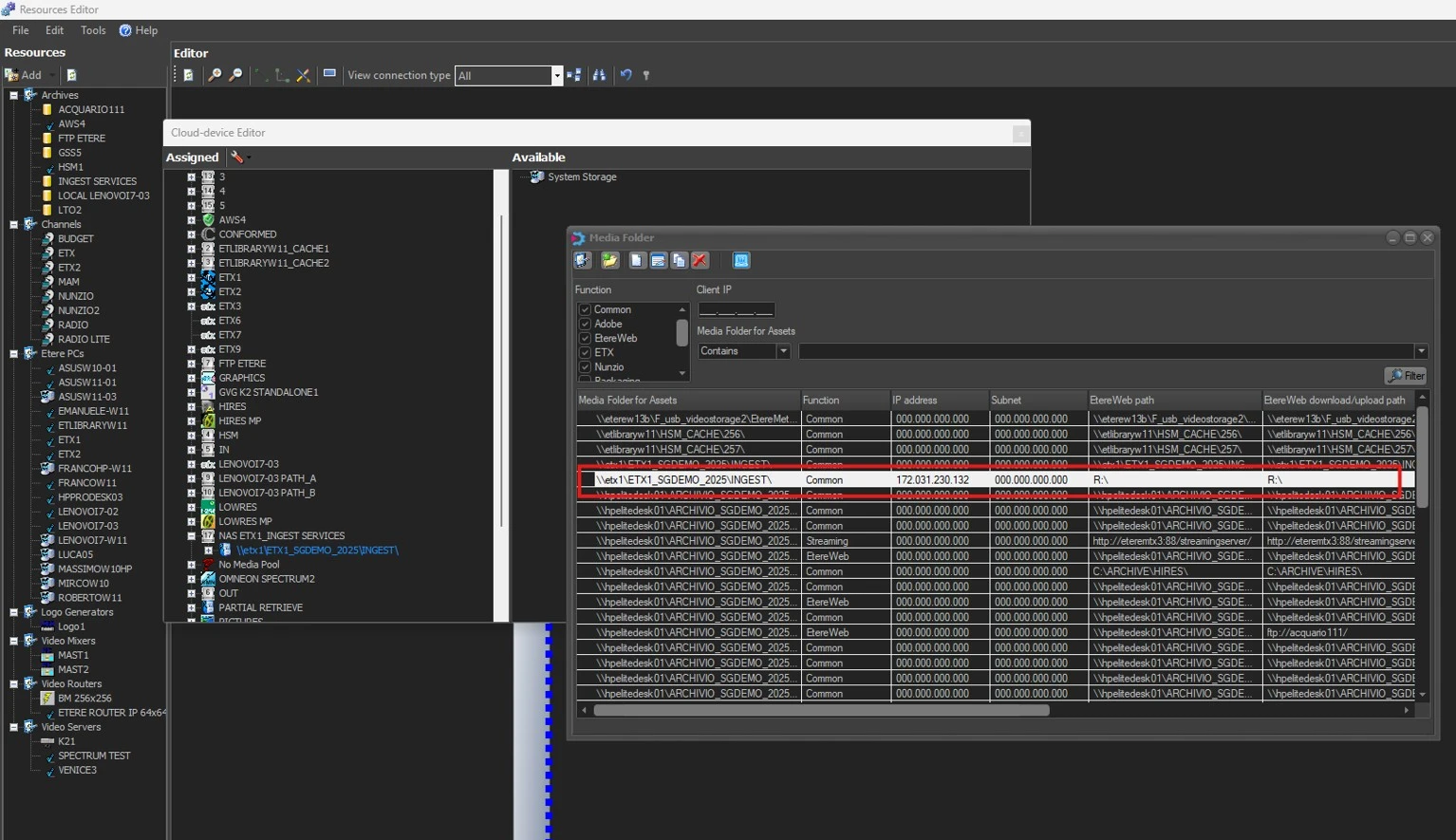 MediaFolder
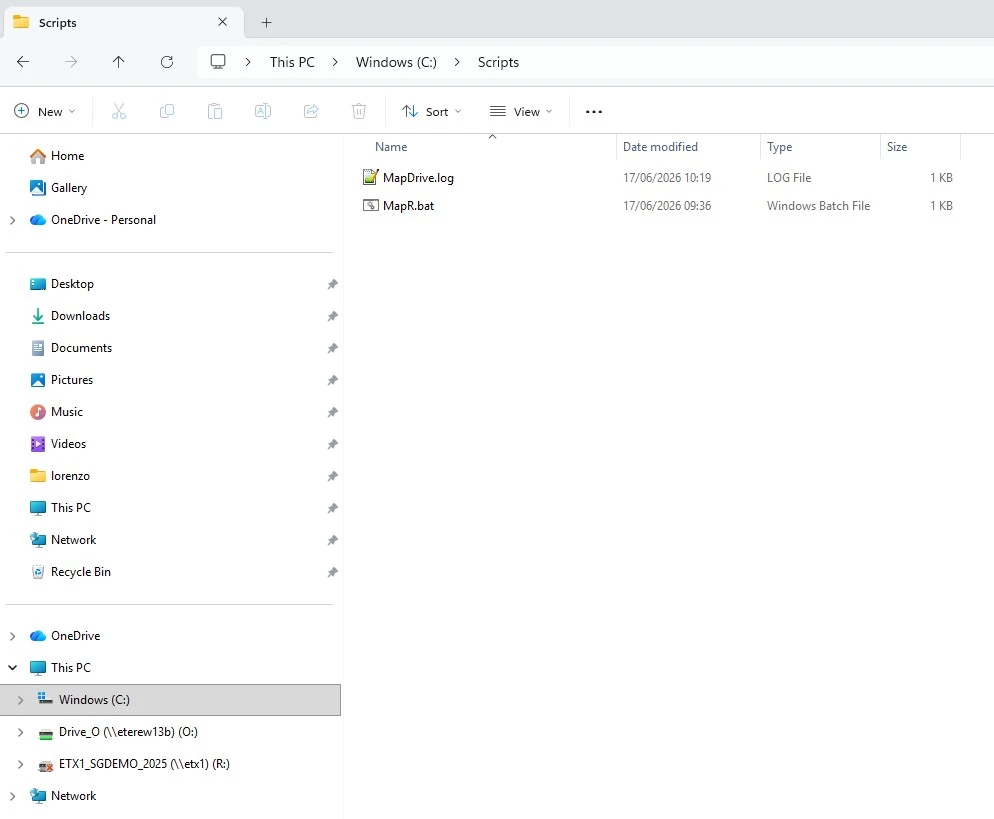 C_Scripts