97.1 Requesting media from another system by using Etere API
In this chapter, we describe how to request media from one database (DB A) to another (DB B).
This operation is possible in ETERE by using the ETERE Web Services (API) -> this requires the license EA6753 - Etere Web Services (API).
Following this procedure, you will be able to trigger workflows on a remote database to retrieve missing media and keep assets synchronized between the two systems.
Example:
In DB A there is no media for the asset code 100. The restore workflow checks if the storage in DB A has the media. If not, it requests the media from DB B.
STEP 1 > Configure the Sites
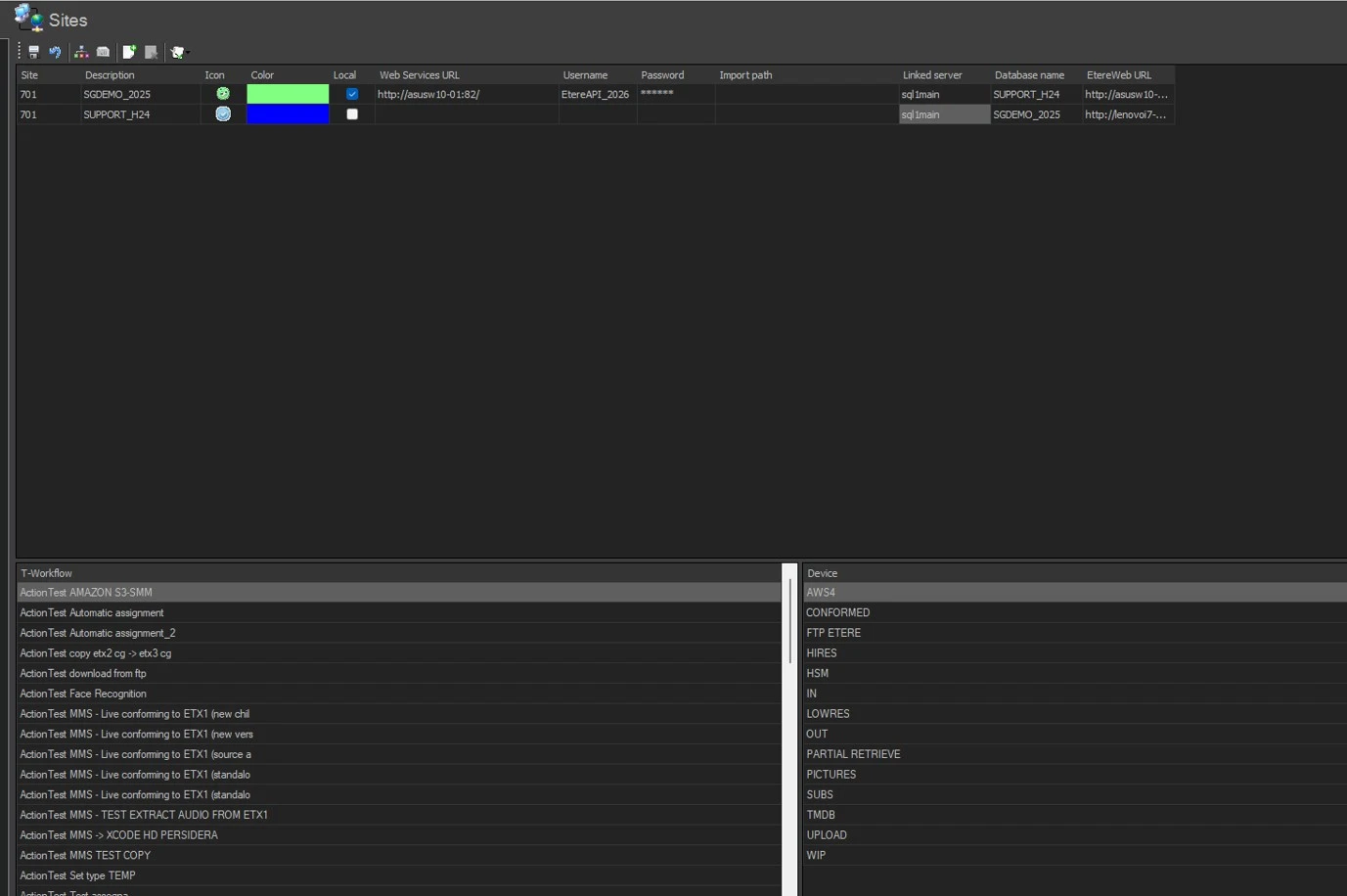
In the database of DB A, configure the sites to execute the API call for attaching and starting the workflow in DB B.
Path: Configuration > Configuration Editor > Sites > Sites
You need to create two sites: one for DB A and one for DB B.
For the first site (DB A):
- Site: DB A
- Description: DB A - Local Site
- Icon: Choose any
- Color: Choose any
- Local: Enable
- Web Services URL: Enter the API URL of DB B
- Username: Enter API user for DB B
- Password: Enter API user password
- Import Path: Leave empty
- Linked Server: IP address of SQL Server hosting DB B
- Database Name: Name of DB B database
- EtereWeb URL: URL of DB B portal
For the second site (DB B):
- Site: DB B
- Description: DB B - Remote Site
- Icon: Choose any
- Color: Choose any
- Local: Leave unchecked
- Web Services URL: Leave empty
- Username / Password / Import Path: Leave empty
- Linked Server: IP address of SQL Server hosting DB A
- Database Name: Name of DB A database
- EtereWeb URL: URL of DB A portal
Click SAVE, restart Configuration, and go back to the Sites section.
STEP 2 > Update Workflows and Device Lists
Use the buttons in the menu bar:
- Update Workflow List: Connects to the Web Services of the remote site and retrieves all T-workflows authorized for the login account.
- Update Devices List: Connects to the Web Services of the remote site and retrieves all available devices.
After this, under LIST OF T-WORKFLOWS (bottom left) you will see all workflows detected from a specific site.
Under LIST OF DEVICES (bottom right) you will see all devices detected from a specific site.
STEP 3 > Create the Action to Trigger the Workflow
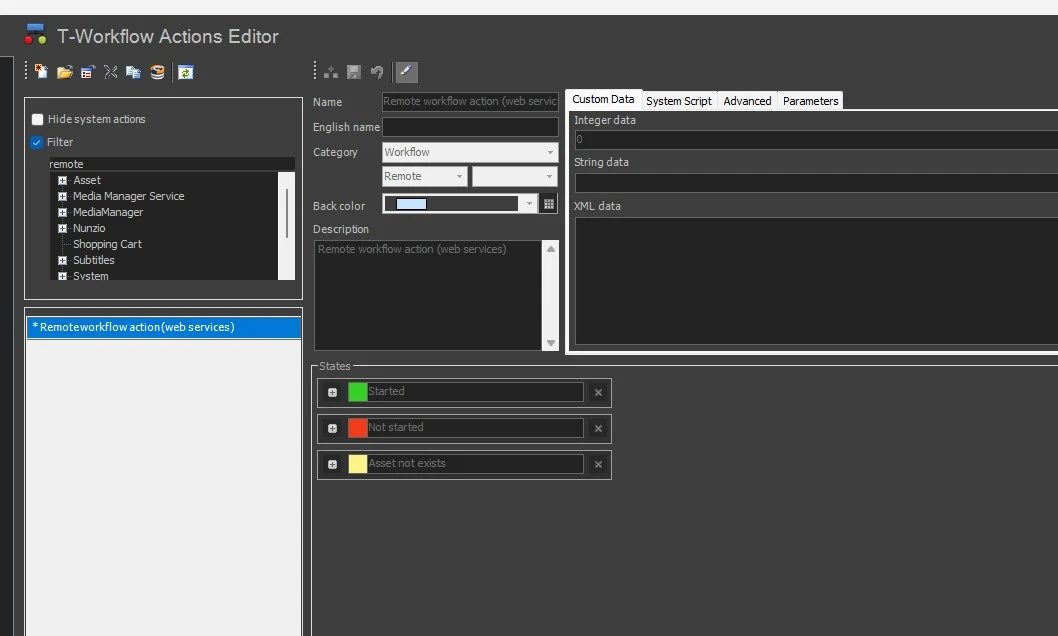
In DB A, create a new action "Remote workflow action (linked server)":
- Name: Short descriptive name for the action
- Site: Select the external site where the workflow will run (DB B)
- Select Workflow: Choose the T-workflow to launch in the remote site
- Select Operation: Select Attach and Start Workflow Instance
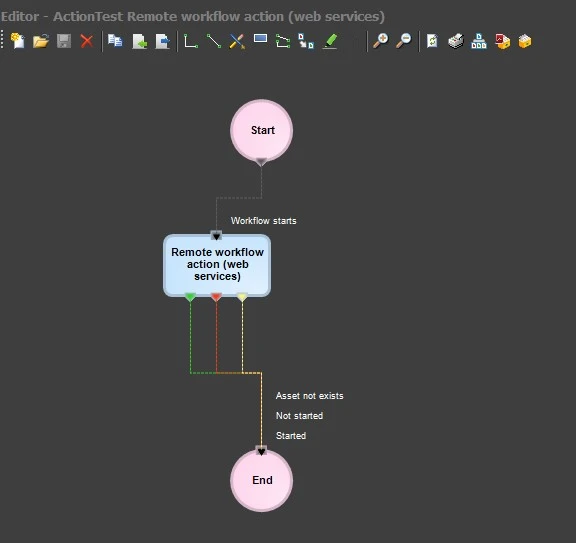
This action can now be inserted in a workflow to run it for a specific asset code.
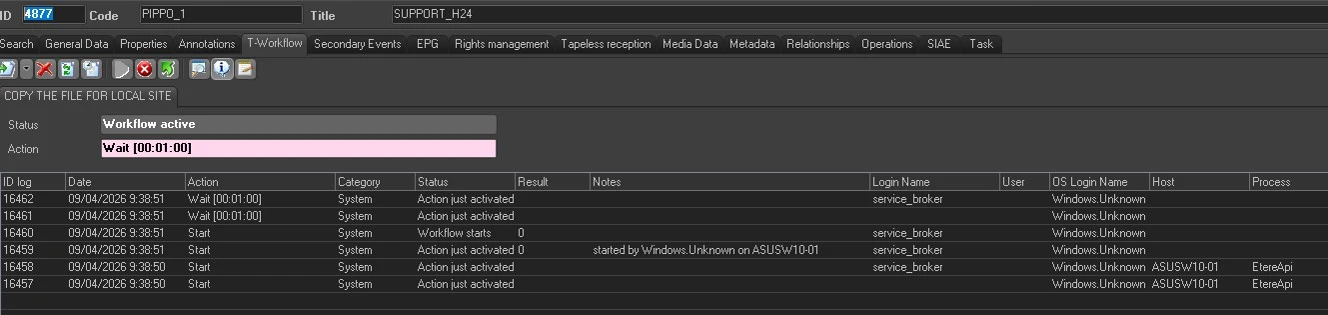
STEP 4 > Request for a Missing Asset on DB A
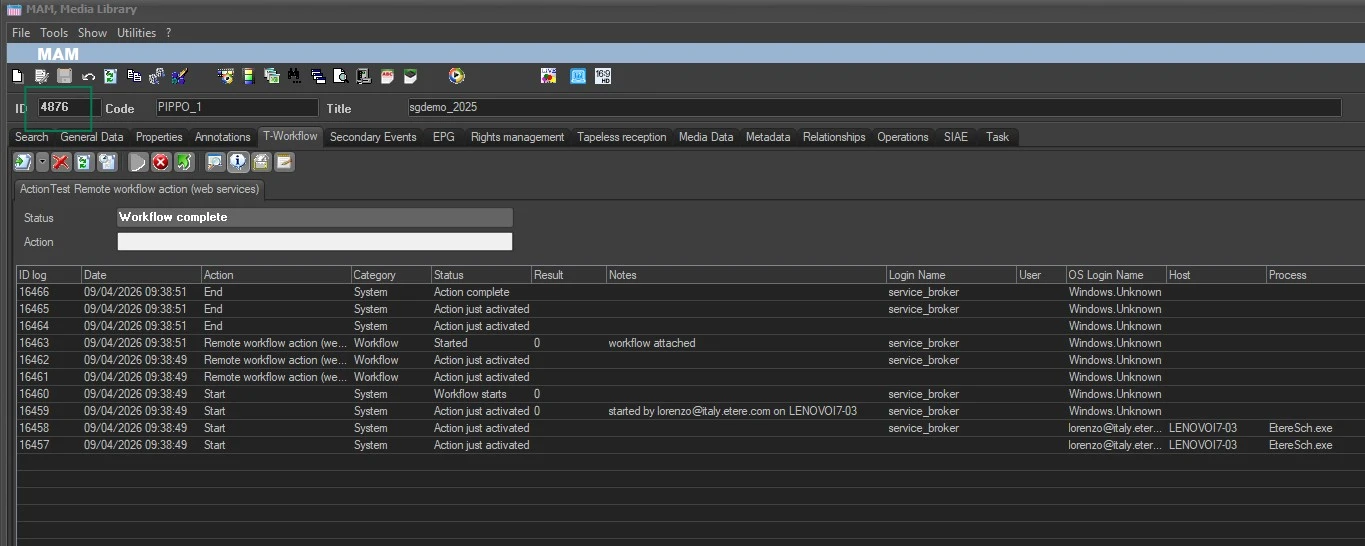
- Open an asset in DB A where the metafile is missing
- Launch the workflow containing the action created in STEP 3
ETERE will trigger the workflow in DB B for the same asset code.
Note: The asset code must be identical in both databases.
Example:
In DB B, the triggered workflow may copy the file to a watch folder.
In DB A, Active Sync scans the watch folder, detects the file, and links it to the correct asset based on the asset code.
The file must be renamed using the same asset code in both databases.
By following these steps, you can request media from another system and keep the asset synchronized between DB A and DB B.
It is mandatory that the asset CODE is the same between the two sites, DB A and DB B; otherwise, the procedure described above will not work.
Additional Notes:
Further information about the API can be found in Chapter 19.0.0.0, while the actions to be used in workflows are available in Chapter 59.3.9.0.
 EtereSites
 RemoteWorkflowAction
 WfToStartARequest
 WfToAskAFile
 WfAttachedOnDBA