1.3.2 Pre-installation Checklist
The following is a list of necessary settings to be implemented before installing Etere modules to optimize Etere Ecosystem.
Note: See the images on the right as a reference for the configurations to apply.
• Windows updates - Servers and PCs must be updated with the latest cumulative updates from Windows.
• Disable UAC - Disable the user account control in Windows. It's also possible to do so by command line:
reg.exe ADD HKLM\SOFTWARE\Microsoft\Windows\CurrentVersion\Policies\System /v EnableLUA /t REG_DWORD /d 0 /f
• Disable IPv6 - Etere does not support IPv6 communication, it's suggested to disable IPv6 management in Etere PCs and servers.
• Disable NIC Card - If multiple NIC cards are in the system, turn off those NICS not in use.
• Uninstall not relevant software - Uninstall all the OEM and built-in software and apps not relevant for Etere usage. Except for VLC and Medianfo where already installed.
• Firewall - Disable Firewall for domain and private networks and windows defender. It's also possible to do so by command line:
reg.exe add HKLM\SOFTWARE\Policies\Microsoft\Windows Defender /v DisableAntiSpyware /t REG_DWORD /d 0000001 /f
• File explorer options - Set them to show hidden files and folders and disable "hide extensions" option, as in the picture.
• Internet options - Disable the option "Check for publisher's certificate revocation".
• Preferred Regional Settings - In the Control Panel, launch the Region and Language > Addition Settings; the following settings boxed up in green are preferred.
• Workstation Name - The length of the workstation name is limited to 15 characters. If it is longer, the warning "The name of this workstation is too long. It cannot be used; make it shorter than 15 characters." will appear and it will not be added to the database.
For Servers managing real-time video
• Power Options - In Control Panel > Power Options, set up the following:
- In Show Additional Plans, turn on the High-Performance option.
- In Change when the computer sleeps, set both "Turn off the display" and "Put the computer to sleep" to "Never".
• Allow Remote Desktop - In Control Panel > System, access Remote Settings and enable "Allow connection from a computer running any version of Remote Desktop."
• System Performance / Visual Effects - In Control Panel > System > Advanced system settings > Advanced tab > Performance settings, set "Adjust for best performance" in Visual effects tab.
• System Performance / Programs - In Control Panel > System > Advanced system settings > Advanced tab > Performance settings, set "Adjust for best performance of: Programs" in the Advanced tab.
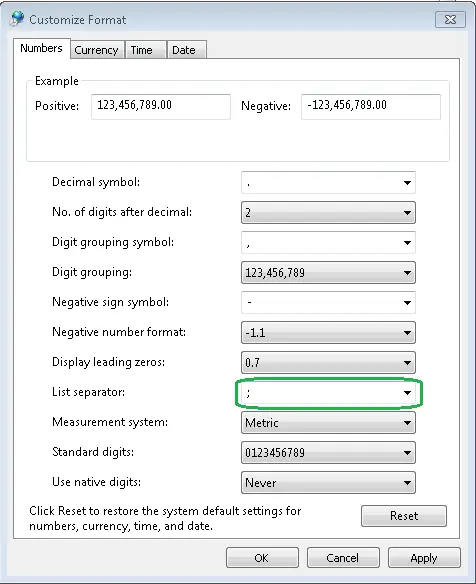 Preferred Regional Settings - Numbers
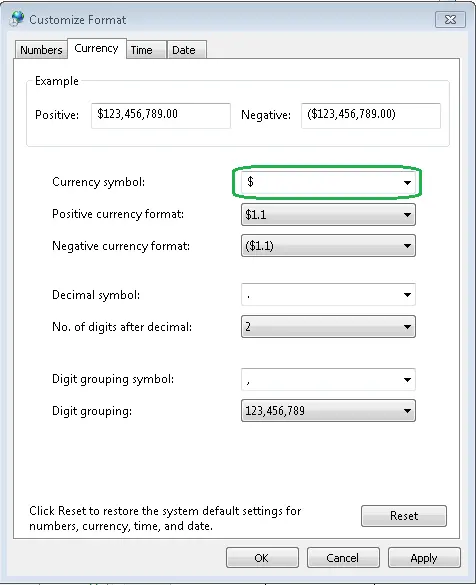 Preferred Regional Settings - Currency
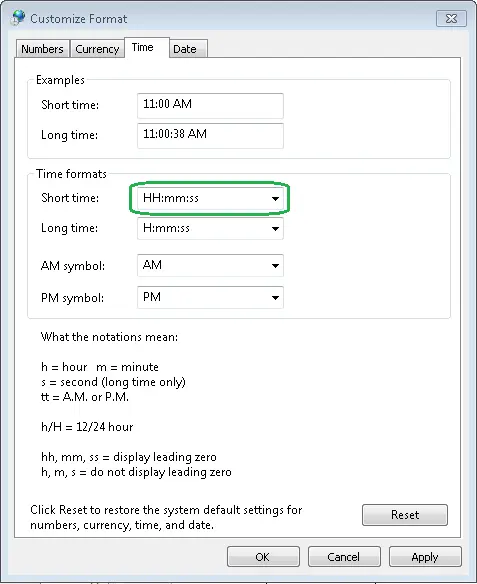 Preferred Regional Settings - Time
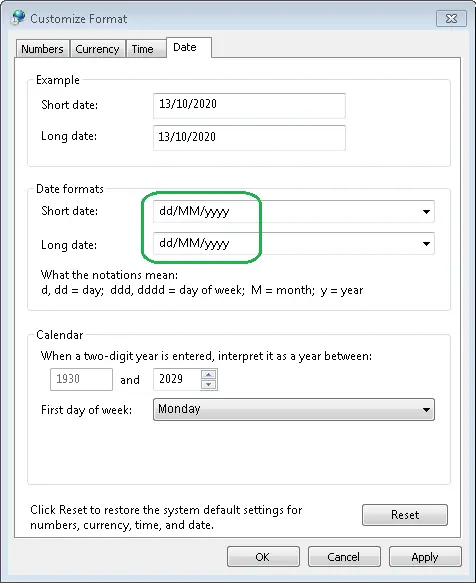 Preferred Regional Settings - Date
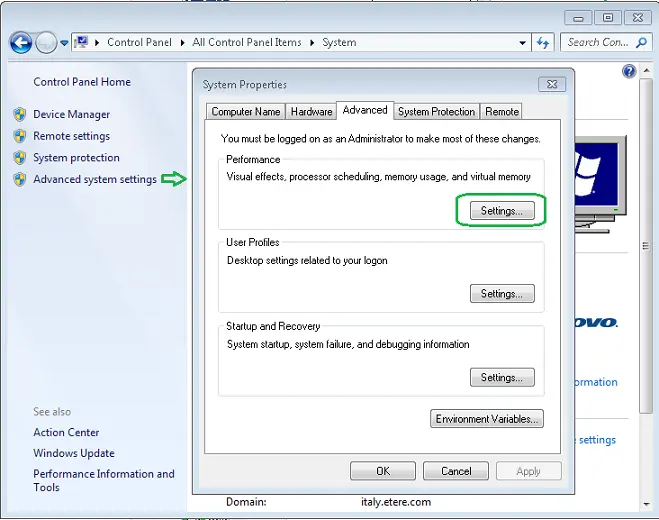 Set System Performance - Visual Effects
 Performance Options
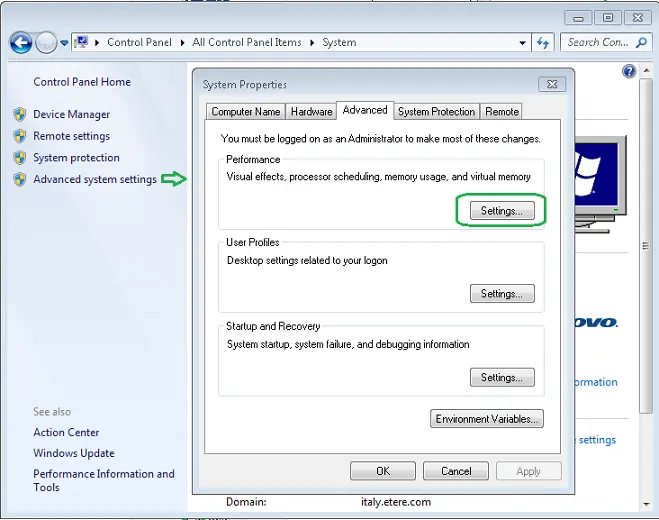 System Properties
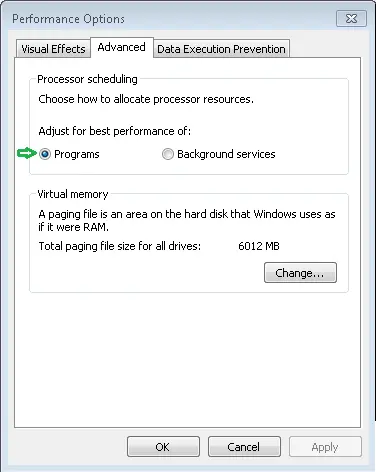 Adjust for Best Performance
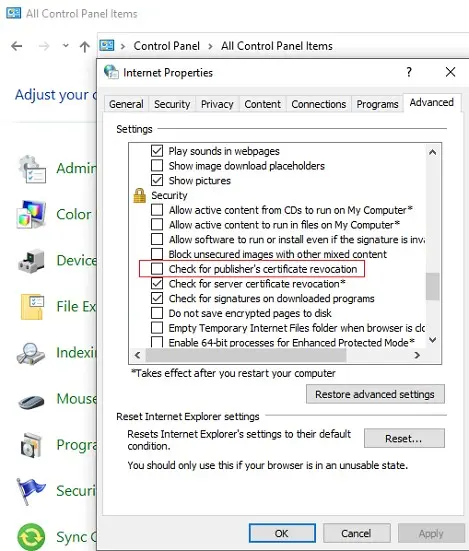 internet_options
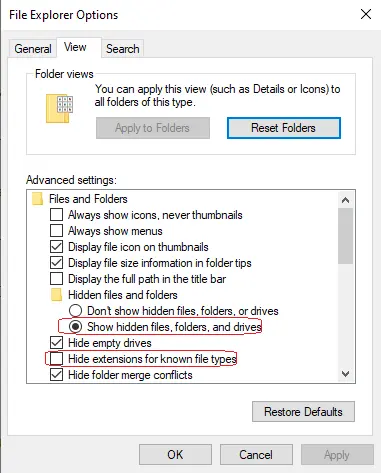 file_explorer_options
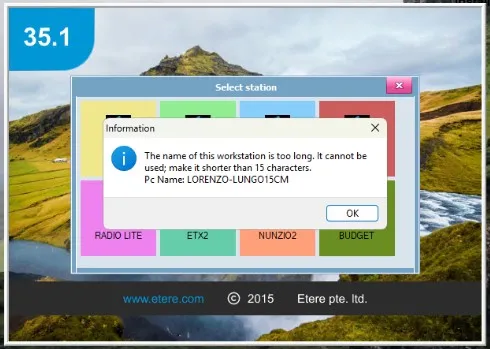 Workstation_longer_than_15_characters