72.18.1.2 Settings
Installation:
This application (Etere.Light.Client.exe) does not require installation it can be directly run standalone in any Windows computer with .Net framework 3.5.
Note: From Etere version 27.3 or higher, Microsoft .Net Framework 4.2 is required.
Note: From Etere version 28.1 onwards, Microsoft .Net Framework 4.5 is required.
System settings
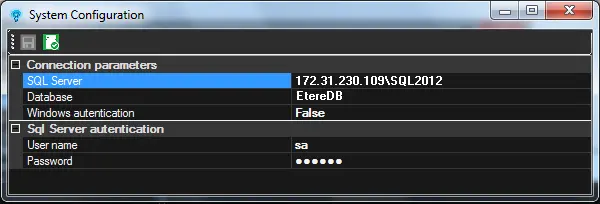
The "Configuration > System" menu function allows specifying the parameters required by the application to connect to the Etere database:
System Configuration
Server - Enter the name of the server (e.g. SQL2012) where you have installed the SQL Server.
Database - Indicate the SQL database (e.g. EtereDB) to be connected.
Windows authentication - If set to true, the application will be authenticated in the server using the current windows logged in user. If set to false, the authentication will be performed using the username and password set below.
Username - The SQL User ID used to access the server.
Password - The password needed to authenticate the user into the server.
Once parameters are set press either the [Save] button or the [Test] button to check the correctness of the connection.
NB: Settings are individual for each computer's logged in user as they are stored in the windows registry.
Search cloud-devices and asset-type
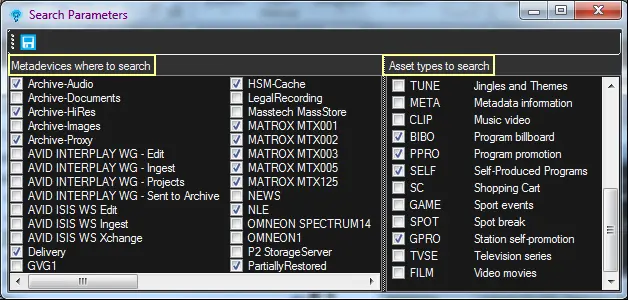
The "Configuration > Search" menu function allows filtering:
Search Parameters
Cloud-devices - Check the cloud-devices in which media will be searched and press the [Ok] button.
NB: Every time the database is changed, it will be required to select the search cloud-devices to be used.
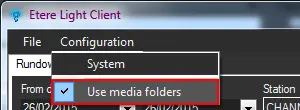
Moreover, the "Configuration > Use media folders" menu function allows specifying whether or not use the media folders configured for each metadevice:
Use media folders
Asset-types - Check the asset types for which media search and download will be allowed.
 System_Configuration
 Search_Parameters
 Use_media_folders