79.4.8.14 Stories Management
Nunzio Rundowns are made of stories which are scheduled in a progressive manner to accomplish any Newsroom broadcasting company needs.
Etere Nunzio embed a powerful Rich Text Editor to allow content creators to easily build their stories, adding content such as Video, MOS Objects, Graphics, Lives, etc, relying on the consistency of the Etere database.
Within a Nunzio Story is possible to design enterprise-based content and managing it through a powerful user interface.
The functions to manage the stories includes:
- Show story layout: This function allows the content creator to have a visible timeline on the left of the Story Creator panel. It’s a helpful and powerful tool which helps Newsroom operators to better manage time elapsing within a Nunzio Story. It shows the time for every Nunzio object inserted in the story body, including text;
4794_Show_story_layout
WARNING: Avoid creating story containing “Break” or “Live” in story title to be placed on first clip or first story. If unavoidable, amend the story’s title with an appended under-scope sign, e.g. “_Break” or “_Live”.
4795_Functions_bar
- New: This function create a new story.
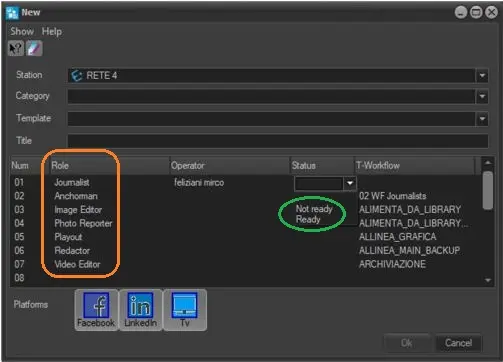
4792_New
- Station: Select a station where the story would be created.
- Category: Assign a category to the story, e.g. Sport, News. You can obtain a list of all categories by generating the Stories by Category report from Etere Web.
- Template: Select a template to be used.
- Title: Assign a title to the story.
- In the Assignment form, you can assign the new story to any Roles (link to 31.4.3.1.5 Roles) that defined in the Roles category in Staff node. Upon selecting the Roles, you can set the story status as “Ready” or “Not ready” and assign a T-workflow to the story.
- If at last one user is set to “Not ready”, the story would be set to “Not ready”.
- If the story is set to “Ready” by all users, the story would be “Ready”
Note: In case no category is assigned to a new story, a warning message would be displayed to alert the user.
- Save: Save the current story in the database. You can also "Ctrl + S" to save the story.
- Undo: Cancel the last performed action.
- Redo: Redo the last edit action.
- Edit: If a story is locked (i.e. being edited by another user on another computer), it would displayed as "read only", displaying a warning message in the status bar of the Story panel.
The user name who locked the story and its workstation name are displayed:
"Locked by [username]@[workstation]"
Moreover, the status of the story been edited would be changed from “Ready” to “Not ready” in Story Basket.
Note: You can zoom in or out a Story without opening it in read-only mode.
You should avoid editing story or move story position too close to the playout time, else the playout list would be rearranged if modification is not loaded in time.
Under the Lock management, the following criteria applied during editing:
- Every time you edit and save a story, the Story Editor goes into "read-only" mode. You would need to click the Edit button to continue editing the same story.
- When a story is edited but has yet save to database, loading and editing of the same story from other users are not allowed.
- Heading style: Apply the heading style (colored, big and bold) to the selected text. Heading style are usually highlighted on the Prompters side, which helps anchormen to easily recognize a new story in the Newsroom journals. The heading style is automatically applied to the first row of the text (which by default contains the title of the story).
- Subheading style: Apply the subheading style (medium and bold) to the selected text. It is used to highlight the important aspect of the story. The font size of the subheading text would align with the same font size in Comment text and Prompter text.
The subheading would be displayed in black on white background. The subheading text would not be read by the anchorman.
- Normal style: Apply the normal style (white and small) to the selected text. The normal style is automatically applied when the user start typing a new line, below the title.
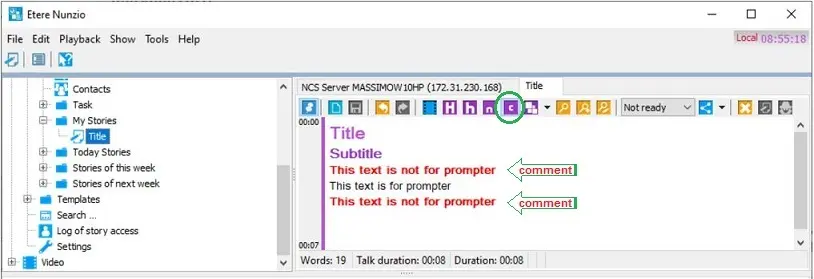
- Comment style: Insert comments or additional information to prompter, or paste the comments using Sticky Notes. The comments would be displayed in RED colour which are not required to be read by archorman.
4793_Comment_style
WARNING: When sending text object to teleprompter, the prompter text is present in WHITE color. Prompter text not required to be read by archorman would be present in RED colour.
- Font style: Apply font style to the highlighted story text.
- Set the selected text to bold.
- Set the selected text to Italic format.
- Underline the selected text.
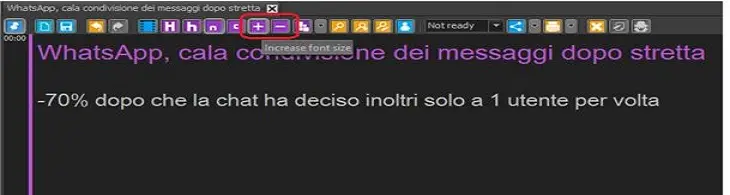
- Increase / Decrease Font size: You can modify the font size for normal text and comment using the “plus” and “minus” buttons as indicated below.
4791_Increase__or_Decrease_Font_size
The adjusted font size would also be applied to the panel object font size in Nunzio tree view.
- Add object: You can add the following objects into story:
- Camera Control: Allow the control of the connected Cameras from camera presets of Etere Camera Control module. Check Device Controller chapter for camera settings.
- ETX-Graphic: Add Etere Graphic, fetching directly from the Etere Database.
- Images: Add a static image from the filesystem.
- Live: Add a Live source to the story body.
- MOS Object: Add a MOS Object from the MOS Device connected to the Nunzio Ecosystem. From Etere version 33.2, information like duration, start time, trigger type etc. have been added to the mos_object in the story.
- Add Secondary Video: Create a new Secondary Video and insert it into the story.
- Sticky Notes: Add a Sticky Note of different colors in the story. In the story printout, each sticky note is inserted into a dedicated box, placed between paragraphs.
- Video: Create a new Primary Video Object and insert it into the story. You can also search for an existing video linked to an asset in Etere database, just open Video from the Nunzio tree, then drag and drop into the story. By drag & drop, it's also possible to replace a video inside the story: simply drag it from the Video Search form and drop it onto the video in the story.
- Voice Over: Create a new Voice Over Object and insert it into the story.
- Find: Search all words within the story matching a given keyword.
- Find next: Quickly move to the next text matching the given keyword.
- Replace: Replace all string matching a specific text with a given replacement.
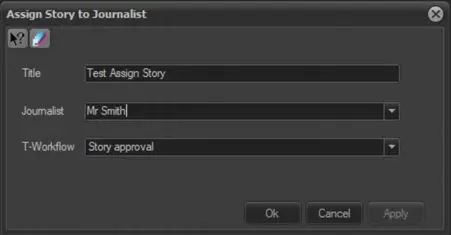
- Assign story to Journalist: This icon allows you to assign the story to Journalist when creating the story or in the Rundown.
4790_Assign_story_to_Journalist
If the story is reassigned to another Journalist, the T-workflow would be restart to alert the Journalist.
If you do not assign the story to any Journalist, the Story would be indicated as “Not yet assigned” under the “Personal in charge” column in Rundown Editor.
- Status: Indicates if the story is either:
- Ready - The story is "ok to broadcast".
- Not Ready - The story is "not ok to broadcast".
The story will be prevented from automatic playback.
Changing the status needs the [Save] button to be pressed to apply changes.
Note: When the story’s status is “Not ready”, both Editors and Journalists can modify the story. While in “Read” status, only Editors could modify the story. Once a story had been approved (“Ready”), no modification would be allowed.
- Platforms: Allows publishing the story on selected platform, including social network such as , Facebook, Twitter, or YouTube.
- Reports: This icon launch the three major Nunzio Stories reports.
- Delete: Discard the story, removing it from the system.
- Headlines: If enabled, default graphics will not be transmitted along with the video of the current story.
See chapter 79.4.8.10 Story Settings for more information about default graphics. - Load auto recovery snapshot: It allows to restore from a previous version of story if error occurred during loading.
 Assign_story_to_Journalist
 Increase__or_Decrease_Font_size
 New
New
 Comment_style
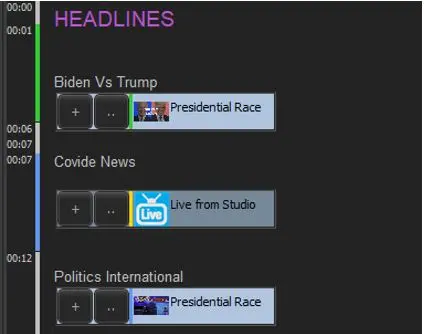 Show_story_layout
 Functions_bar