72.2.2.69 Metadata
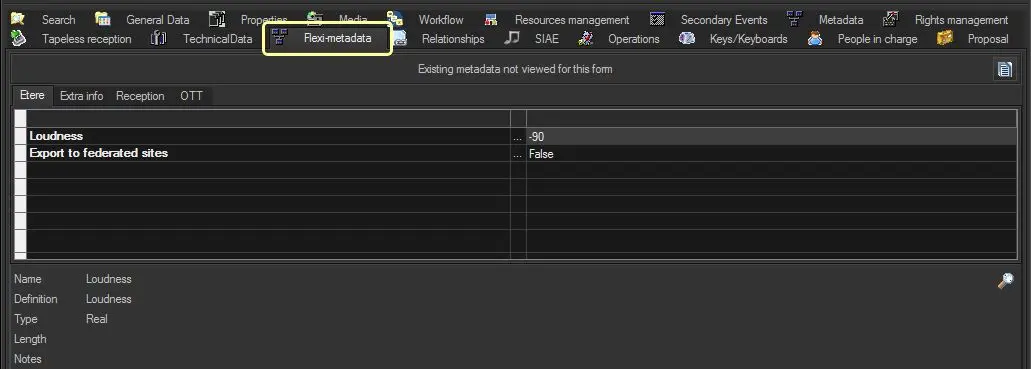
The Metadata section allows you to manage key Flexi-metadata relevant to the asset in question:
flexi-metadata
Note: The [More metadata] icon on the upper-right corner of this panel, allows viewing all metadata available for the asset type but not included in Metadata layout.
Editing Flexi-metadata Information
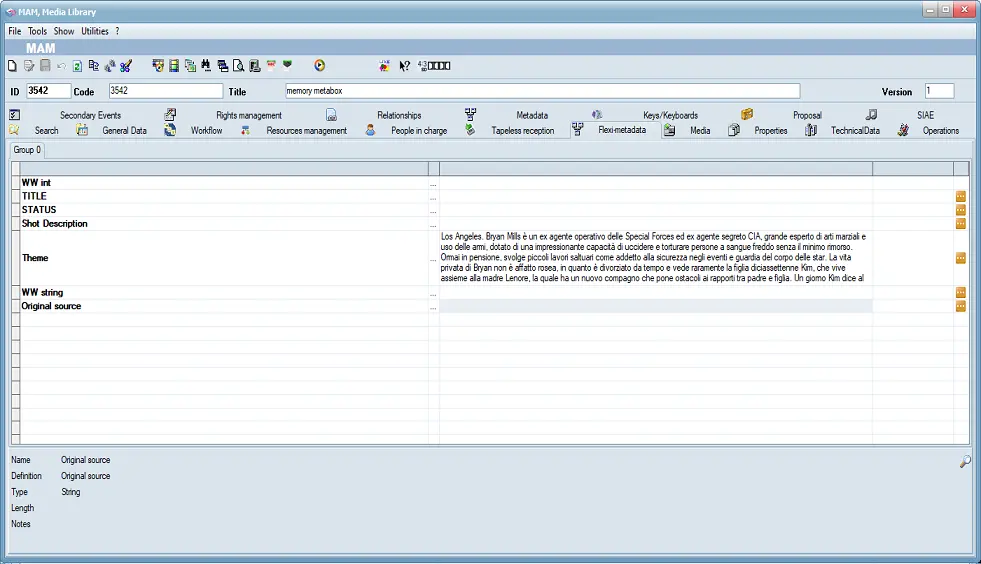
If the Flexi-metadata contains long string of data, you can enlarge the relative description to a fixed height to a maximum of 5 rows.
flexi-metadata 1
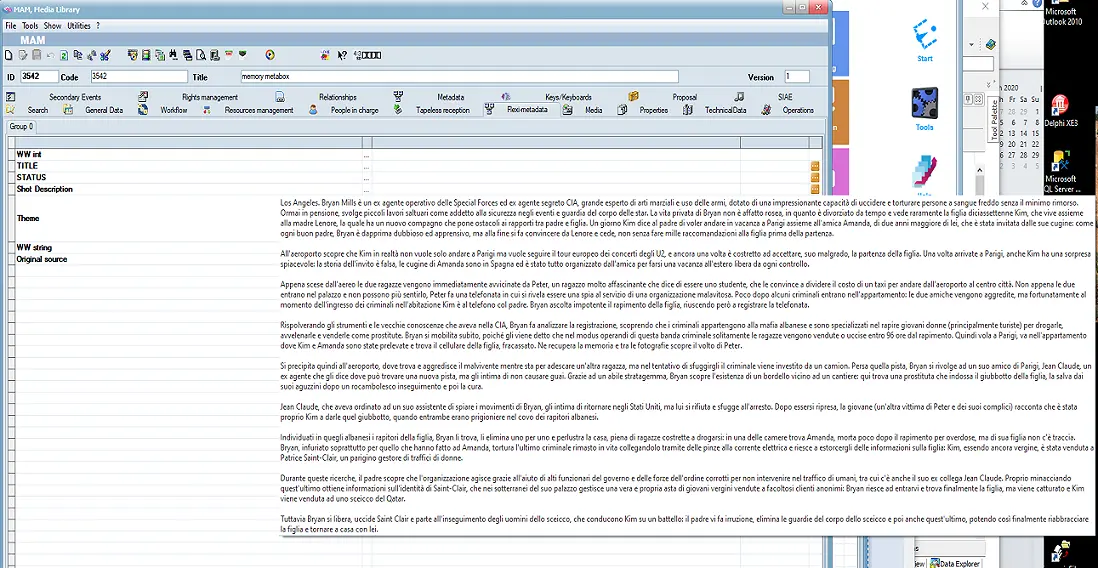
In the field hints it would display the whole description of the flexi-metadata.
flexi-metadata 2
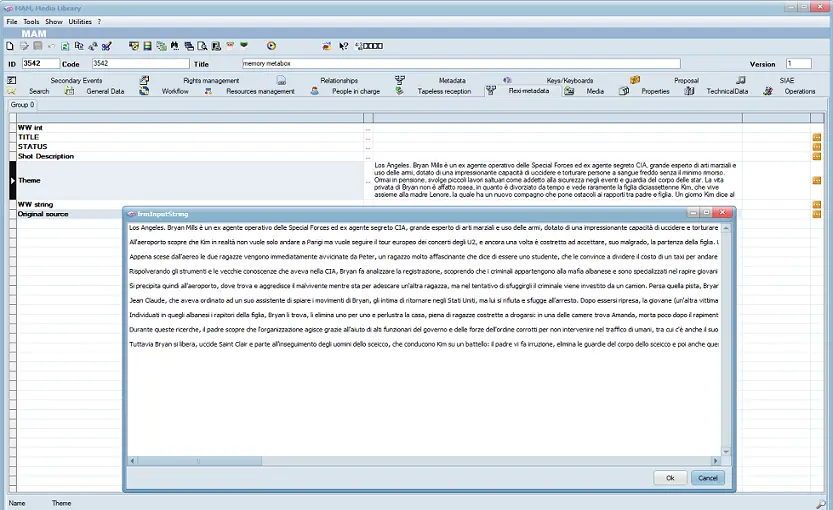
Moreover, the edit feature would allow you to modify the flexi-metadata in separate window.
flexi-metadata 3
If the option “Save flexi-metadata on edit” is enabled in Configuration > Settings > Basic Settings > Media Library > General, the input data would be automatically saved upon edit. Else, use the “Enter” key or “Shift + F12” function keys to save the input data before exit.
Configuring Flexi-metadata
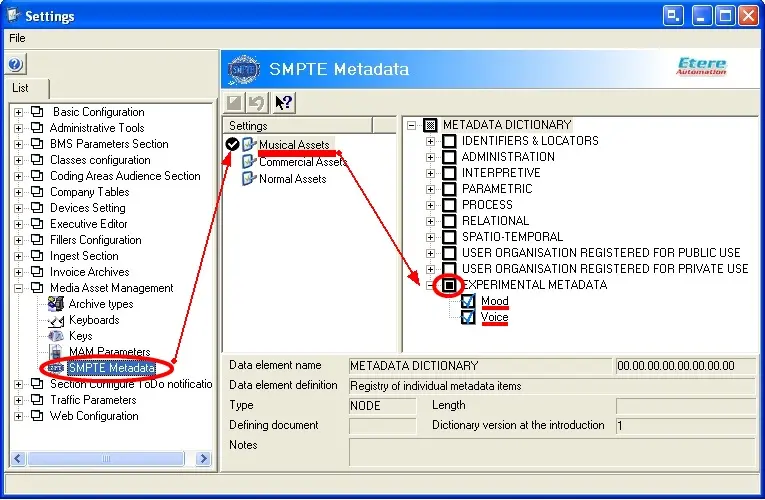
In Etere Configuration | Settings | Media Library | Flexi-metadata, useful Metadata (e.g. technical comments, descriptive names, intellectual rights, etc) can be either enabled or defined to be subsequently inserted through the Metadata tab in Media Library module.
It is also important to note that custom Metadata can be created in the leaf 'Experimental METADATA'. In the example below the new properties 'Mood' and 'Voice' have been created to be used by all the musical assets:
Configuring Flexi-metadata
Hyperlink in Flexi-metadata
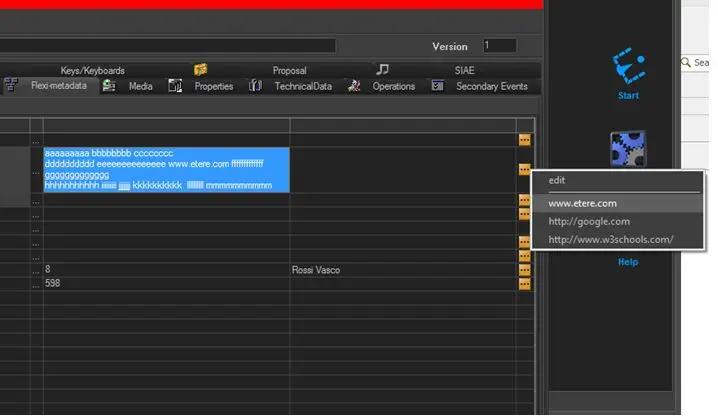
All available hyperlinks in the Fleximetadata will be listed in a popup menu as shown in the screenshot below. Users are able to click on this hyperlink and go directly to the webpage via the default browser.
Hyperlink in Fleximetadata
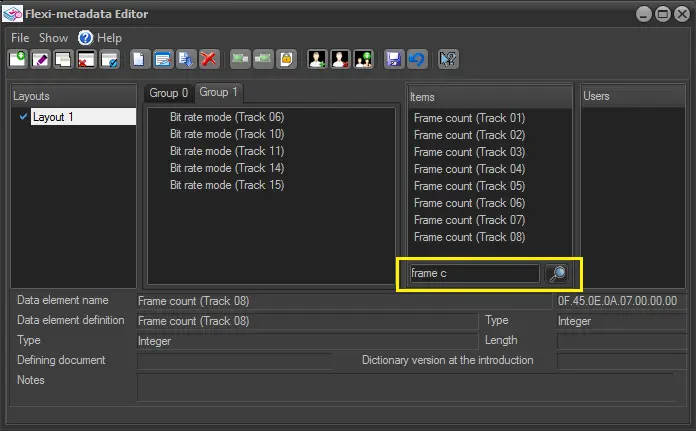
Flexi-metadata Search Filter
You can search for items not used by using the flexi metadata filter shown below:
Fleximetadata Search Filter
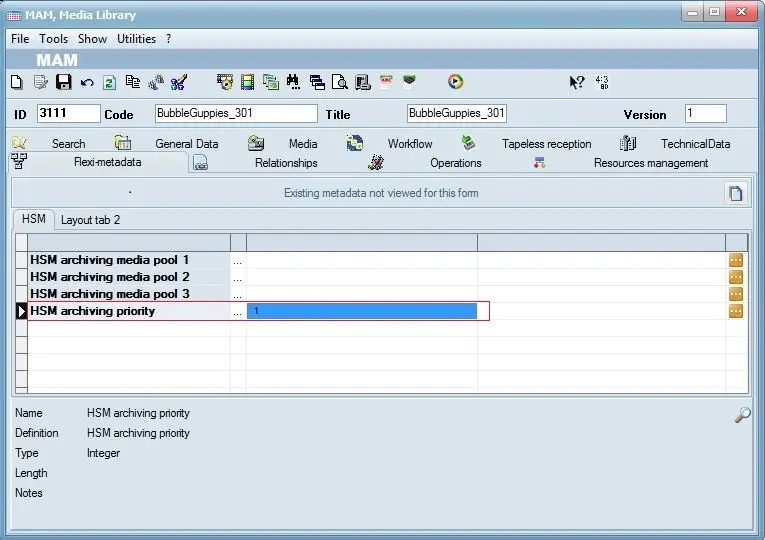
Flexi-metadata Set HSM Archiving Priority
In the Metadata tab, you could also manage HSM processes under the HSM tab.
For example, you can set the priority of the HSM archiving process by selecting the priority’s value, where:
1 = Rush
3 = High
5 = Normal (default)
7 = Low
Fleximetadata Set HSM Archiving Priority
 Fleximetadata_Set_HSM_Archiving_Priority
 Fleximetadata_Search_Filter
 Flexi-metadata
 flexi-metadata_3
 flexi-metadata_2
 Hyperlink_in_Fleximetadata
 flexi-metadata_1
 Configuring_Flexi-metadata