1.5.4 KVM/QEMU Virtualization
1. Introduction
KVM (Kernel-based Virtual Machine) is a full virtualization solution built into the Linux kernel. Combined with QEMU (Quick Emulator), it provides a high-performance, enterprise-grade hypervisor capable of running multiple operating systems simultaneously on a single physical host.
This guide covers installation, VM creation, networking, storage, snapshots, live migration, and day-to-day management on Ubuntu 20.04/22.04/24.04 LTS.
1.1 KVM vs. Other Hypervisors
KVM/QEMU > Type-1 (bare-metal), native Linux kernel, best performance
VirtualBox > Type-2 (hosted), beginner-friendly, lower performance
VMware > Commercial Type-1/2, enterprise features, licensing costs
Hyper-V > Windows-only, tight Microsoft integration
Xen > Type-1, used by AWS, more complex setup
1.2 Architecture Overview
KVM turns the Linux kernel into a hypervisor. Each VM runs as a regular Linux process, leveraging hardware-assisted virtualization (Intel VT-x / AMD-V). QEMU handles device emulation while KVM handles CPU and memory directly.
• KVM module (/dev/kvm) — CPU & memory virtualization via hardware extensions
• QEMU — device emulation (disk, NIC, USB, display)
• libvirt — management API and daemon (libvirtd)
• virsh — command-line management tool
• virt-manager — graphical front-end (only if the graphical user interface (GUI) module is installed in the host operating system)
2. Prerequisites & Hardware Check
2.1 Hardware Requirements
Component Requirement
CPU Intel VT-x or AMD-V virtualization extensions (enabled in BIOS/UEFI)
RAM Minimum 4 GB host RAM; 8 GB+ recommended for running multiple VMs
Disk Sufficient free space for VM images (20–100 GB per VM typical)
Network At least one NIC; dedicated NIC recommended for bridged networking
2.2 Verify Virtualization Support
Run the following command to confirm the CPU supports hardware virtualization:
egrep -c '(vmx|svm)' /proc/cpuinfo
A result greater than 0 confirms support. Then verify KVM acceleration is available:
sudo kvm-ok
# Expected output:
# INFO: /dev/kvm exists
# KVM acceleration can be used
Note: If kvm-ok is not found, install it with: sudo apt install cpu-checker
To fully utilize KVM performance, it is essential that your processor supports hardware virtualization extensions.
To check support type:
lscpu | grep Virtualization
# Expected output:
Virtualization: VT-x or AMD-V
If you don't see any virtualization lines, or if the previous command returns nothing, your CPU may not support it, or the option may be disabled in the BIOS/UEFI.
If KVM hardware extensions are not available, you will still be able to run virtual machines, but they will be significantly slower.
2.3 Check Kernel Modules
lsmod | grep kvm
# Should show: kvm_intel (or kvm_amd) and kvm
3. Installation
3.1 Install KVM and Required Packages
sudo apt update && sudo apt install -y qemu-kvm libvirt-daemon-system libvirt-clients bridge-utils virt-manager virtinst ovmf
Package summary:
qemu-kvm > QEMU with KVM acceleration
libvirt-daemon-system > libvirt daemon (manages VMs)
libvirt-clients > CLI tools including virsh
bridge-utils > Network bridge utilities
virt-manager > GUI management application (only if the graphical user interface (GUI) module is installed in the host operating system)
virtinst > virt-install command for CLI VM creation
ovmf > UEFI firmware for VMs
3.2 Add User to Groups
sudo usermod -aG libvirt $(whoami)
sudo usermod -aG kvm $(whoami)
# Apply group changes (or log out and back in)
newgrp libvirt
3.3 Enable and Start the libvirt Service
sudo systemctl enable --now libvirtd
sudo systemctl status libvirtd
3.4 Verify Installation
virsh list --all # Should show empty VM list if no VM has ever been created
or VM list if there are any VMs created:
sis@ACQUARIO112-UB:~$ virsh list --all
Id Name State
----------------------------------
- VM-ubuntu-ser01 shut off
- VM-ubuntu-ser02 shut off
- VM-ubuntu-ser03 shut off
virsh net-list --all # Should show 'default' network
is@ACQUARIO112-UB:~$ virsh net-list --all
Name State Autostart Persistent
--------------------------------------------
default active yes yes
If the "default network" doesn't appear, restart Host computer.
Success: If virsh list --all returns an empty table without errors, KVM is properly installed.
4. Networking
4.1 Default NAT Network
you can check the default status configuration with these commands:
virsh net-list --all
virsh net-info default
# Start and auto-start the default network
virsh net-start default
virsh net-autostart default
4.2 Network Modes Comparison
NAT > Default, VMs share host IP > Best for Outbound internet, isolated from LAN
Bridge > VMs get own LAN IP > Best for Full LAN access, servers, lab use
Isolated > No external access > Best for Secure internal lab networks
Routed > VMs routed through host > Best for Advanced setups, no bridge needed
4.3 Create a Bridged Network (br0) (only if you want to create a new custom configuration different from the default)
Bridged networking gives VMs direct access to the physical network. Edit the netplan configuration:
sudo nano /etc/netplan/01-netcfg.yaml
------------------ # Edit with these lines
network:
version: 2
ethernets:
eno1:
dhcp4: no
bridges:
br0:
interfaces: [eno1]
dhcp4: yes
parameters:
stp: false
forward-delay: 0
----------------
sudo netplan apply
4.4 Create a Custom libvirt Network (only if you want to create a new custom configuration different from the default)
sudo nano isolated-net.xml
------------------ # Edit with these lines
<network>
<name>isolated</name>
<ip address='192.168.100.1' netmask='255.255.255.0'>
<dhcp>
<range start='192.168.100.2' end='192.168.100.254'/>
</dhcp>
</ip>
</network>
-------------------
virsh net-define isolated-net.xml
virsh net-start isolated
virsh net-autostart isolated
5. Storage
5.1 Storage Formats
Format Notes
qcow2 QEMU Copy-On-Write v2. Supports snapshots, thin provisioning, compression. Recommended.
raw Direct disk image. Fastest I/O, no snapshots, largest file size.
vmdk VMware format. Use for compatibility with VMware tools.
vdi VirtualBox format. Limited KVM support.
5.2 Create a Disk Image
# Create a 50 GB qcow2 image (thin-provisioned)
sudo qemu-img create -f qcow2 /var/lib/libvirt/images/vm01.qcow2 50G
# Create a raw image
sudo qemu-img create -f raw /var/lib/libvirt/images/vm01.raw 50G
# Check image info
sudo qemu-img info /var/lib/libvirt/images/vm01.qcow2
5.3 Storage Pools
# List existing pools
virsh pool-list --all
# Create a directory-based pool
virsh pool-define-as mypool dir --target /data/vms
virsh pool-build mypool
virsh pool-start mypool
virsh pool-autostart mypool
# List volumes in a pool
virsh vol-list mypool
5.4 Convert Disk Images
# Convert raw to qcow2
qemu-img convert -f raw -O qcow2 vm.raw vm.qcow2
# Convert vmdk to qcow2 (import from VMware)
qemu-img convert -f vmdk -O qcow2 vm.vmdk vm.qcow2
# Compress an existing qcow2
qemu-img convert -O qcow2 -c input.qcow2 compressed.qcow2
6. Creating Virtual Machines
To install from a local ISO:
sudo virt-install \
--name ubuntu-server \
--ram 4096 \
--vcpus 2 \
--disk path=/var/lib/libvirt/images/ubuntu-server.qcow2,size=50 \
--os-variant ubuntu24.04 \
--network bridge=br0 \
--graphics vnc,listen=0.0.0.0 \
--cdrom /tmp/ubuntu-24.04.4-desktop-amd64.iso
Single command line works better:
sudo virt-install --name ubuntu-server --ram 4096 --vcpus 2 --disk path=/var/lib/libvirt/images/ubuntu-server.qcow2,size=50 --os-variant ubuntu24.04 --network bridge=default --graphics vnc,listen=0.0.0.0 --cdrom /tmp/ubuntu-24.04.4-desktop-amd64.iso
if your host is headless (without Graphic User Interface) you can add these parameters
sudo virt-install \
--name ubuntu-server \
--ram 4096 \
--vcpus 2 \
--disk path=/var/lib/libvirt/images/headless01.qcow2,size=50 \
--os-variant ubuntu24.04 \
--network bridge=br0 \
--graphics none \
--location /tmp/ubuntu-26.04-live-server-amd64.iso,kernel=casper/vmlinuz,initrd=casper/initrd \
--extra-args 'console=ttyS0,115200n8 serial'
graphics none : don't use graphics, self explanatory
extra-args 'console=ttyS0,115200n8 serial' : use the console tty S0, with 115200 of baud rate, uneven, 8bit and "serial" is the command given to ubuntu install prompt to start the headless installation
one-line command:
sudo virt-install --name ubuntu-server --ram 4096 --vcpus 2 --disk path=/var/lib/libvirt/images/headless01.qcow2,size=50 --os-variant ubuntu24.04 --network bridge=br0 --graphics none --location /tmp/ubuntu-26.04-live-server-amd64.iso,kernel=casper/vmlinuz,initrd=casper/initrd --extra-args 'console=ttyS0,115200n8 serial'
6.2 Common virt-install Options
Option Description
--name VM name (must be unique)
--ram Memory in MB (e.g., 4096 = 4 GB)
--vcpus Number of virtual CPUs
--disk Disk config: path, size (GB), format
--os-variant OS type for tuning (osinfo-query os)
--network network=NAME or bridge=BRIDGE
--graphics vnc, spice, or none
--cdrom Path to ISO for installation
--import Import existing disk image (no install)
--autostart Auto-start VM on host boot
--cpu host-passthrough Pass physical CPU features to VM
6.3 Using virt-manager (GUI) (only if the graphical user interface (GUI) module is installed in the host operating system)
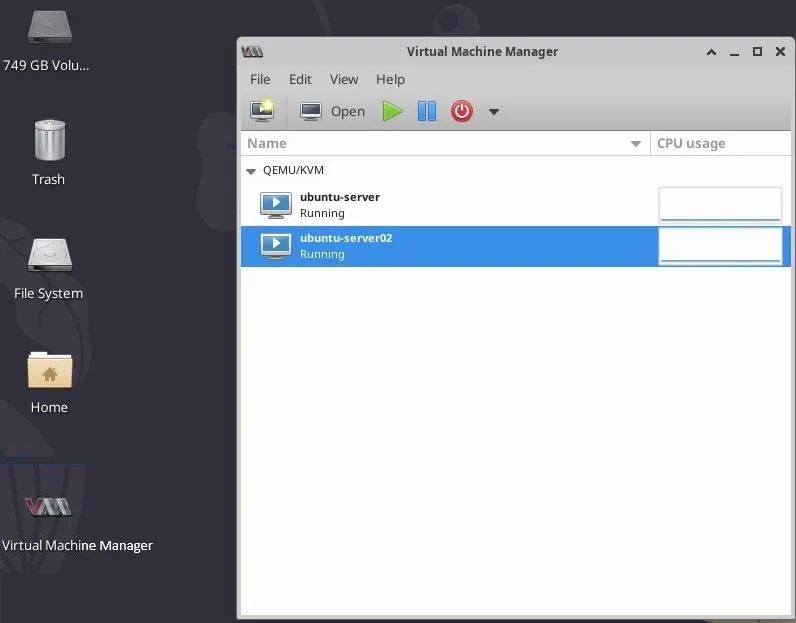
1. Open virt-manager: Applications → System Tools → Virtual Machine Manager
2. Click File → New Virtual Machine
3. Select installation source (ISO, network, existing disk)
4. Set memory and CPU resources
5. Configure storage: create new or use existing disk
6. Set network: NAT (default) or Bridge
7. Review and click Finish
See image: Ubuntu- VM- Virtual Machine Manager
6.4 Get List of Supported OS Variants
osinfo-query os | grep -i ubuntu
# Install if needed:
sudo apt install libosinfo-bin
7. VM Management with virsh
7.1 Essential virsh Commands
Command Description
virsh list --all List all VMs (running and stopped)
virsh start <vm> Start a VM
virsh shutdown <vm> Graceful shutdown
virsh destroy <vm> Force stop (like power off)
virsh reboot <vm> Reboot a VM
virsh suspend <vm> Pause a VM
virsh resume <vm> Resume a paused VM
virsh autostart <vm> Enable auto-start on host boot
virsh autostart --disable <vm> Disable auto-start
virsh dominfo <vm> Show VM information
virsh dumpxml <vm> Show VM XML configuration
virsh edit <vm> Edit VM XML configuration
virsh undefine <vm> Remove VM definition (keeps disk)
virsh console <vm> Connect to serial console
7.2 CPU and Memory Management
# Adjust vCPUs (hot-plug if VM supports it)
virsh setvcpus vm01 4 --live --config
# Adjust memory (balloon driver required)
virsh setmem vm01 8388608 --live --config # 8 GB in KB
# Set max memory
virsh setmaxmem vm01 16777216 --config # 16 GB in KB
7.3 Connect to VM Console
# Serial console (requires console= in guest kernel cmdline)
virsh console vm01
# Exit with: Ctrl+]
# VNC viewer
virsh vncdisplay vm01 # Shows :0 or :1
vncviewer localhost:0
# SSH (once VM is running and has SSH)
ssh user@$(virsh domifaddr vm01 | grep -oP '\d+\.\d+\.\d+\.\d+')
7.4 Attach and Detach Devices
# Attach a disk
virsh attach-disk vm01 /data/extra.qcow2 vdb --subdriver qcow2 --persistent
# Detach a disk
virsh detach-disk vm01 vdb --persistent
# Attach a USB device
virsh attach-device vm01 usb-device.xml --live
# Add a NIC
virsh attach-interface vm01 network default --model virtio --persistent
8. Snapshots
8.1 Internal Snapshots (qcow2 only)
Internal snapshots are stored inside the qcow2 image. The VM must use qcow2 format.
# Create a snapshot
virsh snapshot-create-as vm01 snap1 'Before update' --disk-only
# List snapshots
virsh snapshot-list vm01
# Show snapshot details
virsh snapshot-info vm01 snap1
# Revert to a snapshot
virsh snapshot-revert vm01 snap1
# Delete a snapshot
virsh snapshot-delete vm01 snap1
8.2 External Snapshots
# Create external disk snapshot (VM can remain running)
virsh snapshot-create-as vm01 external-snap \
--diskspec vda,snapshot=external,file=/var/lib/libvirt/images/vm01-snap.qcow2 \
--disk-only --atomic
⚠️ Warning: Deleting external snapshots requires manual blockcommit/blockpull operations. Plan snapshot strategy before use in production.
8.3 Blockcommit — Merge Snapshot Back
# Commit external snapshot changes back to base image
virsh blockcommit vm01 vda --active --verbose --pivot
# Verify the active disk path
virsh domblklist vm01
9. Cloning & Templates
9.1 Clone a VM
# Shutdown the VM before cloning
virsh shutdown vm01
# Clone the VM
virt-clone \
--original vm01 \
--name vm01-clone \
--file /var/lib/libvirt/images/vm01-clone.qcow2
# Clone with auto-generated name and path
virt-clone --original vm01 --auto-clone
9.2 Create a Template VM
8. Install and configure the base OS
9. Remove machine-specific data:
# Inside the VM
sudo cloud-init clean
sudo truncate -s 0 /etc/machine-id
sudo rm -f /var/lib/dbus/machine-id
sudo ln -s /etc/machine-id /var/lib/dbus/machine-id
sudo history -c && sudo shutdown -h now
10. On the host, mark the VM as a template:
virsh dumpxml vm-template > template.xml
# Edit template.xml: remove MAC addresses, UUIDs
# Use virt-sysprep for automated cleanup
sudo virt-sysprep -d vm-template
11. Clone the template for each new VM
9.3 virt-sysprep — Automated Cleanup
# Install virt-sysprep
sudo apt install libguestfs-tools
# Reset VM to pristine state
sudo virt-sysprep -d vm01
# Customize: set hostname, password, SSH keys
sudo virt-customize -d vm01 \
--hostname newserver \
--root-password password:MySecret \
--ssh-inject root:file:/home/user/.ssh/id_rsa.pub
10. Live Migration
10.1 Prerequisites for Live Migration
• Both hosts must have KVM and libvirt installed
• Shared storage (NFS, GlusterFS, Ceph) for disk images OR use virsh migrate with --copy-storage-all
• SSH key-based authentication between hosts
• Same libvirt version (or compatible versions) on both hosts
• Network connectivity on the migration port (default: 49152–49215)
10.2 Configure SSH Between Hosts
# On source host — generate and copy key
ssh-keygen -t ed25519 -N '' -f ~/.ssh/id_ed25519
ssh-copy-id root@destination-host
# Test
ssh root@destination-host virsh list
10.3 Perform Live Migration
# Live migration with shared storage
virsh migrate --live vm01 qemu+ssh://destination-host/system
# Live migration + copy storage (no shared storage needed)
virsh migrate --live --copy-storage-all vm01 \
qemu+ssh://destination-host/system
# Persistent migration (VM defined on destination)
virsh migrate --live --persistent vm01 \
qemu+ssh://destination-host/system
# Monitor migration progress
virsh domjobinfo vm01
ℹ️ Note: For production live migration, shared storage (NFS/Ceph) is strongly recommended. Copy-storage migration is slower and puts more load on the network.
11. Performance Tuning
11.1 CPU Tuning
# Use host-passthrough CPU model (exposes all CPU features)
virsh edit vm01
# Change: <cpu mode='custom'> → <cpu mode='host-passthrough' check='none'/>
# Pin vCPUs to physical cores (CPU pinning)
virsh vcpupin vm01 0 2 # Pin vCPU 0 to pCPU 2
virsh vcpupin vm01 1 3 # Pin vCPU 1 to pCPU 3
11.2 Memory Tuning
# Enable Huge Pages for better memory performance
echo 1024 | sudo tee /proc/sys/vm/nr_hugepages
# In VM XML — use hugepages
# <memoryBacking>
# <hugepages/>
# </memoryBacking>
# Enable KSM (Kernel Same-page Merging) for memory deduplication
echo 1 | sudo tee /sys/kernel/mm/ksm/run
11.3 Disk I/O Tuning
# Use virtio-scsi controller (best disk performance)
# In virt-install:
# --disk ...,bus=virtio
# Set disk I/O scheduler
virsh blkdeviotune vm01 vda --total-iops-sec 5000 --live
# Use native AIO for raw images
# In XML: <driver name='qemu' type='raw' cache='none' io='native'/>
11.4 Network Tuning
# Use virtio NIC (always prefer over e1000 or rtl8139)
# virt-install: --network ...,model=virtio
# Enable multiqueue virtio-net
# In VM XML:
# <driver name='vhost' queues='4'/>
# Use macvtap for near-native performance
# --network type=direct,source=eno1,source_mode=bridge,model=virtio
Optimization Description
virtio Paravirtual drivers — always use for disk/NIC/memory balloon
host-passthrough CPU mode — exposes host CPU features to guest
CPU pinning Prevents vCPU migration across pCPUs, reduces latency
Huge Pages Reduces TLB misses for memory-intensive workloads
cache=none Bypass page cache for raw disk images (use with io=native)
KSM Shares identical memory pages across VMs (good for many similar VMs)
12. Monitoring
12.1 VM Statistics
# CPU stats
virsh cpu-stats vm01 --total
# Memory stats
virsh dommemstat vm01
# Block I/O stats
virsh domblkstat vm01
# Network stats
virsh domifstat vm01 vnet0
# Overall VM info
virsh dominfo vm01
12.2 Host-Level Monitoring
# Processes per VM
ps aux | grep qemu
# Memory usage
free -h
cat /proc/meminfo | grep -i huge
# Disk usage of images
du -sh /var/lib/libvirt/images/*
qemu-img info /var/lib/libvirt/images/vm01.qcow2
# Network interfaces
ip addr show
brctl show
12.3 virt-top — Real-Time Monitoring
# Install virt-top
sudo apt install virt-top
# Run (similar to top, but for VMs)
virt-top
13. Backup & Restore
13.1 Backup Strategy
Method Notes
Cold backup (offline) Shutdown VM, copy qcow2 image. Simplest, 100% consistent.
Live snapshot backup Create snapshot, backup snapshot file, delete snapshot. VM stays online.
Agent-based backup Use qemu-guest-agent for filesystem-consistent live backups.
virsh dumpxml Always backup VM XML configuration alongside disk images.
13.2 Backup a VM (Offline)
#!/bin/bash
VM=vm01
BACKUP_DIR=/backup/vms
mkdir -p $BACKUP_DIR
# Save VM XML
virsh dumpxml $VM > $BACKUP_DIR/$VM.xml
# Shutdown VM
virsh shutdown $VM
sleep 30
# Copy disk image
cp /var/lib/libvirt/images/$VM.qcow2 $BACKUP_DIR/$VM.qcow2
# Restart VM
virsh start $VM
echo 'Backup complete: '$BACKUP_DIR
13.3 Live Backup with Snapshot
VM=vm01
SNAP_IMG=/backup/$VM-snap.qcow2
# Create external snapshot
virsh snapshot-create-as $VM livesnap \
--diskspec vda,snapshot=external,file=$SNAP_IMG \
--disk-only --atomic
# Copy base image (now frozen)
cp /var/lib/libvirt/images/$VM.qcow2 /backup/$VM-backup.qcow2
# Merge snapshot back
virsh blockcommit $VM vda --active --verbose --pivot
# Clean up snapshot file
rm -f $SNAP_IMG
virsh snapshot-delete $VM livesnap --metadata
13.4 Restore a VM
VM=vm01
BACKUP_DIR=/backup/vms
# Restore disk image
cp $BACKUP_DIR/$VM.qcow2 /var/lib/libvirt/images/$VM.qcow2
# Re-define VM from XML
virsh define $BACKUP_DIR/$VM.xml
# Start the VM
virsh start $VM
14. Troubleshooting
14.1 Common Issues
Problem Solution
libvirtd not starting Check: sudo systemctl status libvirtd Fix: sudo systemctl restart libvirtd
Permission denied on /dev/kvm Add user to kvm group: sudo usermod -aG kvm $USER
VM fails to start Check logs: sudo journalctl -xe | grep libvirt Check: virsh start vm01 (shows error)
No network in VM Verify default network: virsh net-start default Check bridge: ip addr show virbr0
VM very slow Ensure virtio drivers installed in guest Check host load: top, vmstat
Cannot connect to VNC Check firewall: sudo ufw allow 5900/tcp Verify VNC port: virsh vncdisplay vm01
Snapshot fails Disk must be qcow2 format Check disk space on host
Migration fails Verify SSH connectivity Check firewall ports 49152–49215
14.2 Useful Log Files
# libvirt daemon log
sudo journalctl -u libvirtd -f
# QEMU log for specific VM
sudo cat /var/log/libvirt/qemu/vm01.log
# Live tail
sudo tail -f /var/log/libvirt/qemu/vm01.log
14.3 Diagnostic Commands
# Check libvirt connectivity
virsh -c qemu:///system version
# Validate VM XML
virsh define vm.xml --validate
# Check host capabilities
virsh capabilities
# Check domcapabilities for a specific machine type
virsh domcapabilities --machine pc-q35-6.2
# List all virtual networks
virsh net-list --all
# Check running QEMU processes
ps aux | grep qemu | grep -v grep
15. Quick Reference Cheat Sheet
Command Action Notes
virsh list --all List VMs All states
virsh start <vm> Start VM —
virsh shutdown <vm> Graceful stop Guest OS required
virsh destroy <vm> Force stop Immediate
virsh reboot <vm> Reboot —
virsh suspend / resume <vm> Pause / unpause RAM preserved
virsh snapshot-create-as <vm> <name> Create snapshot qcow2 only
virsh snapshot-revert <vm> <name> Restore snapshot —
virsh migrate --live <vm> qemu+ssh://... Live migrate Shared storage needed
virsh dumpxml <vm> > vm.xml Export XML config For backup/restore
virsh define vm.xml Import VM from XML —
virsh undefine <vm> Remove VM config Disk preserved
virt-clone --original <vm> Clone VM Shutdown first
qemu-img info <image> Image info —
qemu-img convert -O qcow2 in out Convert image —
qemu-img resize <image> +10G Resize image Expand only
📚 Further Reading: Official docs: libvirt.org | qemu.org | Ubuntu Server Guide (ubuntu.com/server/docs/virtualization-introduction)
 Ubuntu-_VM-_Virtual_Machine_Manager