59.4.9 Digimetrics integration
Etere provides the capability of creating custom "Aurora integration" actions to request -via T-workflow- the execution of verification tasks based on Aurora test plans for media files stored on Etere metadevices:
Digimetrics_integration
A key feature is that results obtained from verifications are automatically generated into a PDF report linked to the verified asset in the Do.Ma. Database, also marking in a predefined EDL all segments with detected issues.
To create this action, you need to compile all necessary data following the procedure detailed below:
new action
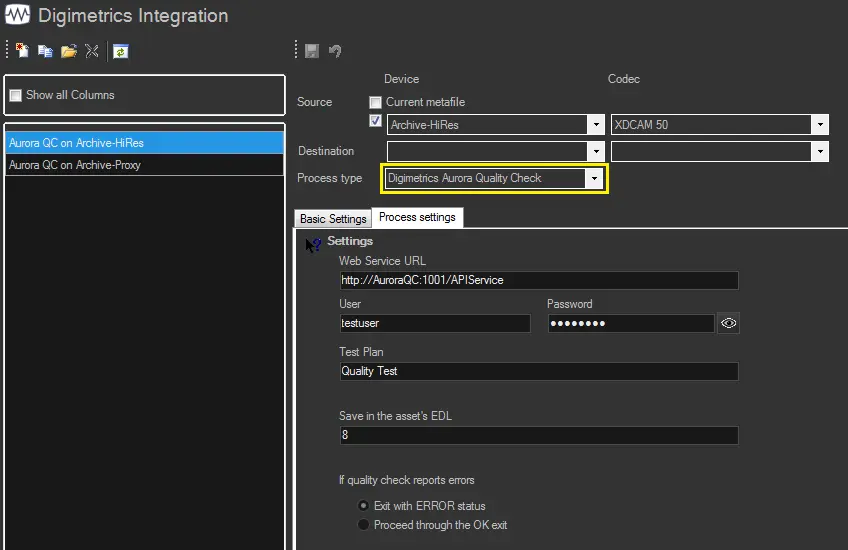
1. Press the [New] button or open an existing action, then set the following parameters:
Source device & codec: Indicate the metadevice in which files to be verified is stored, specifying the same codec (extension) to be processed.
NB: The source path must be set in the Digimetrics Aurora server (Setup/ContentLocations).
Destination device & codec: Leave these parameters blank as they are not required.
Process type: Indicates that the current action is a "Digimetrics Aurora Quality Check".
2. Under the Basic settings tab, compile the parameters regarding the identification and behaviour of the action. See Basic settings chapter for more info.
3. Under the Process settings tab, set the parameters that define the execution of the action. See Process settings chapter for more info.
4. Press the [Save] button to apply changes and store the action in the database.
5. Use the T-Workflow Designer to include the action in a T-workflow (e.g. to verify the quality of media files through an Aurora system):
Aurora_system
Suggestion: Worksheet tasks can be included in Quality Control T-workflows to manually perform further controls, for example, when the Digimetrics Aurora's verification is negative.
6. Open the Media Library to attach&start the T-workflow for one or more assets:
T-workflow_for_one_or_more_assets
During the verification, the completion progress can be monitored, besides from the Media Library, also from the "Workflow Monitor":
Workflow_Monitor
7. After verification is completed, obtained results are stored in the database in both following ways:
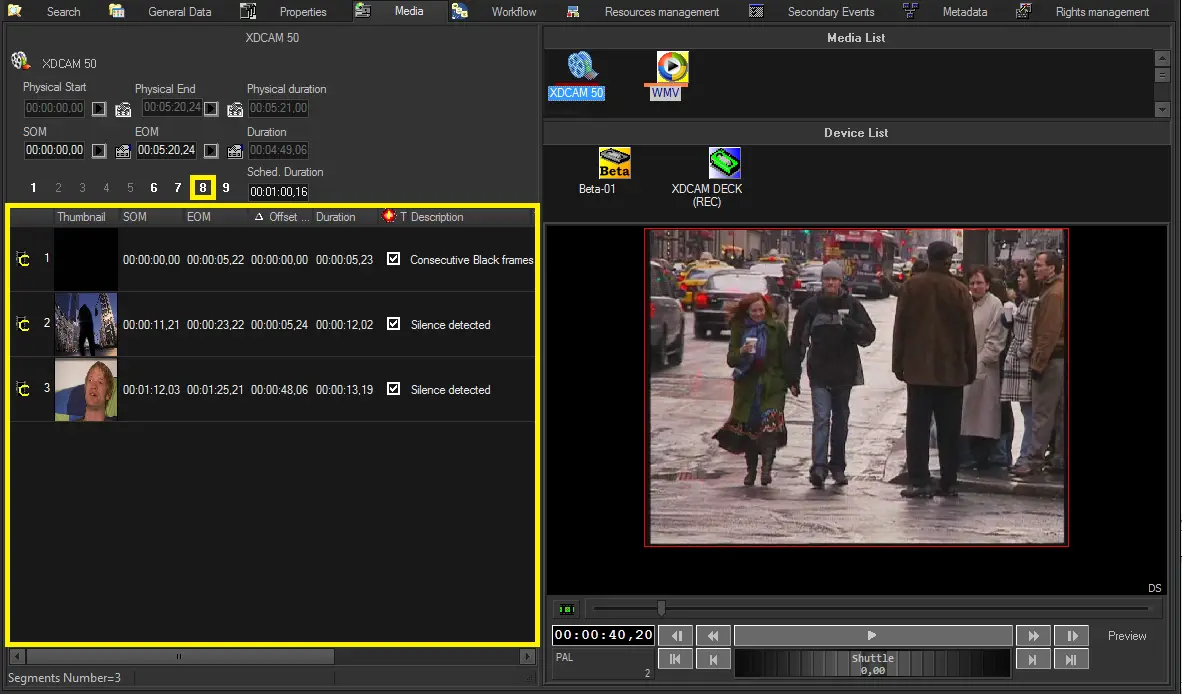
• As an EDL: Obtained results are automatically marked in an asset's predefined EDL:
As_an_EDL
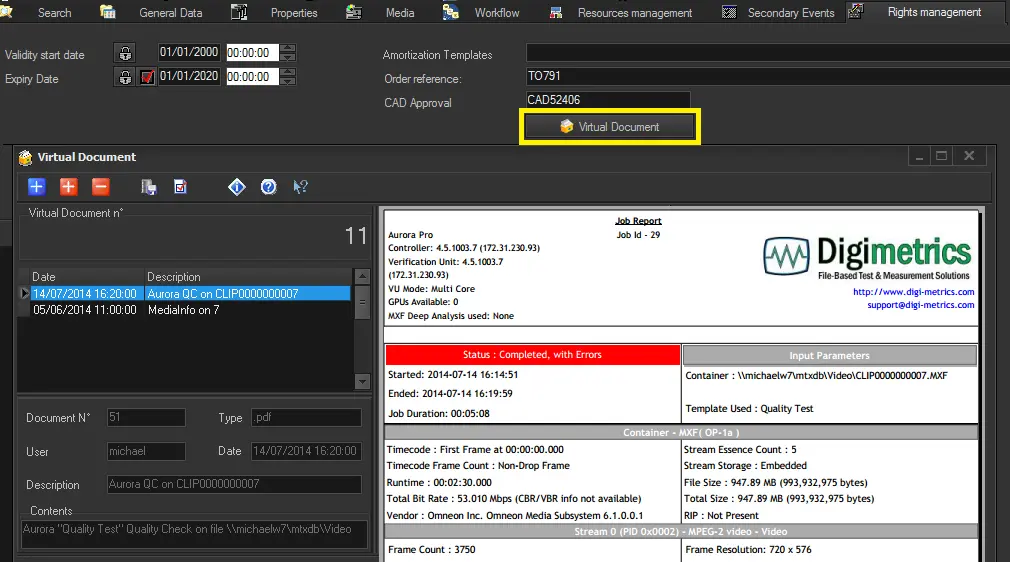
• As a Report: Obtained results are automatically exported into a PDF report linked to the asset's virtual document:
virtual_document
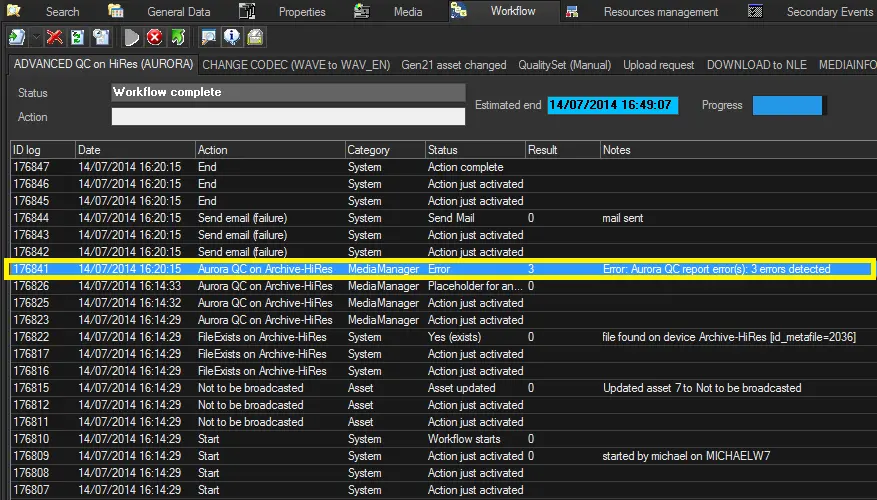 T-workflow_for_one_or_more_assets
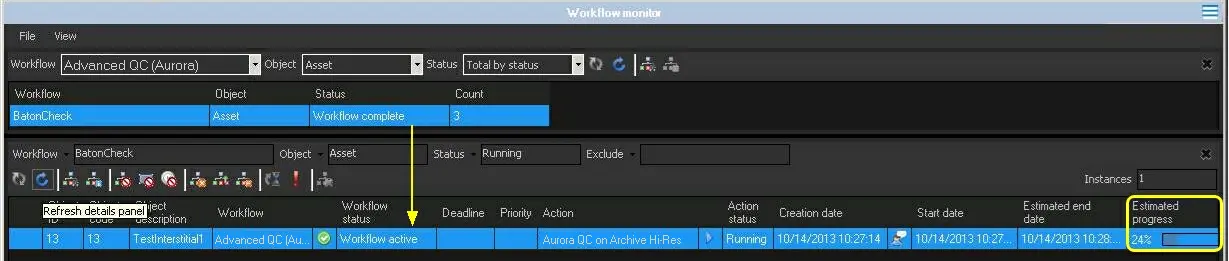 Workflow_Monitor
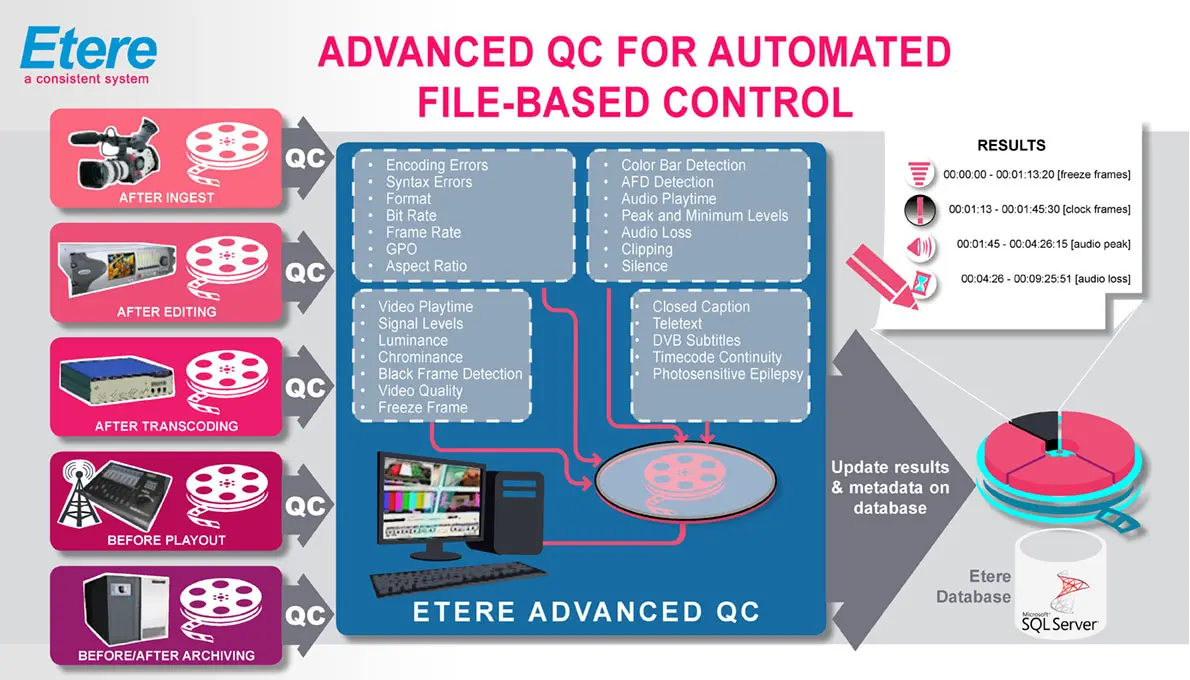 Digimetrics_integration
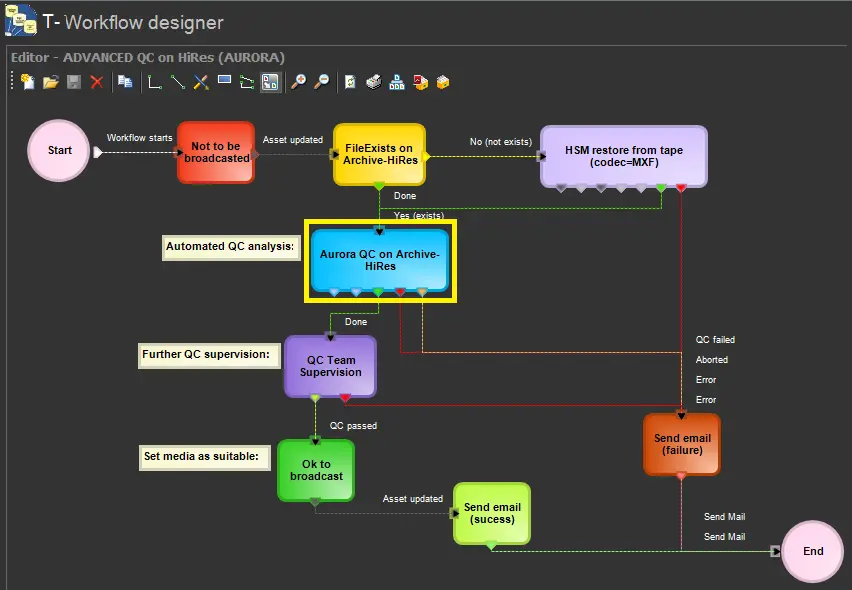 Aurora_system
 As_an_EDL
 virtual_document
 new_action