Ad Insertion ETX Playlist Management

52.3.1 User Interface

When you had configured Ad Insertion under the Settings section, launch Ad Insertion (with ETERE.ADINSERTION.EXE) to view the user interface and start using the module.
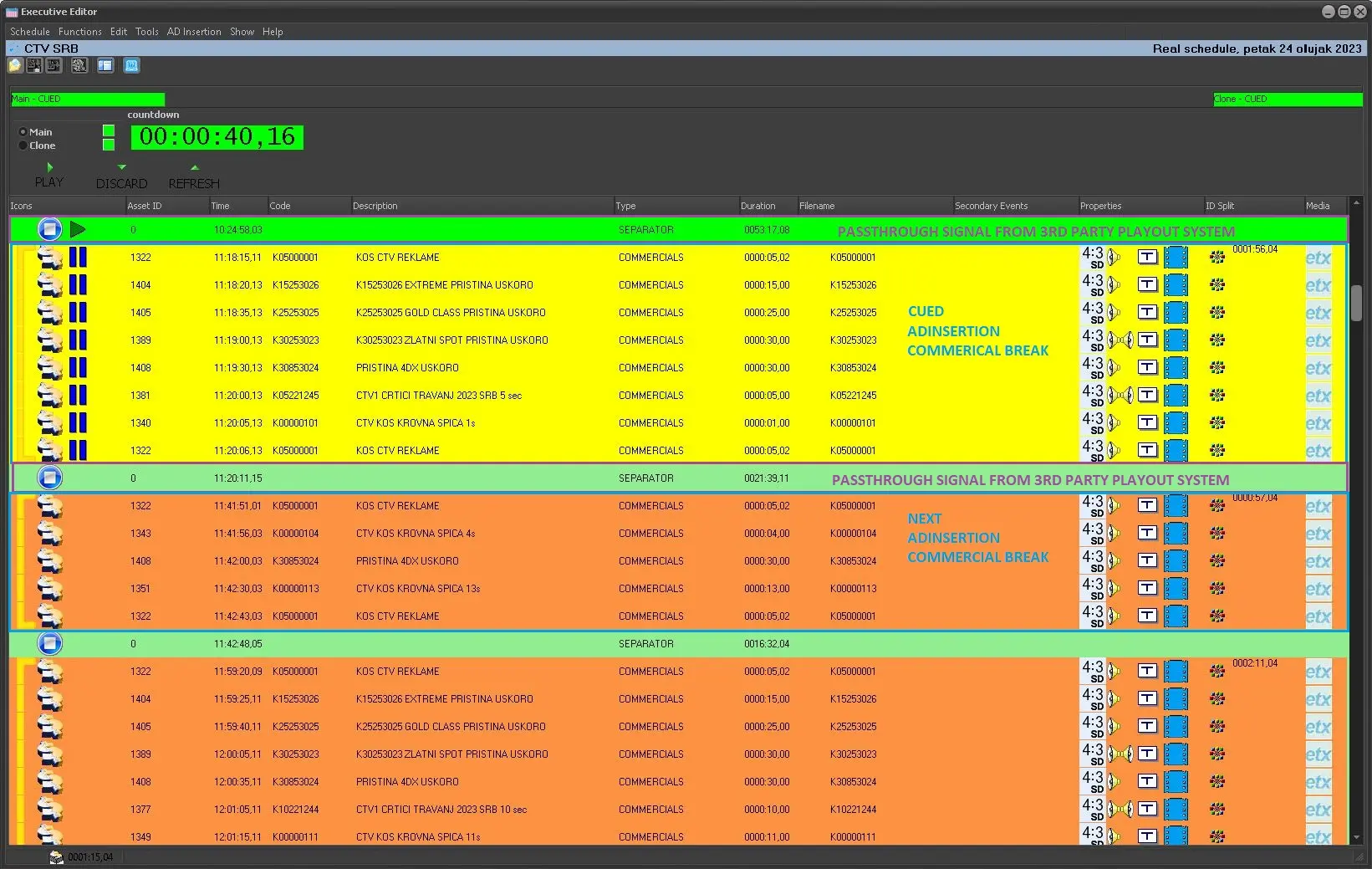
ad insertion automation interface

Various functions deployed in Ad Insertion module are described below:

Preview control

Feature - TX
Description
: Indicate the current system status of Ad Insertion.

Feature - Video Signal
Description
: Indicate the status of video signal received from the playout.

Feature - Passthrough
Description
: View the Ad Insertion in passthrough mode

Feature - Restore screen
Description
: Return from full-screen to it defined screen size. Once full-screen is restored, the audio channel would remain active.

Feature - Full-screen
Description
: Extend to full-screen mode. In full-screen mode, the audio defined in mapped channels is activated.

Feature - Reset device
Description
: In the event when device communication is interrupted, you can use this button to reinitialize the Ad Insertion device without interrupting other active modules during on-air. You are required to respond appropriately to the confirmation message in order to proceed with the initialization of devices.

Station information

Feature - Station time
Description
: The current system time of the Ad Insertion station.

Feature - Time remaining
Description
:This is the Executive Editor remote control timer which display the remaining time of the Ad Insertion cluster which is currently on-air.

Feature - Tone detection
Description
: The station is detecting the tone from the input stream.

Feature - Input video device
Description
: The detected input device is displayed, e.g. NDI Receiver.
The command received is displayed below the video device.

Schedule information

Feature - Duration
Description
: The duration of the playout event.

Feature - Status
Description
: The current transmission status of the playout event, e.g. Passthrough.

Feature - Real Start Time
Description
: The actual start time of the current playout event.

Feature - Scheduled Start Time
Description
: It indicate the start time of next scheduled event.

Control features

Feature - Play
Description
: When the system status is in READY mode, this button will allow to force the playback of the cluster. In most cases, this button is not used since the PLAY is automatically managed from Automation.

Feature - Abort
Description
: Abort and stop the playout of the cluster.

Feature - Discard
Description
: Skip the current loaded cluster and remove it from the playlist and load the next cluster.

Feature - Refresh
Description
: Reload the cluster after update without closing and reopening Ad Insertion.

Feature: Edit
Description
: The edit function load the cluster of different day and recover the transmitted cluster or discarded cluster for retransmission.
On the bottom panel, the information available are:

Tab - Playlist
Information
: It show the available playlists scheduled in Ad Insertion.
If the playlist does not reflect the actual schedule, you would need to refresh (F5) Executive Editor to update the playlists status.

Tab - Errors
Information
: Any error encountered during the process would be recorded in this tab.

Tab: Tone received
Information
:The cue tone sent to Ad Insertion would be captured for viewing. Upon viewing, you can right-click and select to delete the tone received.

Tab - Video signal
Information
: This tab contain the video signal communicating the Ad Insertion module.

Tab - Test
Information
: You can conduct a trial run before on-air.

Tab - Thread
Information
: List the available thread functions:
•Activate a thread process
•Activate a thread to clear messages
•Trigger a thread for sending changed messages
•Activate a thread to perform a remote panel refresh
NB: In Automation mode, the “Thread” tab would be invisible.

When clip is loaded in Ad Insertion, you can monitor the transmission status of the loaded clip:
•You can enable the Preview to view the transmission, or disable it to optimize system memory usage.
•When loading clip, it check the video system of the station, e.g. PAL, NTSC. ECC, etc.
•The MarkIn and MarkOut of the clip fall within the physical duration of the schedule.
•Ant error detected during the transmission would be captured in the “Errors” tab.
In addition, by navigating to the main "Log" menu, it will be possible to access the following functions:

Function - View log
Description
:Displays a complete log of all operations performed by Etere Ad Insertion module, including automatic and manual operations.

Function - Save log
Description
: Save the log files concerning the applications in a zipped format. The file's name and position are indicated at the end of the operation.

Function - Open the log files folder
Description
: This feature open File Explorer containing all log files captured at local workstation under user specific Log folder.

You can access to Ad Insertion’s Settings module through the Configuration menu. Refer to Settings > General Configuration chapter for more information. 

NB: When you login to Ad Insertion and made changes with Configuration > Settings, the changes would take effect immediately without the need to relaunch Ad Insertion.

ad insertion automation interface