Etere Nunzio
12.3 Stories
The Stories component allows you to add a new story to Nunzio or edit an already existing one.
New_Story
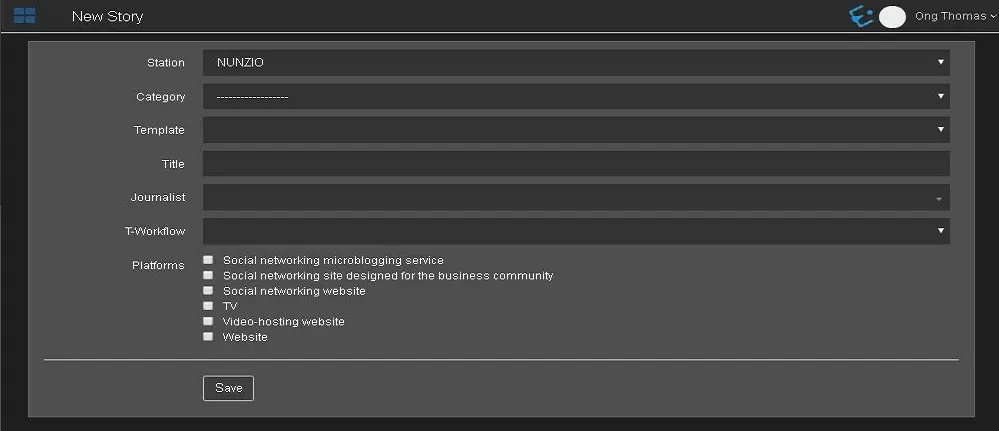
Provide the required information to create a new story.
- Station: Select the station name, Nunzio.
- Category: Select a category for the new story, such as News, Sports, etc.
- Template: Select an existing template to create a story based on it.
- Title: Give a name to the new story.
- Journalist: Assign a new story to one of the journalists on the list.
- T-workflow: Select the T-workflow action to run when the story is created.
- Platforms: Select one or more platforms to post your new story.
When all the parameters are set, click the <Save> button to confirm and create a new story.
In order to edit a Story, just search for it and a form with all its current data will be opened.
Edit_Story
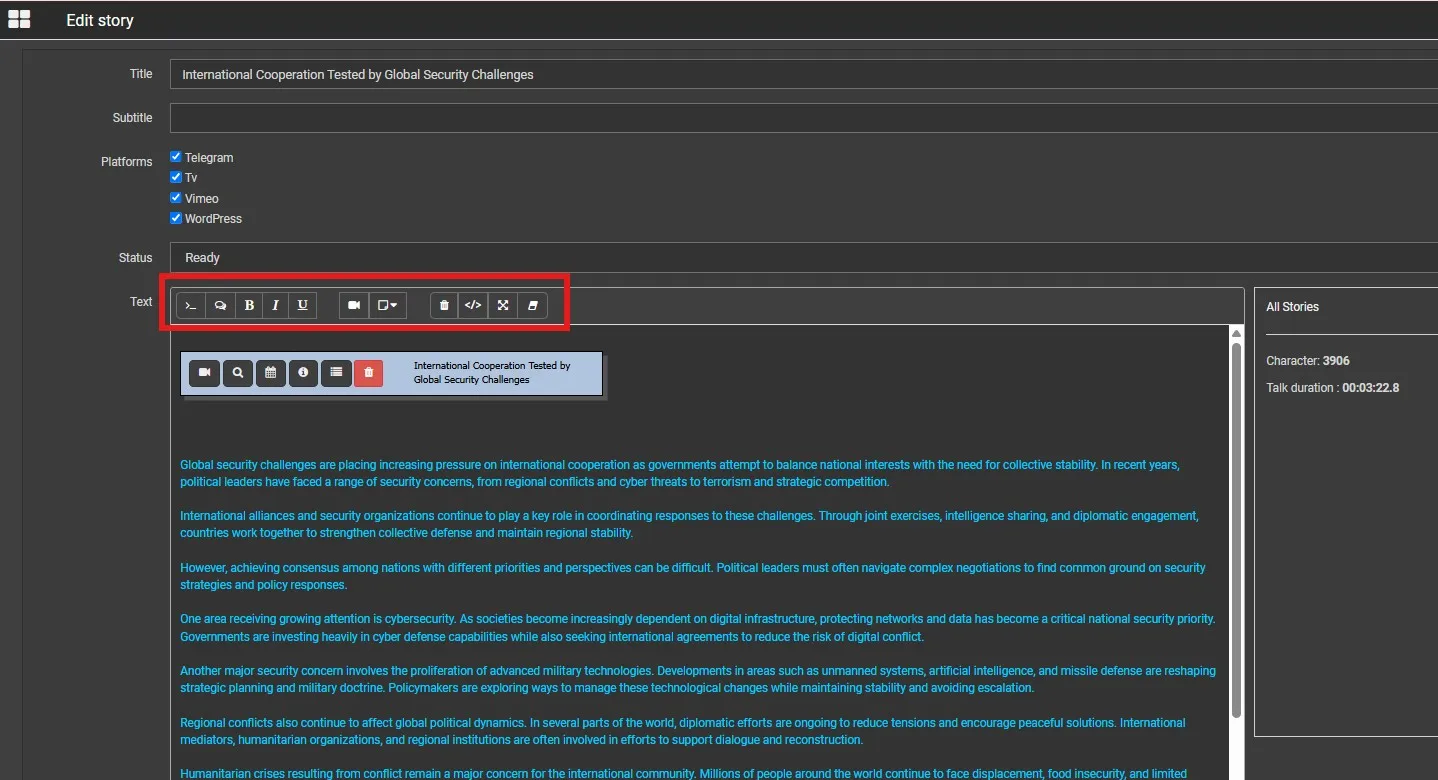
The highlighted toolbar above the text form allows users to add videos to the story and customize its text content.
The buttons related to video management are described below:
- Show video: Opens a form displaying a preview of the currently selected video.
- Search video: Allows users to search for a video in the database and replace the currently selected one.
- View SMPTE metadata: Opens a form where users can view and modify the default SMPTE metadata configured for Nunzio.
- Show video info: Displays information about the selected video, such as SOM, EOM, and filename.
- Show summary form: Opens a video preview form where users can define the SOM and EOM, as well as add a caption describing the story. This information can then be used in the opening summary of the news program.
- Delete video element: Removes the selected video element from the story.
 New_Story
 edit_story