59.3.14.13 Include an Antivirus Scan
In order to integrate antivirus scanning capabilities within Etere T-workflows, the following simple procedure must be followed:
1. Install and configure Microsoft Security Essentials
As a very first step before start using Microsoft Security Essentials alongside Etere, please accomplish the following requirements:
•Install and configure the antivirus as detailed in the Install and configure MSE chapter.
•Update the virus definition database manually following the indications present in the Update MSE manually chapter
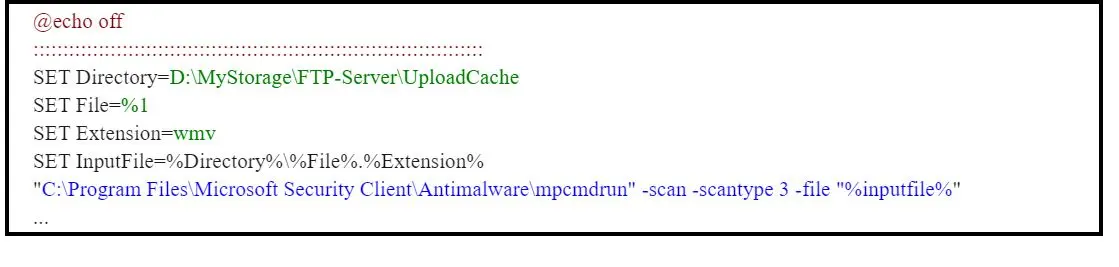
•Create all the batch files required for the virus scanning as explained in the Create the MSE batch file(s) chapter.
wfScan_wmv.bat
wfScan_wmv
2. Create the Datamover action
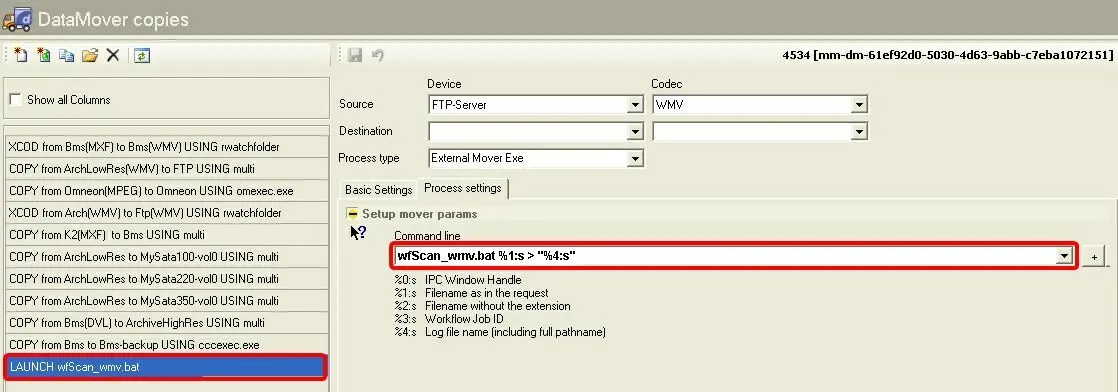
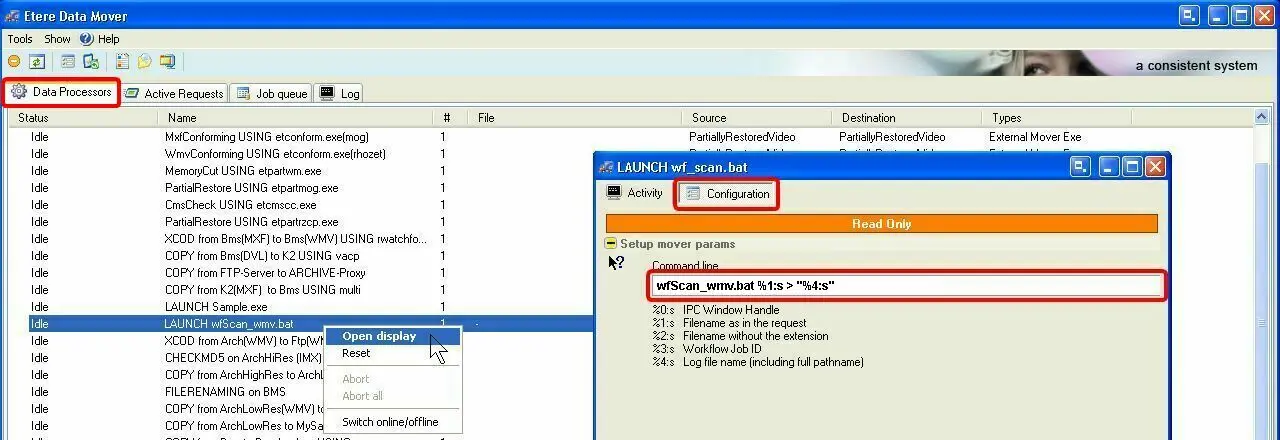
Once all the above mentioned requisites are accomplished, it is possible to create the T-workflow action that will trigger the virus scan, this can be done by creating a new External Mover Exe action including the command-line related to the previously created batch file:
External_Mover_Exe
wfScan_wmv.bat %1:s > "%4:s", where:
- wfScan_wmv.bat : The batch file to be used for the virus scanning and that must be in the Etere install folder (e.g.: C:\Program Files\Etere).
- %1:s : Its the parameter that will pass to the batch file the name of the file to be scanned.
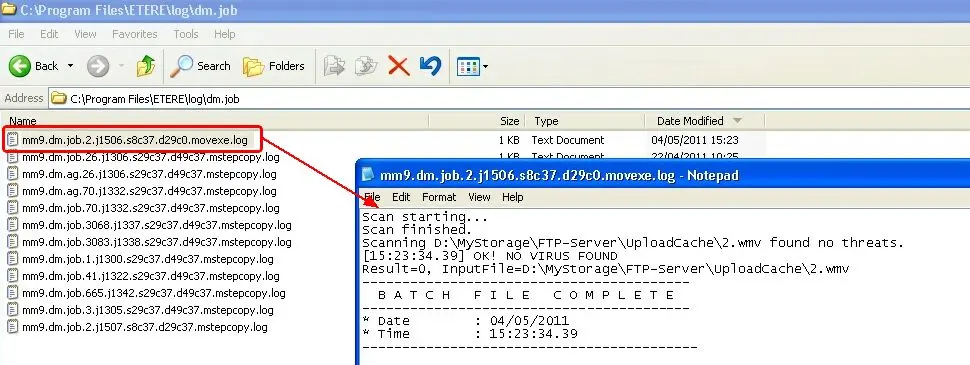
- > “%4:s” : This parameter will dictate Etere Data Mover to write the log execution of the batch (which must include the echo on command) within the Etere's installation folder (i.e.: C:\Program Files\ETERE\log\dm.job\[log-file-name].log).
3. Add the action to a T-workflow
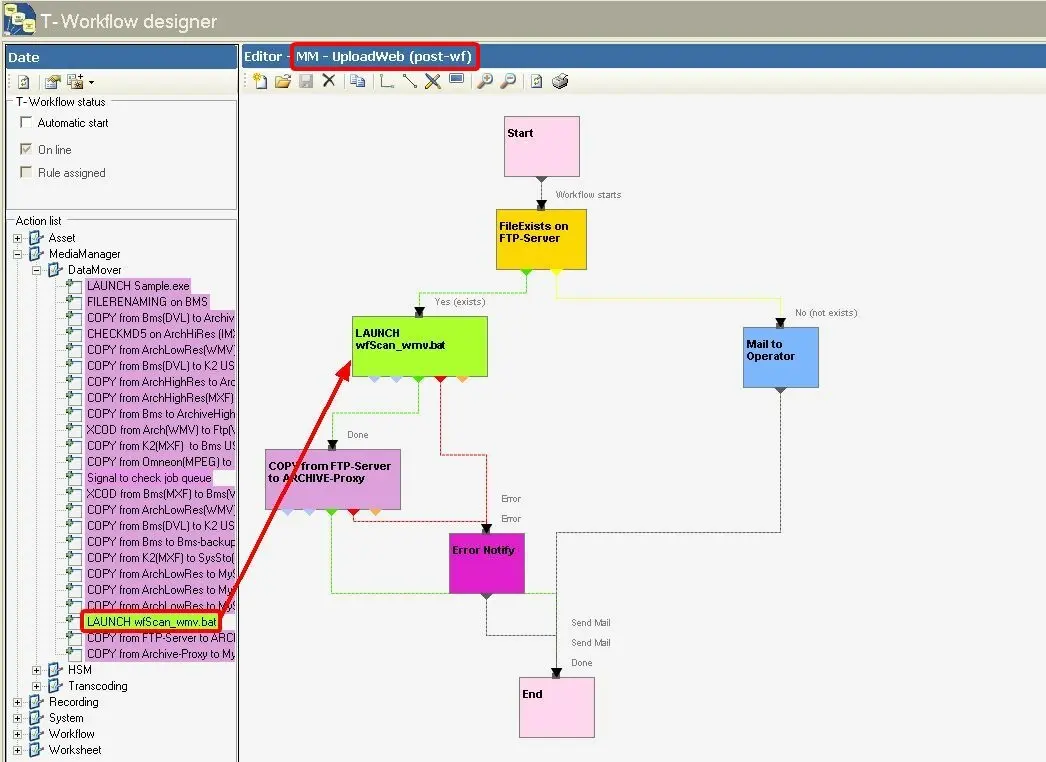
Once the Datamover action is saved, it is now possible to include it within any T-workflow under the T-Workflow Designer section, for example, to scan uploaded files before moving them to the archive:
Add_the_action_to_a_T-workflow
4. Start using it!
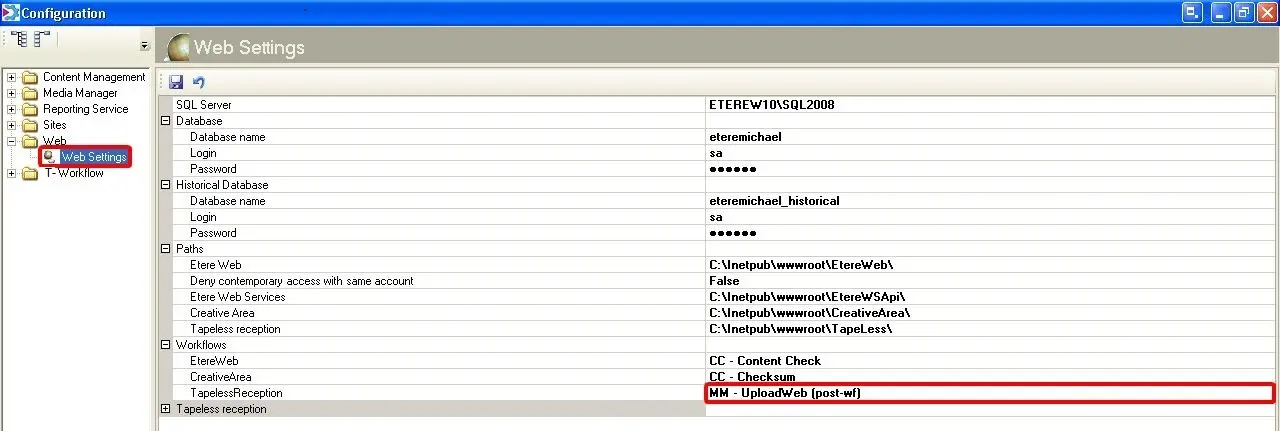
At this point, the 'virus scanning' action is ready to be triggered, for example, each time each time the T-workflow is launched, for example, each time a file is upload via Etere Tapeless Reception:
virus_scanning
In this way, each time a file will be uploaded using Etere Tapeless Reception, Etere Data Mover will trigger an antivirus scan for it:
3755_Etere_Data_Mover
And once the virus scan is concluded, a detailed log will be available for consultation:
detailed_log
 wfScan_wmv
 External_Mover_Exe
 Add_the_action_to_a_T-workflow
 virus_scanning
 detailed_log
 Etere_Data_Mover