72.18.1.4 Settings
Installation:
This application (Etere Light Client.app) does not require installation it can be directly run standalone in a Mac OS 10.9.4 (or higher) with Java 7 (or higher).
System settings
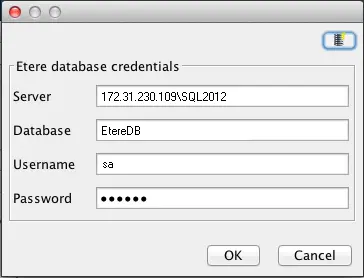
The "Configuration > System" menu function allows specifying the parameters required by the application to connect to the Etere database:
Database credentials
Server - Enter the name of the server (e.g. SQL2012) where you have installed the SQL Server.
Database - Indicate the SQL database (e.g. EtereDB) to be connected.
Username - The SQL User ID used to access the server.
Password - The password needed to authenticate the user into the server.
Search cloud-devices
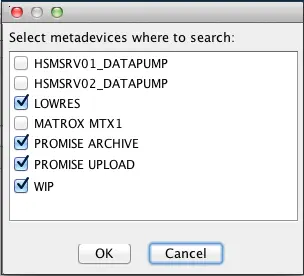
The "Main Window > Settings" button allows selecting the cloud-devices in which media will be searched:
Select metadevice
Once cloud-devices are selected (checking their related check boxes) just press the [Ok] button.
NB: Every time the database is changed, it will be required to select again the search cloud-devices to be used.
Search cloud-devices
The "Configuration > Use translations" menu function allows specifying whether or not use the media folders configured for each metadevice:
Translated paths
In order to allow Etere Light Client to access network paths (e.g. \\172.16.134.100\lowres\), the following instructions must be performed:
❑Network paths must be configured in the MAC OS computer to be mounted at every startup in the related network drive (e.g. /Volumes/lowres/). To do this go to "System Preferences > Users & Groups > Your-Username > > Login Items" and drag & drop a mounted network drive into the login items list.
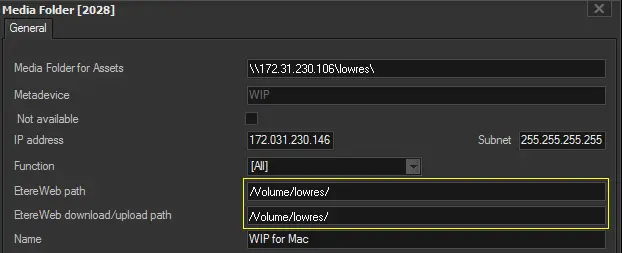
❑Network paths must be configured with proper translations in "Etere Configuration > Settings > Web > Media Folders", entering MAC OS volumes correctly as they are case sensitive.
\\172.31.230.106\lowres\ --> /Volume/lowres/
Media Folders
 Database_credentials
 Select_metadevice
 Media_Folders