1.3.5 Etereweb setup (old)
Important note: From Etere version 36 and above, follow the procedure described in chapter 1.3.6.0 Etereweb setup.
Etere Web Setup
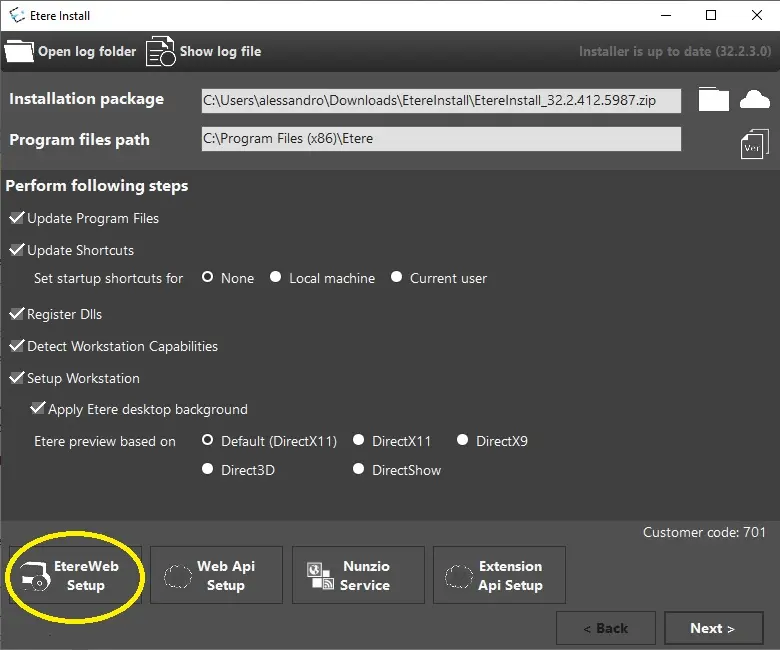
1. The Etere Web Application (Etere Web Setup) installation is embedded into the Etere Update main menu, as shown below. It runs outside the Etere environment, requires only the lib_utils component and optionally wsetup.ini for the default Data Connection properties.
Notes:
- If both "Etere Web Setup" and "Web API Setup" use port 80 (default port) for communication with the SQL Server, both setups cannot be run concurrently; otherwise, one of the setups will fail.
- Before Etere Web setup, Etere application modules must be installed and configured in the workstation, and the database must be connected.
installation_etereweb_setup
2. Launch the Etere Installer; open the Etere Web setup wizard through the related button, to start the application initialisation process
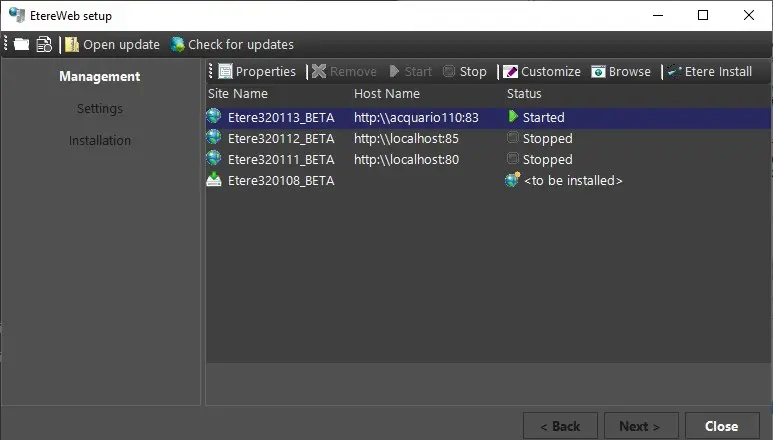
Here, you can view the versions that have been downloaded but not installed yet, marked with the label <to be installed>.
setup_management
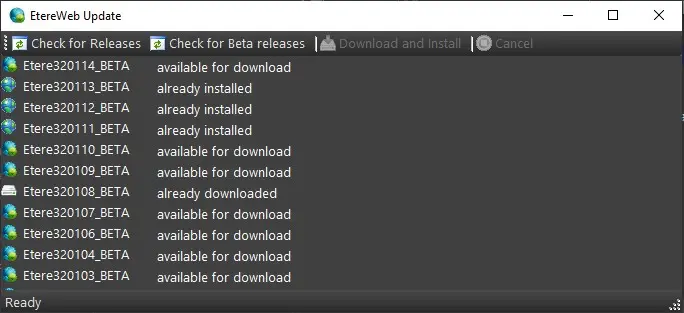
By simply clicking the Check for updates button, you can see all the latest Etere Web releases and check whether they have already been installed or downloaded, or are available for download.
Selecting a version available for download would enable the button Download and Install, which will create a folder named "EtereInstall" (if not already present) in the local user's downloads folder, where the selected Etere Web package will be saved.
The installation will start once the download is done.
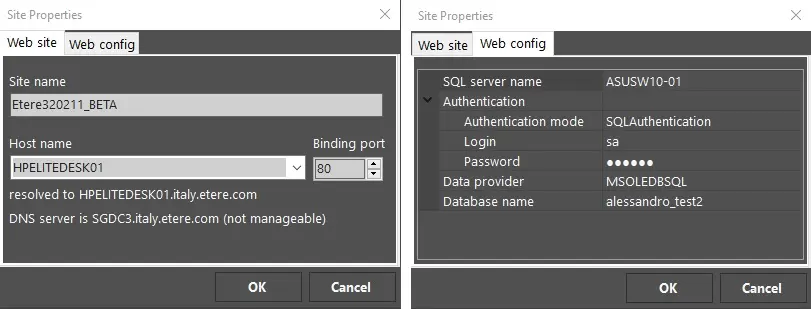
• Web site name: It displays the network site name where the Etere Web Setup application is available. Etere Web Setup can manage the DNS, which retrieves the IP address (the hostname is not necessarily needed) to fulfil the settings. A DNS Server can be another machine in the network; the user must be granted specific Windows permissions to manage DNS.
• Inherit binding from: This setting allows the new website to inherit impersonation, hostname, and binding port from the last installed site.
• Run: indicate if the installation step has been performed or is yet to be performed.
• Step: List the various steps to be performed in sequence by the installation program (see detailed information below).
• State: Click on the status under the "State" column to view the step's details.
The required software must be installed:
-Microsoft .NET Framework 4.6 or later
-IIS 7.0 or later
-ASP .Net 4.5
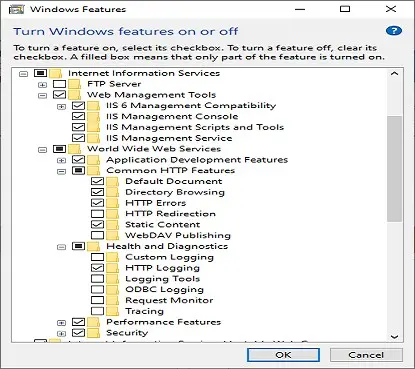
-IIS Windows Features listed below must be enabled:
Windows_Features
- Creates a physical path directory
- Creates application pools
- Creates a new site in IIS pointing to the physical path created and creates the virtual directories according to the media folders available in Etere.
Extract files from the installation package to the physical path on the website.
Using this function, the user can set up the Etere Web Player Streaming Service (EtereWPlayer) if installed on the same server. Select the related feature in the Etere Desktop installation process to install the Streaming Server.
Updates specific Etere Web stored procedures and functions in the database.
This process updates the Web.config file by setting the database connection strings in the physical path.
When the installation cannot proceed further, this process automatically rolls the site and directories back to the previous state.
Etere Web Management
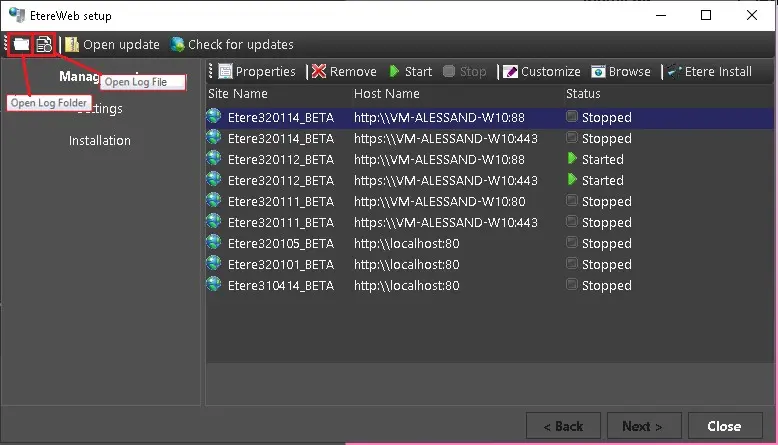
In the "Management" tab, all versions of Etere Web are displayed under their respective network sites. The "Management" tab toolbar allows users to manage the Etere Web applications.
The Web site tab displays site information (site name, hostname, binding port, and DNS server).
The virtual dirs tab contains only the Set up virtual directories button, which lets you view the media folders configured in Etere and create virtual folders for the website. It basically allows repeating the Create website step.
Delete - Using the delete function, the user can remove the selected website and delete its application pool and physical directory from the Management panel if no other sites use it.
Before executing this function, the website must be stopped.
Start/Stop - These functions allow users to start or stop the website.
Note: If the error message "The object identifier does not represent a valid object" pops up when attempting to amend the Stop/Start status, it indicates that the default website does not have an HTTP binding.
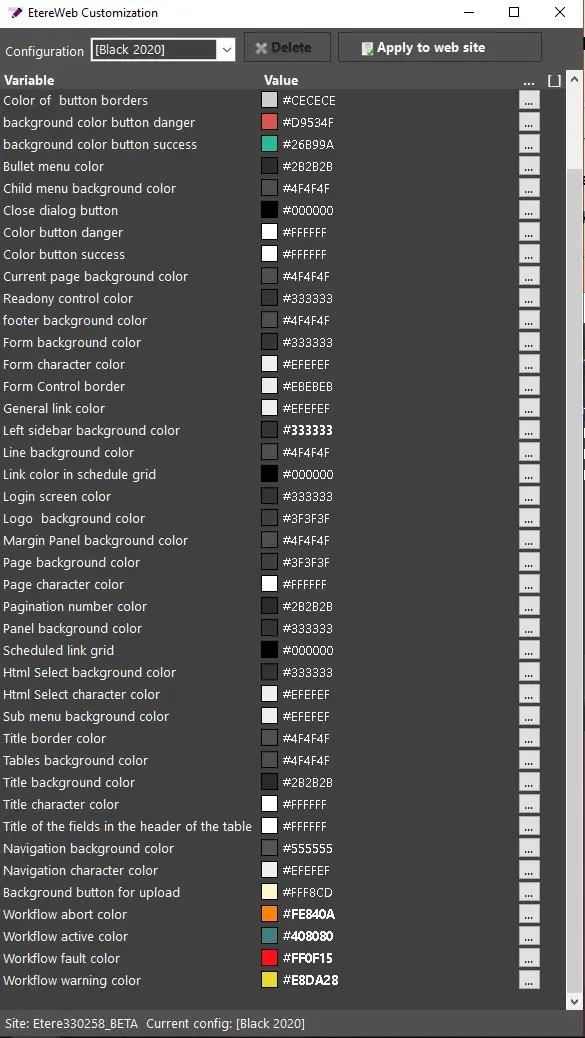
Customise - This feature opens a dialogue box that allows you to customise the website's appearance. Changes allowed for customisation include the general aspects of the web appearance.
• Delete: It deletes the selected changes.
• Apply to the website:
✓It applies the selected configuration to the website if no changes have been made.
✓If changes are made to the selected configuration, it saves the changes to the database and applies the new configuration to the website.
• Save As: It saves the amended template with a different name.
Browse - This feature opens the website with the default browser, using its hostname or local hostname.
Etere Web Setup Log
During the Etere Web Setup, the log containing detailed information about the setup process is saved on the local PC in the C:\Users\[user_name]\AppData\Local\Etere\Log folder. The log file name is Etere.Web.Installer*.log.
Use the toolbar icons <Open Log File> or <Open Log Folder> in the Etere Web Setup menu to locate and view the log file.
 installation etereweb setup
 Check for updates
 setup management
 Site Properties
 customize open log folder
 etereweb_customization
 Windows_Features