97 Data migration guide between different databases
- Open SQL Server Management Studio (SSMS).
- Connect to the source instance.
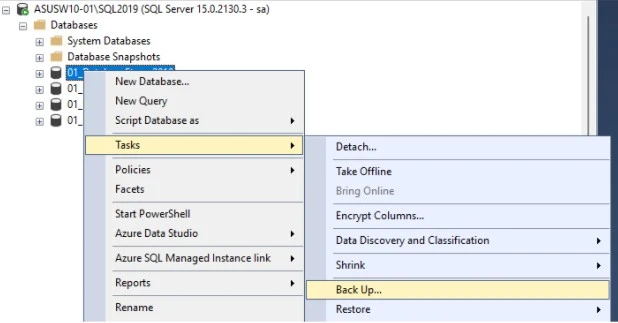
- Expand Databases, right-click the database to be copied → Tasks → Back Up…
- Configure the backup:
- Backup type: Full
- Backup to: Local or shared disk location
- Backup type: Full
- Start the backup by clicking OK.
CreateTheBackup
- Locate the newly generated
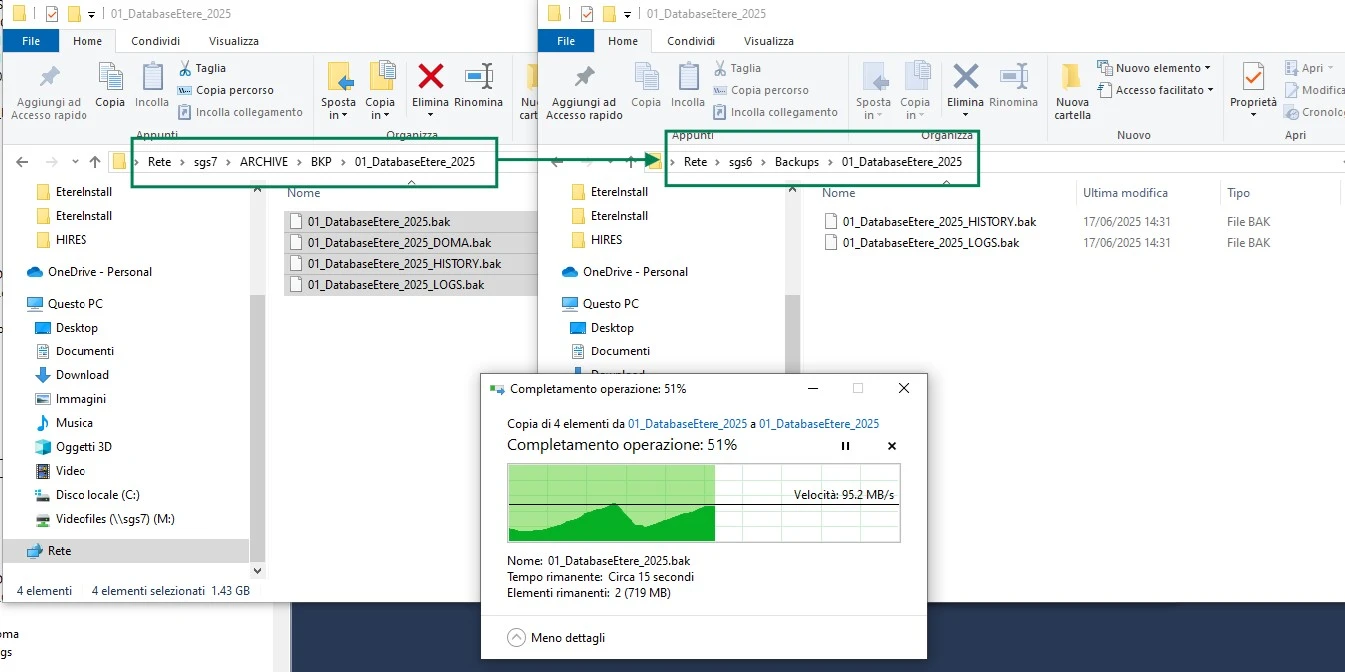
.bakfile. If you're unsure where to look, right click on the SQL Server Instance → Properties → Database Settings - Copy it to the machine hosting the destination SQL Server instance, in a location accessible by SQL Server.
CopyingBKP
1.3 Restsore the database on the target instance
- Connect to the target instance in SSMS.
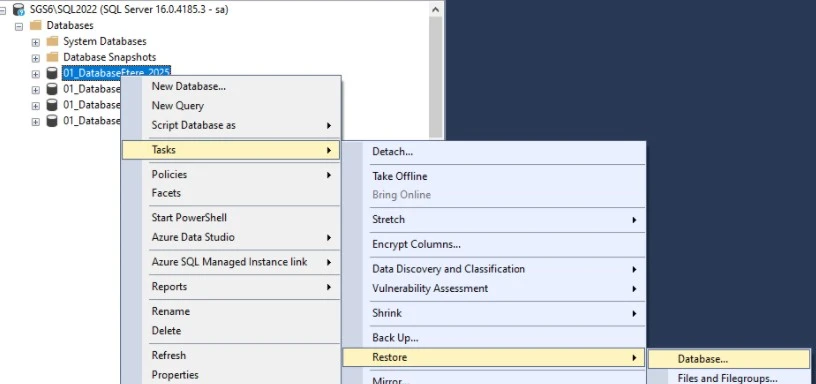
- Right-click Databases → Restore Database…
- Configure the restore:
- Source: Device → select the
.bakfile
- Source: Device → select the
- Under Files, verify the paths of the MDF and LDF files and adjust if necessary.
- In the Options page, check the option "Overwrite the existing database (WITH REPLACE)".
- Click OK to start the restore.
Example > RestoreTheBackup
- Ensure the database is accessible and intact.
- Verify users and access permissions.
It is important to also check if the Service Broker is enabled and the Trustworthy status of the DB. To do so, execute the following query on the DB:
SELECT IS_BROKER_ENABLED, IS_TRUSTWORTHY_ON FROM SYS.DATABASES WHERE NAME = '[DB NAME WITHOUT SQUARE BRACKETS]'
If the result/s displayed are 0, it means that the broker is not enabled and/or trustworthy is off
To activate a new service broker, execute the following query on the DB:
ALTER DATABASE [DB NAME WITHOUT SQUARE BRACKETS] SET NEW_BROKER WITH ROLLBACK IMMEDIATE
To set trustworthy status to "On", execute the following query on the DB:
ALTER DATABASE [DB NAME WITHOUT SQUARE BRACKETS] SET TRUSTWORTHY ON
Once the new instance has been tested, proceed with the configuration of ETERE to maintain playlist and asset data consistency.
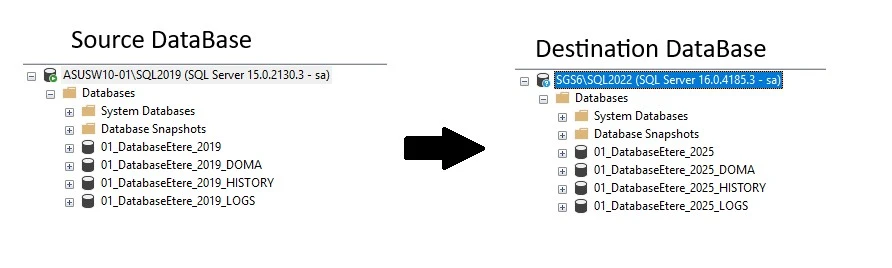
PostRecoveryChecks
- Both databases (A and B) must initially be cloned and identical.
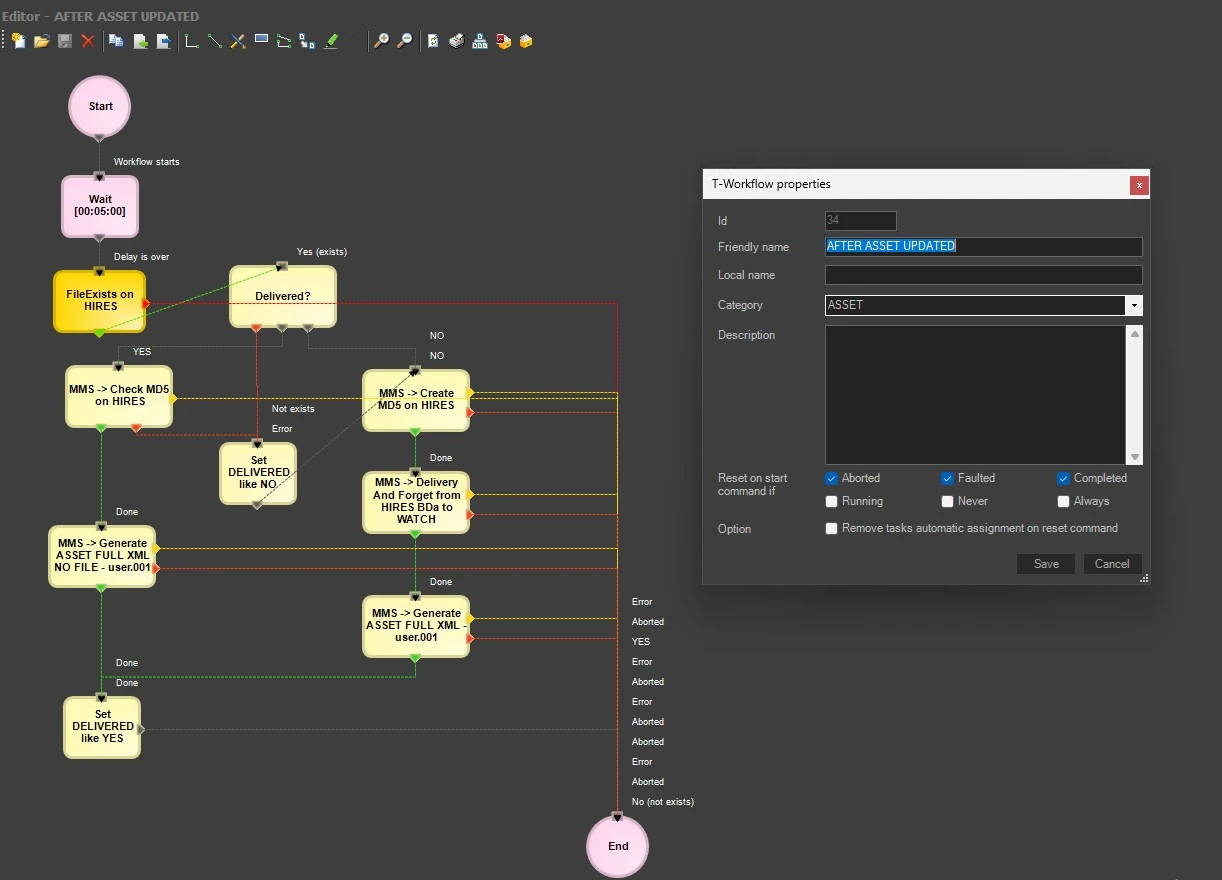
- On DB A, a workflow called AFTER AN ASSET UPDATE must be active and set as default for each asset modification. This workflow triggers whenever an asset is new or its metadata/fleximetadata is modified.
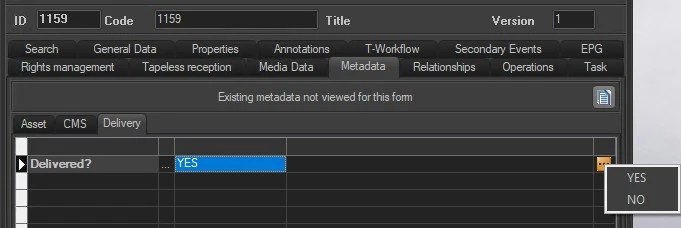
- On both databases, a FLEXI called DELIVERY must be created to perform necessary checks.
WfAfterAssetUpdated
DeliveryFlexi
Case 1: Creation of a new Asset
- User creates an asset on DB A.
- The workflow AFTER AN ASSET UPDATE is automatically activated.
- Workflow copies the associated video file.
- Workflow generates an XML file containing all asset information.
- Both files (XML + video) are saved in a shared watch folder accessible by both sites.
- On DB B, Active Sync scans the folder every 5 minutes:
- Detects the XML and video files.
- Performs asset creation using the same CODE and flexi, placing the video as configured by the workflow.
- Detects the XML and video files.
Case 2: Modification of FlexiMetadata Only
- User modifies one or more fleximetadata fields in DB A.
- The workflow AFTER AN ASSET UPDATE detects changes and triggers.
- Workflow generates an XML file with updated information, without copying the unchanged video file.
- XML is copied to the shared watch folder.
- On DB B, F90 continuously scans the watch folder every 5 minutes:
- Detects XML file.
- Updates the corresponding asset (based on the same code) in DB B.
- Detects XML file.
Case 3: Modification of FlexiMetadata + Metadata
- User modifies an asset in DB A, updating both fleximetadata and hires metadata.
- The workflow AFTER AN ASSET UPDATE detects changes on both fronts.
- Workflow generates an XML file and copies the updated video to the watch folder.
- On DB B, Active Sync:
- Detects new files.
- Updates metadata, flexi, and video as required, keeping assets synchronized.
- Detects new files.
Technical Notes:
- The watch folder must be accessible for writing from DB A and reading from DB B.
- F90 and AS modules must be correctly configured to export XML and handle video files.
- XML structure must comply with the import model used by F90 and Active Sync.
Step 1 – Export from Source Site
- Each time changes occur in EE (Executive Editor) on DB A, an XML file is generated containing updated playlist data for the modified day.
- Use EXPORT → STANDARD → GENERIC → XML in Etere to generate the XML.
- Save the XML to a shared folder accessible to both source and target databases, with read/write permissions for all involved services.
Step 2 – Import into Destination Site
- Configure import on DB B using IMPORT → STANDARD → GENERIC → XML via F90.
- F90 continuously scans the shared watch folder for new XML files.
- When a new XML file is detected, F90 imports the data into DB B, updating the relevant playlists.
- After import, the system automatically notifies the operator to update playlists in EE using:
- F4: update duration
- F6: update duration + secondary events
- F8: explode assets from correct EDL
- F4: update duration
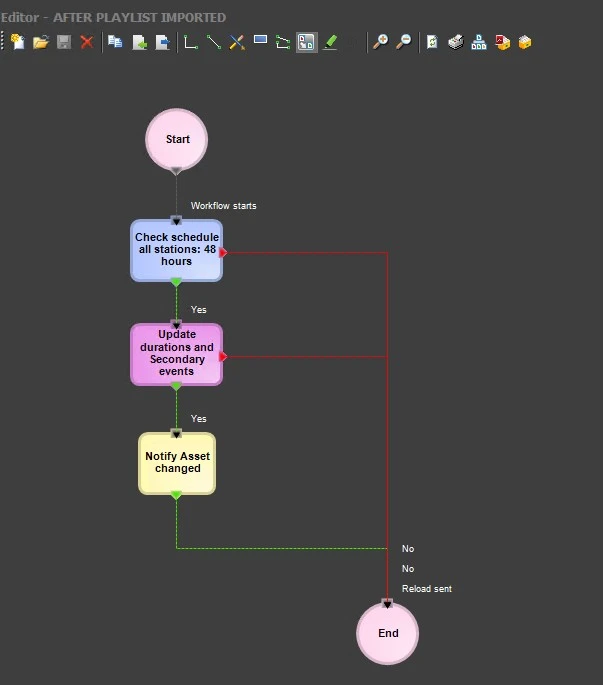
- Create a WF AFTER PLAYLIST IMPORTED to control and notify the operator to update EE media, preventing OnAir issues.
WfAfterPlaylistImported
 CreateTheBackup
 CopyingBKP
 RestoreTheBackup
 PostRecoveryChecks
 WfAfterAssetUpdated
 DeliveryFlexi
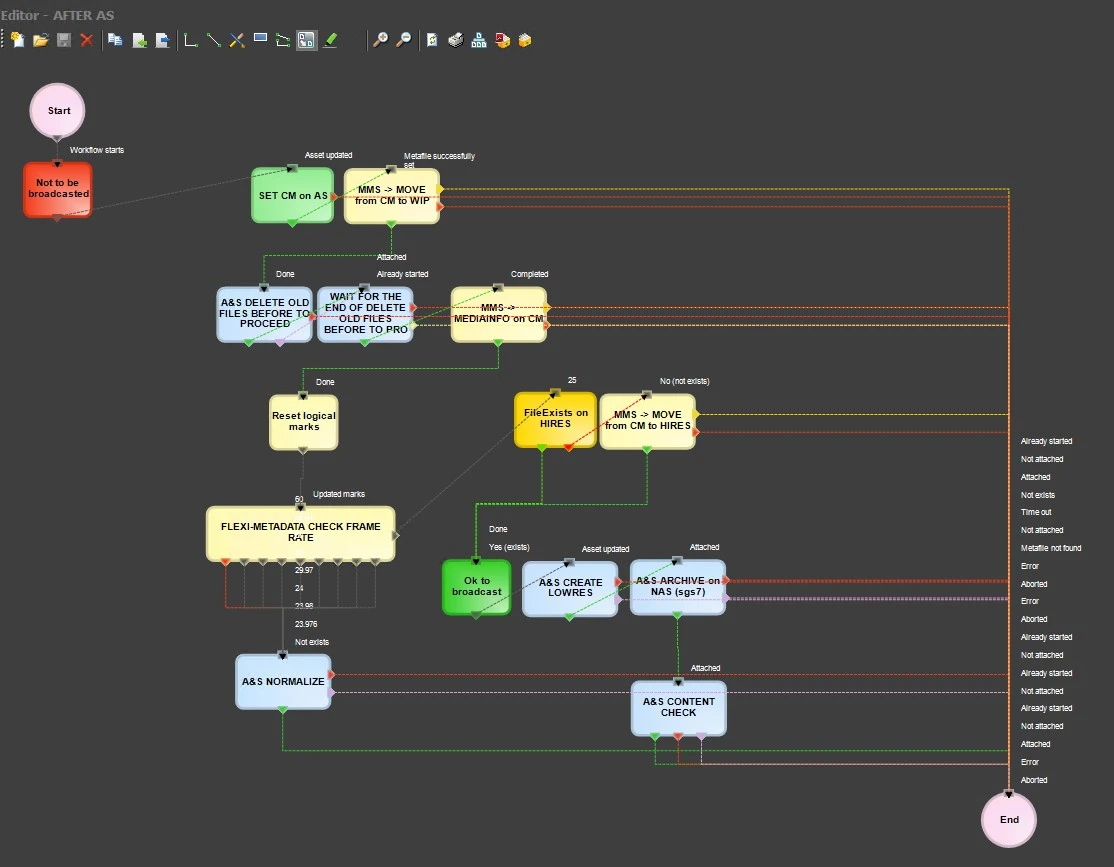 WFAfterAS
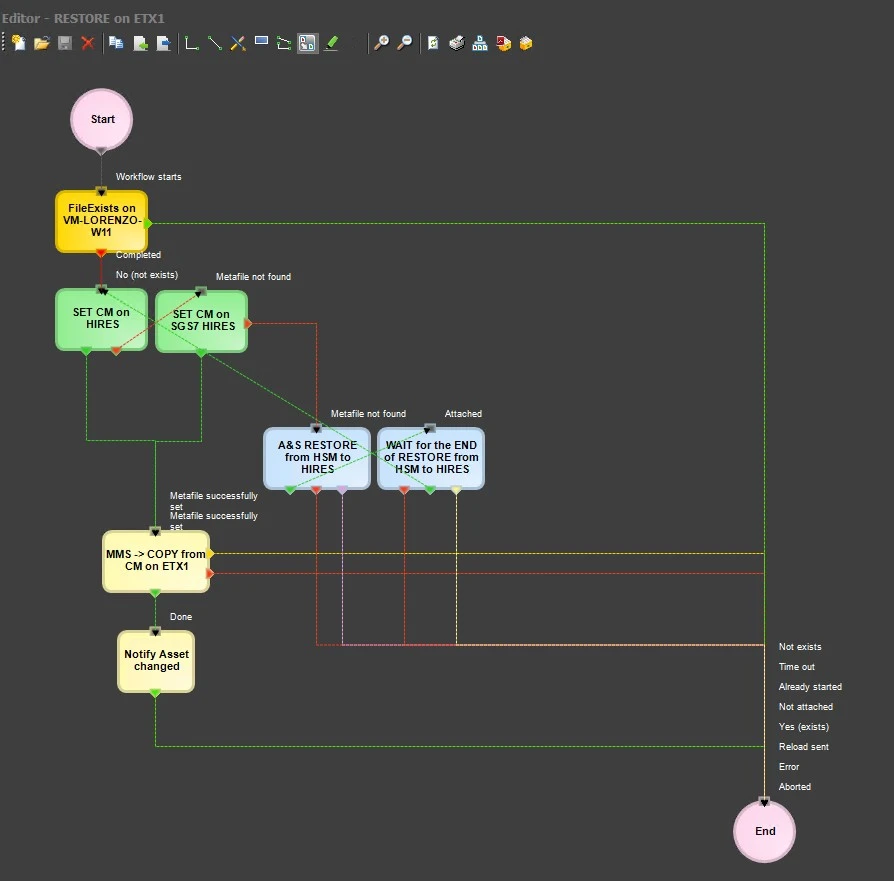 WfRestoreOnETX1
 WfAfterPlaylistImported