90.4 How to search\find a Segment
Search a Segment using the Artist Name
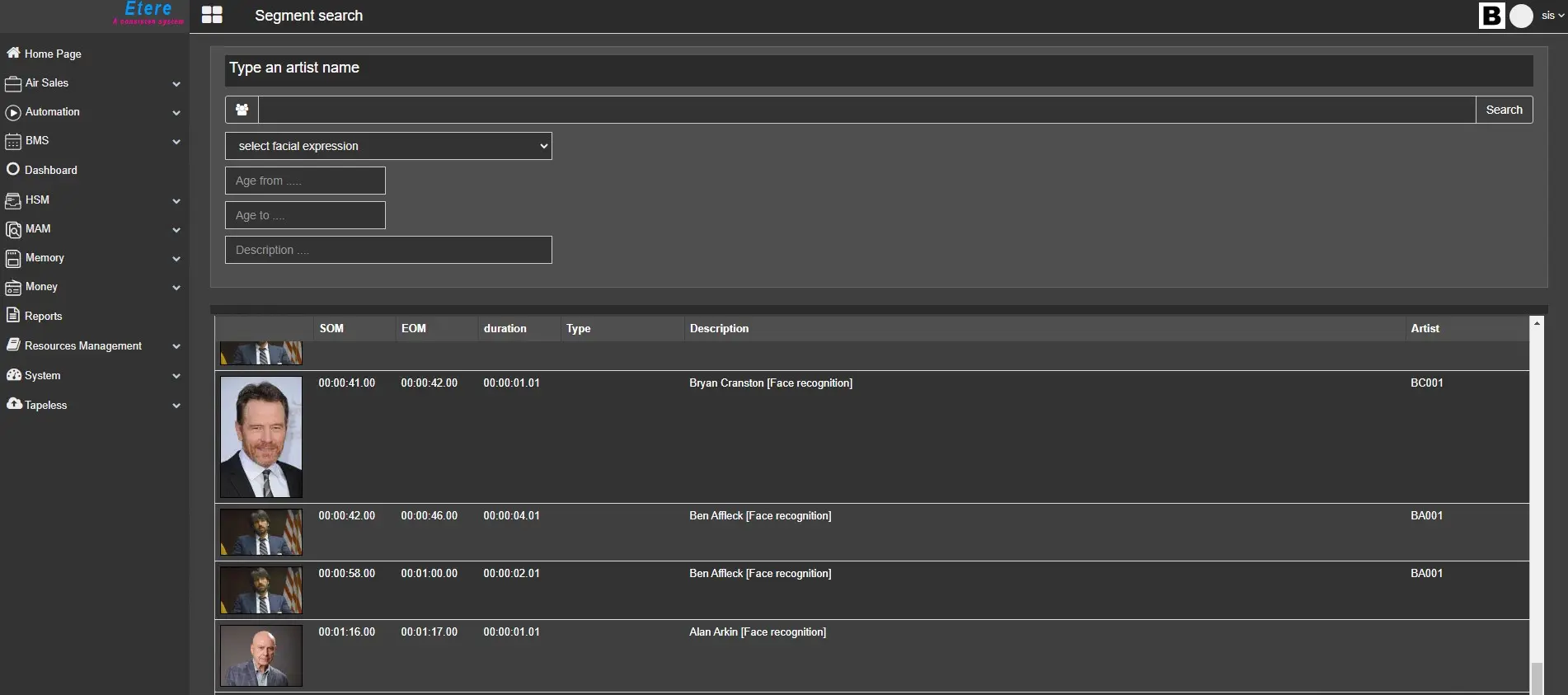
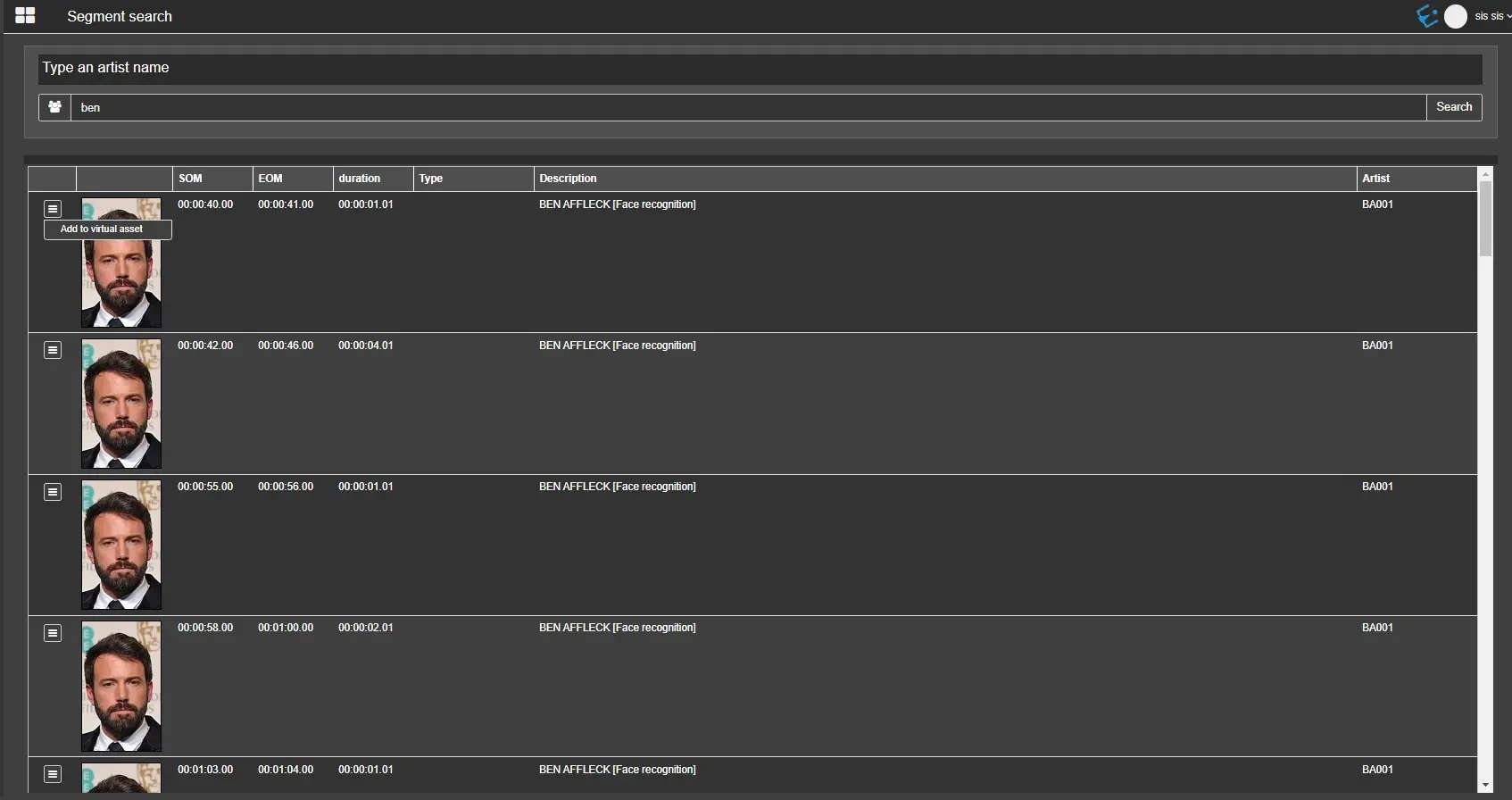
In the Etere Web (MAM->MediaLibrary->SegmentSearch) we can search the segments assigned to a particular Artist writing the name of the artist that we want to find, as we can see in the screenshot of the example below:
TypeAnArtistName_General
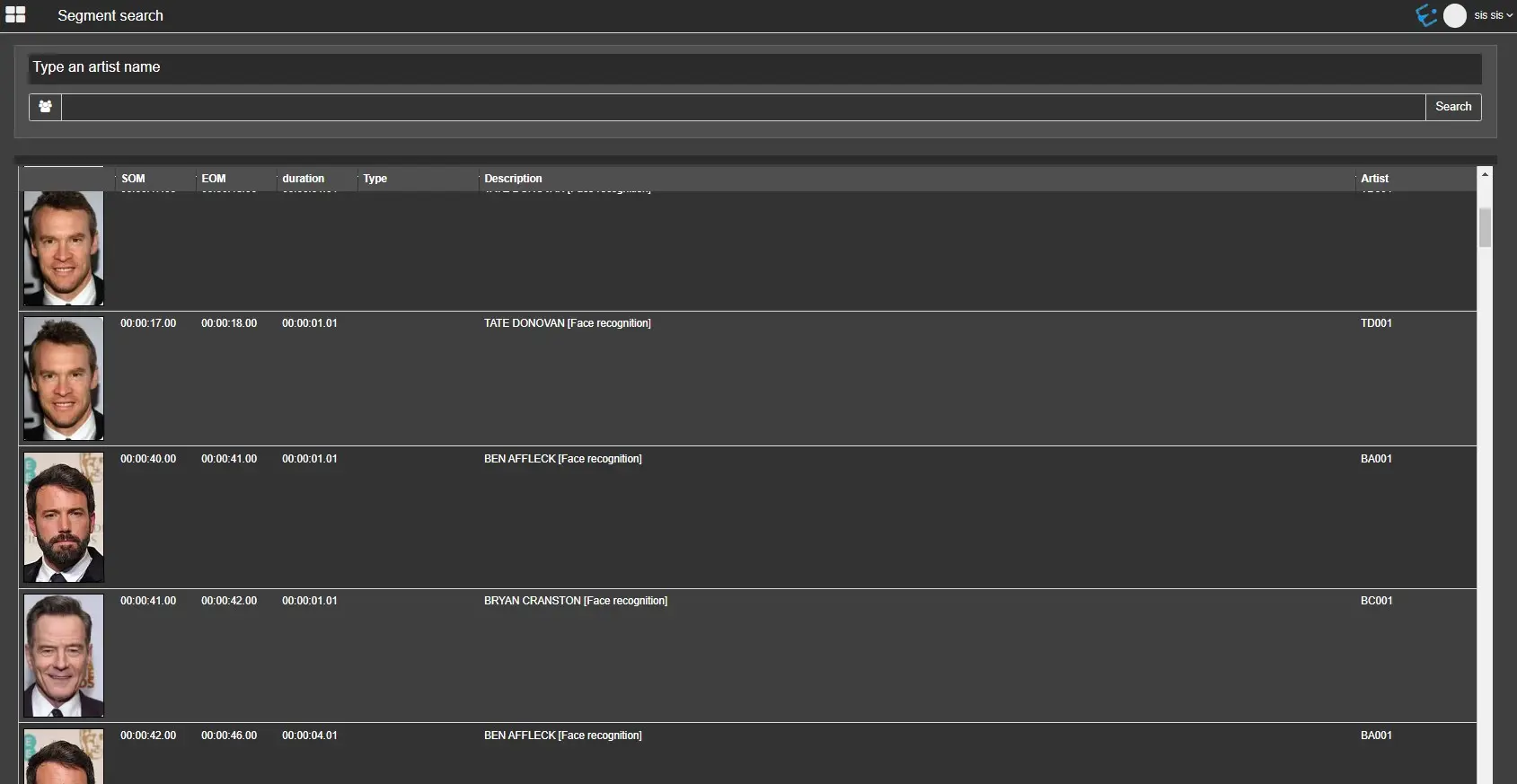
In the results section of our search we can see all the segments found by the system, based on the search criteria set. Each segment will be listed in a different row and all the information of each segment will be divided by columns.
THUMBNAIL: is the thumbnail associated to the segment. If we go over it we can see a tooltip that indicates the Stage Name of the artist.
SOM: is the SOM of the segment.
EOM: is the EOM of the segment.
DURATION: is the duration of the segment.
TYPE: is the Type of the segment.
DESCRIPTION: is the Duration of the segment.
ARTIST: is the Artist associated to the segment, the STAGE NAME of the artist will be displayed.
SegmentsResult
If we click on GROUP button the system shows us the filters usable to help us to speed up our search.
GroupButton
The filters we can use are the following:
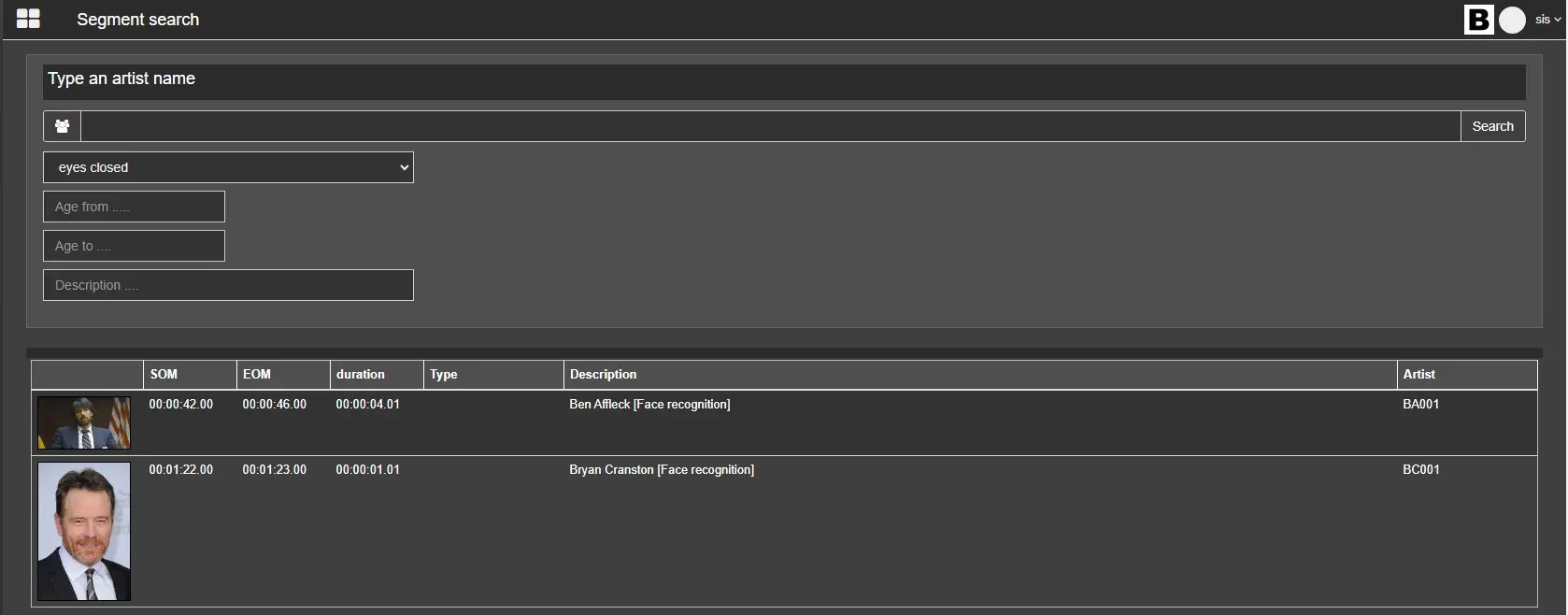
Select facial expression: we can select two kind of facial expression like EYES CLOSED or SMILE.
In the following example, we're setting up the system to show all segments with the artists with the eyes closed.
TypeAnArtistName_EyesClosed
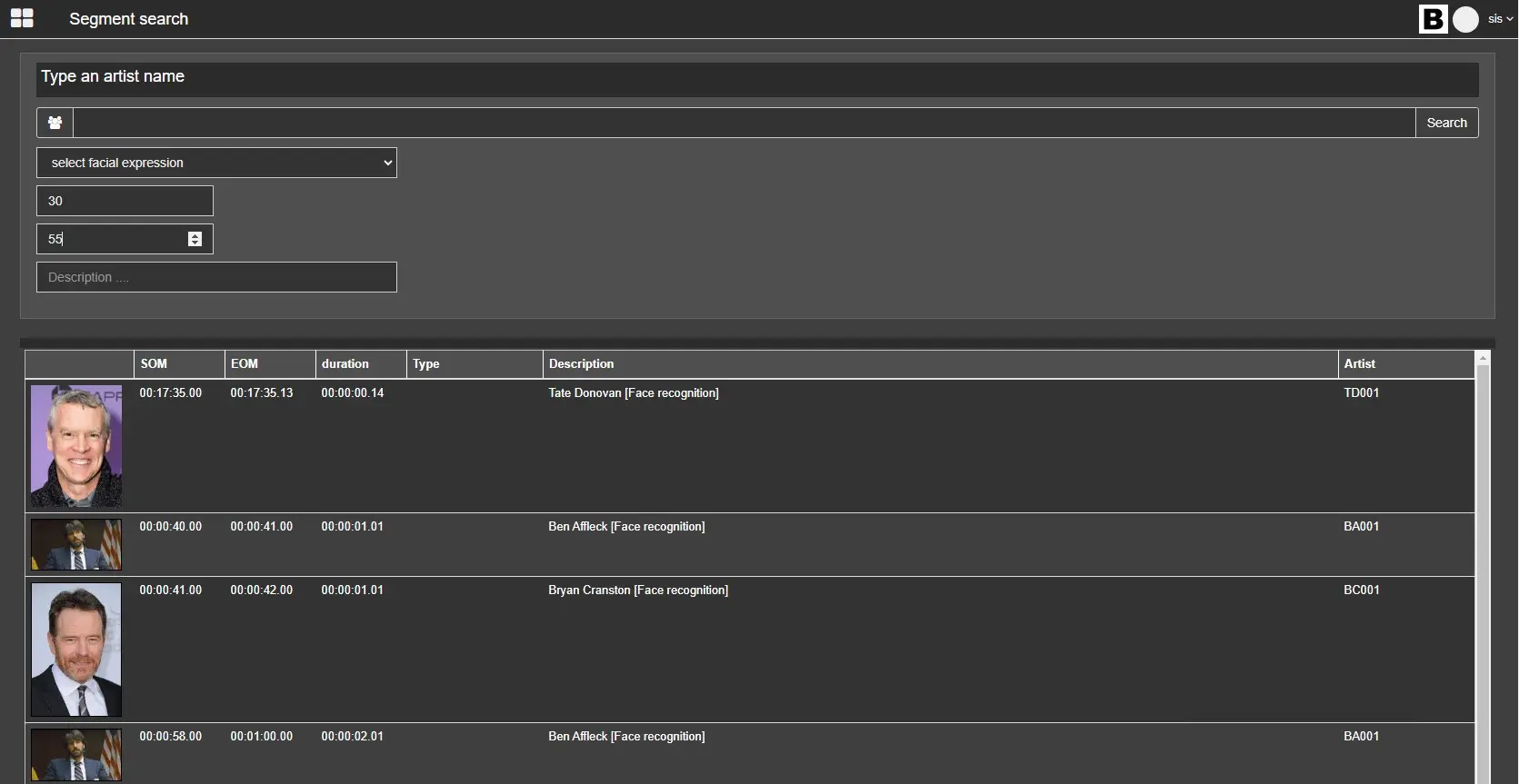
Age from...: we can set the starting age of our search range.
Age to...: we can set the end age of our search range.
In the following example, we're setting up the system to show all segments with the artists in the age range of 30 to 55.
TypeAnArtistName_Age
Description: we can insert a description like the name of the artist we want to find.
In the following example, we're setting up the system to show all segments with the artists with AFFLECK value inside the description field.
TypeAnArtistName_Affleck
How to customize the WEB ARTIST page
Use the Web Artist section to customize the desired information displayed under the Web Artist section each time EtereWeb is launched.
In the Web Artist configuration settings, the list of templates is available in the left panel; once the template is selected, a list of available columns is displayed on the right panel, user can select desired columns to be displayed in EtereWeb by adding or removing them using the green-arrow buttons (outlined in red). Once columns are added to the central panel (Column to show), position the columns using the green-arrow buttons (outlined in blue).
Web_Artist
In the panel, the width of the column can be customized once the column is added to the panel. The default width size is 0; click on the width value to customize the column width to suit your needs. Upon completion, click the button to save and apply the configuration settings.
Etereweb_Artist
How to see the preview of a segment
In the segment results list we can click on the thumbnail of each result to activate the preview of the selected segment. Only part of the segment will be displayed and not the whole file.
SegmentPreview
How to add a Face Recognition Segment to a Virtual Asset
After performing a search, according to our criteria, from the list of results we can select one or more segments and then add them to an asset thus creating a Virtual Asset made up of various segments of various assets.
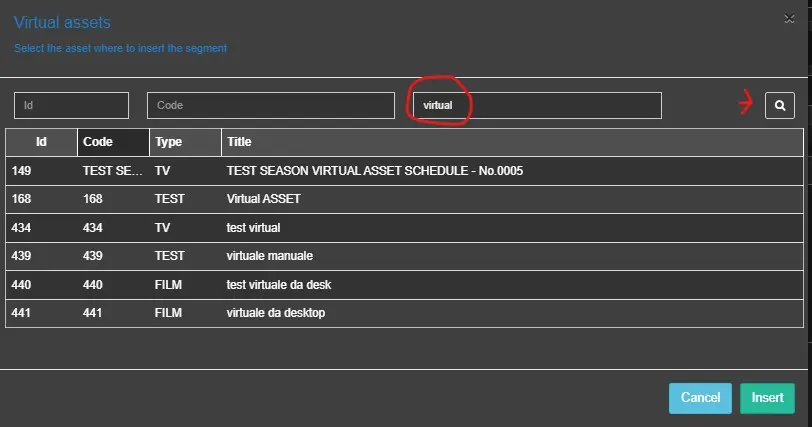
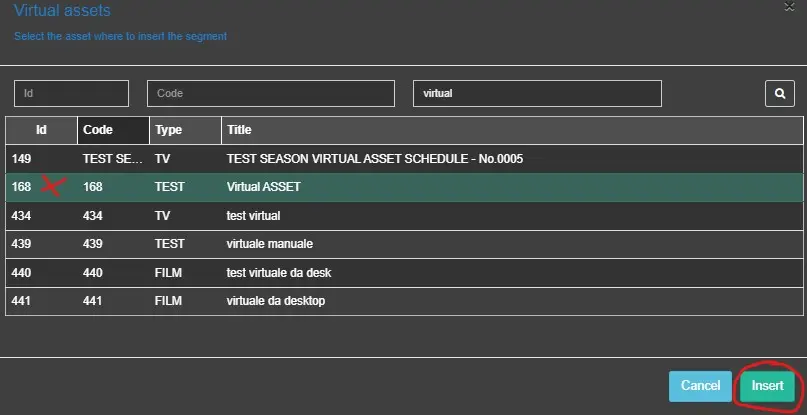
To do this, we have to click on the "Hamburger" button located on the left side for each row of each segment then press on "Add to Virtual Asset". After clicking on this button the system opens a new window. From this windows we can search virtual assets already created in our system using the filters ID or Code or Title then by clicking on SEARCH button. At this point we can select the Virtual asset where we want to add the segment and click on INSERT button on bottom right. The system show us a popup message and here we can click on "GO TO VIRTUAL ASSET" to open it and work on it in another tab.
AddSegemntToVirtualAsset_001
AddSegemntToVirtualAsset_002
AddSegemntToVirtualAsset_003
AddSegemntToVirtualAsset_004
 TypeAnArtistName_General
 SegmentsResult
 GroupButton
 TypeAnArtistName_EyesClosed
 TypeAnArtistName_Age
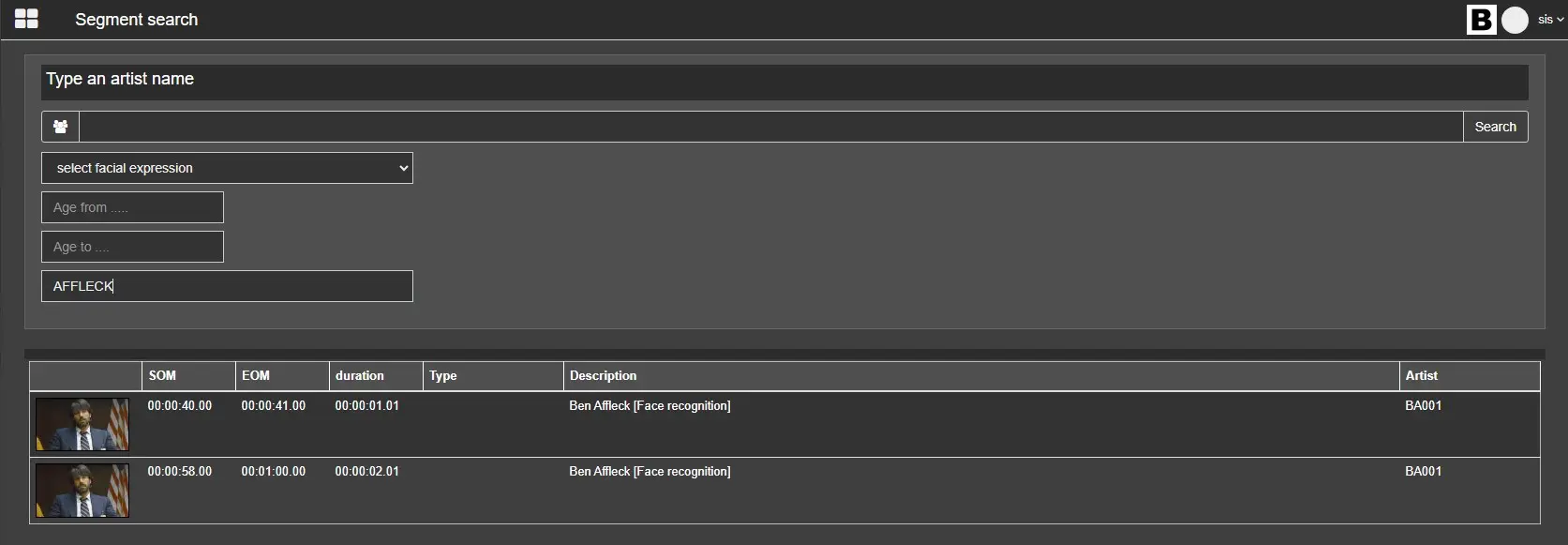 TypeAnArtistName_Affleck
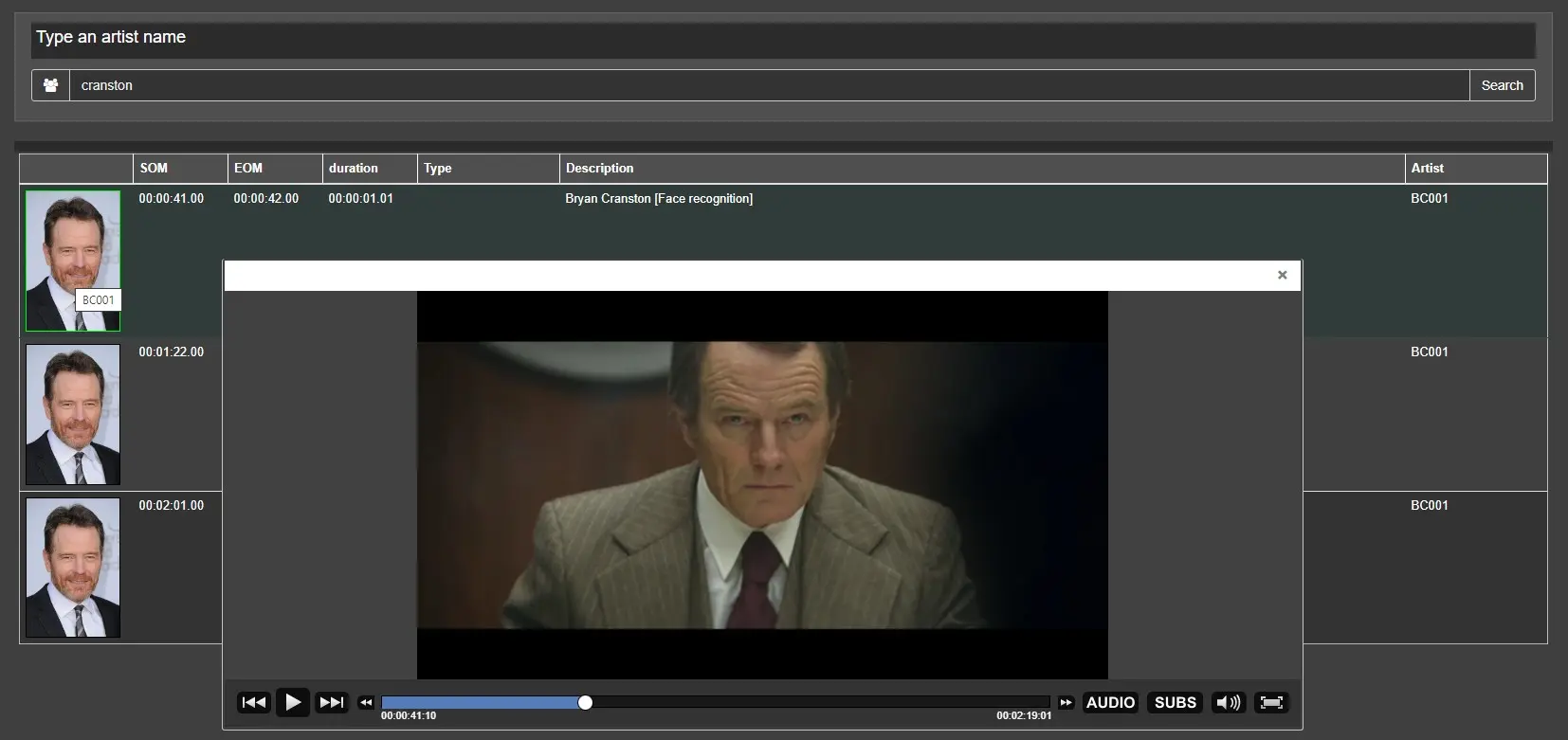 SegmentPreview
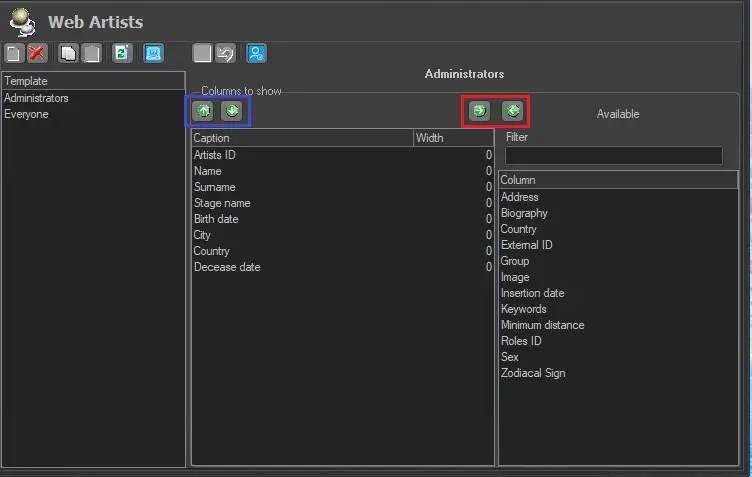 Web_Artist
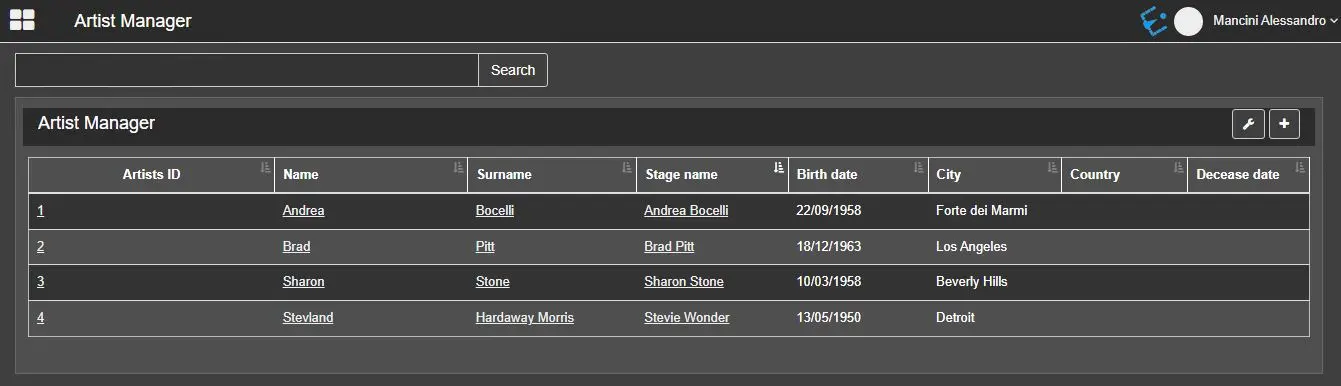 Etereweb_Artist
 AddSegemntToVirtualAsset_001
 AddSegemntToVirtualAsset_002
 AddSegemntToVirtualAsset_003
 AddSegemntToVirtualAsset_004