86.2 Edit
Edit Tab
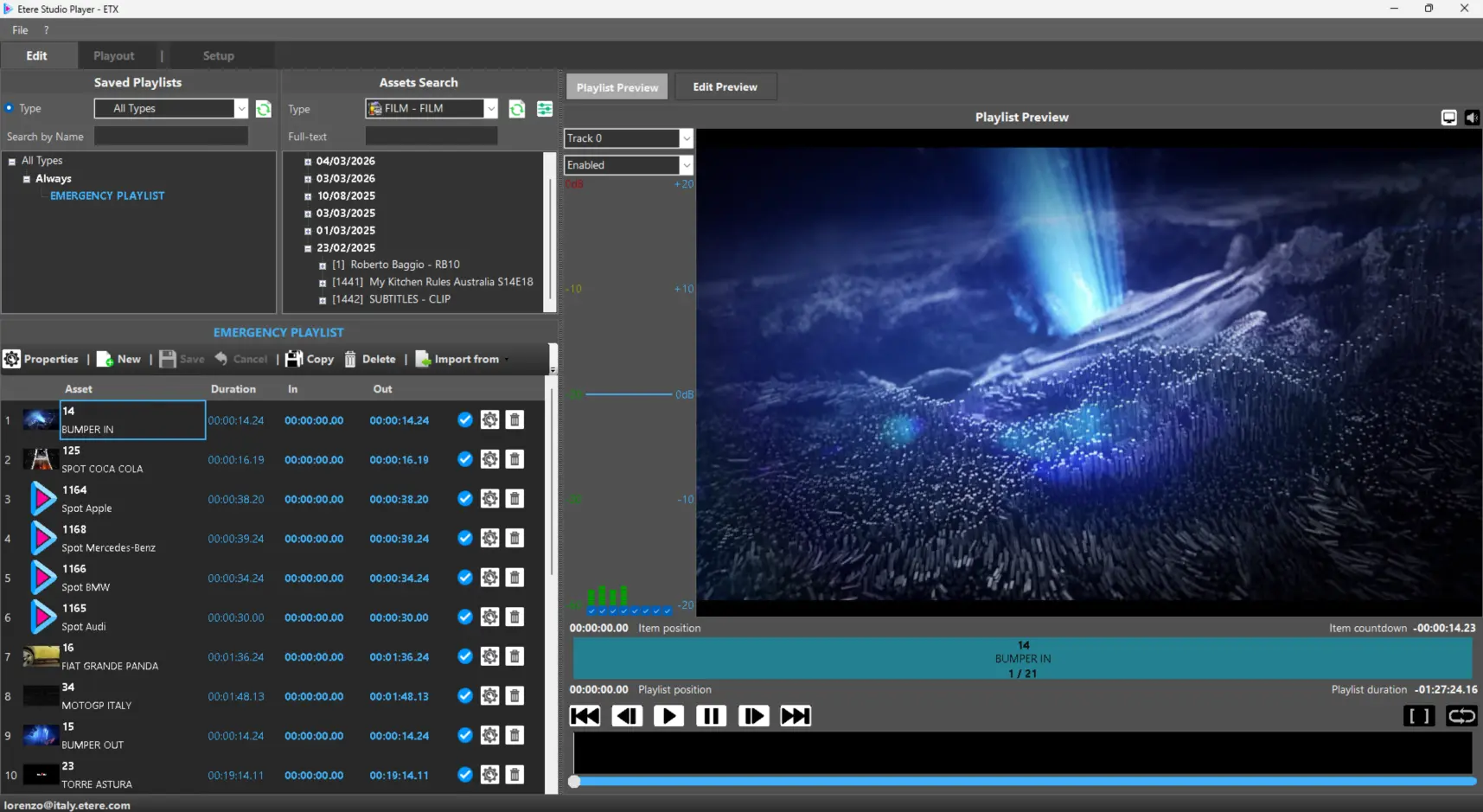
The Edit Tab is used to create, manage, edit and organize playlists and related assets.
Panels: Saved Playlist | Assets Search | Playlist | Playlist Preview | Edit Preview
Saved Playlist
Displays all playlists available in the system.
Filters: Type | Search by Name
Playlists are shown in a tree sorted by validity date:
Always (unlimited validity) | other playlists grouped by validity date
Double-click a playlist to open it in the Playlist panel (selected item highlighted).
Assets Search
Search and add assets to the selected playlist.
Filters: Type | Full-Text | Search Also Expired Assets | Not OK to Broadcast
Results are shown in a tree sorted by creation date.
Assets can be dragged into the playlist.
If an asset contains EDL segments, only selected segments (SOM–EOM) can be added instead of the full asset. This also applies to Thumbnail-enabled assets.
Multi-selection is not supported.
Playlist
Manages playlists and editing actions.
Commands: Properties | New | Import From | Export To | Copy | Delete | Save | Cancel
New requires: Name | Type | Validity (Always or Start Date)
Import From → Virtual Asset (imports segments into new playlist)
Export To → Virtual Asset (creates virtual asset from playlist with confirmation)
Copy duplicates playlist (and linked virtual asset if present)
Delete removes playlist (virtual asset remains if linked)
Save applies changes | Cancel restores last saved version
Playlist Items
Add → drag asset from search into playlist
Remove → select item + Delete + Save
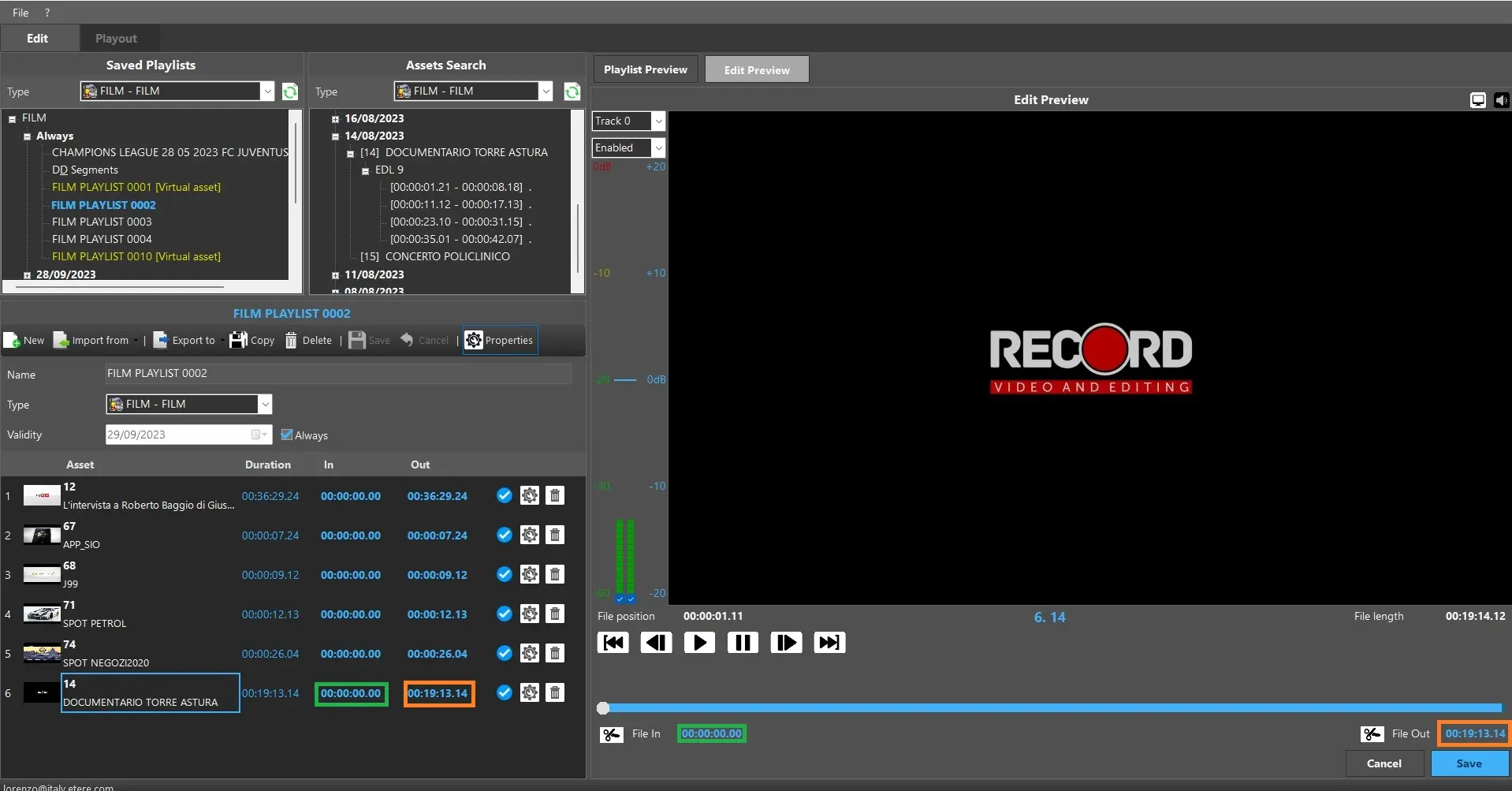
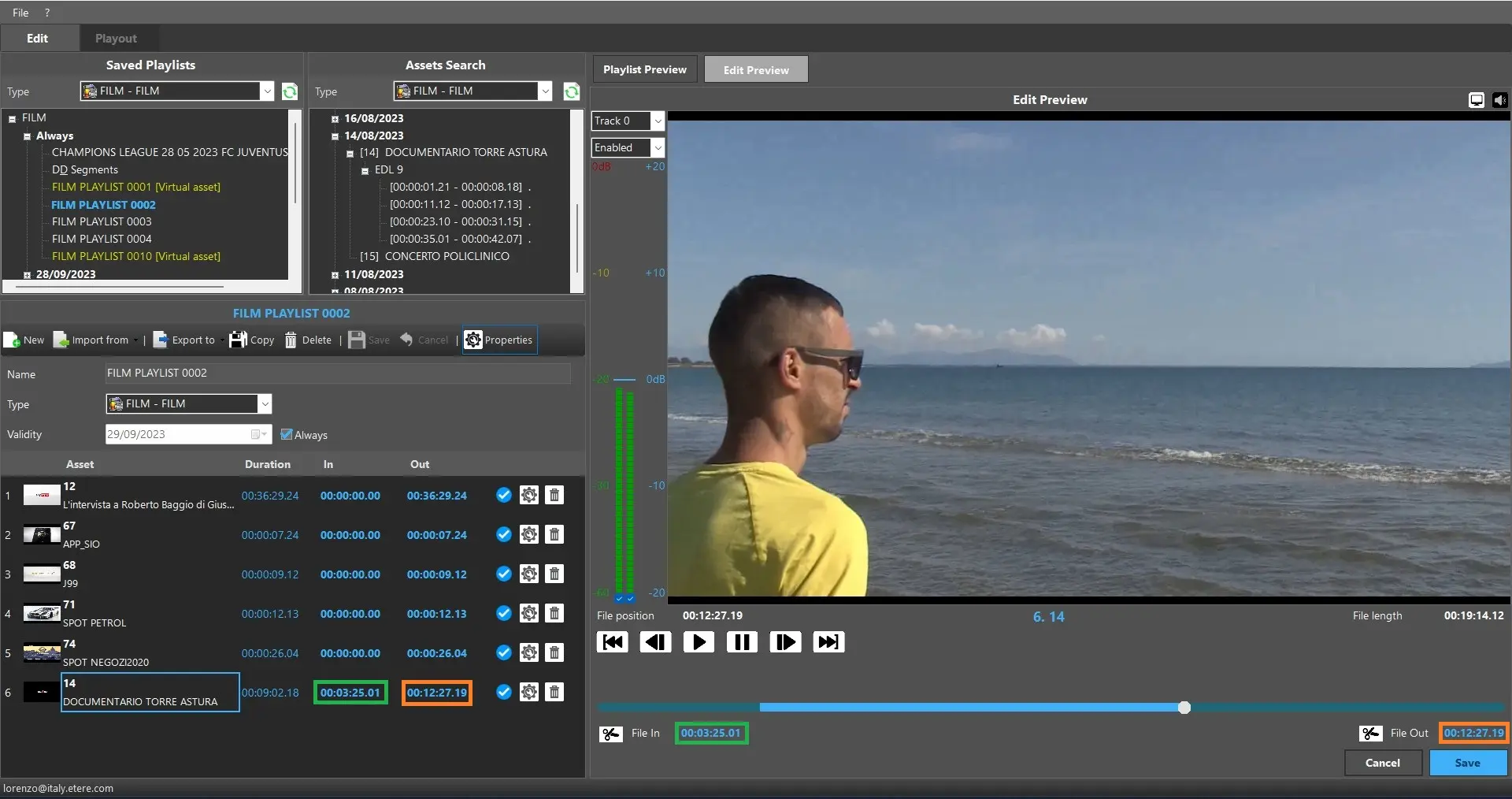
Modify → select item + Edit (opens Edit Preview for SOM/EOM changes)
SOM/EOM edits apply only to playlist, not Media Library asset.
Columns: Thumbnail | Asset (code + description) | Duration | In (SOM) | Out (EOM) | Valid (file available)
Click In/Out to edit timecodes.
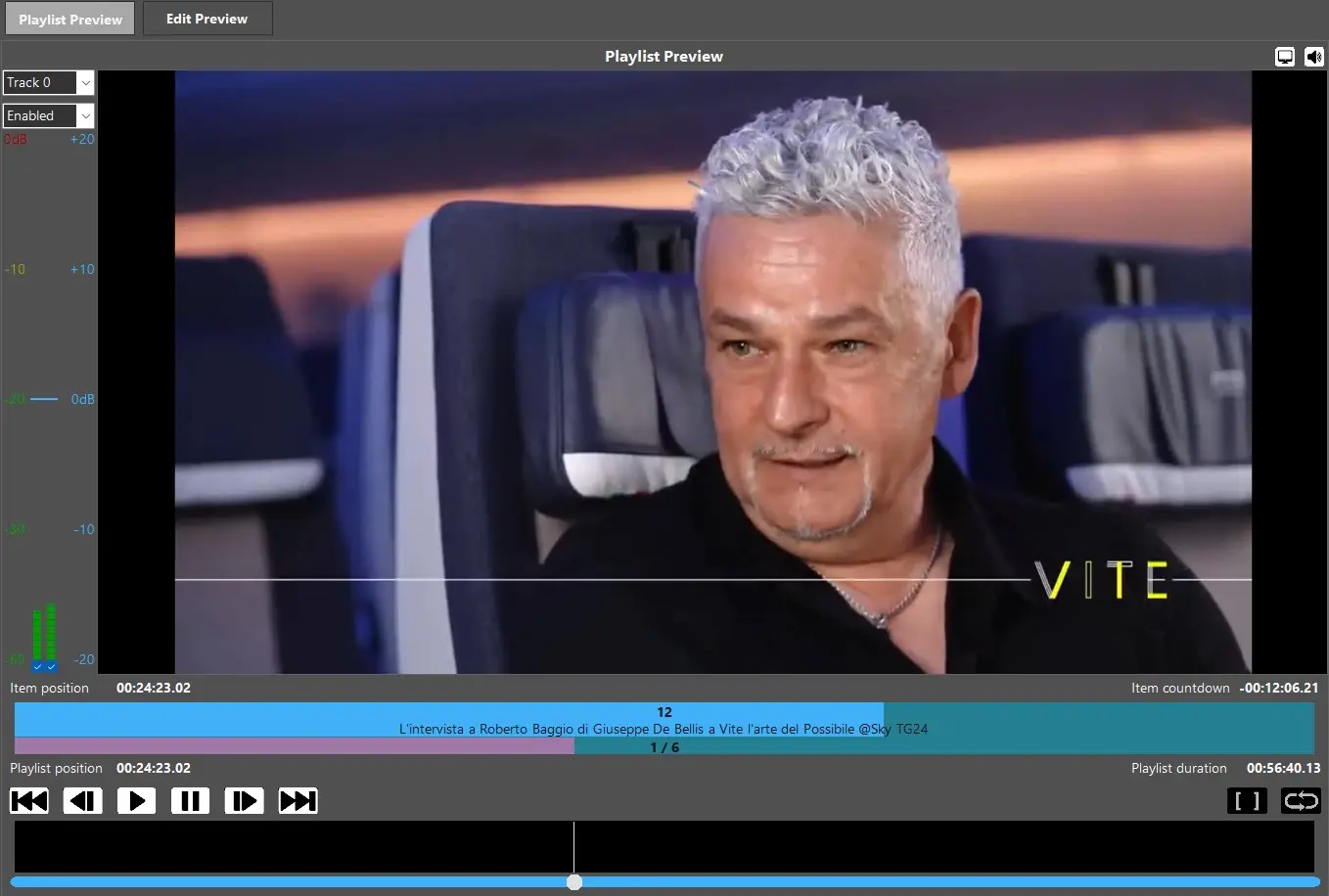
Playlist Preview
Live preview during creation/editing.
Audio: enable/disable tracks | enable/disable channels | adjust gain (default 2 channels visible, more can be enabled)
Video Preview: on/off
Audio Preview: on/off
Info: Item Position | Item Countdown | Playlist Position | Playlist Duration
(real-time progress bars included)
Controls: Play | Pause | Prev/Next Frame | Prev/Next File | Single File | Loop (shortcuts available)
Edit Preview
Detailed item editing panel.
Audio: track enable/disable | channel enable/disable | gain adjustment
Video Preview: center
Options: Video Preview on/off | Audio Preview on/off
Info: File Position | Row Number + Asset Code | File Length
Controls: Play | Pause | Prev/Next Frame | Prev/Next File | Set SOM | Set EOM | Cancel | Save
Cancel discards changes | Save applies modifications to playlist.
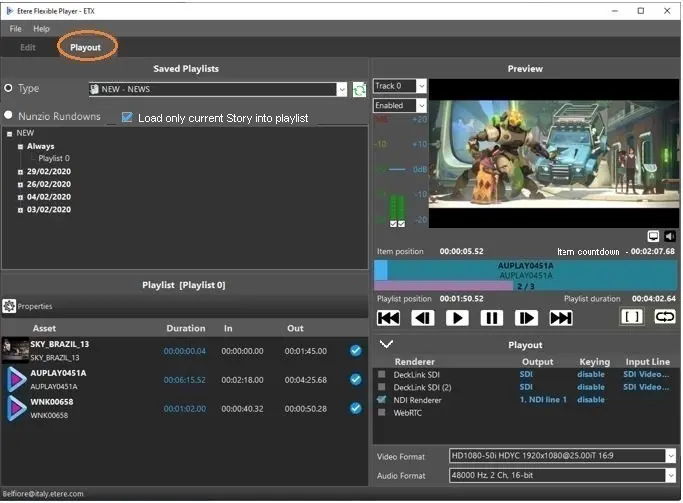 Flexible_player_playout_section
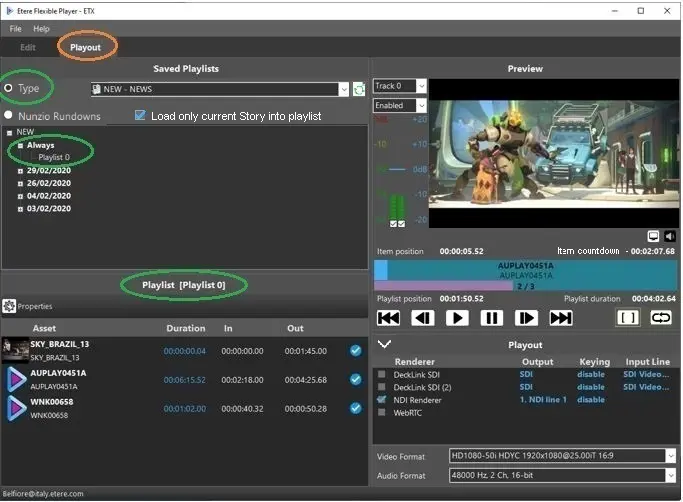 Flexible_player_playout_section_type
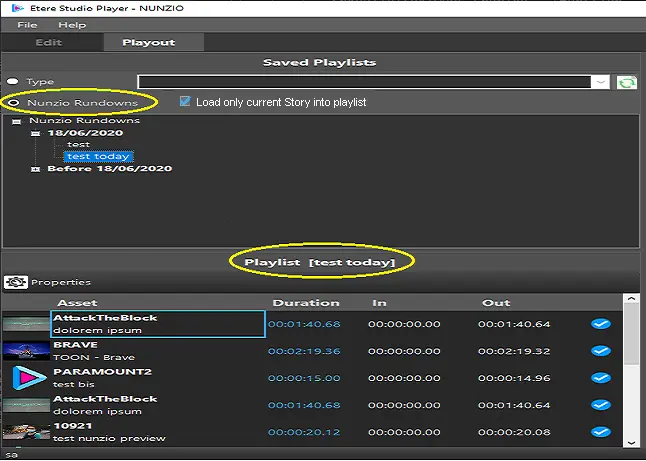 Flexible_player_playout_section_nunzio
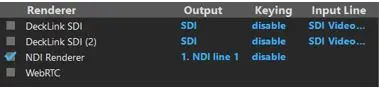 Flexible_player_playout_renderer
 Flexible_player_playout_audio_video_formats
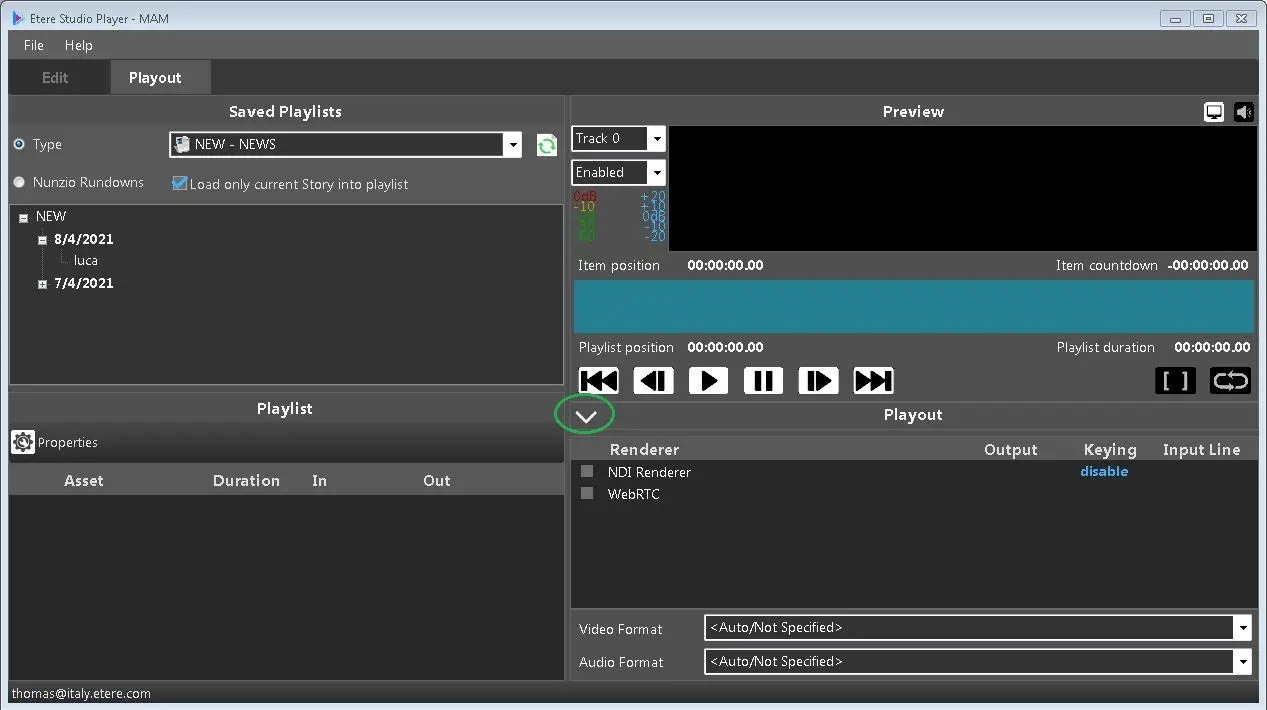 Studio_player_playout_hide
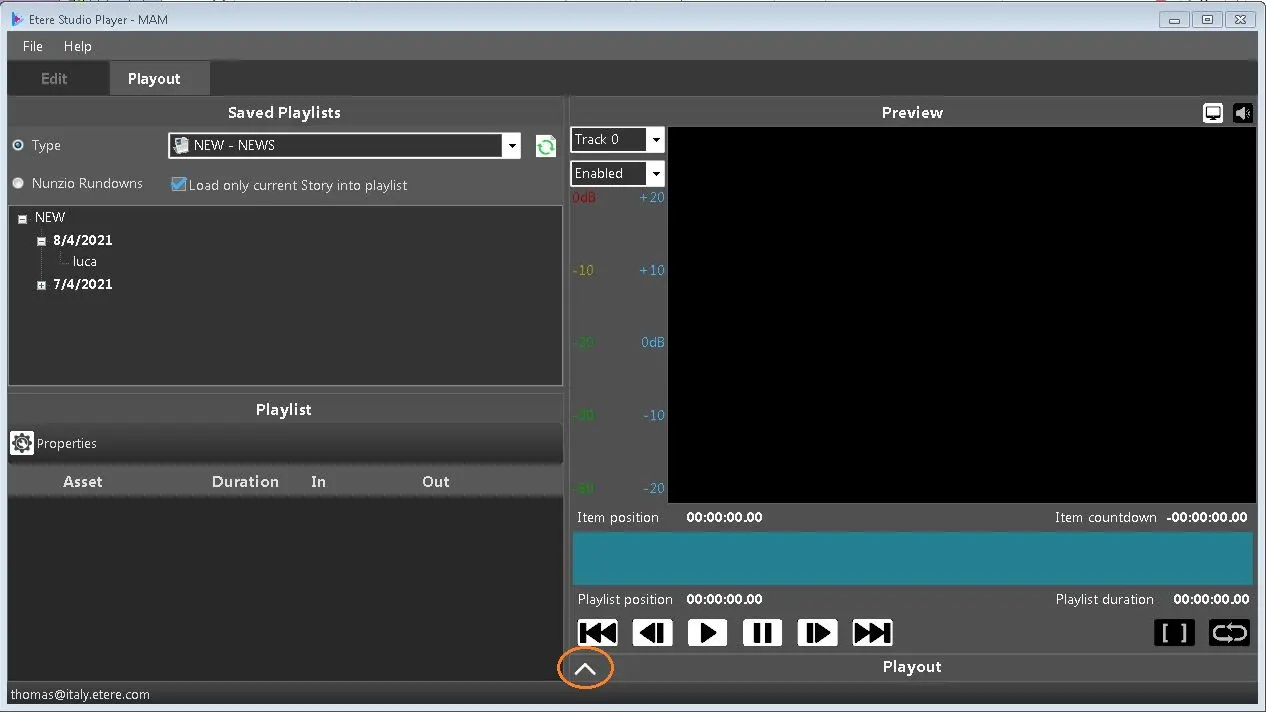 Studio_player_playout_hidden
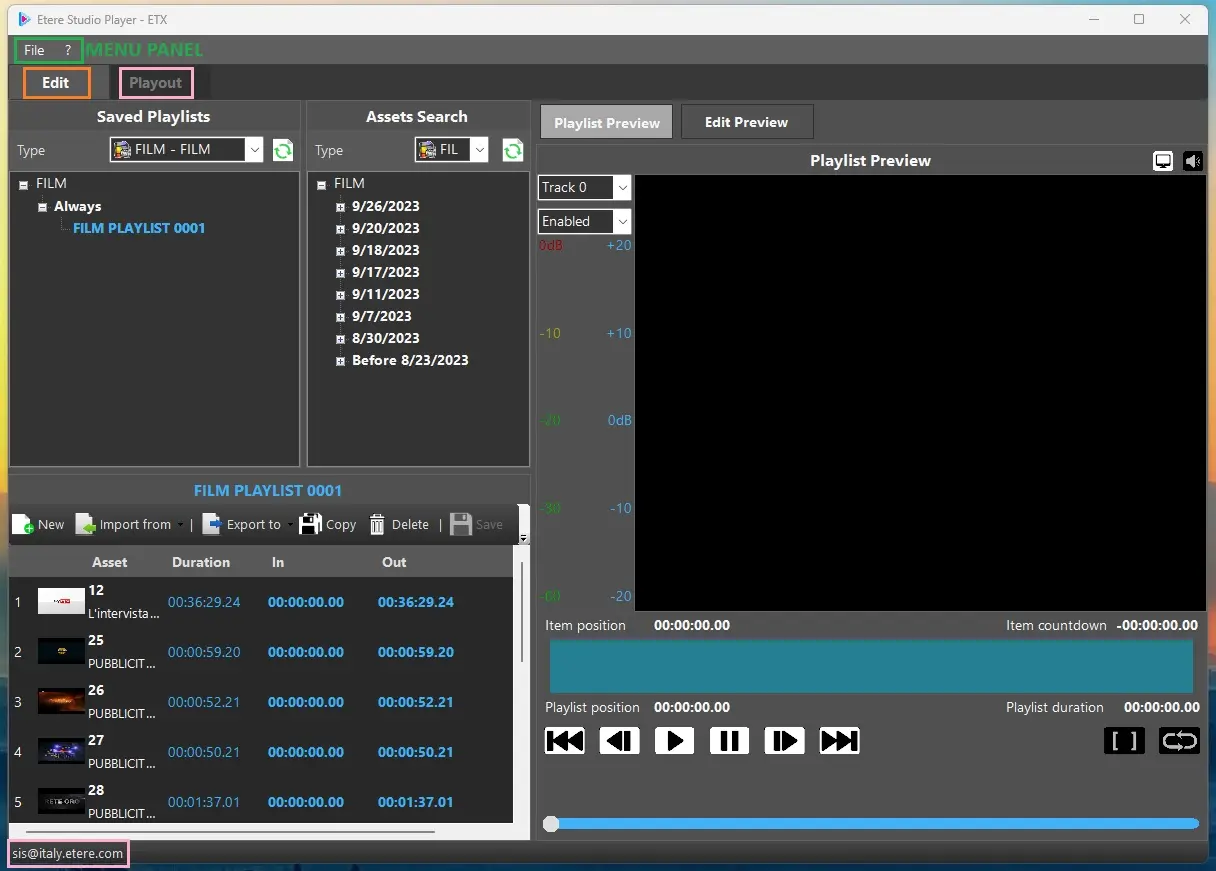 StudioPlayer_Panels
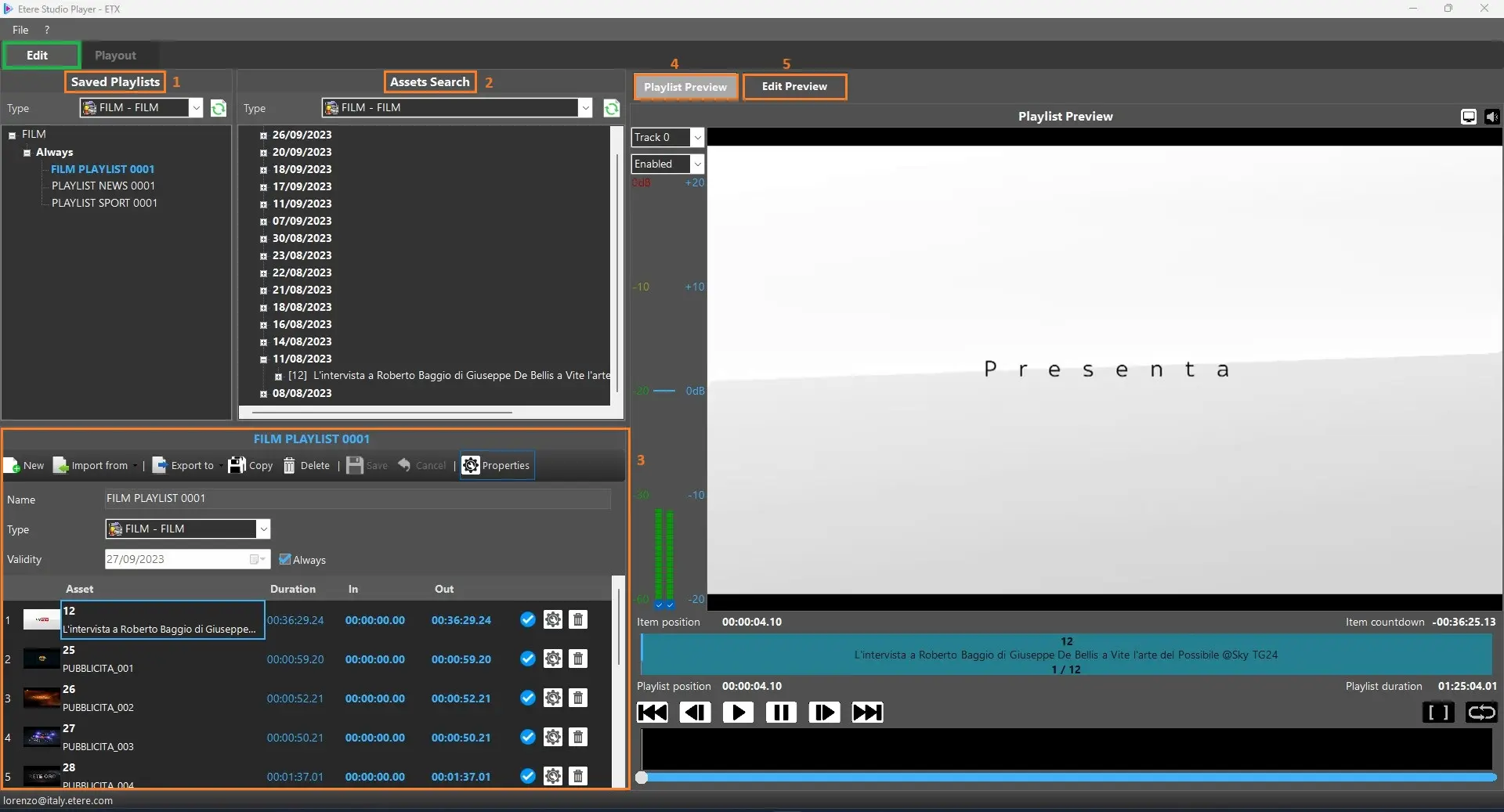 StudioPlayer_Edit_Panel
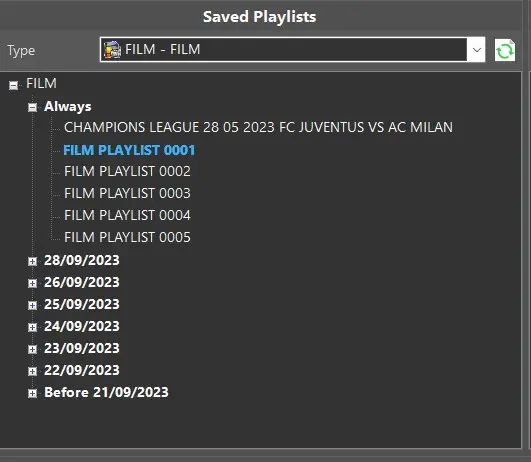 StudioPlayer_Saved_Playlists
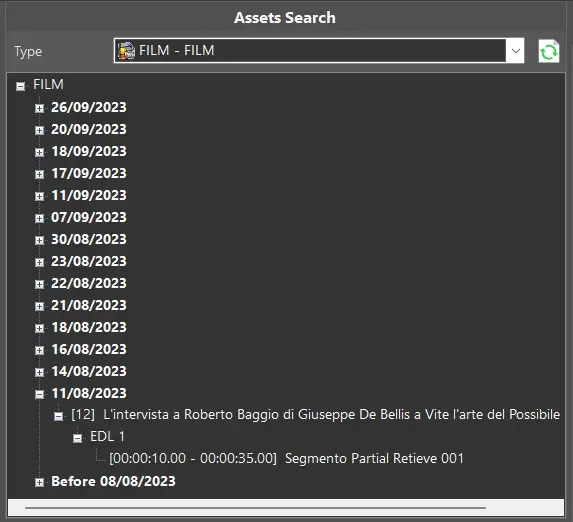 StudioPlayer_Assets_Search
 StudioPlayer_D&D_Segments
 StudioPlayer_Playlist_Commands
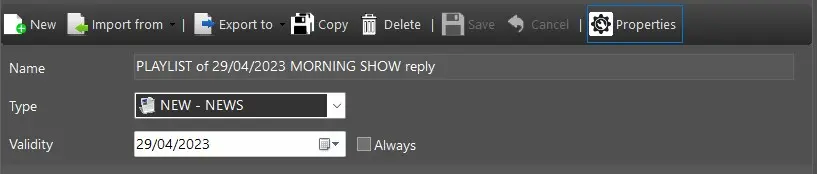 StudioPlayer_Example_New_Playlist
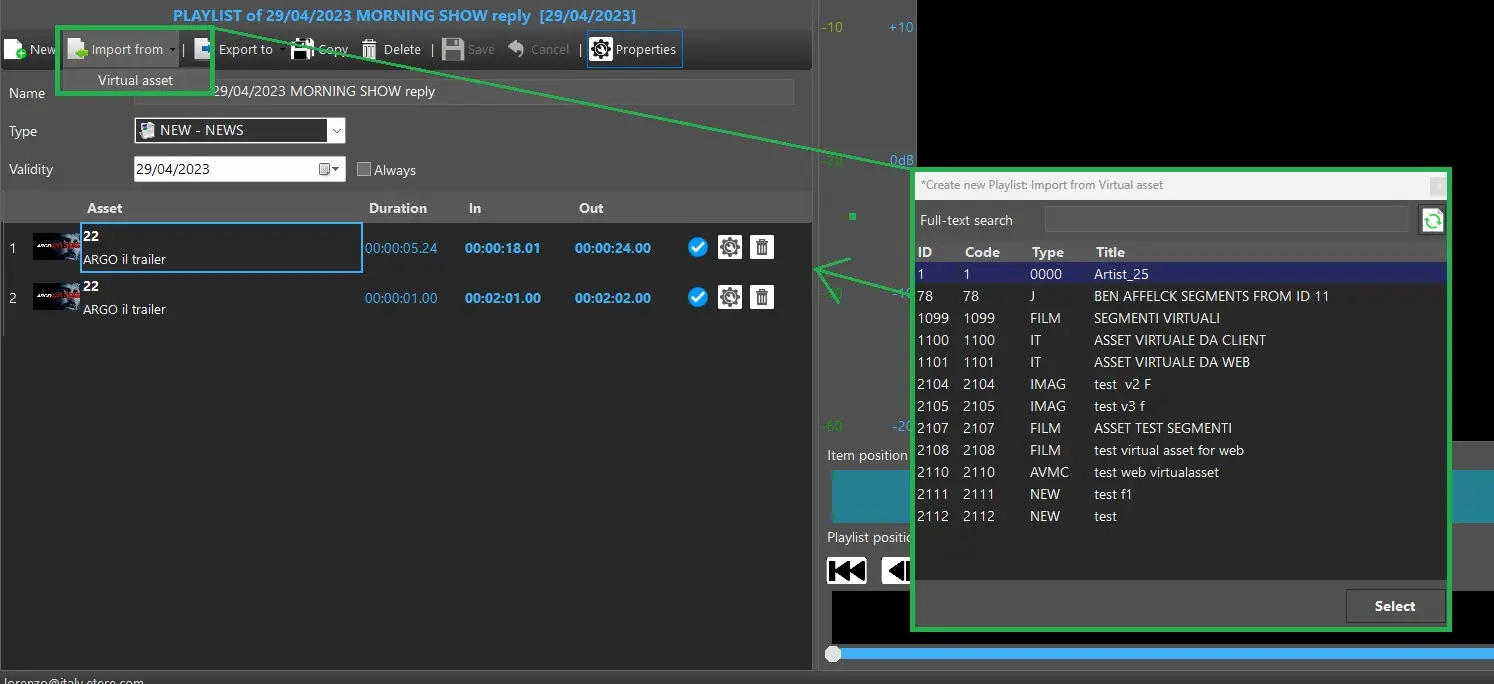 StudioPlayer_Import_From_VirtualAsset
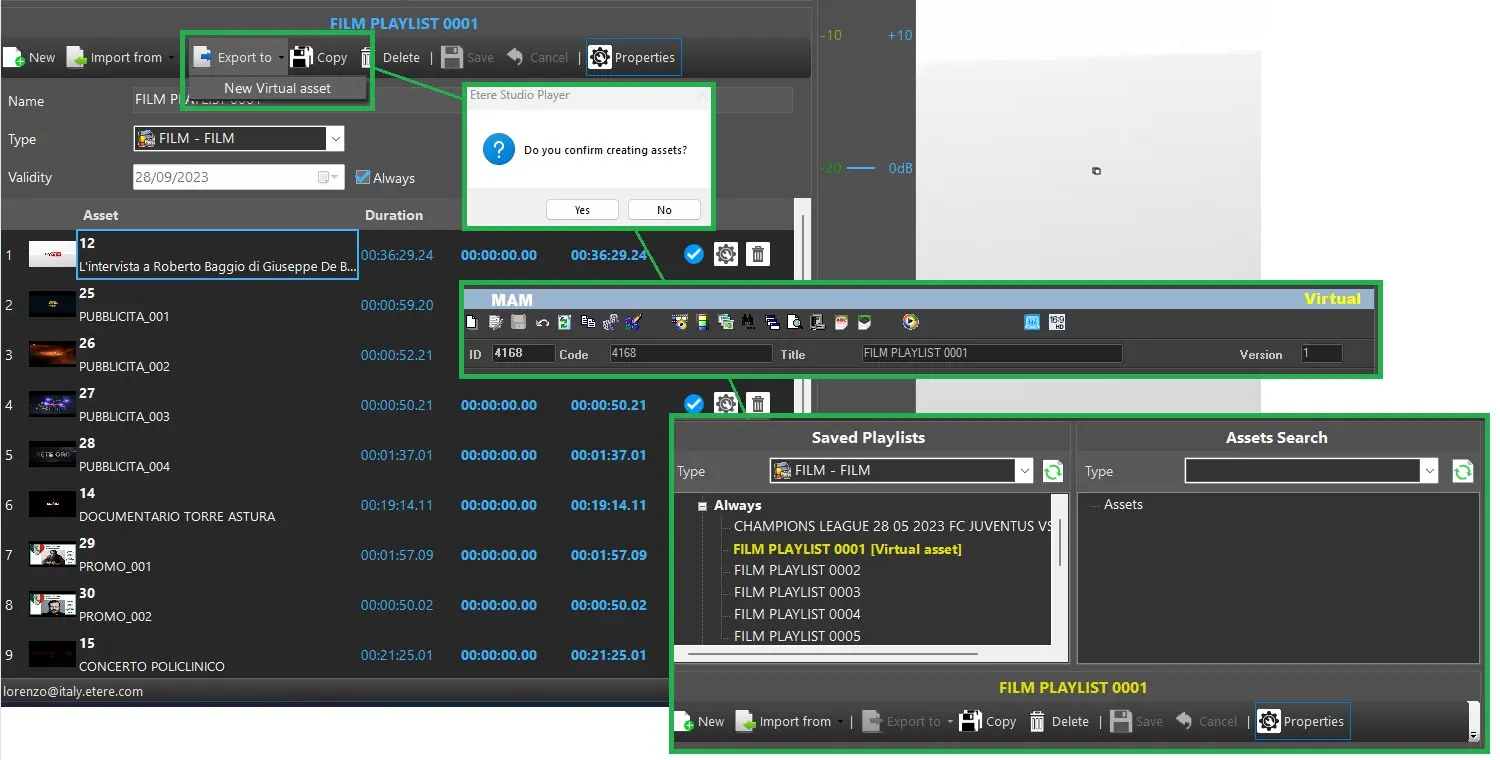 StudioPlayer_Export_To_Virtual_Asset
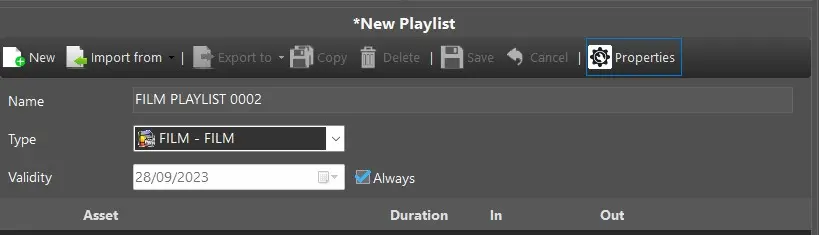 StudioPlayer_Copy_Action
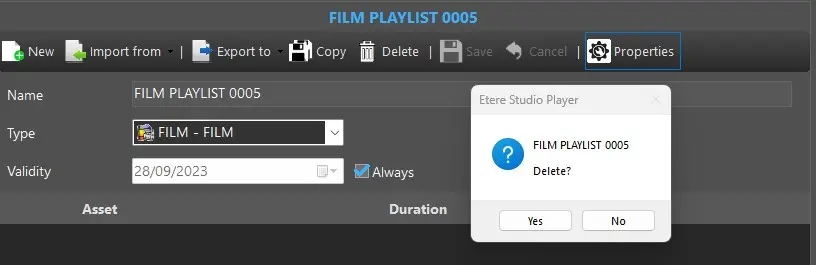 StudioPlayer_Delete_Playlist
 StudioPlayer_Load_In_Progress
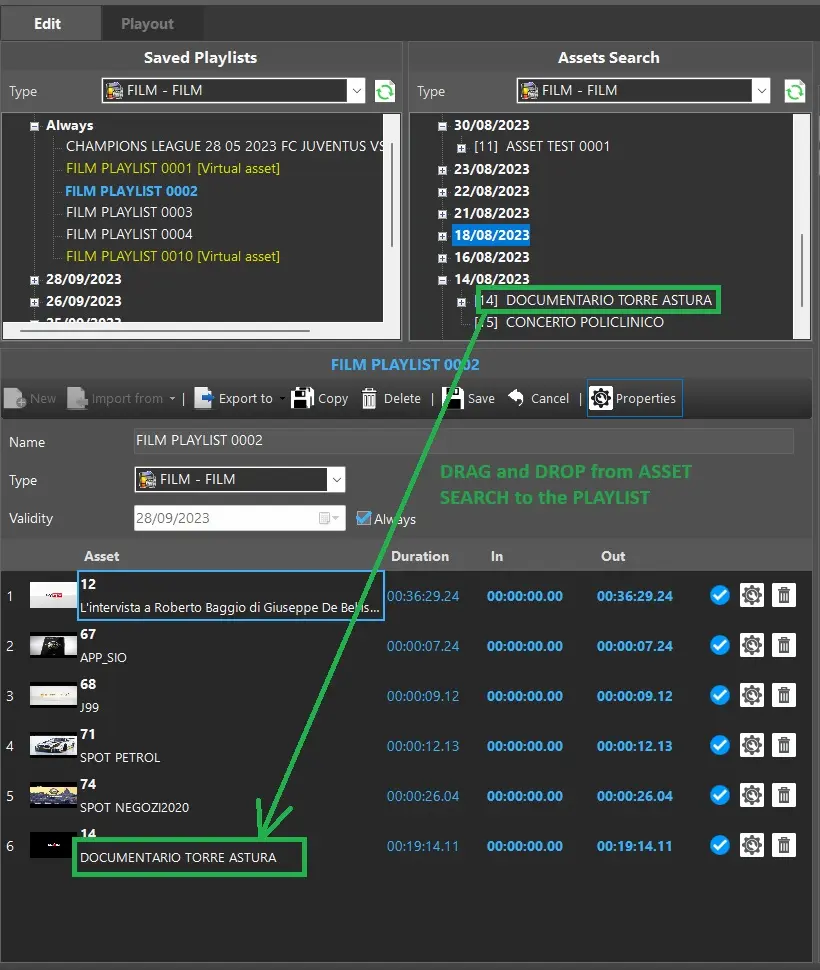 StudioPlayer_Add_Item
 StudioPlayer_Remove_Item
 StudioPlayer_Edit_Item
 StudioPlayer_Columns_Playlist
 StudioPlayer_Playlist_Preview
 StudioPlayer_Edit_Preview_Before
 StudioPlayer_Edit_Preview_After
 EtereStudioPlayerEdit