59.6.3.5 Logo/Crawl Test Tool
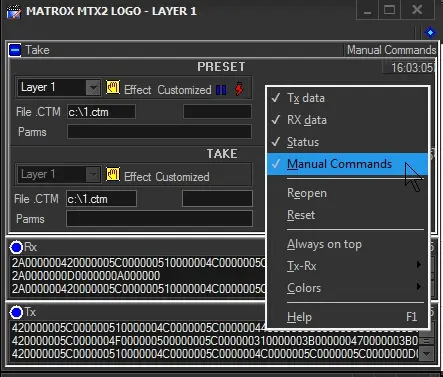
The "Logo/Crawl Test Tool" is a tool for testing the connectivity and functionality of a specific logo/crawl device. To use the tool, right-click and select the "manual commands" function from the contextual menu:
Contextual menu functions
Tx data - Show commands sent to the device
Rx data - Show replies received from the device
Status - Show the "Preset" and "Take" sections
Manual commands - Select the exact layer and effect to be manually tested:
Layer - Select one among the layers available for the device.
Effect - Specify the feature to test:
▪None
▪Fixed (specify the logo number)
▪Variable (specify the logo number)
▪Crawl (specify the crawl number)
▪Customized (specify the full path to the CTM file and the parameters)
NB: Note that if the device is being used by an application (e.g. STMan), executed commands will be displayed here (i.e. Preset, Take, Rx, Tx).
Once the manual command is set, use the following buttons to test the device:
resource_legacy_
Set the switch - Simulates the preset action. The Tx and Rx boxes would display the commands and replies received.
Switch - Simulates the take action. Sent commands and received replies would be displayed in the Tx and Rx boxes.
It's worth mentioning that the entire device activity (i.e. Tx, Rx, etc) is recorded within the STMan logs available under the Logs directory folder for the specific device, for instance: %LocalAppData%Etere\Log\user.001\stman.eterestman.000.michaelw7.MATROX MTX LOGO - LAYER 1.log
NB: The "Logo/Crawl Test Tool" is available from the Resources module and other modules, including Etere STMan.
 resource_legacy_