54.3.2.3 Filling
The Filling section allows us to "fill" specific time slots of the programming schedules in a certain period. Unlike the other scheduling methods (i.e. fixed time, rotation tables and copies), the filling method is more complete since it schedules the selected commercial within specific clusters (i.e. time slots of custom durations), thus avoiding unexpected conflicts within schedules as well as paying attention to the commercial crowding.
To start filling the schedule using a commercial, search for it using the [Commercial Code] button and then compile the following parameters:
Filling
Commercial Code: Search for the commercial asset to be scheduled.
From - To: Insert the programming period; by default, you will see the start and end date of the order inserted in the order form of the event in question.
Priority: Specify the priority for which the commercial asset will be scheduled. An event's priority is the criteria Etere uses to determine its position within a commercial cluster during the scheduling phase. The priority is from 1 (highest priority) to 1000 (lowest).
Order parameters: Retrieved the scheduling parameters from the commercial order related to the asset. Modifying these parameters to perform more customizable scheduling will also be possible. Available parameters include:
Order runs - Number of performances expected for the event according to its order.
Scheduled runs - Actual performances of the event across all schedules.
Daily runs - Maximum event performances to be scheduled in a single day
Time range - Time interval in which event performances must be scheduled
Event interval - Minimum gap that there must be between two runs of the same event.
Order interval - Minimum gap that there must be between two events of the same order.
Customer interval - Minimum gap that there must be between two events of the same customer.
Free - Indicates that the performances to be scheduled won't be invoiced
Product code - Select the product code to be assigned to the scheduled event.
Check product code - Avoid scheduling events with the same product category in the same time slot (e.g. 20:30:00).
Check first of break - The event will be scheduled as the first one of its time slot (e.g. 20:30:00).
Check last of break - The event will be scheduled as the last one of its time slot (e.g. 20:30:00).
Ignore insertion rules - If enabled, the scheduling process will ignore rules but will log encountered issues into the scheduling report.
Time / Time slots: Use one of the two different insertion methods available:
Time - Enter all the times the commercial has to be programmed.
In case of conflicts or exceeded commercial crowding, It's advised to cater more times.
Time slots - Enter time slots for the event using the [Add] button. From the list on the video, double-click on the place to enter it automatically in the insertion mask. In case of an error, the [Remove] button allows you to cancel the time slots from the mask.
Note: Time slots are created in Configuration > Settings > Air Sales Lite.
Daily runs: Enter how many times the commercials have to be programmed. According to what is suggested in the insertion at fixed times, this number must always be less or the same as the number of times allowed by the on-air.
Filling by: Select the method to be used for filling schedules:
Priority - The event will be scheduled consistently in the same segment position, and the space will be assigned based on user-defined parameters.
Rotation - The event will be scheduled across different segment positions rotating.
Optimization - The event will be scheduled based on the 'emptiness' of target segments, distributing events where more space is available to optimize the space utilization and obtain time points of a similar length as far as possible.
Days: Select the days for which the event to be scheduled is valid.
All - On every day of the week, in the period of the dates indicated
Even - Only on even days (e.g. 2-4-6-8...30) in the chosen period, independently of the day of the week
Odd - Only on odd days (e.g. -3-5-7-9...31) in the chosen period
Specific days - Select the weekdays (e.g. Monday and Friday) on which you want the commercial asset to be scheduled
Once all parameters have been correctly set, press the RUN button to proceed with the filled-scheduling process.
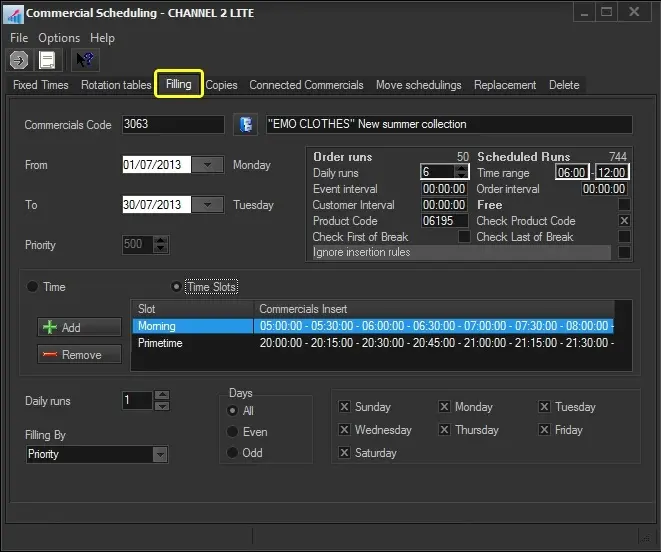 Filling