21.1.1 AD User
As specified in the previous chapter, AD User contact type represents users imported and synchronized from Active Directory. As such, this kind of contact type is automatically generated and cannot be created manually.
However, they can be accessed and managed within the system in the same way as other contact types.
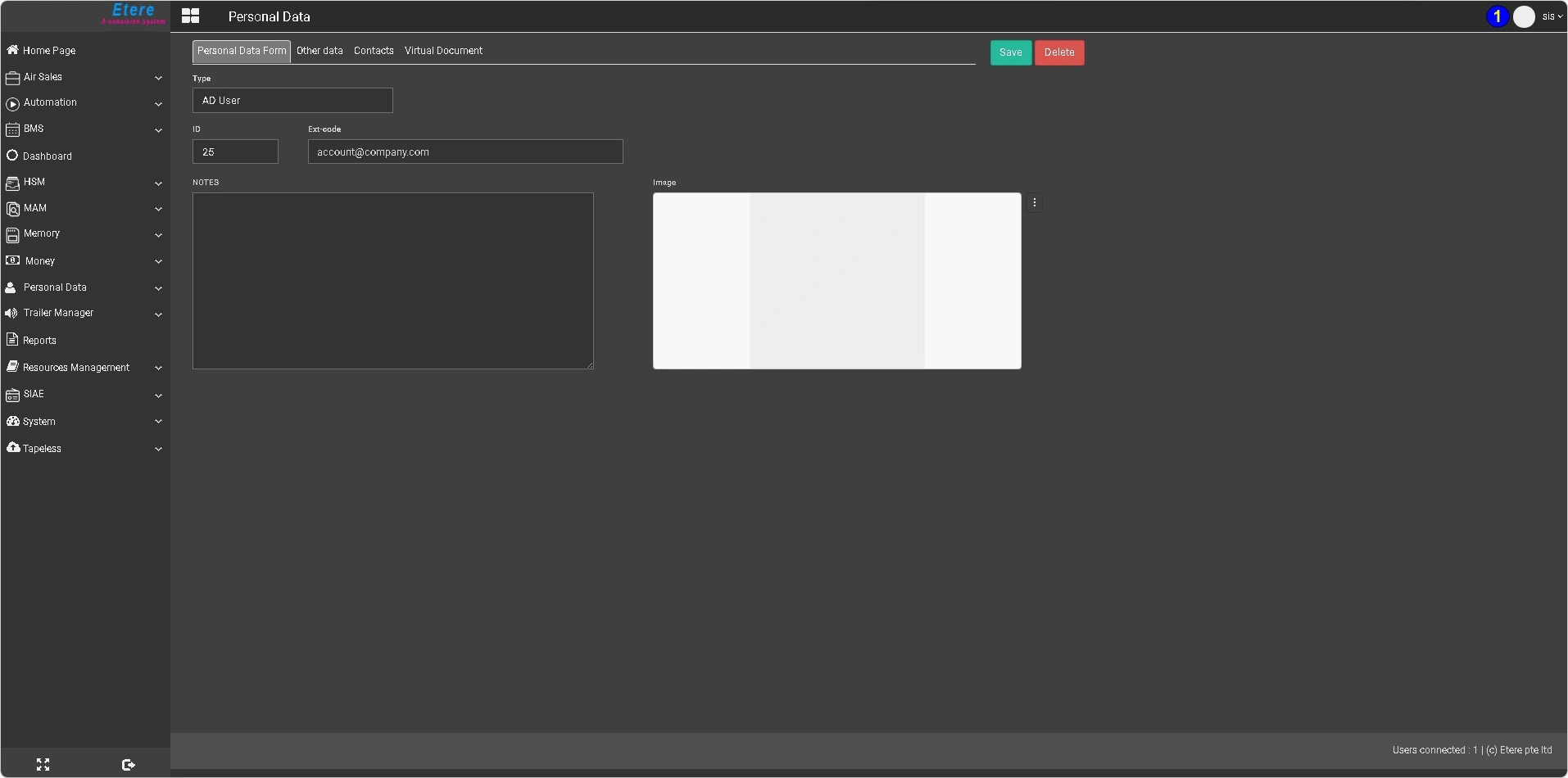
When opening an AD User contact, the following fields are available in the Personal Data Form tab:
Type: Predefined as AD User and not editable.
ID: A unique identifier automatically assigned by the system and not editable
Ext-Code: Corresponds to the email address associated with the user in Active Directory.
Notes: Free-text field for additional information.
A dedicated panel is available for uploading a profile image. To add an image, click the [ ⋮ ] button, select Load Image, and choose the desired file. To remove an existing image, use the same menu and select Delete Image.
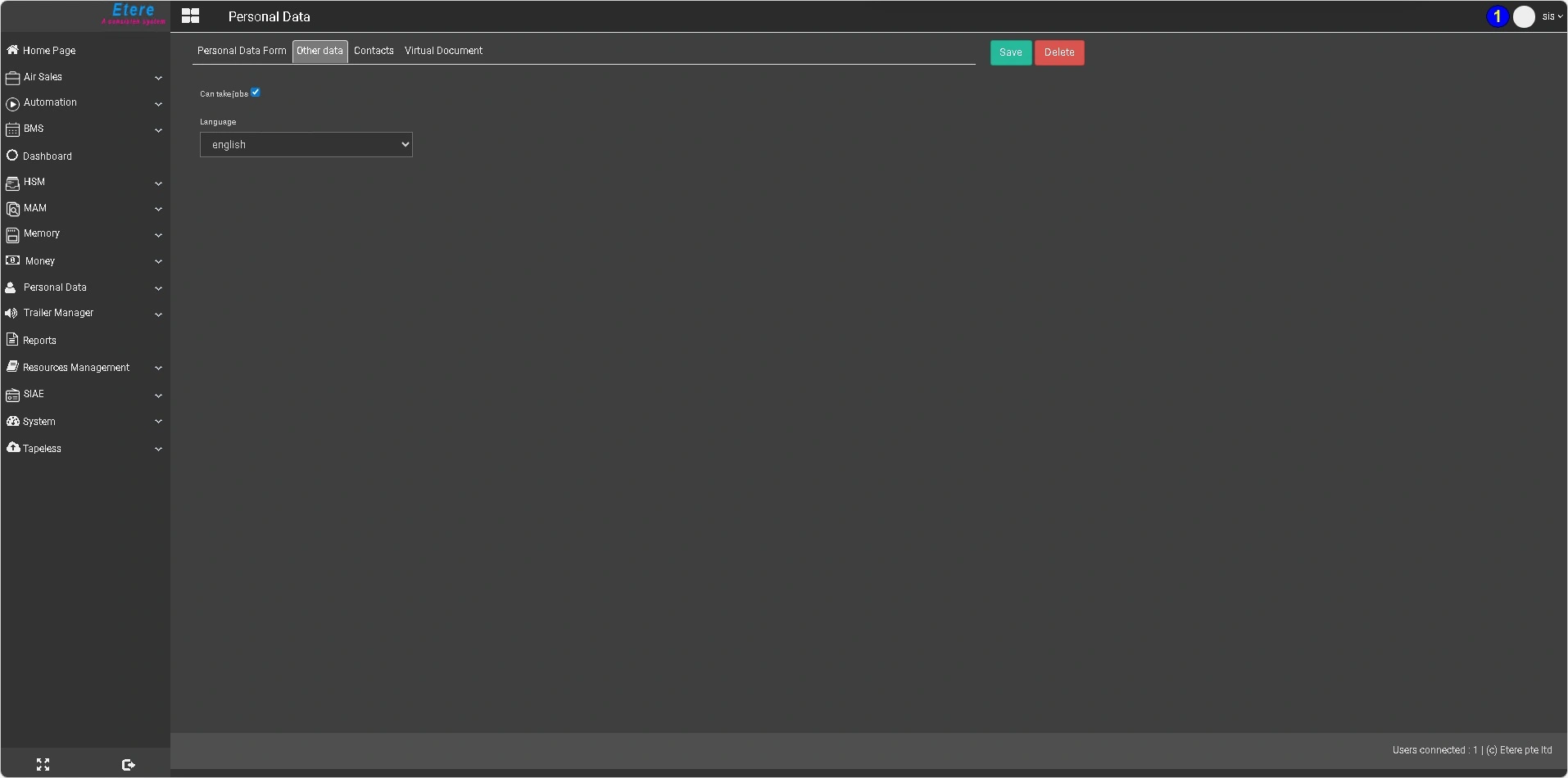
Within the Other Data tab, by clicking on the Can take jobs option, it is possible to allow the user to be assigned tasks by other users. When enabled, the contact becomes eligible for job assignment within operational workflows.
A language selection drop-down menu is also available, allowing you to define the interface language of Etere Web (and Etere x64 applications such as Nunzio Player, Master Control Panel, Studio Player and others) for that specific user. This setting is particularly useful in multinational environments, where users may require the system to be displayed in different languages based on their location or preferences.
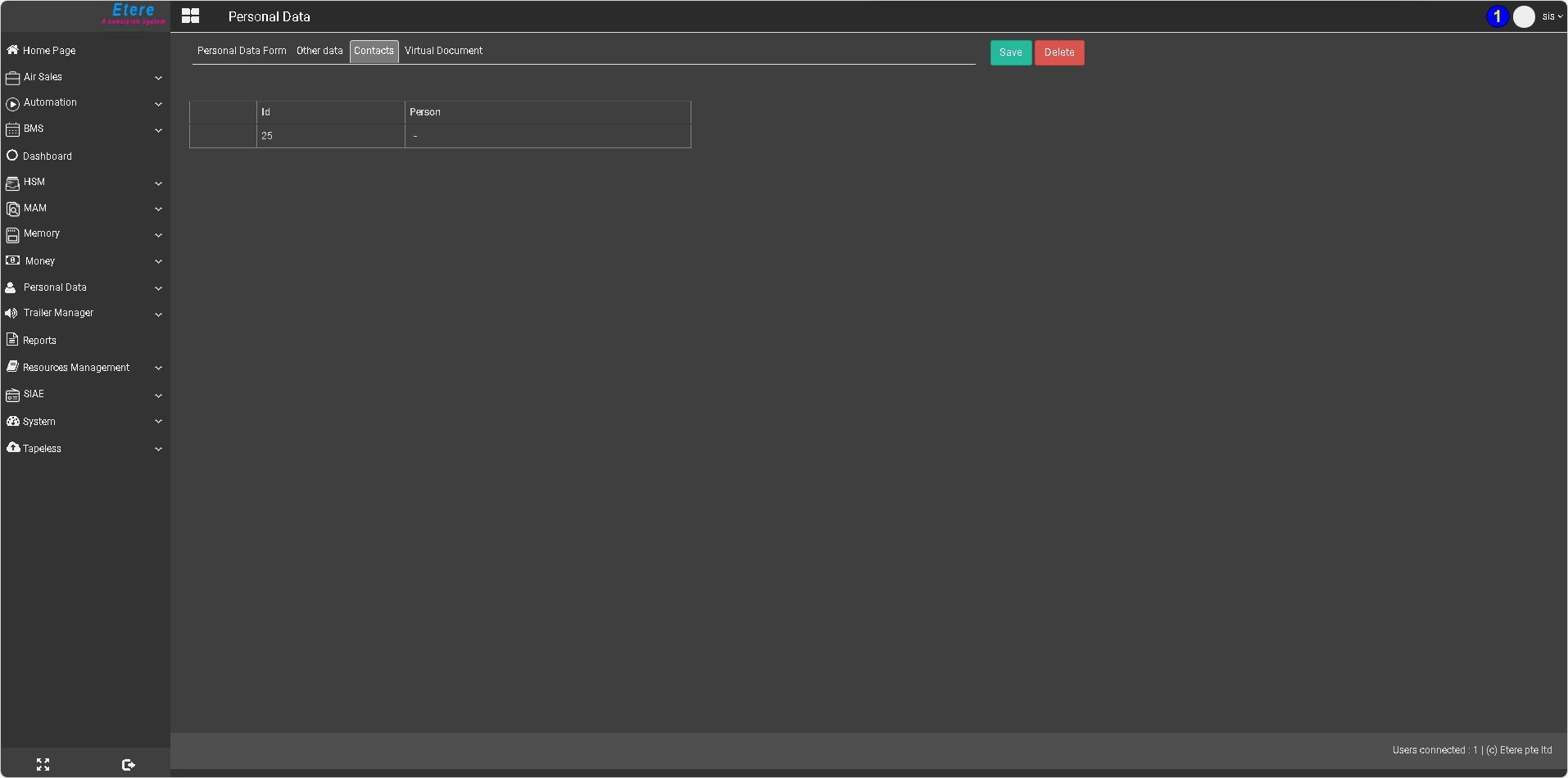
The Contacts tab provides a minimal view of the current record, displaying the contact ID and the full name (surname and name), if these values are defined in the corresponding Active Directory user profile (First Name and Last Name fields)
For AD User-type contacts, this section serves primarily as a quick reference to identify the record within the system.
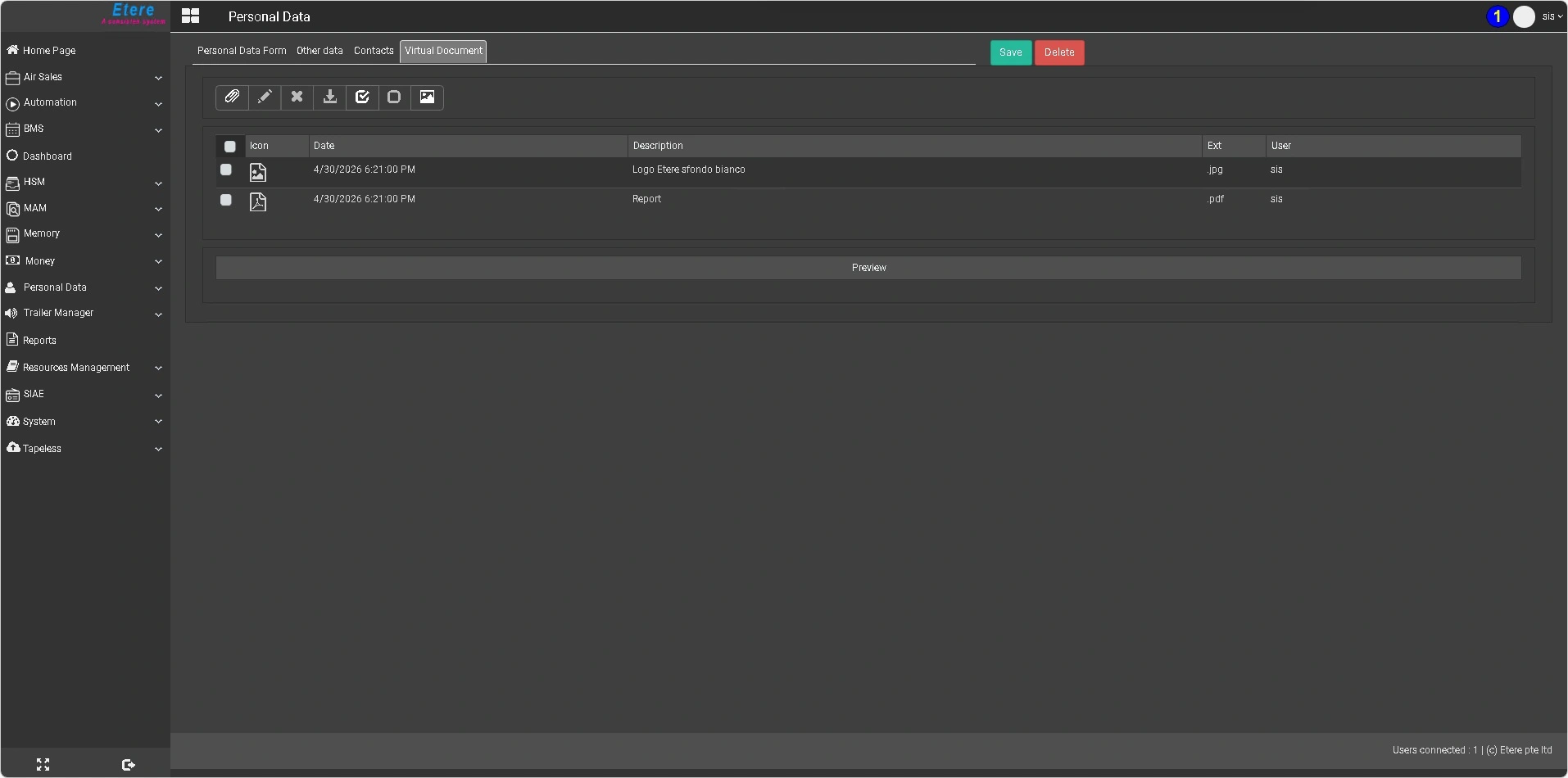
The Virtual Document tab allows you to upload and associate documents with the selected AD User. Each uploaded file becomes part of the contact’s record and can be managed directly from this section.
Available actions
The toolbar at the top of the page provides the following functions:
Add: Upload and associate a new document with the contact.
Edit: Modify the Contents field of the selected document, typically used to add notes, descriptions, or contextual information.
Delete: Remove the selected document from the contact’s record.
Download: Download the selected document locally.
Select All / Deselect All: Select or clear the selection of all listed documents.
Preview: Display a preview of the selected document in the dedicated section.
Note: The Edit, Delete and Download functions can be used only when at least one document is selected using the corresponding checkbox. Multiple documents can be selected, allowing these actions to be applied to more than one item at the same time (where applicable). The Preview function behaves as a toggle: it can be activated before or after selecting a document, and the preview will be displayed once a document is selected.
Document list
Below the toolbar, all uploaded documents are displayed in a table with the following columns:
Selection checkbox: Allows selection of one or more documents
Icon: Indicates the file type (e.g. PDF, image, video)
Date: The date on which the document was uploaded
Description: The name or title of the uploaded document
Ext: The file extension
User: The user who uploaded the document
Preview section
At the bottom of the page, the Preview section displays the content of the selected document/s when the Preview function is used
 etereweb_personaldata_aduser_personaldataform
 etereweb_personaldata_aduser_otherdata
 etereweb_personaldata_aduser_contacts
 etereweb_personaldata_aduser_virtualdocument
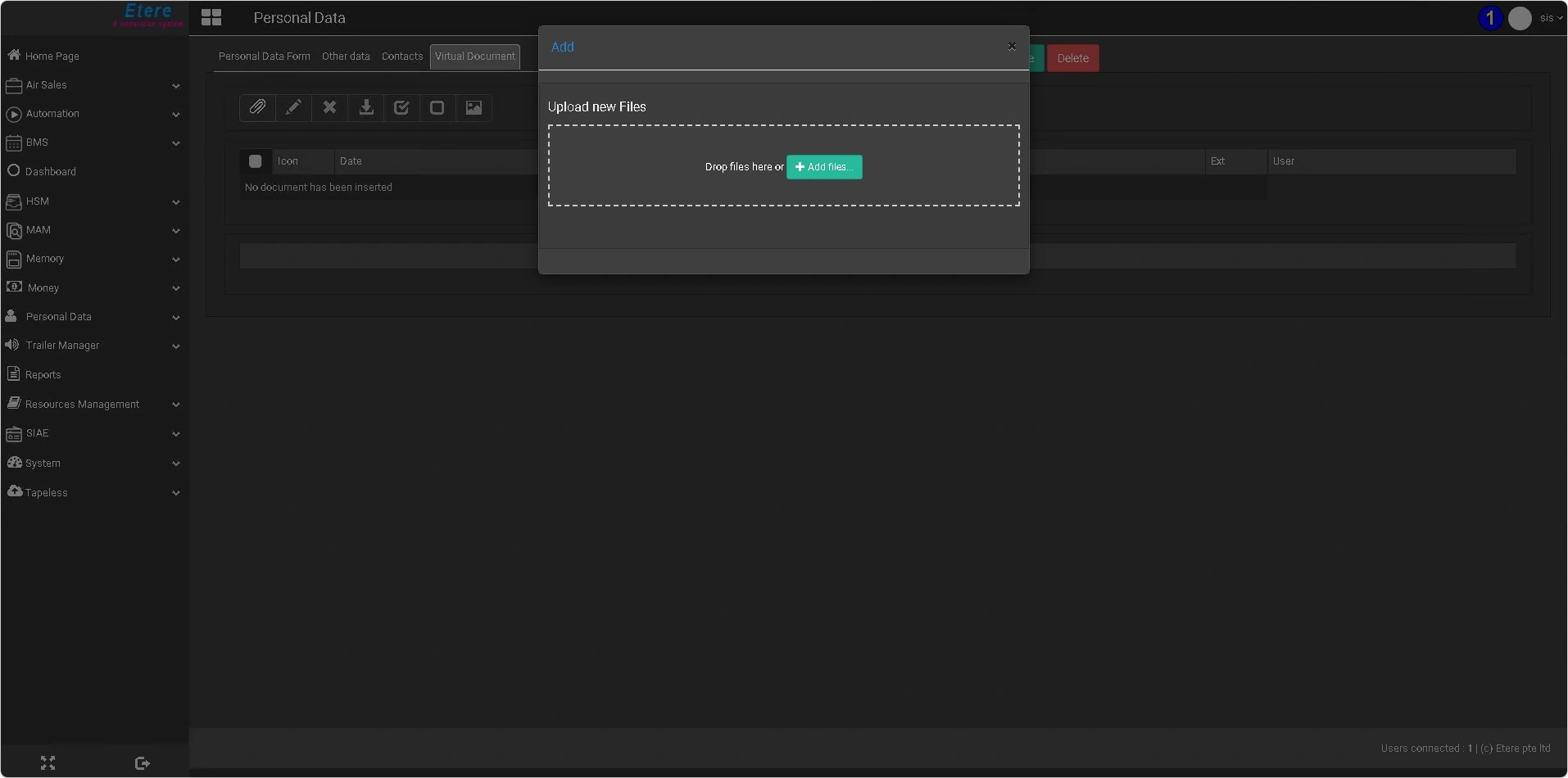 etereweb_personaldata_aduser_virtualdocument_add
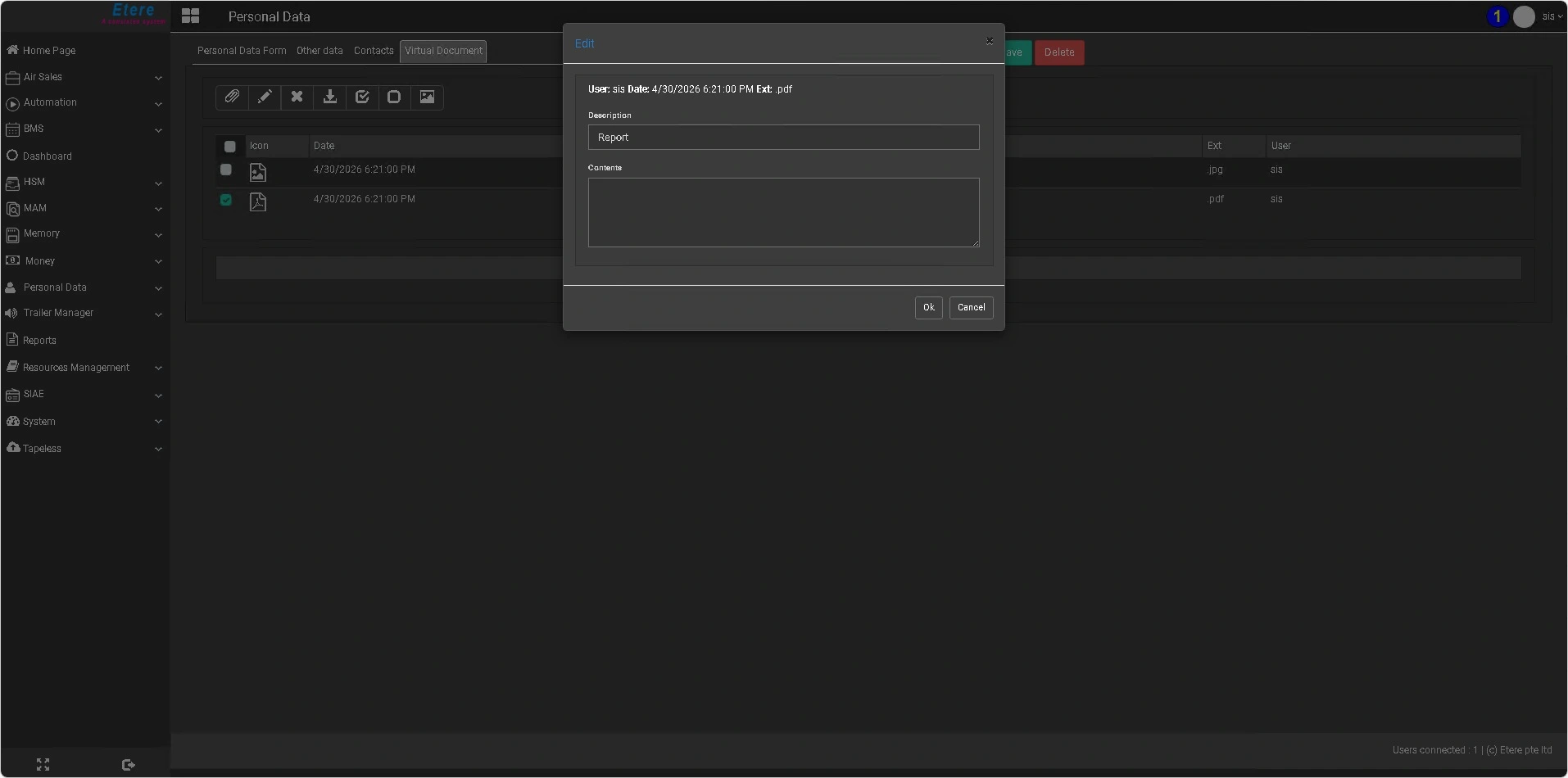 etereweb_personaldata_aduser_virtualdocument_edit
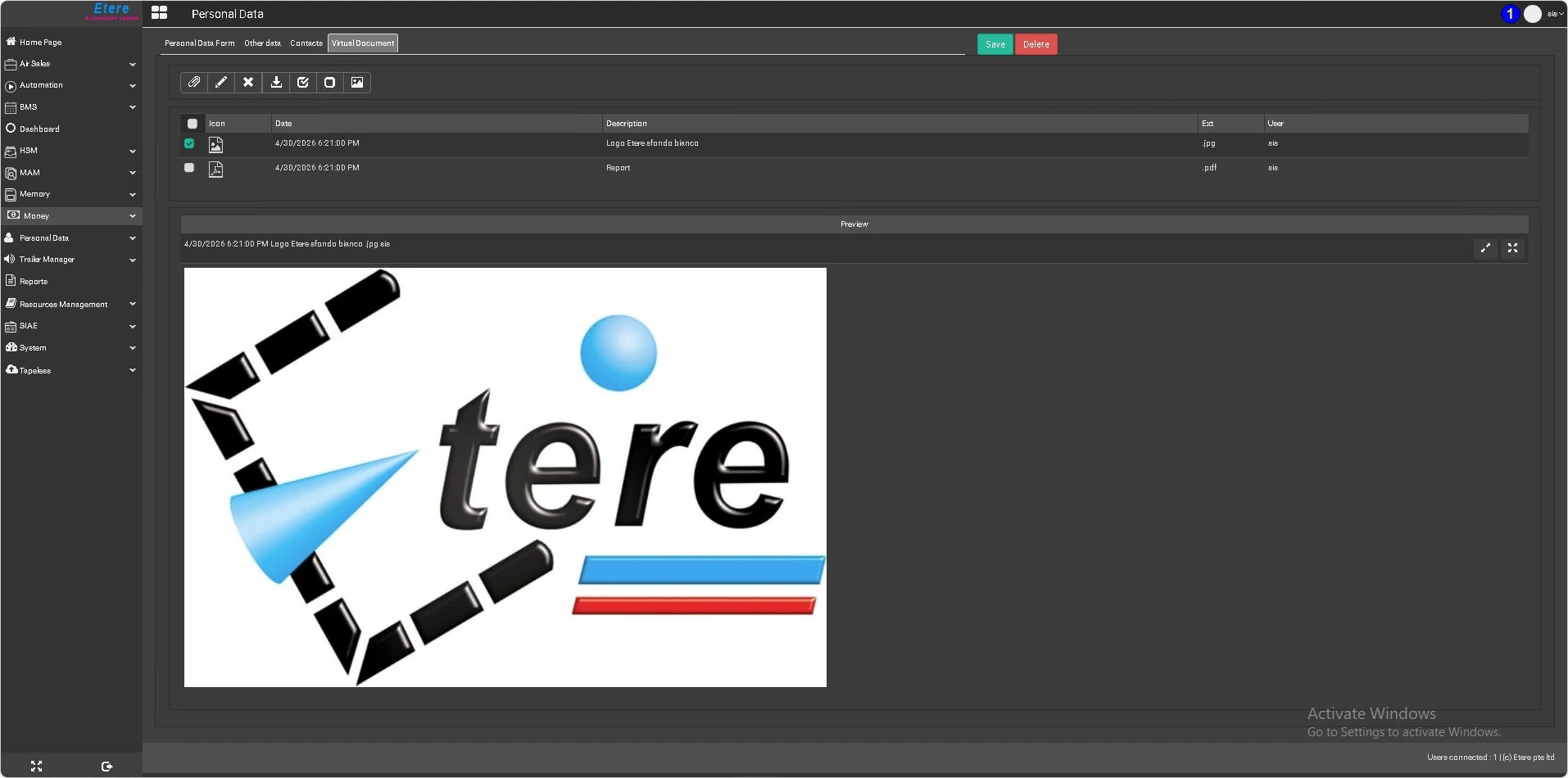 etereweb_personaldata_aduser_virtualdocument_preview