Programming
54.3.2.2 Rotation Table
The Rotation Table section allows to schedule events within a certain period over specific time points configured for up to three consecutive days, that is, in 'rotating basis' (e.g. 24/03/2011->day1, 25/03/2011->day2, 26/03/2011->day3, 24/03/2011->day1 and so on).
In order to start rotating a commercial, just search for it using the [Commercial Code] button and then compile the following parameters:
Rotation_Table
Commercial Code: Search for the commercial asset to be scheduled
From - To: Insert the programming period, by default you will see the start and end date of the order inserted in the order form of the event in question
Priority: Specify the priority with which the commercial asset will be scheduled. The priority of an event is the criteria used by Etere to determine its position within a commercial cluster during the scheduling phase. This priority goes from 1 (highest priority) to 1000 (lowest).
Order parameters: The scheduling parameters will be retrieved from the commercial order related to the asset. It is also possible to modify these parameters in order to perform a more customizable scheduling. Available parameters include:
Order runs - Number of performances expected for the event according to its order.
Scheduled runs - Actual performances of the event across all schedules.
Daily runs - Maximum event performances to be scheduled in a single day
Time range - Time interval in which event performances must be scheduled
Event interval - Minimum gap that there must be between two runs of the same event.
Order interval - Minimum gap that there must be between two events of the same order.
Customer interval - Minimum gap that there must be between two events of the same customer.
Free - Indicates that the performances to be scheduled won't be invoiced
Product code - Select the product code to be assigned to the scheduled event.
Check product code - Avoid scheduling events with the same product category in the same time slot (e.g. 20:30:00).
Check first of break - The event will be scheduled as the first one of its time slot (e.g. 20:30:00).
Check last of break - The event will be scheduled as the last one of its time slot (e.g. 20:30:00).
Ignore insertion rules - If enabled, the scheduling process will ignore rules but will log encountered issues into the scheduling report.
Rotation tables: Select the rotation table to be used to schedule the commercial asset.
Note: Rotation tables are created in the Configuration > Settings > Air Sales Lite > Rotation Tables.
Start day: Select the rotation day on which the scheduling will start. Please note that rotation days are custom defined, therefore, it may happen that "1" doesn't necessarily correspond to Monday.
Days: Select the days for which the event to be scheduled is valid, that is, in which it will be scheduled:
All - On every day of the week, in the period of the dates indicated
Even - Only on even days (e.g. 2-4-6-8...30) in the chosen period, independently of the day of the week
Odd - Only on odd days (e.g. -3-5-7-9...31) in the chosen period
Specific days - Select the weekdays (e.g. Monday and Friday) on which you want the commercial asset to be scheduled
Once all parameters have been correctly set, just press the [RUN] button to proceed with the rotation-scheduling process.
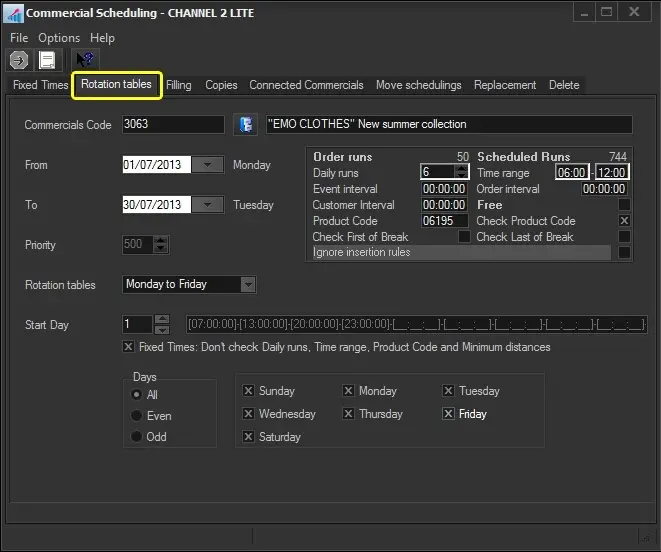 Rotation_Table