84.4.4.68 CUSTOM > ORBIT > EPG LINEAR XML
Export Scope
The Export Custom EPG LINEAR XML export to a XML file containing one or more days schedules. The data are extracted from EPG Linear containing multi-languages.
In the exported file, the end time of a program is exported equal to the start time of next program, with one second lesser. The same rule would also applied to non-split programs.
In addition, the following criteria applied in the exported file:
• The exported file includes a CDATA tag (character data) that contain the value to be used on asset title.
• The year format in program Start date and program Stop date are written in 4 digits.
• The program Start time and program Stop time are recorded with date and time in XMLTV format as “yyyymmddhhmmss +0000” where the time suffix is taken from the Main Time value in Configuration module with UTC time of respective time zone, e.g. Start = "20210826013002 +0300", Stop = "20210826023005 +0300".
• In program Start time and program Stop time, the seconds value in “yyyymmddhhmmss +0000” is always set to “00”.
• If the Production Date is set as “0” the "Date" field would be exported as blank.
• If one of the Thumbnail image (English or Arabic version) is missing, it would copy the image from the alternate language. If image from both languages are missing, the default image would be inserted.
• if it is not a series, the Tags and are exported empty.
• if the Actors, Directors, Presenters, producers, Composers, Writers linked to an asset are more than one, as many Tags as there are are created.
• the tag data even if it is not a series will be updated.
• if Virtual Assets are present into the given playlist, they will be exported as single event, instead of exploded ones populating multiple rows; the system will export them as a single row.
Export Parameters
The following parameters are required in order to export the schedules:
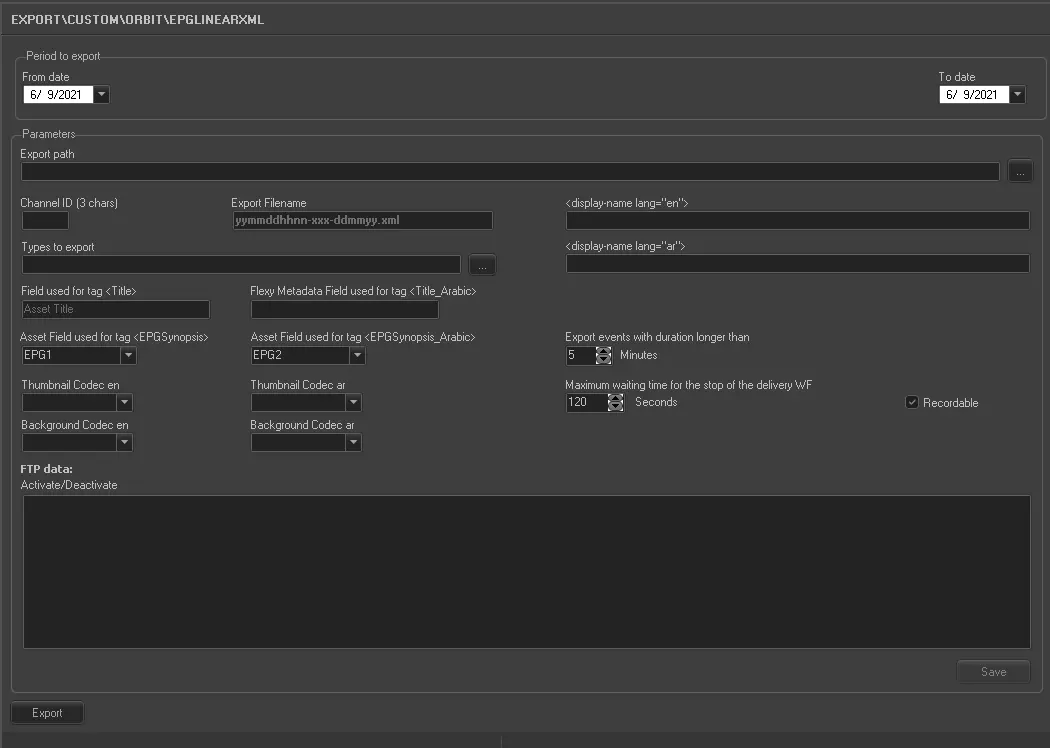
Export_custom_epg_linear_xml
Period to export:
•From date: Select a date to start the export.
•To date: Select a date to end the export. This date can be the same as “From date” to indicate one day schedule.
Parameters:
Parameters - Export path
Description : Indicate the directory path where the XML file is stored after exporting. You can use the browse button to locate the path in the network.
Parameters - Channel ID (3 chars)
Description : Specify the 3 characters channel ID for the export.
Parameters - Export filename
Description : The exported file name when the XML file is created. The file name format is “yymmddhhnn-xxx-ddmmyy.xml”, where
•First “yymmddhhnn” is the file creation date and time.
•“XXX” is the issuer code.
•Second “ddmmyy” is the date containing the exported schedules.
e.g. “2106221801-DRA-200621.xml”.
Parameters - Type to export
Description : Click the browse button to select the program types to be exported. E.g. Film, News, Promo, commercials, etc.
Parameters - <display-name lang=”en”>
Description : Display the name of flexy metadata in English. The name of roles to be exported includes Main actor, Director, Producer, Composer, and Writer.
Parameters - <display-name lang=”ar”>
Description : Display the name of flexy metadata in Arabic.
Parameters - Field used for tag <Title>
Description : Specify the fixed asset title/movie description.
If the asset is Episodes, the string value “Episodes #” would be exported, otherwise the production year (if any) of the episode in Media Library would be exported. If both are missing during export, nothing would be exported.
If the asset is a single seasons or movie, the “#” would not be read. If it is not a seasons but contains “#” as “1”, it would be set to “0” (zero).
Parameters - Flexy Metadata Field used for tag <Title_Arabic>
Description : Specify the name of flexy metadata containing the data.
If the asset is Episodes, the string value “Episodes #” would be exported, otherwise the production year (if any) of the episode in Media Library would be exported. If both are missing during export, nothing would be exported.
If the “Episode” is in Arabic, it must be translated (based on Etere Language repository) in the exported file and passed to customer.
Parameters - Asset Field used for tag <EPGSynopsis>
Description : Select among the list which field to be used to fill the EPGSynopsis tag on exported XML. Possible values will be ASSET TITLE, STORY, EPG1 and EPG2 from asset form
Parameters - Asset Field used for tag <EPGSynopsis_Arabic>
Description : Select among the list which field to be used to fill the EPGSynopsis tag on exported XML. Possible values will be ASSET TITLE, STORY, EPG1 and EPG2 from asset form
Parameters - Export events with duration longer than
Description : Set the minimum duration of the programs to be exported.
Parameters - Thumbnail Codec en
Description : Select a codec to record thumbnail in English version.
Parameters - Thumbnail Codec ar
Description : Set the codec to duplicate the thumbnail in Arabic version.
Parameters - Background Codec en
Description : Select a codec to record background in English version.
Parameters - Background Codec ar
Description : Set a codec to duplicate the background in Arabic version.
Parameters - Poster Codec en
Description : Select a codec to record poster in English version.
Parameters - Poster Codec ar
Description : Set a codec to duplicate the poster in Arabic version.
Parameters - Logo Codec en
Description : Select a codec to record logo in English version.
Parameters - Logo Codec ar
Description : Set a codec to duplicate the logo in Arabic version.
Parameters - BackgroundNT Codec en
Description : Select a codec to record backgroundNT in English version.
Parameters - BackgroundNT Codec ar
Description : Set a codec to duplicate the backgroundNT in Arabic version.
Parameters - Trailer Codec
Description : Set a codec to record the trailer.
Parameters - Recordable
Description : Description : Enable / Disable the recording of data fields during export
Parameters - Maximum waiting time for the stop of the delivery WF
Description : In the parameter, set the maximum waiting time (in seconds) for the completion of delivery workflow. If the T-WF has not completed within the timeout period, any information related to IMAGES or TRAILER will be exported for the event.
Parameters - FTP data
It is possible to define multiple FTP destination, in order to deliver the same export to different locations. To add a new FTP destination, just use the right-click function and select "ADD"
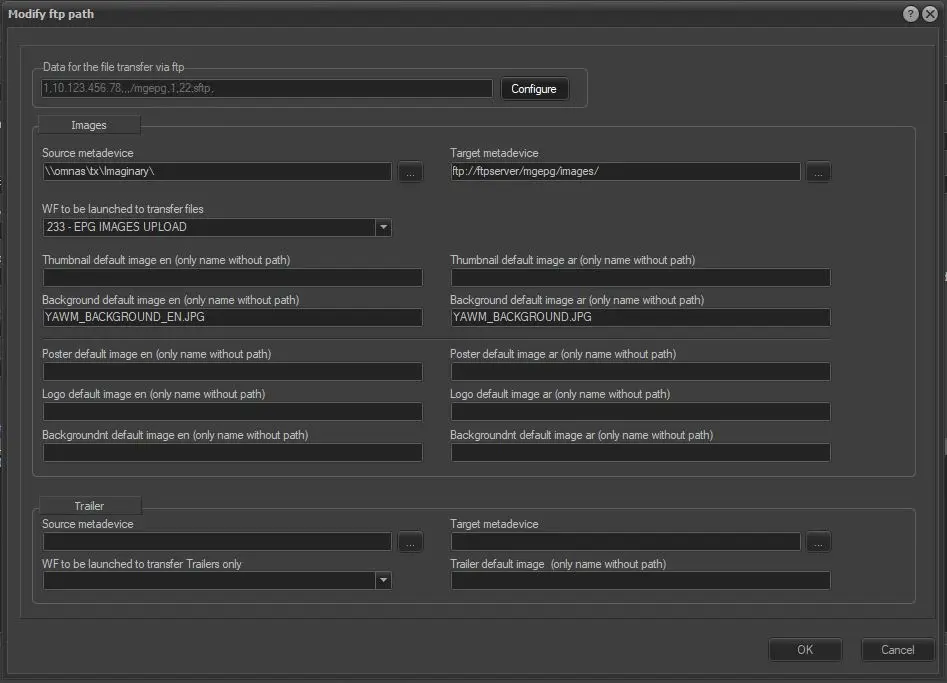
NEW FTP PATH
Data for the file transfer via ftp
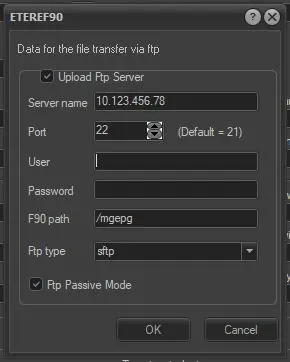
Using the CONFIGURE button, it will open a new form related to FTP delivery:
Upload Ftp Server: enabling that option, the xml will be acutally uploaded
Server Name: enter the ftp destination address
Port: set the ftp port
User: username for the ftp upload
Password: password for the ftp upload
F90 path: enter the subfolder where xml must be delivered. Please note that, if the user has a configured automatic redirect to a specific folder, this must be taken into account when defining the F90 path.
Ftp type: choose between ftp, ftps or sftp.
Images
Source metadevice / Target metadevice: define from which clouddevice images should be taken and in which destination they must be uploaded.
WF to be launched to transfer files: Select which wf must be triggered to upload images. The WF is triggered only if there is a metafile related to source metadevice and there is not a metafile related to target metadevice
Default image names (en and ar): for each codec, it is possible to set a default name that will be exported in case the related media is not existing on the asset. It must be entered only the name, without the full path.
Trailer
Source metadevice / Target metadevice: define from which clouddevice trailer video should be taken and in which destination it must be uploaded.
WF to be launched to Trailers only: Select which wf must be triggered to upload trailer video. The WF is triggered only if there is a metafile related to source metadevice and there is not a metafile related to target metadevice
Trailer default name: it is possible to set a default name that will be exported in case the related media is not existing on the asset. It must be entered only the name, without the full path.
Activate / Deactivate: clicking on the box of each destination, it is possible to enable or disable that specific delivery. If any of the delivery is enabled, the export won't be executed locally neither.
Using the right-click menu, it is possible to modify the path or delete it.
Click the <Save> button to confirm the parameters settings.
Launch the export
Once all the above parameters are fulfilled, click the <Export> button to start exporting schedule from the database.
 5178_Export_custom_epg_linear_xml
 ftp_path
 Data_for_the_file_transfer_via_ftp