77.1.1 User Interface
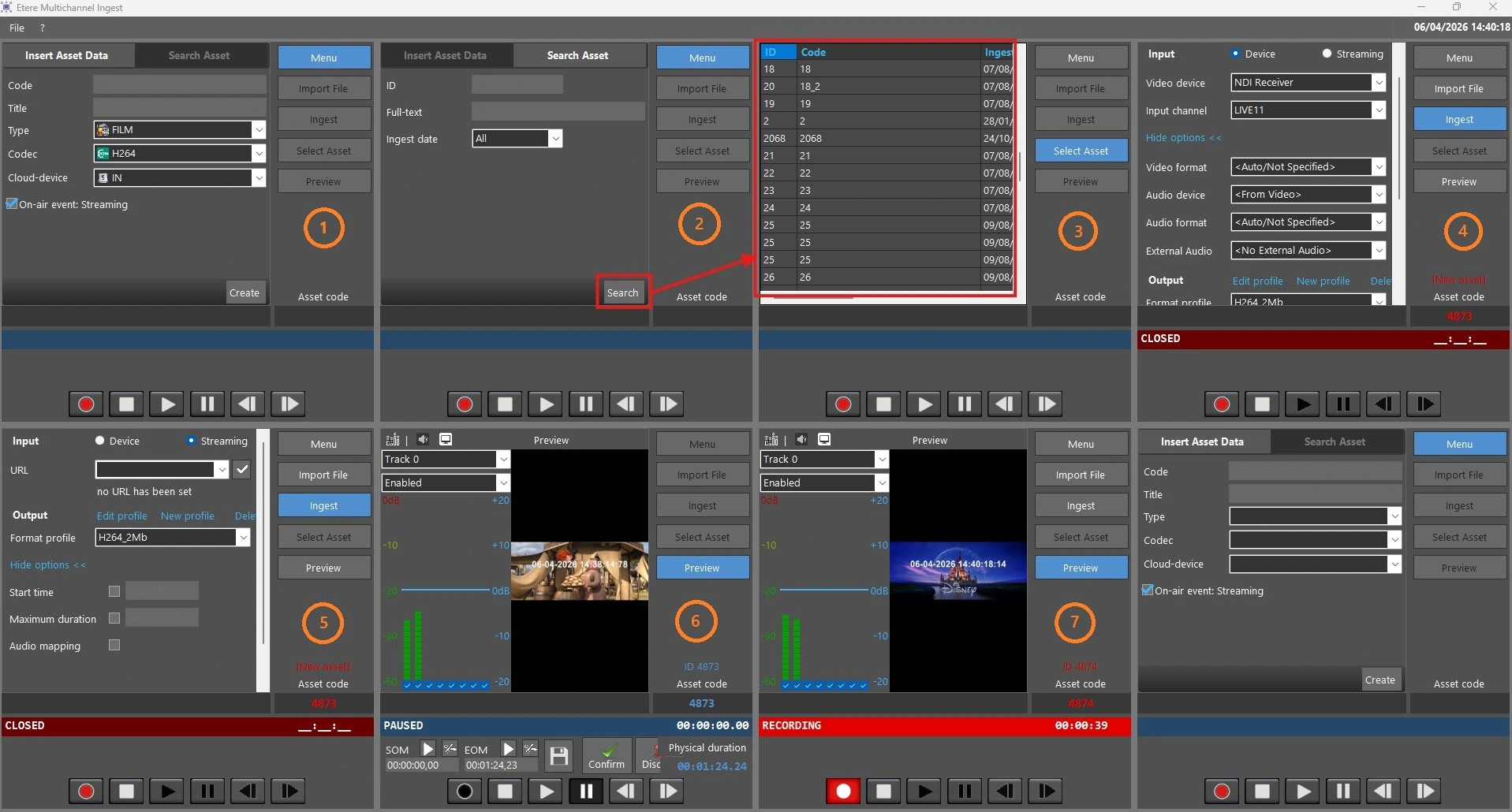
When launching Etere Multichannel Ingest, it loads a number of forms equal to the number of licenses set in the resource, as explained in the previous chapter.
multiingest_user_interface
Here are described the different sections shown in each form of the image above.
• Form #1: The default section displayed at startup. Here it's possible to insert the data of the new asset to record. The asset will be saved as soon as the REC button is pressed. See chapter 77.1.2.0 Insert asset data for detailed information.
• Form #2: Instead of creating a new asset, it's possible to look for an existing one, filtering by ID, ingest date or full-text search.
• Form #3: Once the filters have been set up, if you click on the Search button, Etere Multichannel Ingest will display the list of the assets retrieved. Since users may need to play an already recorded asset, in the search results both not recorded and recorded assets are displayed. See chapter 77.1.3.0 Search asset for detailed information.
• Form #4: After the asset selection, the module let you select the input feed from a device, the video format and the recording profile.
• Form #5: Instead of an input signal from a device, it's also possible to select a streaming feed. Refer to chapter 77.1.4.0 Ingest file for more information.
• Form #6: In this form we can see a playing file, either after the end of a recording or after a recorded asset has been selected. Refer to chapter 77.1.6.0 Play asset for more details.
• Form #7: This form shows a recording in progress. At this stage the only operations allowed are the stop of the recording and the switch between sections.
In the GUI, if you set the value in Type, Codec, and Cloud-device parameters for each ingest window and click the <Create> button, the set value in these three parameters would be saved and set as default when the Multichannel channel is relaunched.
 multiingest_user_interface