59.2.49.1 Media Folders
What is a Media Folder?
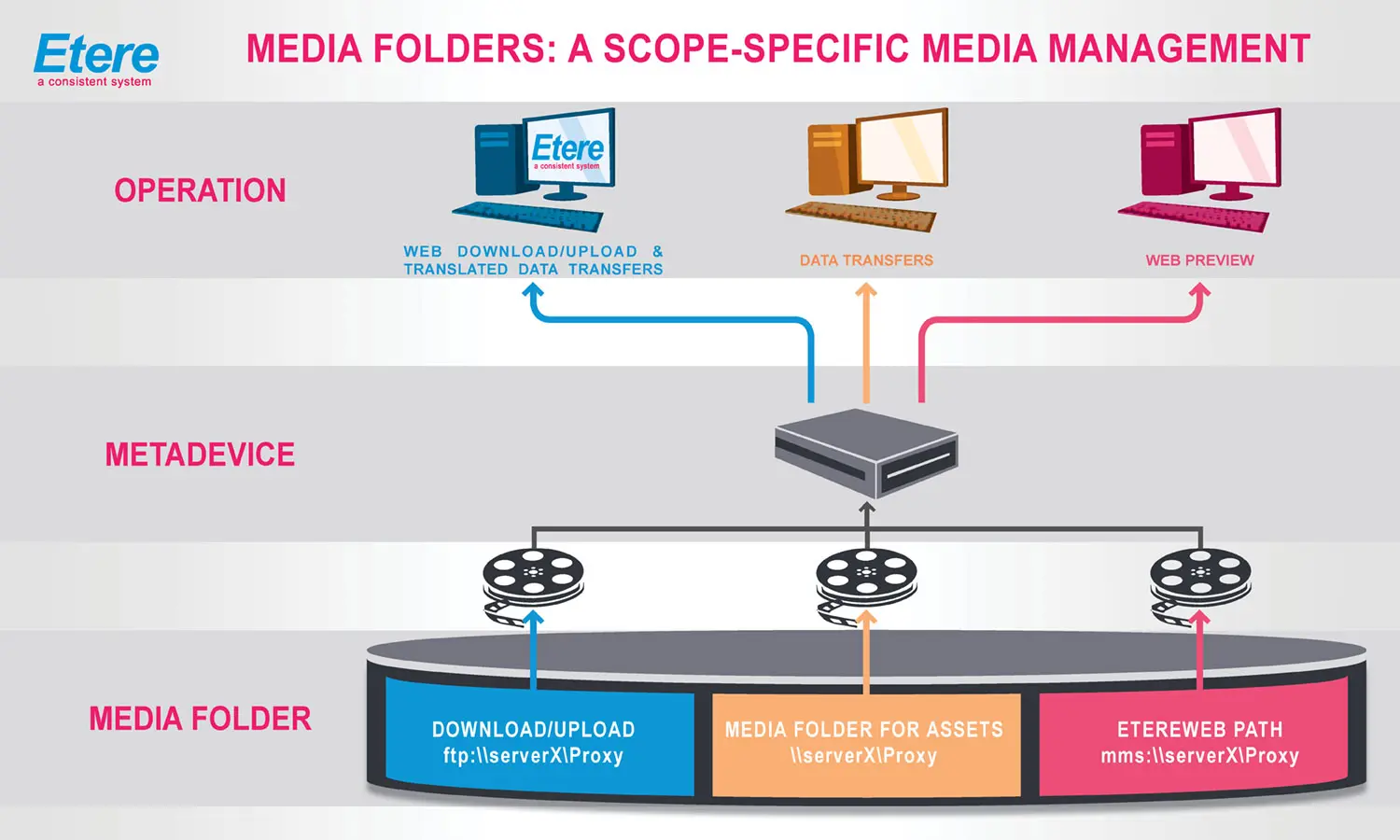
A media folder is a set of parameters defined for a metadevice (which has been created in Resources Editor) to determine the paths to be used for specific media operations performed by either EtereWeb (i.e. preview, download/upload) or Etere DataMover (i.e. data transfers and translated transfers), just as illustrated in the figure below:
Media_Folder
The use of media folders allows Etere to 'translate' media requests regarding a certain metadevice and decide the path to be used for performing said operation.
User Interface
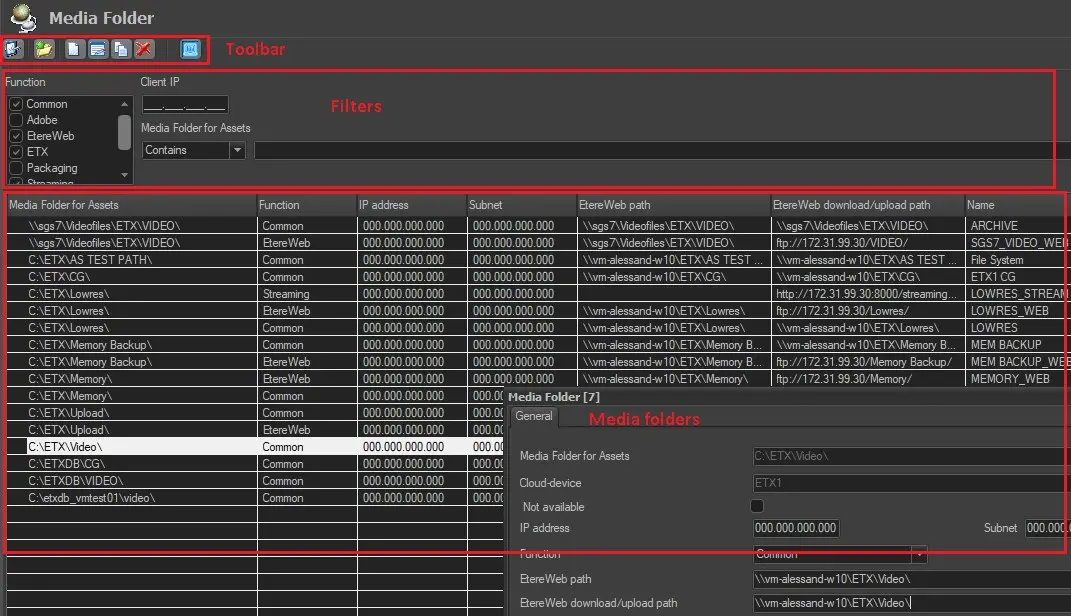
The Media Folder section counts with three well-defined areas that permit operators to easily manage media folders:
User_Interface
Toolbar
The toolbar area, located in the top of the window provides some operations which are also available by making right-click on a certain media folder, these operations include:
Parameters - Set the user name and password which Media Folders will be managed within Etere. By default, the user and password are set as 'user=etere' and 'password=etere'.
Import Paths - Loads ALL paths included within cloud-devices as media folders, automatically setting the path itself as the media folder's translation path (i.e. EtereWeb Path).
Add - Open a small window allowing the user to define a new Media Folder, information of how to compile it will be following detailed.
Edit - Allows to modify the current selected Media Folder, making possible to configure the properties described below.
Delete - As it names suggest, this option removes the currently selected Media Folder from the list.
Duplicate - Creates a new media folder with the same properties of the current selected one. This option is useful for example, for setting different parameters for the same Media Folder (e.g.: different access users).
Set - Specify if the selected Media Folder will be shown ('available') or not('not available'). Use it, for example, if the Pc on which the Media Folder is located, is currently in maintenance.
This flag is controlled by various Etere modules including Etere HSM, which verifies the availability of metadevices before restoring video files.
Filtering Media Folders
The filter section allows to filter the media folders displayed in the bottom list, the following filters are available:
Media Folder for the assets - Indicate here a string that must be present in the 'media folder for the asset forms' field of retrieved media folders.
NB: Volume paths must be UNC (\\myfolder\), FTP (ftp://myfolder/), AVID (interplay://myfolder/) or Local (d:\myfolder\). Moreover, entered paths cannot be root directories (e.g. d:\).
NB: When SFTP (sftp://) protocol path is defined, you are not allow to insert credential in the path.
Function - Specify the target application (e.g. All, Adobe, EtereWeb) for which the "translated" media folder is intended.
Client IP - Specify the IP address of the media folders intended to be retrieved in the list.
Sort by - Permits to order the list of media folders by either, Assets lowres path or IP address.
Media Folder properties
Each time you ADD or EDIT a Media Folder, you will be prompted to compile a form containing data regarding how this Media Folder will be used, this data is following explained:
ID - The ID of the media folder is displayed in the title bar of its form (e.g. Media Folder [174]).
Media Folder for the asset forms - It is the path set -under the Etere Configuration | Resource Editor module- for the metadevice to which the media folder is related. This path will be used in most cases when managing asset's video files.
Not Available - Tick-off this option if the Media Folder is currently not available (e.g. the computer on which the Media Folder is located, is currently in maintenance).
Cloud-device - If associated, indicates which metadevice uses the current Media Folder.
IP Address - Specify the IP address to which the media folder will be granted to be accessed. This very useful property can be used to use a media folder for:
-All clients - In order to do this (e.g. use a "mms" path for previewing content from any computer) you have to leave blank the IP address (e.g. 000.000.000.000):
Media Folder "A" IP Address 000.000.000.000
-A specific IP address - In order to do this (e.g. use a "mms" path for previewing content from a particular computer) you have to set a media folder specifying the IP address (e.g. 192.21.143.203) to which it will be applied:
Media Folder "A" IP Address 192.21.143.203
-A specific IP class or Subnet - In order to do this (e.g. use a "mms" path for previewing content across the entire network) you have to set a media folder specifying the IP range to which it will be applied. For instance, to filter an entire Class-C network just set the last 3 digits of the IP address as "000" (e.g. 192.21.143.000):
Media Folder "A" IP Address 192.21.143.000
-An entire IP class except one IP address - In order to do this (e.g. use an "mms" folder for previewing content across the entire network excepting for one computer for which a "http" path will be used) you have to set two media folders, one as explained in the previous example for the entire IP class (e.g. 192.21.143.000) and another one for the specific IP address to be excluded (e.g. 192.21.143.115):
Media Folder "A" IP Address 192.21.143.000
Media Folder "B" IP Address 192.21.143.115
The second media folder can be created as a [duplicate] of the first one but with some changed parameters (e.g. a different "EtereWeb Download/Upload path" for translated media operations.
During the configuration of Media folder, the IP address parameters is filtered based on the following priorities:
Priority: 1
IP Address Classes: Actual IP address
IP Range: Actual IP address (e.g. 192.21.43.115)
Priority: 2
IP Address Classes: Class C IP address
IP Range: 192.0.0.0 - 223.255.255.255 (e.g. 192.21.43.0)
Priority:3
IP Address Classes: Class B IP address
IP Range: 128.0.0.0 - 191.255.255.255 (e.g. 191.21.0.0)
Priority: 4
IP Address Classes: Class A IP address
IP Range: 1.0.0.0 - 126.255.255.255 (e.g. 126.0.0.0)
Priority:5
IP Address Classes: No valid entry found
IP Range: Use IP 0.0.0.0
Note: The Class A IP address 127.0.0.0 is reserved for loopback self-test and inter-process communication on the local computer.
Subnet - Optionally specify here the subnet IP address (e.g. 192.168.1.64) or subnet mask (255.255.255.192) of the IP address; otherwise leave this field blank.
NB: The subnet field is merely informative, that is, it's provided to help users to identify IP addresses but it's not managed by any Etere module to actually filter IP addresses based on this criteria.
Function (*)
Select the function(s) for which the "translated" media folder will be used:
All - The "translated" media folder will be used for standard operations (e.g. transfer, preview, etc).
Adobe - The "translated" media folder will be exclusively used for Adobe integration (e.g. download source files and upload edited files).
EtereWeb - The "translated" media folder will be exclusively used for EtereWeb (e.g. web preview).
Nunzio - The “translated” media folder will be used for exporting Nunzio’s stories.
Packaging - The "translated" media folder will be exclusively used for packaging (e.g. vod delivery).
Etere ETX - The "translated" media folder will be exclusively used for Etere ETX (e.g. playlist preview, etc).
Streaming - The "translated" media folders will be exclusively used for streaming purposes (e.g. to get the download/server streaming path)
EtereWeb Path - Specify the folder (e.g. path to the IIS virtual directory for streaming via mms/http) to be used by EtereWeb for previewing asset's low-resolution video files.
NB: Please note that for media servers using a non-default port, the used port must be specified in the path (e.g. mms://my-server:8000/video/).
EtereWeb Download/Upload path - Set the folder to be used to download (i.e. read), upload (i.e write) and transfer (i.e. copy) video files. The path specified here can be either UNC (e.g.: '\\server01\videofiles\'), or FTP (e.g: 'ftp://serverftp/videofiles/') or corporate path (e.g. 'ftp://IP_address/lowres/') and it must be complete (i.e. end with a slash '/').
Name - Enter the name with which this Media Folder will be displayed to the users.
User Download - Enter the user name for authentication to access the EtereWeb Download path.
Password Download - Enter the password to authenticate the user name. The password entered would be encrypted with SQL certificate (ETERECRT) and the password is invisible.
NB: If user could not remember the (encrypted) password, the Administrator can click on the Configuration_Settings_Web_Media_Folder icon beside the password parameter to view the encrypted password in clear-text and advice user.
User Upload - Enter the user name for authentication to access the EtereWeb Upload path.
Password Upload - Enter the password to authenticate the user name. The password entered would be encrypted with SQL certificate (ETERECRT) and the password is invisible.
NB: If user could not remember the (encrypted) password, the Administrator can click on the (Configuration_Settings_Web_Media_Folder) icon beside the password parameter to view the encrypted password in clear-text and advice user.
Quality - Select the quality of the media stored within this folder, you can choose between a high-quality (videoserver) or a low-quality (proxy).
Archived - Specified if the media contained on this folder has been archived or not.
Sorting - The sorting priority (by default set to '0') used to determine the order with which media folders will be displayed in the "upload path" when uploading media files via web.
NB: In case media folders has the same priority, their order is determined alphabetically.
* Media folders are uniquely identified according to the combination of their media folder, IP address and function, therefore, it won't be possible to create more than one media folder featuring a combination (i.e. media folder, IP address and function) already used for another media folder.
NB: In Function column, if the translated media folder is ETX and folder is inaccessible, it would translated as “NULL” in Function column.
Note
Please note that in case of using the MS Windows Media Server for streaming through the MMS protocol, some specific configurations must be performed in order to allow their fully functioning, just as explained in the Enabling the MMS protocol chapter.
 Media_Folder
 User_Interface