15.6 Flexible Workflow
The Flexible Workflow section capture an unique view of available workflows in the system.
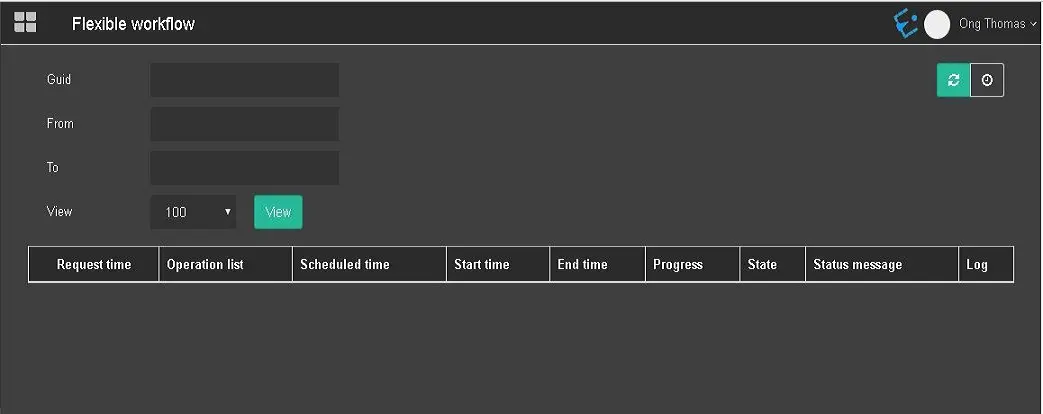
Flexible Workflow 1
• Guid: Define the label of the guid;
• From: Select a start date to capture the workflow;
• To: Select an end date to retrieve the workflow;
• View: Set the number of workflow to be displayed, e.g. 100, 250, or 500.
When parameters are set, click the view button to display the workflows that matched the criteria.
On the top-right corner, you can click the Reload button to manually reload the workflows on screen.
Alternatively, you can click the auto reload button to trigger the reloading of workflow at specific interval defined in User Preferences.
The color of the Reload button would be changed to green indicate activation of auto-reload.
In the workflow view, the columns are self-explanatory.
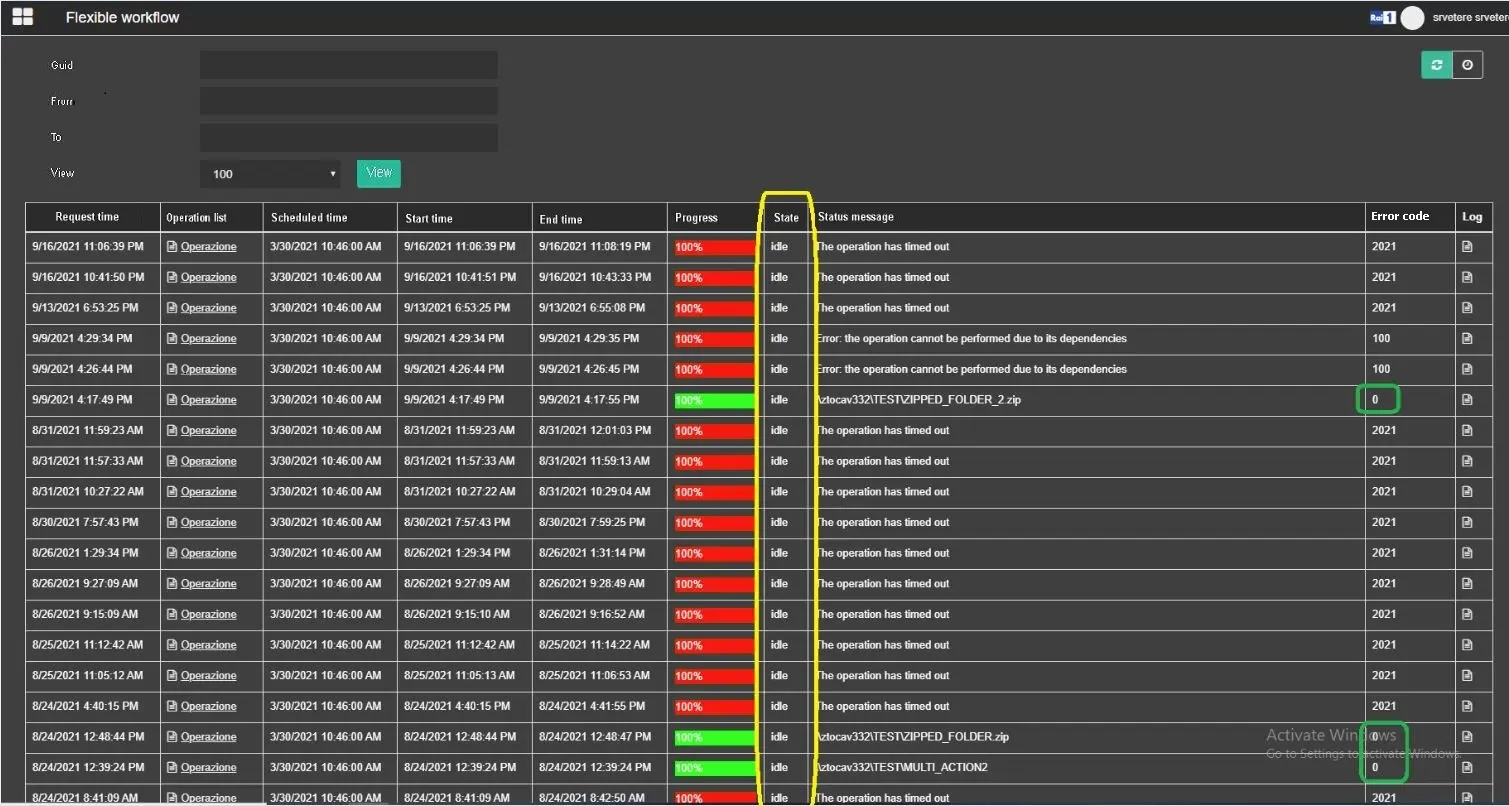
Flexible Workflow 2
The status of the workflow action can be defined as:
- In Progress column, it indicate the percentage of the workflow progressively from 0 – 100 %;
- If workflow is completed, the State is Done and Error code must be 0;
- If workflow is in progress, the State is Running and Error code field is 2;
- If workflow ends with error, the State is Error and Error code field must display a value other than 0.
 Flexible_Workflow_1
 Flexible_Workflow_2