15.15 Radio Live Restore
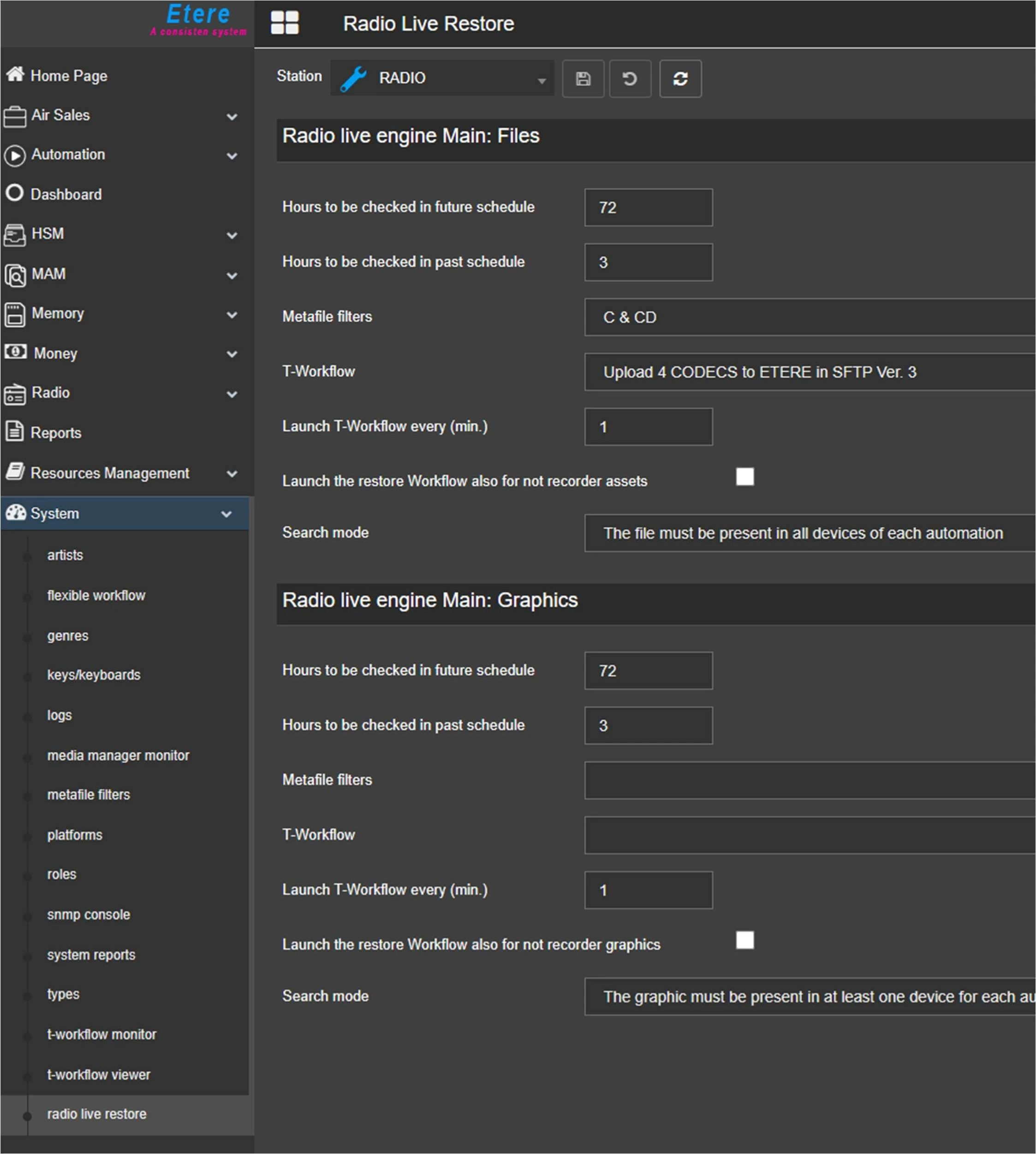
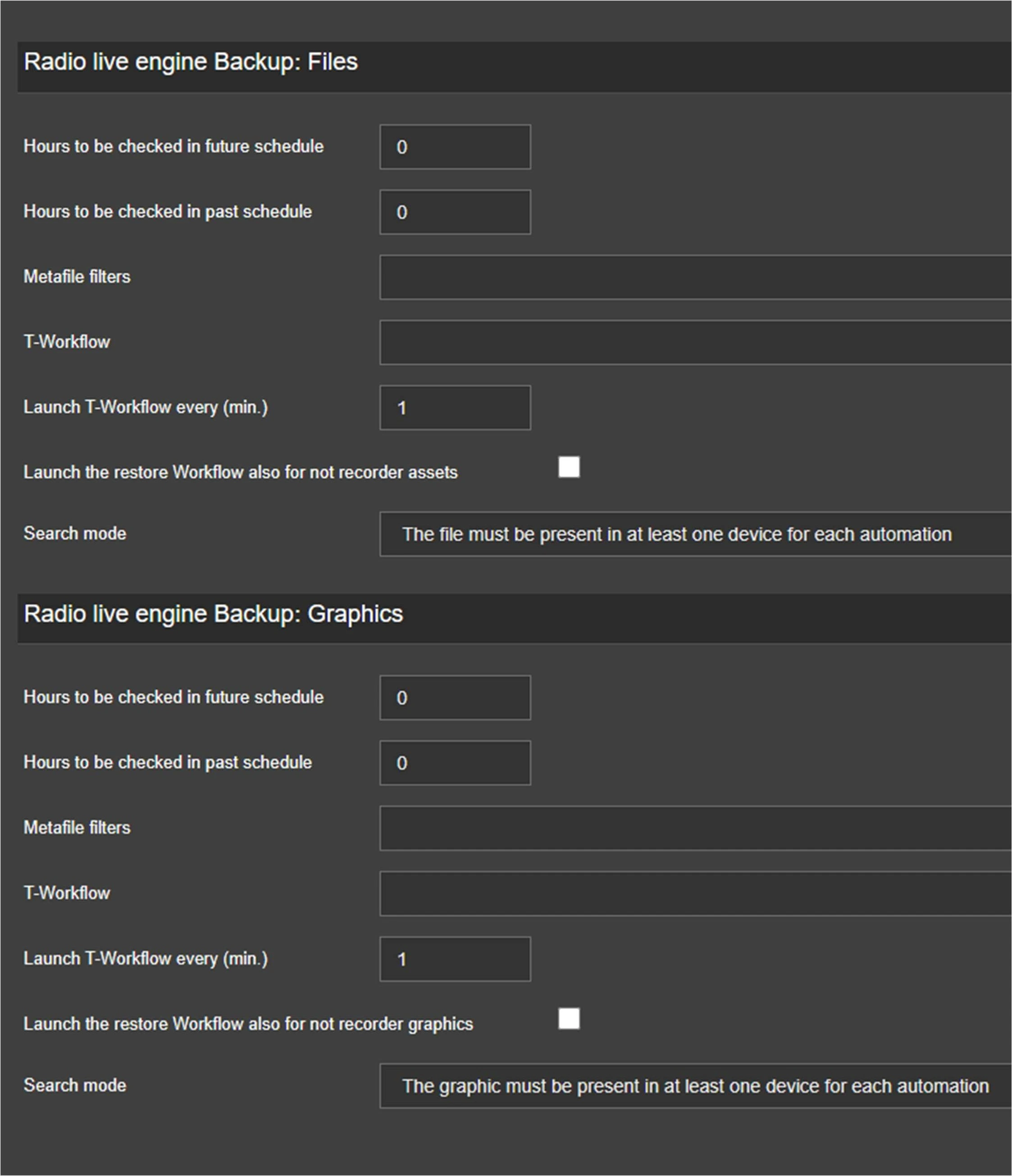
In this section, you can configure the restore of the clips that are next to be broadcasted and which are scheduled in the main engine and the backup engine playlists. You can configure the restore for graphics as well.
Four separate sections allow to set the parameters for each operation.
The Schedule Publisher Service will handle the Restore Procedure. Etere Aligner is not required for Radio Live Engine.
radio_live_restore_main
radio_live_restore_bkp
• Hours to be checked in future schedule: Specify how many hours onwards, in relation to the current time, the service has to check if the scheduled assets feature the needed metafiles.
• Hours to be checked in past schedule: Specify how many hours backwards, in relation to the current time, the service has to check if the scheduled assets feature the needed metafiles.
• Metafile filters: Select the profile with the proper combination of cloud-devices, codecs and media folders, among the ones configured in the section Metafile filters (see chapter 15.12.0.0 Metafile filters). The service will look for the presence in the assets of the elements defined in the profile.
• T-Workflow: Select a wf to launch. This workflow contains the copy action for the actual restore of the file in the designated path.
• Launch T-Workflow every (min.): Set the frequency for the check of missing files in the playlist.
• Launch the restore workflow also for not recorder assets: Allows Schedule Publisher service to execute the T-workflow to restore files even if there is no media file in the assets.
• Search mode: Choose one of these restore criteria:
- The file must be preset in at least one device of each automation
- The file must be present in all devices of each automation
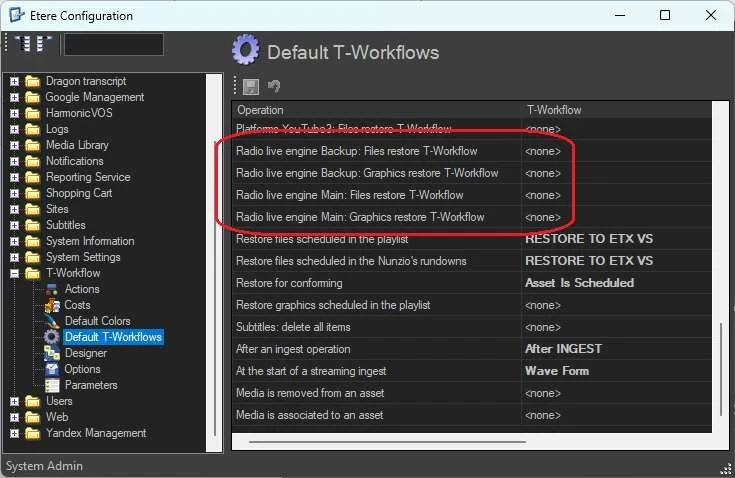
The restore workflows set in these sections can be configured also in Etere Configuration > Configuration editor > T-Workflow > Default T-Workflows:
radio_live_restore_default_wfs
RADIO LIVE GRAPHICS
The graphics played by Radio Live are basically assets belonging to the types ETXG, ETXS or ETXH, which are created using Etere Graphics Editor (see chapter 91.5.0.0 Graphics and Scene Editor).
Secondary events present in the schedule, which the mentioned assets are linked to, are transmitted to Radio Live Engine service as an XML file which contains the asset data and the graphic configuration (position, size...).
When the Schedule publisher service verifies the presence of these graphics in the schedule, it checks if the corresponding assets feature metafiles matching the metafile filters. If they don't, the restore wf is triggered on the graphics assets.
 radio_live_restore_main
 radio_live_restore_bkp
 radio_live_restore_default_wfs