6.1.3 Lines tabs
The Lines tab allows users to have the breakdown of the purchase order, with details of every line that relates to the licensing rights and costs of a particular single program/season.
Lines tab
TOOLBAR
To add a new order line, click on the + button.
With the Column settings button, it's possible to show, hide and arrange the columns in the contract lines table.
Note: A template must be created for one or more groups of users in Etere Configuration > Settings > Web BMS Contract Lines. See chapter 59.2.49.6 Web BMS Contract lines.
The Refresh button allows to update the displayed data.
LINE OPTIONS
You can access several options/actions to be performed on a line by clicking the ☰ button of the line.
Contract Lines
• Edit: Modify the contract line;
• Duplicate: Copy the selected contract line. If the source line has a program linked to it, the contract line would be copied without the related program;
• Delete: Delete the selected line;
• Create and Assign a New Program (Single/Season): Create a new asset or a season episode and links it to the selected line;
Create_and_assign_a_new_program
• Assign an asset / Assign an entire season: This function allows the user to assign a single program or seasons to the selected line. The asset search can be filtered by ID, code or description. After the asset/seasons selection, you must choose if you will manage the rights for a single episode or all the episodes of the seasons in the current contract line.
Assign_an_asset
• Change data version: If the linked asset/episode has more than 1 version, this function allows to replace the currently linked version with another one.
• Open the linked program (single/seasons): If the line has a linked program, it will open the related asset form;
• Delete link to the program (single/seasons): If the line has a linked program, it will delete the link from the selected line.
• View program cost per period: It allows to view the expenses derived from the selected single program/season for the selected period.
• Recalculate rights: It allows to recalculate the Run (R) and ReRun (RR) rights for the selected line. An example of an incorrect rights assignment would be RR scheduled before R. With this helpful tool, the rights would be recalculated and adjusted.
A contract line is made by seven tabs described in depth in the next chapters. Each contains the relevant details and information defined for the line.
• Main data
• Additional data
• Finance
• Rules
• Scheduling status
• Notes
• Restrictions
When all information in the above seven tabs are fulfilled, click the Save button to apply the changes and stay on the editing page or click the Save and exit button to save the modifications and go back to the Lines tab.
After creation, use the Assign an asset / Assign entire seasons functions mentioned above to search for an asset or a season and link it to the new contract line.
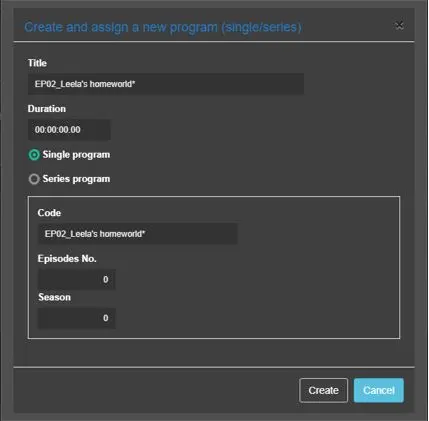 Create_and_assign_a_new_program
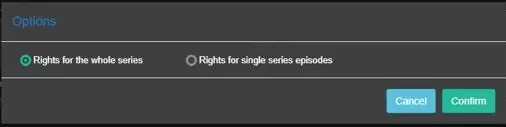 Assign_an_asset
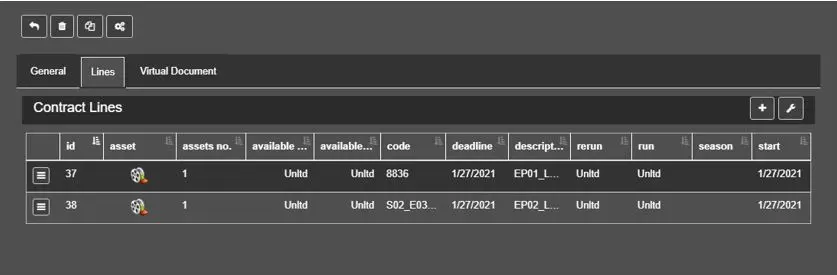 Lines_tab
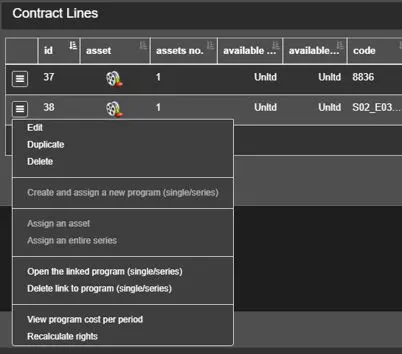 Contract_Lines