59.3.9.4 Create a predefined action
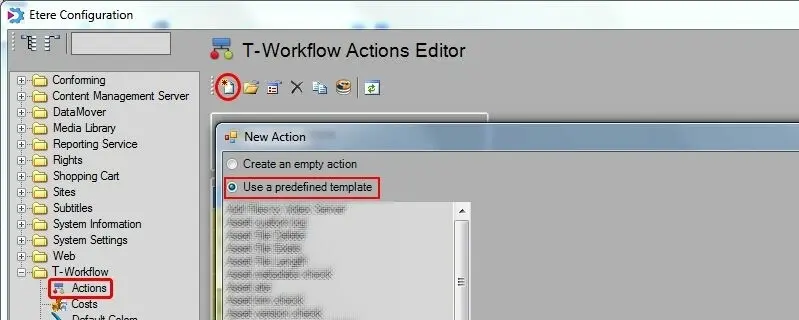
A pre-defined T-workflow action is a user-defined T-workflow that performs standard actions each time the T-workflow is triggered based on normal parameters defined in the T-workflow. The predefined action parameters can occasionally be amended to fulfil the requirements.
Etere provides a wide range of predefined templates with associated parameters to cater to all expectations of T-workflow operations in the broadcasting environment.
use_a_predefined_template
The list of Etere's predefined templates and their associate parameters are described in the table below:
- Add file to video server: Automatically bind a file to an existing metafile in the video server.
- Name: provide the file name.
- File Extension: specify the file extension of the file name.
- Selection Mode: select a metafile or a device/codes
- Select devices: select a device if the device is specified in the selection mode.
- Select Codecs: select a codec if the codec is specified in the selection mode.
Expected results:
- File successfully added
- No file was added
- Name: provide the file name.
- Asset Custom Log: Record operation information into the asset's operation log file.
- Name: the Name of the predefined action.
- Status: Specify the operation status to be included in the log file.
- Notes: specify the log description to be written into the log file.
- Classification: enter a two-character string to distinguish the operation logged (e.g. MM, ET, etc.)
- Name: the Name of the predefined action.
- Asset File Delete: Delete a specific type of asset from a meta device.
- Name: Provide a name for the action.
- Select devices: select the meta device from the list where the asset is stored.
- Select codecs: select the codec from the selected device.
- Asset File Exist: Determine whether assets exist in meta device and codec.
- Action Parameters:Name: Provide a name for the action.
- Select devices: select the meta device from the list where the asset is stored.
- Select codecs: select the codec from the selected device.
- Asset File Length: Verify a video file's length associated with an asset.
- Name: Provide a name for the action.
- Select devices: select the meta device from the list where the asset is stored.
- Select codecs: select the codec from the selected device.
- Asset Metadata Check: Create a predefined action to check the value of asset metadata.
- Action Parameters:Name: Provide a name for the predefined action.
- Metadata: select whether it is an asset or a flexi-metadata.
- Value: the condition value to be checked for the asset, e.g. null or blank, greater than or less than, etc.
- Asset Site: Check the location of the asset and return a value.
- Name: the site where the asset is located, e.g. Roma, Paris, London, etc.
- Asset Trim Check: Check if an asset has been trimmed. There are four possible scenarios:
Asset trimmed: logical start and end are different from physical assets.
Asset trimmed head: The logical start is different from the physical asset.
Asset trimmed tail: the logical end is other than the physical asset.
Asset not trimmed: logical start and end equal to the physical asset.
Name: Provide a name for the predefined action.
Option: select Default EDL / Any EDL.
Expected returned value: Yes / No.
Name: Provide a name for the predefined action.
Check if the asset version is: (select one of the options below)
Earliest version
Latest version
Version no.: select the version number from the drop-down list
Name: Provide a name for the predefined action.
Tolerance level: set an accepted tolerance level to alert the user
Select Codecs: select a codec if the codec is specified in the selection mode.
Select station: select a station name from the drop-down list.
Hours to be checked in future schedules: enter the number of hours for scheduling (e.g., enter 48 to check whether an asset is scheduled in the next 48 hours).
Hours to be checked in past schedules: enter the number of hours in the past to be matched for scheduling (e.g. enter 48 to check whether the asset has been scheduled in the past 48 hours).
Expected returned value: Yes / No.
Action Parameters:Name: Provide a name for the predefined action.
Selection Mode: select a metafile or a device/code.
Select devices: select a device if the device is specified in the selection mode.
Select Codecs: select a codec if the codec is specified in the selection mode.
Name: Provide a name for the predefined action.
Several exist: specify the number of output actions to spread the job.
Memory reset interval (h): set the time limit interval (in hours) to reset the balancing policy to its initial value.
Balancing Policy: select the method where the output would be chosen. Options are random, round-robin, asset duration balanced, and live queued duration balanced.
Action Parameters: Name: Provide a name for the predefined action.
Select codecs: specify the media codec to perform the content check.
Name: Provide a name to the predefined action.
Expected results: present / not present.
Name: Provide a name for the predefined action.
Select action type: select one of the content check results; options are black video, freeze video, loud audio, and antiphase audio.
Expected results:
-Asset created successfully
-Failed to create a new asset
Action Parameters: Name: Provide a name for the predefined action.
EDL version: select the EDL version to be confirmed and choose one of the options below:
-Select EDL to conform based on the T-workflow launched for asset or segment.
-Select EDL to conform by reading the value store in flexi-metadata.
Profile: select the profile to be used for conforming.
Create assets as options are new child, new version, or standalone.
Keep videotape: if enabled, tape linked to source asset would link to new conform asset. Otherwise, only the conformed file is linked to the conformed asset.
Action Parameters: Expected results: Yes/No
Name: Provide a name for the predefined action.
Profile: provide the Name of the profile to be checked.
Expected result: Done / File missing.
Name: Provide a name for the predefined action.
If files are missing for conforming, select one of the actions to be performed.
Timeout in seconds: Specify the timeout value if a restore T-workflow action was launched.
Profile: Specify a profile to be used for conforming.
Name: Provide a name for the predefined action.
Template Name: Create New Linked Asset
Action Description: Create a new asset linked to the origin asset.
Action Parameters: Name: Provide a name for the predefined action.
Select T-workflow: select a T-workflow to connect to the new asset.
Option: choose one of the following
-None: the new asset would feature the same EDL and media as the original asset.
-Do not copy media: only EDL would be associated with the new asset.
-Do not copy EDL or media: no EDL or media would be associated with the new asset.
Action Description: Create a new version of the asset
Action Parameters: Name: Provide a name for the predefined action.
Select T-workflow: select a T-workflow from the drop-down list to link to the new asset.
Option: choose one of the following
-None: the new asset would feature the same EDL and media as the original asset.
-Do not copy media: only EDL would be associated with the new asset.
-Do not copy EDL or media: no EDL or media would be associated with the new asset.
Action Description: Create an asset for Dalet integration.
Action Parameters: Name: Provide a name for the predefined action.
Status: select a status from the list for setting the asset form.
Action Description: Set the status of an asset to a pre-defined value.
Action Parameters: Name: Provide a name for the predefined action.
Station: the station name where the asset is running.
Status: select a status from the list for setting the asset form.
Action Description: Update the asset based on the option chosen.
Action Parameters: Name: Provide a name for the predefined action.
Station: the station name where the asset is running.
Option: choose one of the update options
-Update asset metadata: update the title name, channel and broadcast date.
-Update Etere status: only update the status for Etere metadata.
Action Description: To pause the execution of T-workflow for the time value specified in the delay parameter.
Action Parameters: Name: Provide a name for the predefined action.
Delay in milliseconds: enter the value in milliseconds.
Action Description: Check the status of the deleted asset.
Action Parameters: Name: specify the Name of the asset.
Status: specify the deletion status of the asset to be checked.
Action Description: Delete the obsolete EDL version from the asset in the Media Library.
Action Parameters: Name: Provide a name for the predefined action.
EDL version: select an EDL version from the list or select "All versions" to delete all EDL associated with the asset.
Action Description: Delete a metafile from a database or asset.
Action Parameters: Name: Provide a name for the predefined action.
Select device: select the meta device.
Select codec: select the exact codec of the Metafile to be deleted.
Select option: choose one of the following
-Delete media: delete the Metafile and all links from the database.
-Delete Link: remove the Link between the Metafile and the asset.
Action Description: Delete the subtitles file imported from the Subtitles Tool.
Action Parameters: Name: Provide a name for the predefined action.
Action Description: Usually used for Web activities to indicate specific files are available for download before the T-workflow is complete.
Action Parameters: Name: Provide a name for the predefined action.
Select device: Select a device where the files for downloading are stored.
Select codec: select the codec (e.g. WMV) in which the Metafile is encoded.
Action Description: Transcribe an audio file to an output directory for editing.
Action Parameters: Name: Provide a name for the predefined action.
Action Description: Enable viewing of T-workflow drawing from web browsers.
Action Parameters: Name: Provide a name for the predefined action.
Priority: show the priority setting in the T-workflow.
Metadata ID: show the ID of the metadata.
Action Description: Create a separate file containing the selected segments, featuring a portion of the video file related to the retrieved segment.
Expected result:
-Done: the T-workflow is launched.
-Warning: the T-workflow is launched for specific segments in the EDL.
-Error: the T-workflow is not launched.
Action Parameters: Name: Provide a name for the predefined action.
EDL version: select the version of EDL where the partial retrieve would be performed.
Video standard: specify a video standard to be used for retrieval.
Action Description: To enable/disable an asset from a list of stations.
Action Parameters: Name: Provide a name for the predefined action.
Stations: select the names of the stations.
Action: select enable or disable.
If season episode: select to apply action to all episodes, or skip all episodes.
Action Description: Indicate the number of days to update when updating the flexi-metadata field in the database
Action Parameters: Name: Provide a name for the predefined action.
Flexi-metadata: select the flexi-metadata to be updated.
Number of days: specify the number of days to be updated.
Set mode: choose one of the following
-Based on T-workflow
-Always on asset
-On Metafile, if possible
Action Description: Check the value defined in flexi-metadata.
Action Parameters: Name: Provide a name for the predefined action.
Flexi-metadata: select the type of flexi-metadata to be checked. Only Boolean and array lists would be displayed.
Check mode: choose one of the following
-Based on T-workflow
-Always on asset
-On Metafile, if possible
Action Description: Check if an asset flexi-metadata matches a predefined value.
Action Parameters: Name: Provide a name for the predefined action.
Flexi-metadata: select the type of flexi-metadata to be checked. All flexi-metadata types are available.
Value: specify the value in flexi-metadata to be scanned.
Set mode: choose one of the following
-Based on T-workflow
-Always on asset
-On Metafile, if possible
Action Description: Write the current system date and time onto specific flexi-metadata.
Action Parameters: Name: Provide a name for the predefined action.
Flexi-metadata: only date and time metadata will be displayed.
Set mode: select one of the following
-Based on T-workflow
-Always on asset
-On Metafile, if possible
Action Description: Set or change the value of specific flexi-metadata to a predefined value.
Action Parameters: Name: Provide a name for the predefined action.
Flexi-metadata: select the type of flexi-metadata to be checked. Only Boolean and array lists would be displayed.
Value: specify the predefined value to be assigned.
Set mode: select one of the following
-Based on T-workflow
-Always on asset
-On Metafile, if possible
Action Description: Set or change the specific flexi-metadata value on video files.
Action Parameters: Name: Provide a name for the predefined action.
Flexi-metadata: select the type of flexi-metadata to be set.
Action Description: Update Gen21 Flexi metadata with asset information from the Gen21 System.
Expected results:
-Asset information updated
-Asset not found in Gen21 System
-Error
Action Parameters: Name: Provide a name for the predefined action.
Configuration: Select the configuration profile to connect to the system to perform the update.
Action Description: Update Gen21 System with information read from Etere System.
Action Parameters: Name: Provide a name for the predefined action.
Configuration: Select the configuration profile to connect to the system to perform the update.
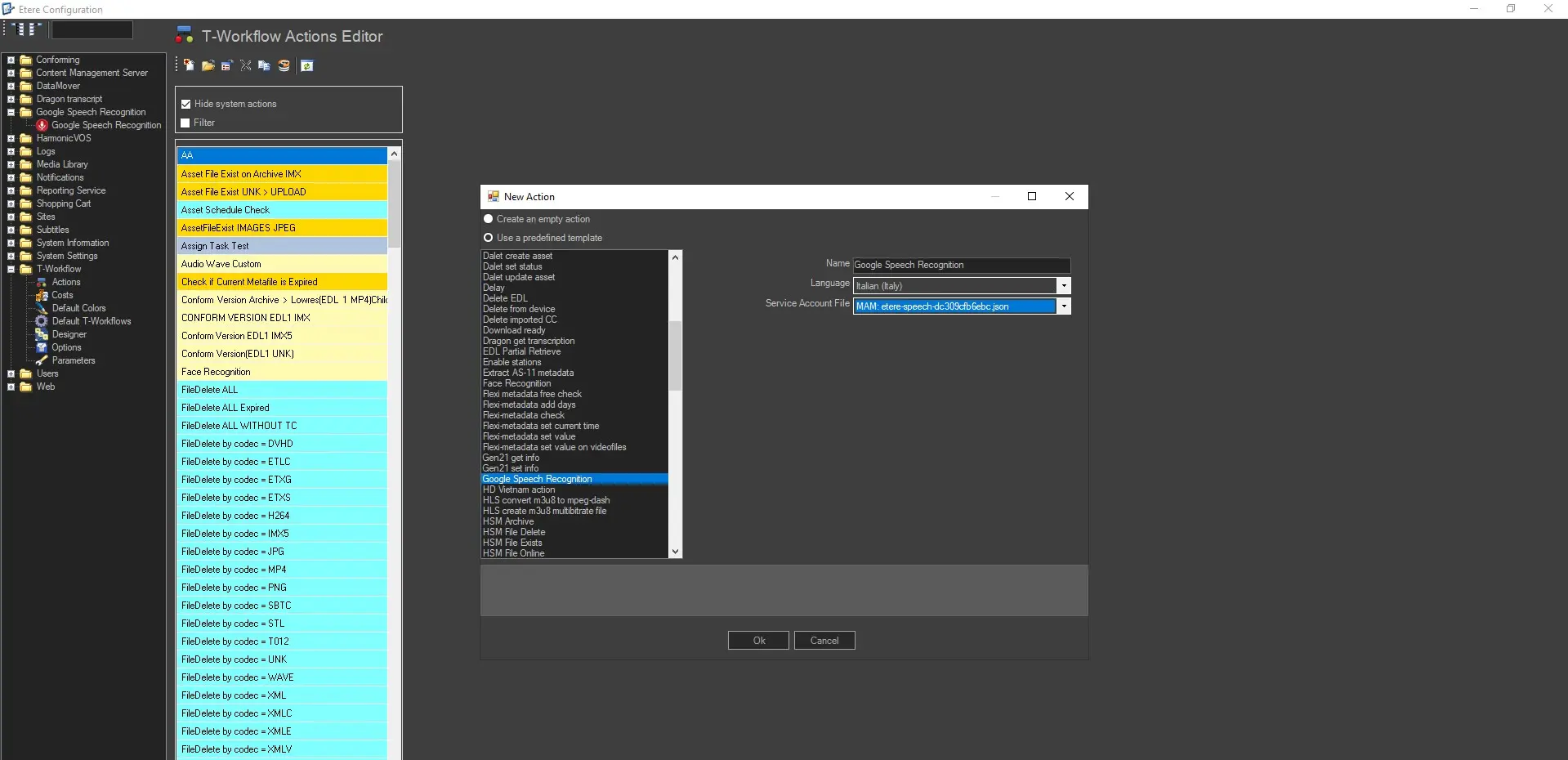
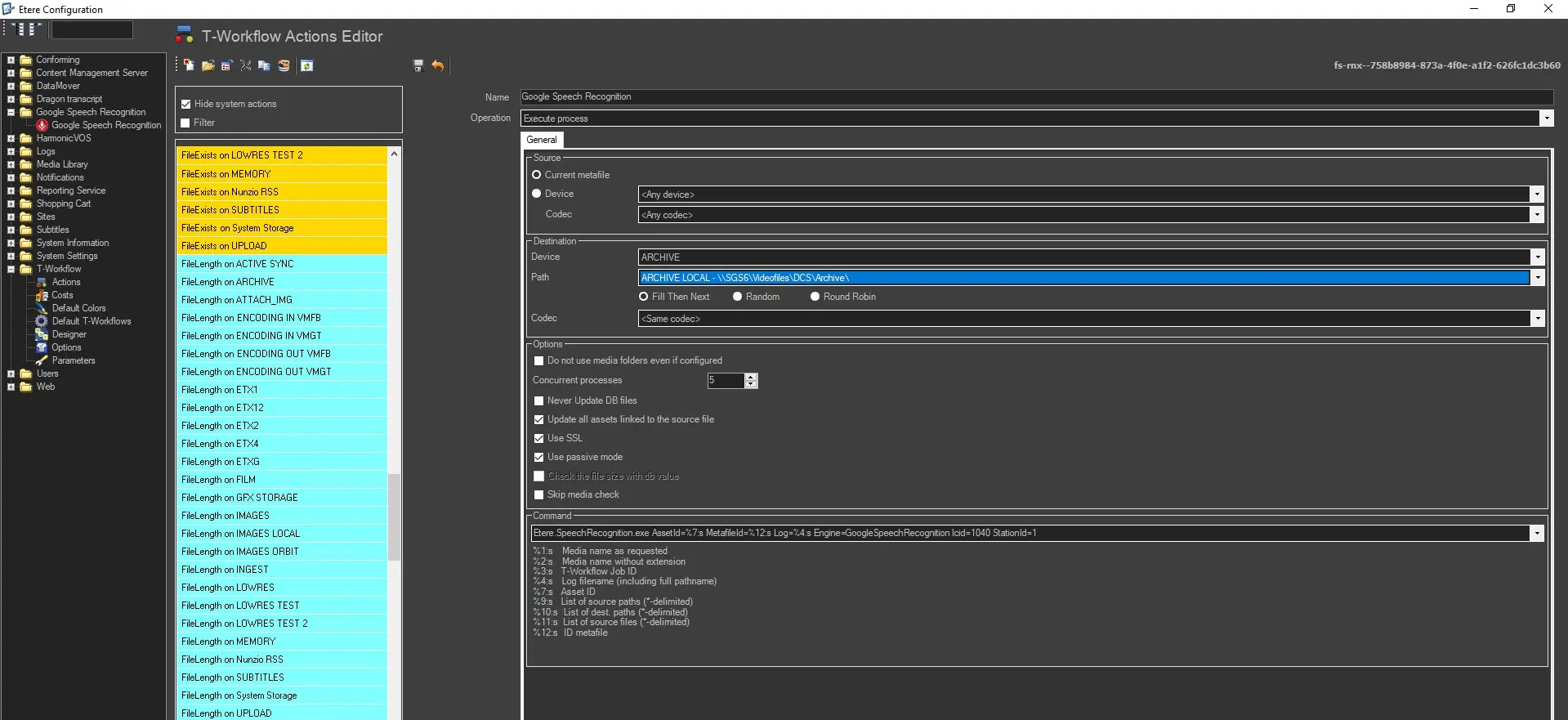
Action Description: Allows the configuration of Google Speech to Text, which relies on Etere Media Service Manager. The action allows to set either the wanted Language and the Google Service Account JSON Credentials Key;
Action Parameters: Name: Provide a name for the predefined action.
Language: select the desired Language which needs to be translated into Text;
Service Account File: provide the Google Cloud Service Account JSON File.
done_action_speech_2_text
new_action_speech_2_text
Action Description: T-Workflow allows Etere users in Vietnam to integrate the software with its API Web service.
Action Parameters: Name: Provide a name for the predefined action.
Operation type: select a desired type of operation from the list.
URL: enter the internet address of the Web service network device.
Username: enter the user name to log in to the network device.
Password: enter the password to authenticate the user name.
Path: specify the path where the file is located.
Device: Select a device where the file is stored.
Action Description: Request HSM Headquarters to upload all assets from the select asset form to a specific meta device into the tape library.
Action Parameters: Name: Provide a name for the predefined action.
Select device: select a device from the drop-down list.
Select codecs: select the codec type to be backed into the tape library.
Action Description: Delete an asset that has already archived into the HSM device
Action Parameters: Name: Provide a name for the predefined action.
Select device: Select a device where the selected codec is located.
Select codecs: select the codec type to be deleted from the device.
Action Description: Create an action to query if the asset has been archived into HSM.
Action Parameters: Name: Provide a name for the predefined action.
Select device: select a device from the drop-down list.
Select codecs: select the desired codec type in the selected device.
Action Description: Create an action to determine if the tape containing a specific asset codec is presented in the tape library.
Action Parameters: Name: Provide a name for the predefined action.
Select device: Select a device where the selected codec is located.
Select codecs: select the desired codec type to perform the check.
Action Description: Select combinations of codec and media pools at a designated meta device and perform a validity check before restoring.
Action Parameters: Name: Give a name to identify the T-workflow action in HSM.
Select Codecs: Select the type of codec to be checked.
Select Source Mediapools: Select the media pool where the content originated.
Select destination meta device: Select the final destination to which the media content would be restored.
Select HSM Server to perform the restore operation. Select the HSM Server to execute the restore operation.
Action Description: Request HSM Headquarters to restore clips with specific codec types from selected assets.
Action Parameters: Name: Provide a name for the predefined action.
Select codec: select the codec from the HSM Archive.
Priority: set the restore priority as high, normal, or low.
Select the HSM server to perform the restore: specify the HSM server to perform the restore.
Action Description: shrinks the image size
Action Parameters: Bring file size less than (Kb): set the size value that the transcoded image must have
Action Description: Check the source of the ingested asset.
Action Parameters: Name: Provide a name for the predefined action.
Flexi-metadata: select the flexi-metadata to be checked.
Action Description: Check if an asset is a live asset.
Action Parameters: Name: Provide a name for the predefined action.
Type check: select one of the options
-Live Yes/No: check if the asset is live
-Select Live channel: select a live channel where the asset is scheduled.
-One state for each channel: check one state for every channel.
Action Description: Set the logo to be displayed during the on-air transmission.
Action Parameters: Name: Provide a name for the predefined action.
Logo Generator: specify the logo generator to generate the logo. Only the first four generators (1,2,3 &4) are supported.
Logo No.1: specify the logo to be assigned as the starting logo.
Duration: set the duration in frames.
Logo No.2: specify the logo to be assigned as the middle logo.
Duration: set the duration in frames.
Logo No. 3: specify the logo to be assigned as the ending logo.
Action Description: Read the loudness of the asset and return results.
Action Parameters: Name: Provide a name for the predefined action.
Minimum value (dB): specify the minimum value of loudness range. The default is -26 dB.
Maximum value (dB): specify the total value of the loudness range to check. The default is -20 dB.
Action Description: Check that the user who launched the T-workflow is the asset creator.
Action Parameters: Name: Provide a name for the predefined action.
Action Description: Check the Name of the User Group to which the user belongs.
Action Parameters: Name: Provide a name for the predefined action.
Action Description: Set the user who launched the T-workflow as an asset creator.
Action Parameters: Name: Provide a name for the predefined action.
Action Description: Check the source of the asset that has been acquired.
Action Parameters: Name: Provide a name for the predefined action.
Action Description: Action to check the value for a specified parameter.
Action Parameters: Name: Provide a name for the predefined action.
Parameter: The Name of the parameter to be checked.
Value: specify the value to be checked. Multiple values can be determined by clicking the "+" button to launch the value input field.
Action Description: Action to set a value for a specified parameter.
Action Parameters: Name: Provide a name for the predefined action.
Parameter: the parameter to be assigned a value
Value: select one of the following
-Fixed: use a fixed value for the parameter
-From flexi-metadata: load all parameter values from a flexi-metadata file.
Action Description: Check the QC results formerly performed by the specified QC.
Action Parameters: Name: Provide a name for the predefined action.
QC Type: specify the QC type formerly performed. Selections are Advanced QC, Baton, and Cerify.
Metafile: select one of the following
-Current Metafile: the current Metafile used for the T-workflow instance.
-Select device/codec: This option would launch two additional parameters, meta device and codec.
Action Description: Set the video quality to a predefined value.
Action Parameters: Name: Provide a name for the predefined action.
Set to select one of the predefined values from the list.
Action Description: Check if the assets have been ingested into a database for specified days.
Action Parameters: Name: Provide a name for the predefined action.
Number of days: specify the days the assets have been ingested into the database.
Action Description: Allow remote management assets stored on a remote site.
Action Parameters: Name: Provide a name for the predefined action.
Installation Site: the Name of the remote site.
Select Remote T-Workflow: specify the T-workflow to be launched at the remote site.
Select Action Type: select one of the actions from the list. Action includes status check, start T-workflow, reset T-workflow, and abort T-workflow.
Action Description: Allow remote management assets stored on a remote site.
Action Parameters: Name: Provide a name for the predefined action.
Site: specify the Name of the remote server.
Select T-workflow: specify the workflow to be launched at the remote site.
Select Operation: Start T-workflow instance.
Action Description: Replaced the scheduled events of an asset with the attached asset.
Action Parameters: Name: Provide a name for the predefined action.
Asset to replace: select one of the following:
-First version: replace the first version of the asset.
-By flexi-metadata: Replace the asset with the attached flexi-metadata file.
If the asset has exploded, select one of the actions from the list if the asset to be replaced is demolished in the schedule.
Action Description: Reset the duration of an asset.
Action Parameters: Name: Provide a name for the predefined action.
Set to: specify to reset the asset to a null duration (1 frame) or its former duration (scheduled duration).
Action Description: Reset the asset logical marks with physical marks and recalculate the schedule duration.
Action Parameters: Name: Provide a name for the predefined action.
Action Description: Retrieve Metafile stored in metadevice and add to asset media list.
Action Parameters: Name: Provide a name for the predefined action.
Select the device: select the meta device on which the Metafile would be created.
Select codec: if the meta device contains multiple codecs, specify the codec to be retrieved.
Path: select the path to add the asset.
Filename: specify a file name for the asset.
File suffix: The file name is created based on the suffix.
File Extension: specify the file extension assigned to the file name.
Action Description: Retrieve Metafile stored in a remote site and add it to the asset local media list.
Action Parameters: Name: Provide a name for the predefined action.
Site: specify the Name of the remote server.
Remote device: specify the remote metadevice to retrieve from.
Target device: specify the local meta device to store the retrieved file.
Path: specify the path of the local meta device where the retrieved file is stored.
Action Description: To retry the previous T-workflow action for a given number of times.
Action Parameters: Name: Provide a name for the predefined action.
Max number of tries: specify the times to retry the T-workflow action.
Action Description: Access the ScheduALL site and set a value on the database field via web services.
Action Parameters: Name: Provide a name for the predefined action.
Scheduall field name: enter the database field name at the Scheduall site.
Schedule field type: select a field type from the list, e.g. library, work order, event, etc.
Metadata: select the source of the value.
Set mode: select the mode where flexi-metadata would be checked.
Option: select a criteria to update the database field.
Action Description: Update the value in the STAT and STATUSEX fields in the work order table.
Action Parameters: Name: Provide a name for the predefined action.
Schedule field name: enter the database field name at the Scheduall site where the value would be set.
Option: select a criteria to update the database field.
Action Description: Copy the video file from the server supporting serial digital interface (SDI). This action allows the video file to stream while copy functions are in progress.
Action Parameters: Friendly Name: Provide a name for the predefined action.
Description: provide a brief description of the copy action.
EnglishNamee: Provide an English name for the T-workflow action.
Select source device: select the video server from which to copy the video files.
Select source codec: specify to copy video file with specific codec.
Select destination device: select the device to copy the video file.
Select destination codec: select the codec that contains the copied video file.
Action Description: This T-workflow action sends an email notification at any instance of the T-workflow using the email profile of MS SQL Server.
Action Parameters: Name: Provide a name for the predefined action.
Profile name: specify the MS SQL email profile for sending email notifications.
To: Specify the primary recipients of the email.
CC: Send a copy of the email to the recipients on the list.
BCC: send a blind carbon copy of the email notification to the recipients whose email addresses would not appear in the email.
Subject: provide a subject title to the email notification.
Text: enter the content of the email.
Attach file(s) of codec: select a file to attach to the email>
Attach file(s) of device: specify the meta device where the attached codec is stored.
SendMail procedure: select one of the system-stored procedures to send the email notification. The default procedure is wf_user_dbmail_execute.
Action Description: This T-workflow action sends a report about flexi-metadata to the recipient's email address.
Action Parameters: Name: Provide a name for the predefined action.
Profile name: specify the SQL email profile to be used.
To: the recipient's email address.
CC: sends a carbon copy of the same email to the email addresses in the recipient list.
BCC: Sends a blind carbon copy of the same email message to recipients on the list.
Subject: Enter a subject for the email.
Text: the content of the email.
Attach a codec file: specify the one to use if you want to attach a file.
Attach a file of the device: specify the meta device where the attached file will be taken.
SendMail procedure: indicate the system stored procedure or custom procedure for sending email notifications.
Action Description: This T-workflow action sets the error code and severity, leaves a short message and sends the message to the SNMP Console.
Action Parameters: Name: Provide a name for the predefined action.
Message: the message content.
Error type: select the predefined severity related to the error.
Error code: select the predefined error code.
Owner: specify the process owner.
Action Description: This T-workflow action sends a notification to the notification system console through the UDP protocol.
Action Parameters: Name: Provide a name for the predefined action.
Type: specify the type of the notification.
Message Params: enter the content of the notification message.
Action Description: Set the current asset as a local asset.
Action Parameters: Name: Provide a name for the predefined action.
Action Description: Set or change the aspect ratio and HD conversion to a custom-specific value.
Action Parameters: Name: Provide a name for the predefined action.
Aspect: select an aspect ratio from the list
HD conversion: specify an HD conversion value
Action Description: Identify the presence of closed captions (CC) embedded in the assets and indicate the asset with the "CC" flag in Executive Editor.
Action Parameters: Name: Provide a name for the predefined action.
Value: set a value to enable or disable the action (True / False)
Action Description: Set the asset code as "ID + suffix."
Action Parameters: Name: Provide a name for the predefined action.
Suffix: set a random suffix after the asset ID to identify the asset code.
Action Description: Set or change the status of an asset to the specific value defined.
Action Parameters: Name: Provide a name for the predefined action.
Set to: select a defined status from the list. Available statuses are unknown, valid, rejected, censored, approved, erased, and transferred.
Action Description: Replace a codec of Metafile with a codec preset by the user.
Action Parameters: Name: Provide a name for the predefined action.
Selection Mode: specify to use the current Metafile or select the device/codec
Set codec to If the selection mode is set to "select device/codec", specify the codec (e.g. H264, WAVE, etc.) to be changed.
Metadevice: if the selection mode is set to "select device/codec", specify the metadevice (e.g. system storage, proxy, etc) to be changed.
Current codec: select the current codec to replace the old codec.
Action Description: Set the current Metafile as the reference metafile for the T-workflow instance.
Action Parameters: Name: Provide a name for the predefined action.
Select device: specify the meta device to be used as a reference meta device.
Select codec: specify the codec to be used as reference codec.
Action Description: Search all metafiles that match the specific criteria and set each Metafile as the current Metafile.
Action Parameters: Name: Provide a name for the predefined action.
Flexi-metadata: specify the metadata to be set as current Metafile.
Action Description: Set one of the Metafiles located in multiple output cloud devices with different names as the reference metafile for the T-workflow instance. An unlimited number of outputs can be specified.
Action Parameters: Name: Provide a name for the predefined action.
Output 1: specify the name of the first output location.
Select codec: specify the codec to be used as reference codec.
Select device: specify the meta device to be used as a reference meta device.
Output 2: specify the name of the second output location.
Select codec: specify the codec to be used as reference codec.
Select device: specify the meta device to be used as a reference meta device.
Action Description: Set the current site as a reference site for the T-workflow instance.
Action Parameters: Name: Provide a name for the predefined action.
Select site: specify the site (e.g. myTV@Miami, myTV@Sidney, etc) as a reference site.
Action Description: Set an expiry date for an asset by specifying the number of days to expiry starting from the current date.
Action Parameters: Name: Provide a name for the predefined action.
After days: specify the number of days added to the current date.
Action Description: Set the encoding information of a metafile.
Action Parameters: Name: Provide a name for the predefined action.
Metadata: Select a value from the drop-down list to fulfil the following parameters:
Container
Bitrate
Surface format
Surface description: enter a text description.
Width
Height
Aspect ratio
Frame rate
Scan mode
Profile
Audio tracks
Audio format
Audio rate
Audio bits
Clear metadata for unset fields: if enabled, all data fields left blank will be cleared.
Action Description: Set the exact media pool for archiving files.
Action Parameters: Name: Provide a name for the predefined action.
HSM archiving media pool 1: select the first media pool to archive the processing files.
HSM archiving media pool 2: select a second media pool to archive the processing files.
HSM archiving media pool 3: select a third media pool to archive the processing files.
Action Description: Set the priority for the HSM metafiles archiving process.
Action Parameters: Name: Provide a name for the predefined action.
Priority: select one of the defined priorities.
Action Description: Set Metafile expired to prevent access to Metafile.
Action Parameters: Name: Provide a name for the predefined action.
Hours due: the Metafile would expire after the number of hours specified in this parameter.
Selection Mode: specify to use the current Metafile or select device/codec.
Select devices: if the selection mode is set to "select device/codec", select the device from the list.
Select codecs: if the selection mode is set to "select device/codec", specify the codec (e.g. H264, WAVE, etc) to be changed.
Action Description: Set/change the source for assets acquired by the station.
Action Parameters: Name: Provide a name for the predefined action.
Set to: select from the drop-down list to specify the station that acquired the asset (e.g. ActiveSync, Conforming, Ingest, import, file transferred, etc.)
Action Description: Enable the tick on the subtitle section in the asset specifying the related page number
Action Parameters: Name: Provide a name for the predefined action.
Subtitle: Select the subtitle type from the list.
Pag.: Set the subtitle page.
Action Description: Set/change the asset type.
Action Parameters: Name: Provide a name for the predefined action.
Select type: select a type from the list (e.g. commercial, news, promo, film, etc)
Action Description: Change the execution priority of the T-workflow.
Action Parameters: Name: Provide a name for the predefined action.
Priority: specify the new priority for the T-workflow.
Name: Provide a name for the predefined action.
Select the person in charge: select the person (email address) to receive media files through the Tapeless Reception.
Set scheduled arrival: specify whether the arrival date should be across multiple assets (Yes/No).
Name: Provide a name for the predefined action.
Flexi-metadata: specify the flexi-metadata to be used to update the asset code.
Check mode: select "based on T-workflow" or "always on asset" as check mode.
Action Parameters: Name: Provide a name for the predefined action.
FileInfo mode: set information in Metafile. Options are Baton, Cerify, and MediaInfo.
Update options: select how information should be updated
-Update codec: update codec of the selected Metafile.
-Update asset: update the asset data
-Update EFI: update file info flexi-metadata.
Metafile selection:
-Selection Mode: specify whether to use the current Metafile or select device/codec.
-Metadevice: if selection mode is set to "select device/codec", select the device from the list.
-Codec: if the selection mode is set to "select device/codec", specify the codec to be used.
Name: Provide a name for the predefined action.
Flexi-metadata: specify the flexi-metadata to be used for storing the asset code.
Check mode: select "based on T-workflow" or "always on asset" as check mode.
Name: Provide a name for the predefined action.
Site: Select the remote site where the asset is located
Name: Provide a name for the predefined action.
Select device: select the meta device to be checked.
Name: Provide a name for the predefined action.
Host: specify the URL of the Medusa server.
Port: Specify the network port used to communicate with the Medusa server.
WLSD: specify the WLSD path.
Login: specify the user name to access the server.
Password: enter the password to authenticate the user name.
Name: Provide a name for the predefined action.
From – To specify the start and end times for executing the T-workflow.
Days: specify the day(s) within a week that the T-workflow should be executed (Monday – Sunday).
Name: Provide a name for the predefined action.
Select the correct type: specify the action the Web request is allowed to perform.
Enabled days: the given rights would be valid for the number of days specified in the parameter.
Select the email profile: select the SQL email profile to send a notification email.
Email additional Text: specify any other text to be appended at the end of the email.
CC: Send a copy of the email to the recipients on the list.
BCC: send a blind carbon copy of the email notification to the recipients whose email addresses would not appear in the email.
Action Parameters: Name: Provide a name for the predefined action.
Select T-workflow: specify the T-workflow to be triggered by the current T-workflow.
Select action type: specify the action to be performed by the selected T-workflow.
Time out in second: specify the maximum time for the T-workflow action to complete.
Select option: optional field.
Action Parameters: General info:
-Name: Provide a name for the predefined action.
-Description: Describe the T-workflow action.
-Category: indicate the type of process the T-workflow is related to.
-Subcategory: indicate further classification within the category.
-Back colour: select a colour from the list.
-Cost: specify a cost template for the work order's default cost.
-To assign: enabled this option to assign a worksheet to an operator; otherwise, it would be available for any operator.
-Management: specify the management module to access the T-workflow.
-Confirm by password: if enabled, the user must provide a password for authentication.
Automatic assignment:
-Assignee: specify the worksheet to be assigned to the selected user.
-Group: specify the worksheet to be assigned to a selected group of users
-Role: specify the worksheet assigned to the selected role's user.
-Deadline: specify a deadline for the task (minutes, hours, days, weeks, months)
-Note: optional, includes a text message in the worksheet.
States:
-Number: Select a predefined number to indicate the possible results of the work order (e.g. pending, completed, failed, etc).
-Flexi-metadata: search and retrieve each state's flexi-metadata (Boolean or integers/strings).
States Info:
-State 1: display the output to be managed for the work order.
 use_a_predefined_template
 new_action_speech_2_text
 done_action_speech_2_text