14.4 Assign worksheets
A worksheet action is a template used within T-Workflows to manage, monitor and invoice any station operation, allowing:
- The management of production operations
- Subtitles
- Dubbing
- Promotions
ETERE allows using worksheets as a T-workflow step that permits the request of the performance of a particular operation (e.g. outdoor shooting) to proceed with a subsequent T-workflow step (e.g. video editing).
Once executed, worksheets are assigned to the assignee intended to ececute them either manually (from the Resources Manager\Tasks) or automatically; in the latter case, worksheets will also be inserted as a task into the assignee's Agenda (being also synchronized with its outlook) to remind him/her about executing and compiling the worksheet either from the MAM > Agenda module or the Media Library > Worksheet tab.
NB: Worksheet creation actions are explained in the chapter (59.3.10.17)
The section is divided into:
1) Worksheet > in this section, all open worksheets (grouped by name/description) are displayed as "Worksheet_active"
2) To assign > in this section, all worksheets waiting to be assigned are displayed "Worksheet_list_to_assign"
->It is possible to change the view for:
- Assigned
- All
Once the task has been selected, the button to be assigned must be selected, the interface for the assignment parameters will then open with the following options:
1) Tasks >Here you can see the list (single or multiple) of assets that recall the selected worksheet
2) Assignee > Here are the assignment options:
->Single, you can specify a single user to assign the task to
->Group, you can assign to a group of users
->Job type, the assignment type "Task or Appointment" can be defined
->Priority, processing can be defined as "Low, Normal, High"
->Budget, here the cost rules can be validated
->Notes, Additional notes can be specified here
3) Resource >In this added point, the resource types (with start and end) can be configured for 3 categories:
->Contacts
->Location
->Equipment
Once the necessary settings are completed, by clicking on OK, the message "Data saved property" will appear, it will subsequently be sent as configured.
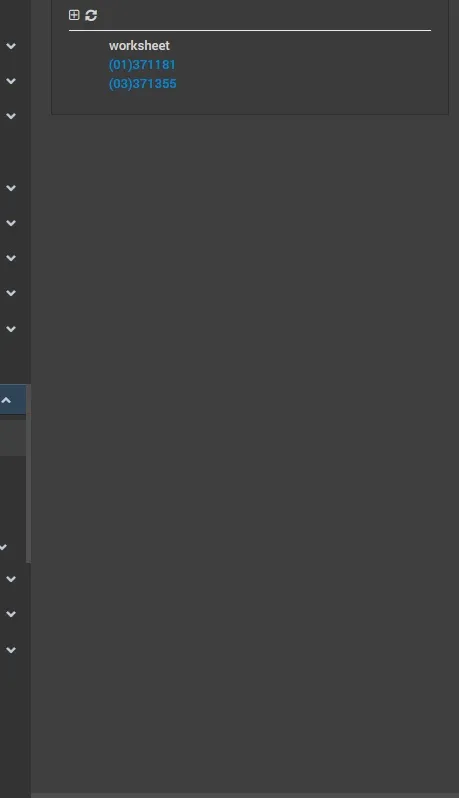 Worksheet_active
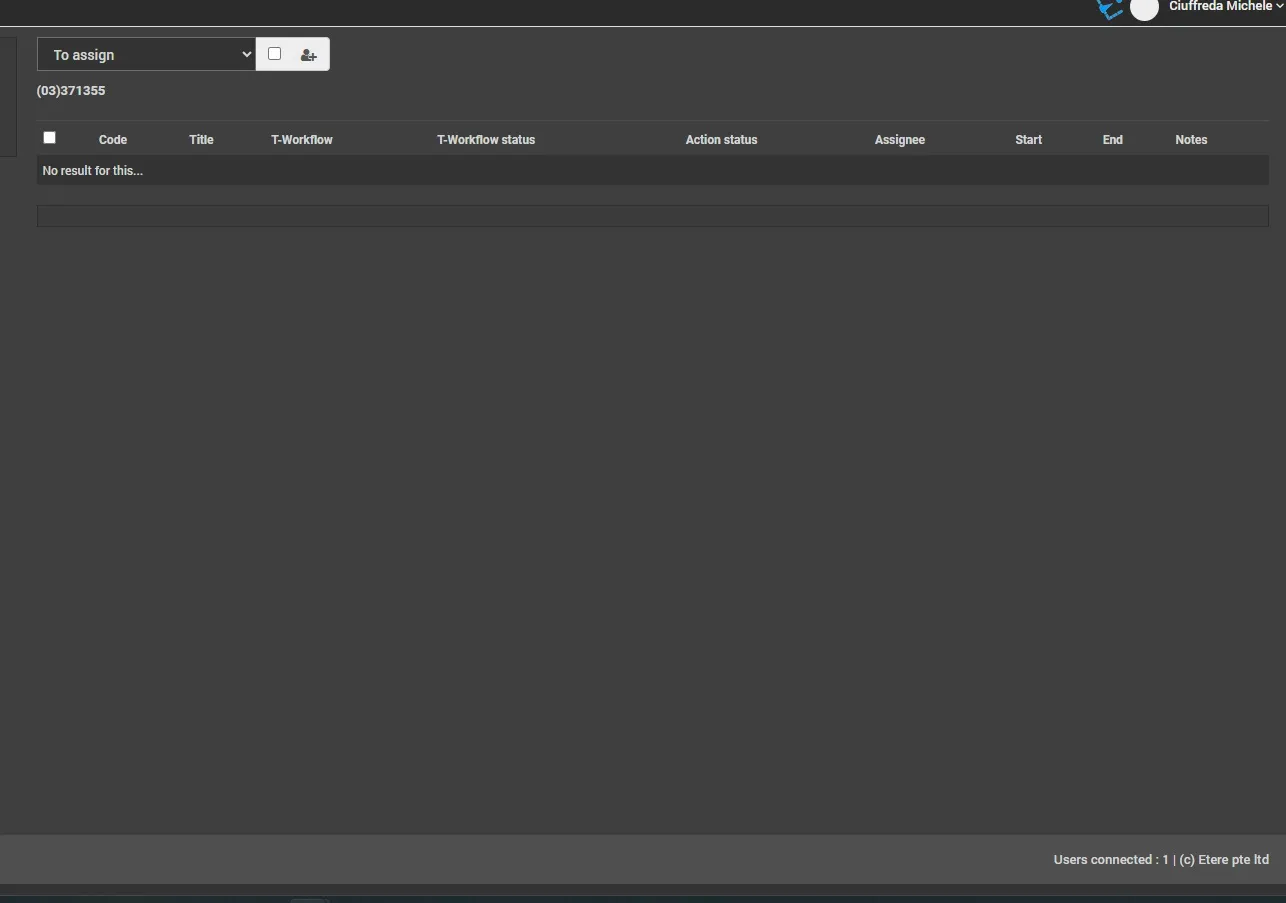 Worksheet_list_to_assign
 Button_to_be_assigned
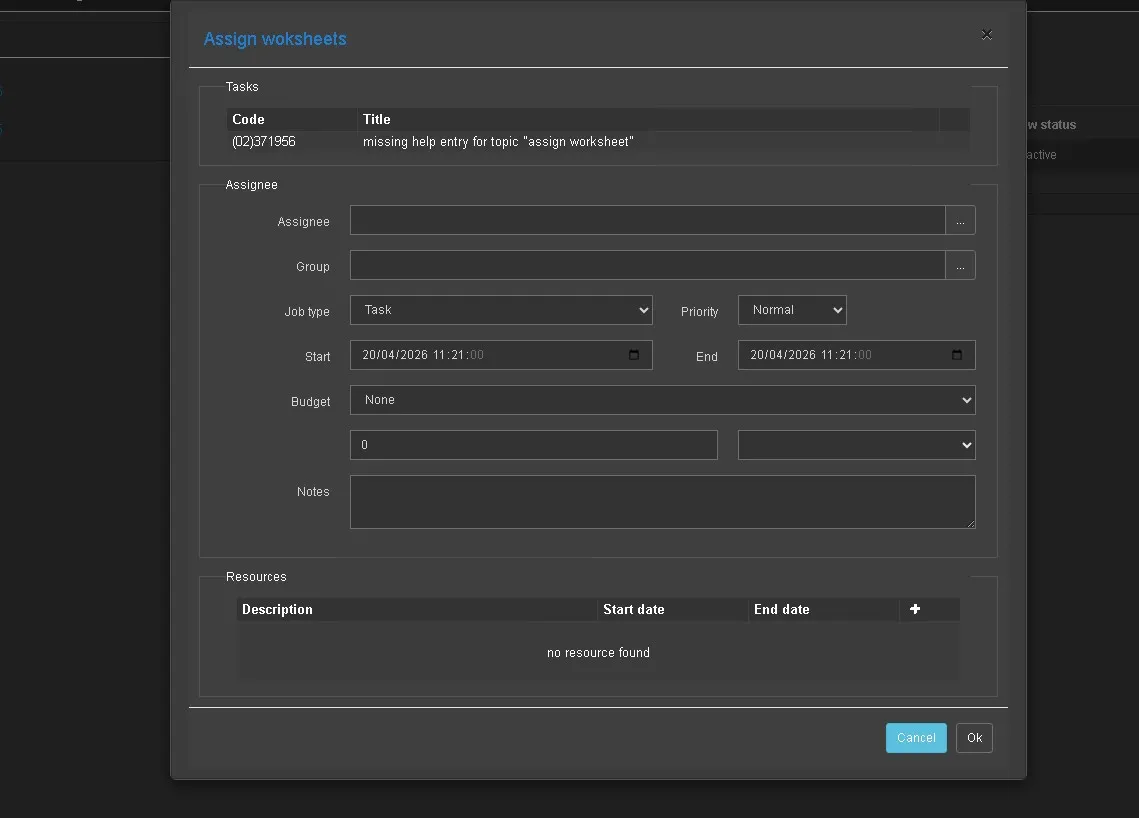 open_with_the_following_options