72.2.2.79 Task - Work orders
The Tasks section permits operators to manage all the worksheets generated via T-workflow for the current asset. It allows them to consult and compile them under a simple and intuitive interface.
NB: Detailed information on the overall worksheets management can be found in the proper Resources Manager section of the Etere MAM chapter.
Compiling a work order
In the top part of this section will be displayed all pending worksheets (i.e. waiting to be compiled), making it possible for the operator to quickly and easily collect them just by following this procedure:
1. The operator searches for the assets associated with a specific worksheet. Is it possible to filter them by "worksheets" (e.g. subtitles production) and "job status" (i.e. All jobs, All available jobs, All my jobs, Only jobs undertaken by me, Only jobs assigned to me)? Once found, the asset is opened by double-clicking on it.
2. Under the "Task" tab, the operator sets the following parameters required to detail the worksheet execution:
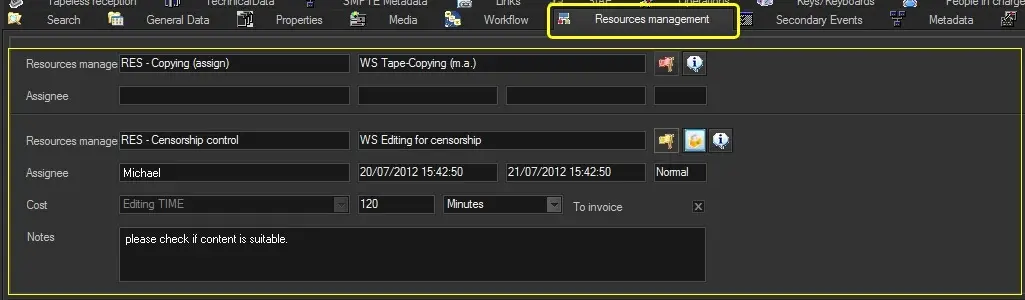
Resources Manager
Resources management - Shows the T-workflow and the action on which the worksheet is based.
NB: The virtual document icon in Media Library indicates a virtual document attached to the asset.
Status - Displays the worksheet's current status, and the operator can undertake it if it is available. Possible status colours are:
Green - The worksheet is open and ready to be undertaken by any user.
Yellow - The operator launched the worksheet, which is now ready to be compiled.
Red - The worksheet is unavailable for compilation since another user owns it.
Info - The [info] button provides information on the worksheet job (e.g. status, assignee, invoice) and worksheet worker (e.g. login name, pc name, etc).
Assignee - In case the worksheet has been assigned, the assigned user will be detailed, as well as the assignment date and time.
Users are assigned to worksheets manually (from the Resources Manager) or automatically (specifying it on the worksheet action).
Cost - Set the cost type (money, time, or quantity), cost value, and measurement unit required to calculate the price of the worksheet. For details on this calculation, refer to Defining costs.
NB: In case of saving an incomplete worksheet but with an entered cost, the cost will be inserted into the list of asset costs. If this cost is subsequently modified, it will be updated.
To invoice - Specify if the worksheet will be either invoiced or not.
Notes - Enter a brief note regarding the worksheet processing (e.g., problems, extra info, etc).
Result - Choose the more suitable result for the worksheet among the supported ones (e.g., completed, failed, missing media, etc).
3. Once compiled, press the [Save] button to process the worksheet (it will make the related T-workflow move forward).
NB: If the worksheet requires a password to confirm the task result, the operator will be asked to enter its password (the same set in its data) to proceed.
4. Once completed, worksheets are moved from the pending worksheets to the worksheets history, there it will be displayed all the costs derived from the worksheets owned by the current operator detailing for each cost the following data:
worksheets history
- action, workflow, status, cost type, value, measurement unit, invoicing status, economic value, worker, and start/end execution dates.
5. Moreover, the following features will be provided for completed worksheets:
▪ Making right-click on the history area and selecting the "Report" function will allow you to generate a document on project costs.
▪ For detailed information on how to consult and monitor worksheets, please refer to the Tracking Worksheets chapter.
▪ All asset operations related to worksheets can be consulted under the Operations tab, where they are logged and certified.
Note: Please note that assets having "costs" cannot be deleted from the system (e.g. using the Ingest > Operations By Workflow module). You must remove the related workflow (containing the worksheet action) from the system using the Configuration Editor to prevent it from being deleted.
System worksheets
It is important to note that the "Worksheets" section allows managing not only those T-workflow actions created as worksheets but also others for which resource management is supported. Among these T-workflow actions, the following can be mentioned:
• Quality check: These T-workflow actions can be processed under the asset's Properties > Quality check section, also here, in the asset's Worksheets section; in the latter case, the "quality check" operation will be managed as a worksheet (i.e. including costs and performer information).
 Resources_Manager
 worksheets_history