9.4.4 Scheduled Ingest
In this module, the user can view, search, modify and delete the ingest operations saved in the database.
Scheduled_Ingest
FILTERS
It's possible to narrow the search using these filters:
Channel: Select 1 of the ten channels from the list, or select "All" to include all channels.
Show: Choose the type of scheduled recording to search, among the following:
• Planned single ingests: Display individual ingest operations designed for a specific date and time.
• Planned periodical ingests: Use this option to display ingest operations scheduled to be executed periodically and repeatedly within the scheduled window, e.g. ingest to start every Tuesday and Friday every week.
• Planned scheduled-live ingests: Display the ingest operations scheduled for live events.
• Completed ingest operations: This option extract the completed ingest operations, regardless of the ingest type.
Status: Filter the search by the status of the recording, which could be:
• Not executed: Recordings that are not started yet. Selecting "Planned single ingests" as ingest type, it allows to show the Delete button, which removes ALL the recordings not executed and expired from more than 60 minutes.
• D (Done): Already finished recordings.
• E (Error): Recordings ended with issues.
• R (Running): Recordings still in progress.
From: Select a date from the calendar to extract planned single ingest starting from the indicated date.
Note: This filter is available only if "Planned single ingests" or "Completed ingest operations" are selected.
Also expired: A recording is considered expired when its expected end time is past by more than 60 minutes. By default this flag is disabled, enable it to show also the expired recordings.
Note: This filter is available only if "Planned periodical ingests" is selected.
SEARCH RESULTS
When the search is launched through the View button, these are the information extracted from the database:
• Id: Progressive number automatically assigned to the scheduled recording.
• Description: A brief description of the ingest operation, set during its creation.
• Destination: This column displays the designated channel assigned to each ingest operation.
• Status: The current status of the ingest operation. This field is empty if the recording hasn't been executed yet.
• Station: The name of the station where ingest operation was performed.
• Date: The date scheduled for ingest operation.
• Time: The expected time for ingest on a specific date.
• Duration: The total time taken for the ingest operation.
• Asset id: It displays the ID of the linked asset specified during the recording setup.
Note: Records can be sorted, in ascending or descending order, by the columns Description, Destination or Status.
Once the results are displayed, the Edit button on the left of the table allows to modify a specific ingest operation, while the Delete button removes the single record from the database.
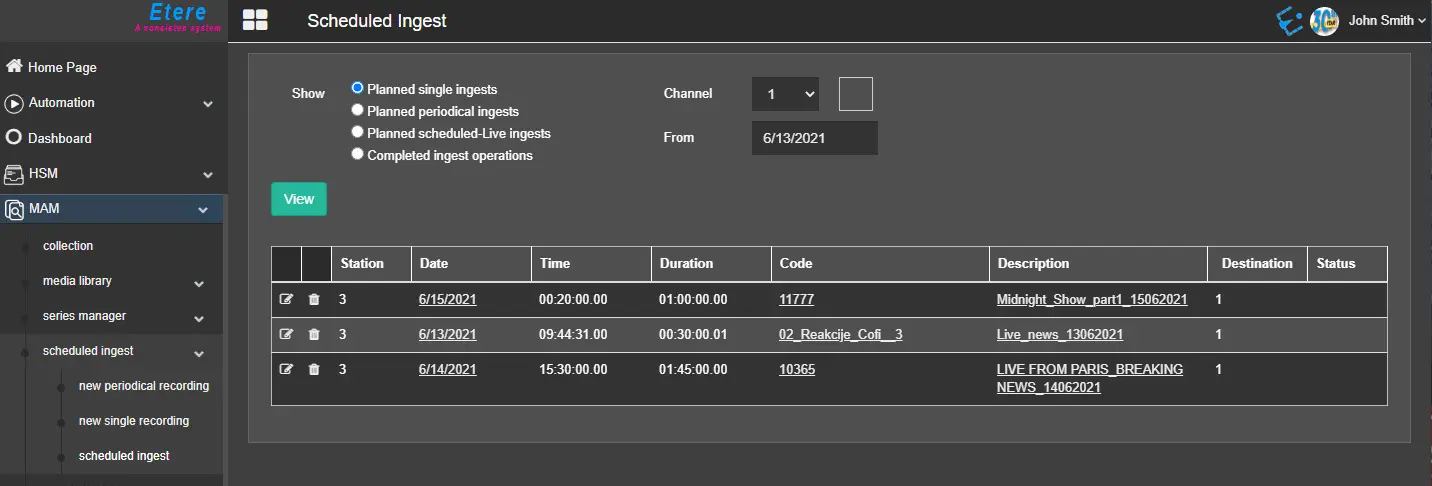 Scheduled_Ingest