4.10 Scheduler
With version 36.1, Etere moved the old Air Sales Scheduler from the desktop version to a service, called Etere Sales Scheduler.
This chapter is dedicated to the Etereweb section where the scheduler can be controlled, but also to its installation and configuration.
INSTALLATION
Etere Sales Scheduler service installation is really simple as any other Etere service.
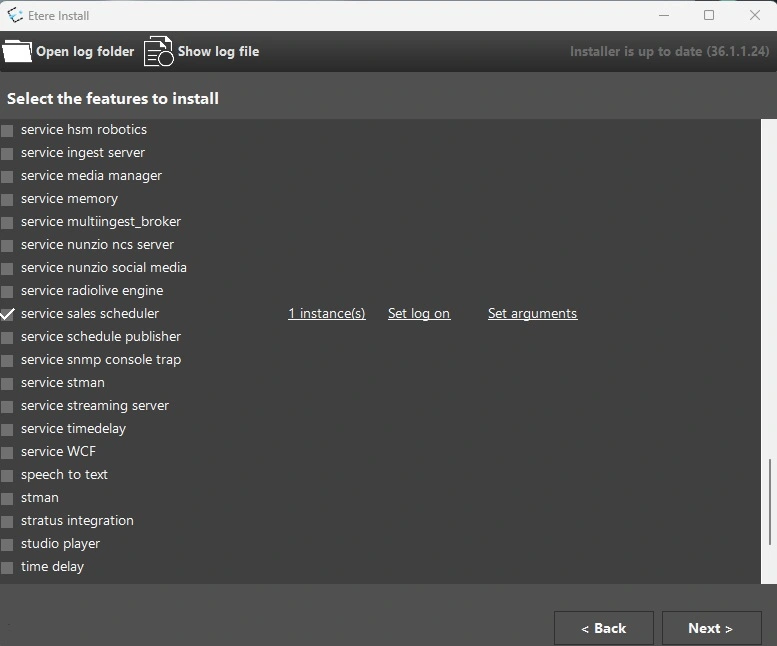
From Etere Update, select the feature Service Sales Scheduler. Set an administrator user for Log on and proceed with the installation.
Note: It's not possible to install more than 1 service per workstation.
sales_scheduler_installation
CONFIGURATION
Follow these steps in order to configure the service properly.
1. Install the latest Etereweb version in your system, then skip to point 3. If you already have the last version installed, proceed to the next point.
2. In the file C:\inetpub\wwwroot\Etereweb\web.config of the Etereweb site, check the following:
- The tag <add key="owin:AutomaticAppStartup" value="false" /> must be commented out:
<appSettings>
<!-- <add key="owin:AutomaticAppStartup" value="false" /> -->
...
</appSettings>
- This assembly must be present:
<runtime>
<assemblyBinding xmlns="urn:schemas-microsoft-com:asm.v1">
...
<dependentAssembly>
<assemblyIdentity name="Microsoft.Owin.Security" publicKeyToken="31bf3856ad364e35" culture="neutral" />
<bindingRedirect oldVersion="0.0.0.0-4.2.2.0" newVersion="4.2.2.0" />
</dependentAssembly>
</assemblyBinding>
</runtime>
Correct the web.config file where it's needed and save it. The IIS site will be restarted and any user logged out from Etereweb. You can now login again and proceed to the next step.
3. Set up the Etereweb address in the Web Scheduler section. Refer to chapter 4.8.1.0 Web Scheduler for more information.
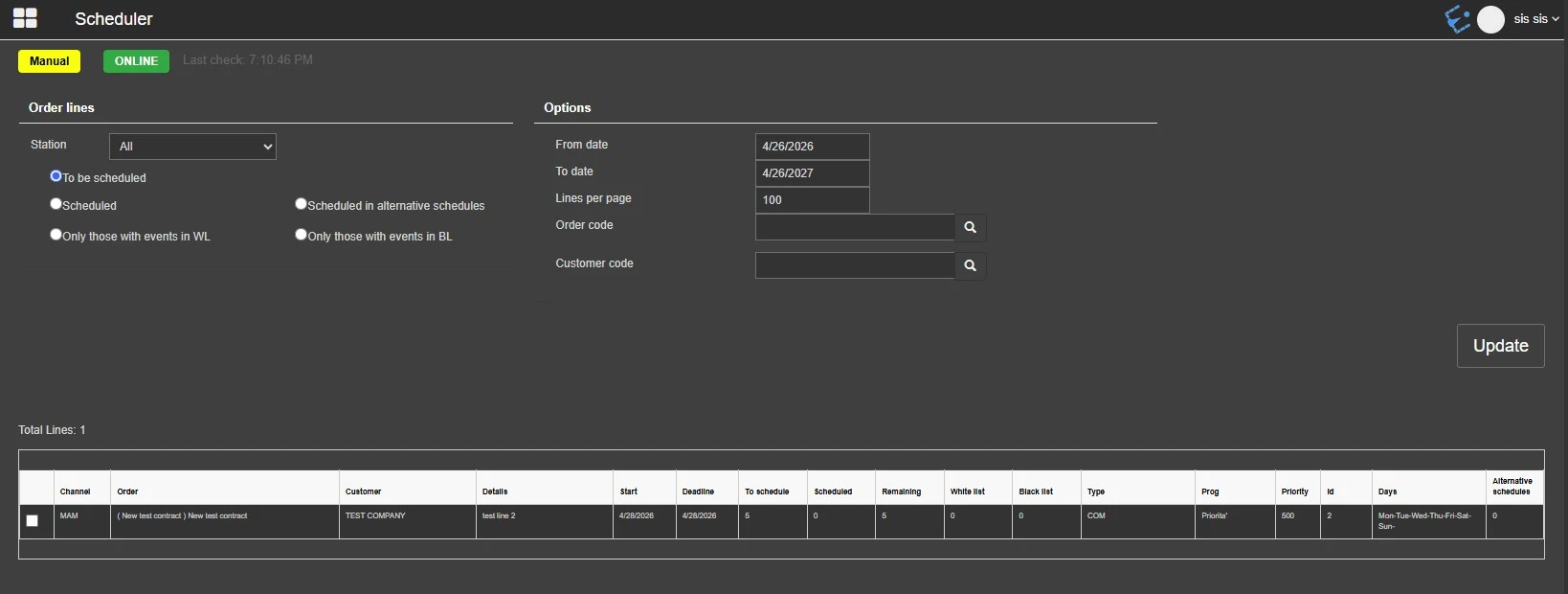
Now, the Scheduler section should show the label ONLINE, as shown in the following image.
sales_scheduler
USAGE
In this section, it's possible to control the service and execute operations on the order lines.
The upper part of the page is where it's possible to see the status of the service, change the service mode and filter the order lines search.
Manual/Automatic: This button indicates the service working mode. If it's on manual mode, the operator have to manually select and start the scheduling of the order lines, otherwise all the lines will be scheduled automatically.
Order lines
Here it's possible to filter the order lines search by the station on which they are intended to be scheduled or by their scheduling status:
- To be scheduled: Only those order lines not yet scheduled.
- Scheduled: Only those order lines with at least one event scheduled.
- Only those with events in WL: If enabled, there will be displayed only those order lines with events in the White Lists. White-List events can be re-scheduled by launching the 'start' scheduling button.
- Only those with events in BL: If enabled, there will be displayed only those order lines with events in the Black Lists. Black-List events can be re-scheduled by launching the 'start' scheduling button.
- Scheduled and in alternative schedules: If enabled, there will be listed only those order lines which have been (partially or completely) scheduled in alternative schedules.
Note: The management of white list and black list needs to be enabled. See chapter 202.5.5.0 White List and Black List and its sub-chapters for more details.
Options
• From date - To date: Filter the search by the dates when the order lines have been or are intended to be scheduled. By default, the range selected is 1 year, starting from the current day.
• Lines per page: Specify how many row to see for each page of the search results. The default number is set to 100 lines.
• Order code: In case the operator intends to schedule a specific order, this option allows to retrieve the lines belonging to the exact order code
• Customer code: Narrow the lines to be scheduled to only those orders related to a certain customer.
Once the filters and options have been set, click on the Update button to start the search.
Note: In order to be displayed in the search results, the line have to be APPROVED. To approve an order line, go to the editing page of the line and click the button "Approve change data" in the upper-left corner.
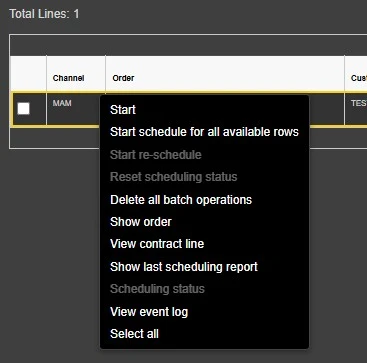
In the search results table, the lines details are displayed. It's possible to select one or more lines using the checkboxes on the left, then right-clicking on them, the contextual menu will show the following options:
sales_scheduler_line_operations
• Start: Send the scheduling request directly to the service, that will schedule the selected order line(s) based on the parameters specified in the order.
• Start schedule for all available rows: Start the scheduling process for all the displayed order lines.
• Start re-schedule: This function, available only for already scheduled orders, allows to delete all events (both scheduled and black-listed) present in future schedules, thus converting the involved line(s) from "already scheduled" to "to be scheduled".
• Reset scheduling status: It resets the scheduling status of the selected order line(s) only in case their scheduling is currently in progress, these order lines will be unlocked and ready to be re-scheduled.
• Delete all batch operations: Use it to cancel all the scheduling operations performed for the selected order line(s).
• Show order: It displays the order from which the scheduled line derives, allowing also to modify any order line data
• View contract line: Opens the contract line, allowing to view or modify its data. To modify an approved contract line, you have to click on the button Change data. This, however, will delete any already performed scheduling operation for that line.
• Show last scheduling report: It shows a detailed report of the last scheduling operation perform for the selected line.
• Scheduling status: It shows, in form of a table, on which segments the line has been scheduled. In this view it's possble to move the event to a different segment (still belonging to the same type specified in the line), assign another event to a segment (if there is enough free space), assign it from the white list or the black list.
• View event log: Shows the operations performed on the selected line.
• Select all: Select all the order lines in the list.
 sales_scheduler_installation
 sales_scheduler
 sales_scheduler_line_operations