72.18.1.3 Light Client for Mac OS
The Etere Light Client for Mac OS can be launched just by executing its application executable (Etere Light Client.app).
On its first time startup, the users will be asked to set the system settings (e.g. database, metadevice, etc.) that will permit the application to establish connection with the Etere archive. Once launched, the user can start searching across the Assets and Rundown database:
ASSETS tab
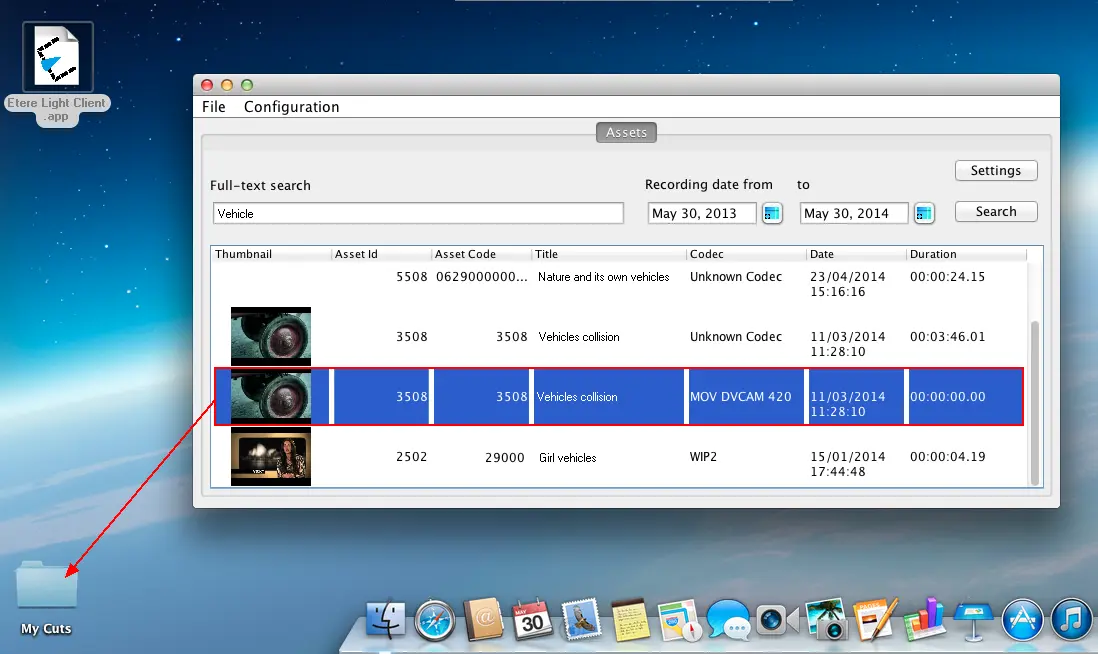
Search for assets and news feeds created within a given range and stored inside given metadevices:
Light Client
NB: Stories with a "video" object not yet associated to a media file are displayed without a thumbnail.
Media files related to retrieved assets/news feeds can be downloaded just that easy as a drag and drop into the desired target (e.g. into windows browser, windows desktop, adobe premiere, etc.). Selecting and downloading multiple items is possible by using the SHIFT (from-to) and ALT (one-by-one) key combinations.
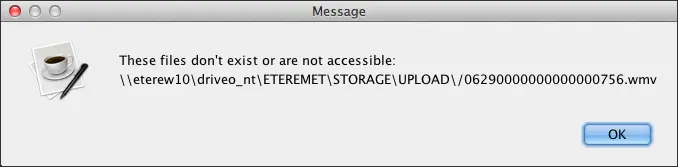
In case the media file attempted to be downloaded is either not available in the expected location or doesn't have a configured media folder, a warning message will be displayed pointing out the issue to the user:
Message
RUNDOWNS tab
This section is currently under development, it will be soon available in the next version.
Suggestion:
Positioning the mouse pointer over a certain asset/feed/story allows viewing the storage path of the related media file:
Media file
 Light_Client
 Media_file
 Message