86.4 Setup
Metafile Filters for Asset File Selection
Etere Studio Player now supports configurable Metafile Filters to determine which file version should be used for each asset. This feature provides greater flexibility and allows every station to customize the file selection workflow according to its operational needs.
Select the desired filter in the Setup tab (see image: “Studio Player - Metafile Filter”).
Metafile Filters can be configured in:
EtereWeb → System → Metafile Filters
Every station can define and manage its own filters independently See chapter 15.12 to know as much information as possible on how to create a new Metafile Filters.
If no Metafile Filter is selected, Studio Player will continue to use the standard file selection logic, choosing files according to the priority defined in the codec settings, exactly as in previous versions.
Master/Clone Mode
Etere Studio Player supports a Master/Clone redundancy mode designed to ensure ON AIR continuity in case of failure of the main instance.
The available modes are:
- None Use this option when only a single Studio Player instance is installed and no redundancy configuration is required.
- Master / Clone Enables redundancy between two Studio Player instances. In this configuration, one instance operates as MASTER while the second operates as CLONE.
If the MASTER instance becomes unavailable, the CLONE instance can automatically take over the ON AIR operations, ensuring service continuity.
Once the redundancy mode is enabled, it is necessary to define the role of the instance:
- MASTER
- CLONE
The Automatic Switching option allows automatic failover management. When enabled, the CLONE instance continuously monitors the MASTER instance through a polling mechanism. If the MASTER does not respond, the CLONE automatically switches its role to MASTER and takes control of the ON AIR operations.
To configure the communication between the two instances:
- In the MASTER configuration, specify:
- the hostname of the CLONE instance
- the communication port of the CLONE instance
- the hostname of the CLONE instance
- In the CLONE configuration, specify:
- the local listening port
- the local listening port
Naturally, on the instance configured as CLONE, the connection information of the MASTER instance must also be properly configured to guarantee bidirectional communication between the two systems.
At the bottom of the configuration window, the following buttons are available:
Apply Saves and applies the current configuration settings. In some cases, a restart of the Studio Player instance may be required to activate the new configuration. When this happens, a notification message will be displayed. Until the instance is restarted, the new settings will not be applied.
Cancel Discards all unsaved changes and restores the last saved configuration.
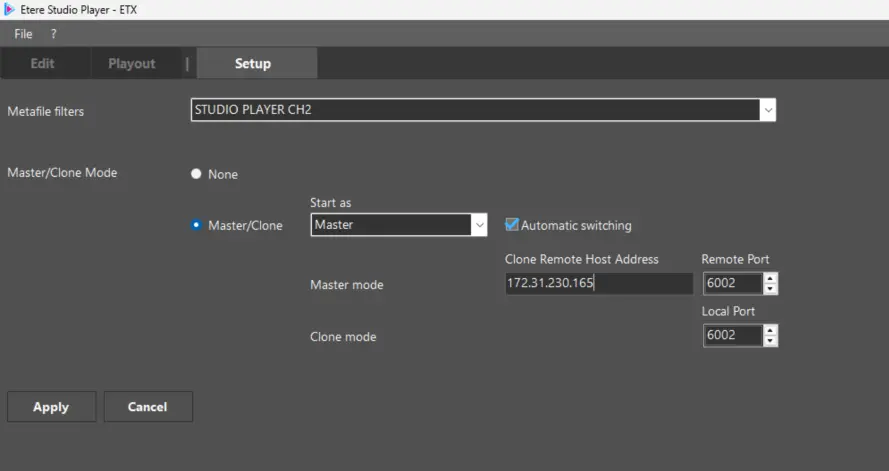 EtereStudioPlayerSetup
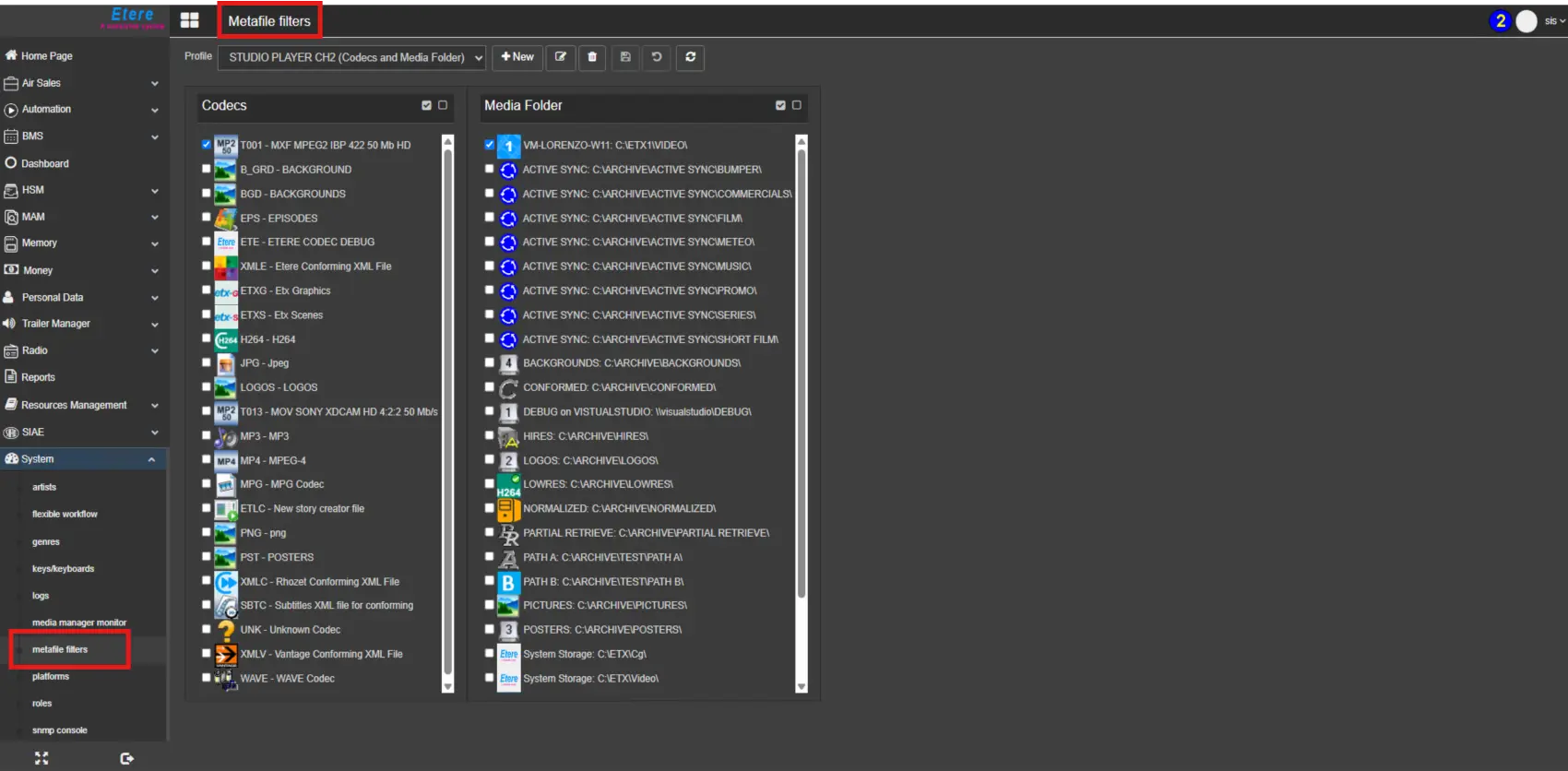 EtereStudioPlayerMetafileFiltersWEB