How To...
58.3.14.3 Activate / Schedule Loop File
- Activate Loop File
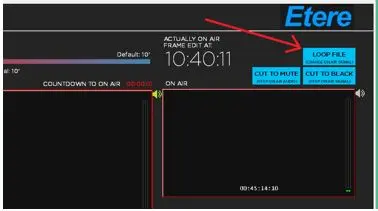
- The “Loop File” icon deployed in the top right corner of the CensorMX interface is helpful in repeatedly playing a past portion of the timeline in the video file currently on-air 100 times. To apply this feature, simply mark the timeline in the past portion of the video file and click the “Loop File” icon.
Censormx_loop_file
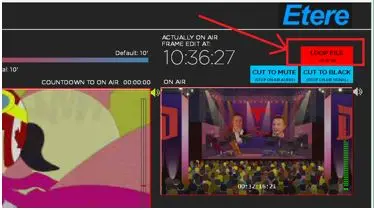
- The “Loop File” feature would prompt confirmation before looping. Upon confirmation, the application waits for 4 seconds and starts looping the selected timeline (as shown above, where the “Loop File” button turned red).
Censormx_loop_file_stop
- The looping can be interrupted by clicking on the “Loop File” button and returning to normal mode or clicking the same button to resume looping. If no interruption occurred, the on-air video file would return to normal mode after completing the looping.
- The “Loop File” icon deployed in the top right corner of the CensorMX interface is helpful in repeatedly playing a past portion of the timeline in the video file currently on-air 100 times. To apply this feature, simply mark the timeline in the past portion of the video file and click the “Loop File” icon.
- Schedule Loop File
Besides activating the loop file instantly, you can also schedule the loop file to be triggered at the scheduled time by following the steps described below:
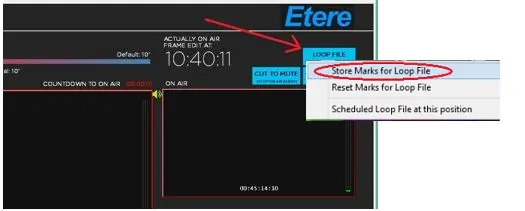
- Set the marks of the video file to be transmitted and right-click on the <Loop File> tile button and select “Store Marks for Loop File”. A “Marks Set” message would be displayed in yellow on top of the <Loop File> tile button after completion.
Censormx_loop_file_options
- Next, set the future timeline in the video file to start the loop and right-click the <Loop File> tile button and select “Scheduled Loop File at this position”. The scheduled timeline would be displayed with the “Marks and Start set” message on top of the <Loop File> tile button.
- To reset the scheduled loop file, right-click the <Loop File> tile button and select “Reset Marks for Loop File” to remove the expected loop file.
- Set the marks of the video file to be transmitted and right-click on the <Loop File> tile button and select “Store Marks for Loop File”. A “Marks Set” message would be displayed in yellow on top of the <Loop File> tile button after completion.
 Censormx_loop_file
 Censormx_loop_file_stop
 Censormx_loop_file_options