84.2.2.3 Using synchronized playlists
Synchronized functioning
The synchronized broadcast of multichannel playlists is possible due to the use of an unique identification (i.e. the event field) which is the same for an event scheduled across different stations, thus allowing a precise multichannel replication of all changes (i.e.: insertions, shifts, replacements and deletions) performed in the main station:
4857_Multichannel_events
Synchronize a playlist
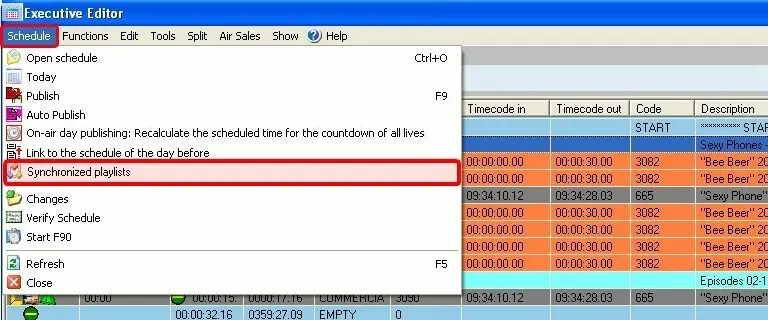
When the previous considerations have been followed, the "synchronized playlists" will be able to be activated for Executive Editor from either the schedule menu or the toolbar button on main station (i.e.: where the main schedule is made up):
4855_Synchronize_a_playlist
4856_Executive_Editor
Whether the enabling the activation method was, the result will be the same, Executive Editor will work with "synchronized playlists", and all event movements, replacements and deletions will be replicated in the linked stations. Moreover, please note that this feature can be deactivated just by pressing again either the "synchronized playlists" button under the schedule menu or the toolbar button.
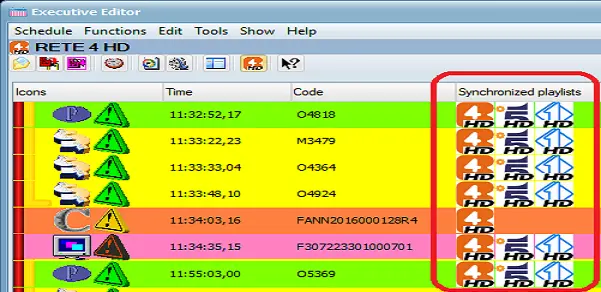
In Executive Editor, the playlists linked to the stations would be displayed in the “Synchronized Playlists” column, identified with station icons.
4859_Synchronized_Playlists
NB: If you insert an event in the schedule, it display the station icon where the event had been inserted. If you want to view playlists linked to all stations you would need to press the "F5"(refresh) function key to update the linked status in Executive Editor.
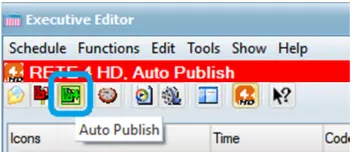
Using "Auto Publish" to synchronize playlists
The synchronization of playlists can be automated using the “Auto Publish” function deployed in Executive Editor, this function enable you to manage all inserted events, event replacement, or deletion of events from single station and replicate the playlists to other stations. ONLY changes made in master playlist would be auto-publish to other playlists.
4858_Auto_Publish
Important note:
The “Auto Publish” function in Executive Editor MUST BE managed in a control manner. The function must be activated from a single station running Executive Editor on the same day. If two or more stations were running Executive Editor with “Auto Publish” activated, it would resulted in playlists been published from various stations.
Synchronize playlist with time shifted
You can synchronize playlists with same content to a targeted station upon published to start the playlists on different stations at different start time, e.g. 2 hours later.
1.Set the Main and Local time zone in Main station and target station where the playlists would be synchronized to.
2.Create the schedule playlists in Main station.
3.Trigger the “Copy automation schedule” function from Scheduling Utilities menu to copy the playlists from Main station to target station to start the playlists at later time.
Supported operations
Once activated, Executive Editor will work with synchronized playlists permitting operators to work in the main daily-schedule while Etere will replicate all changes performed in that schedule across the daily-schedules of the linked stations. Operations replicated by Etere includes:
Scheduling function: New events insertion
Synchronized behaviour: Events scheduled in the playlist while the synchronized playlists is active will be automatically scheduled in the linked stations.
NB: Please note that events inserted between two events which are not present in the other linked schedules (i.e. which are not synchronized) are not replicated.
Scheduling function: Scheduled events shifting
Synchronized behaviour: If the on-air time of an scheduled event is modified, this change is also performed across the linked stations, for the same event.
Scheduling function: Scheduled events replacement
Synchronized behaviour: When a scheduled event is replaced with another (e.g.: using the multichannel asset change tool), the schedules of the linked stations are also updated with this change.
Scheduling function: Scheduled events deletion
Synchronized behaviour: In case an event is deleted from the main schedule, it will be also removed from the corresponding schedule of the linked stations.
Using the Multichannel View
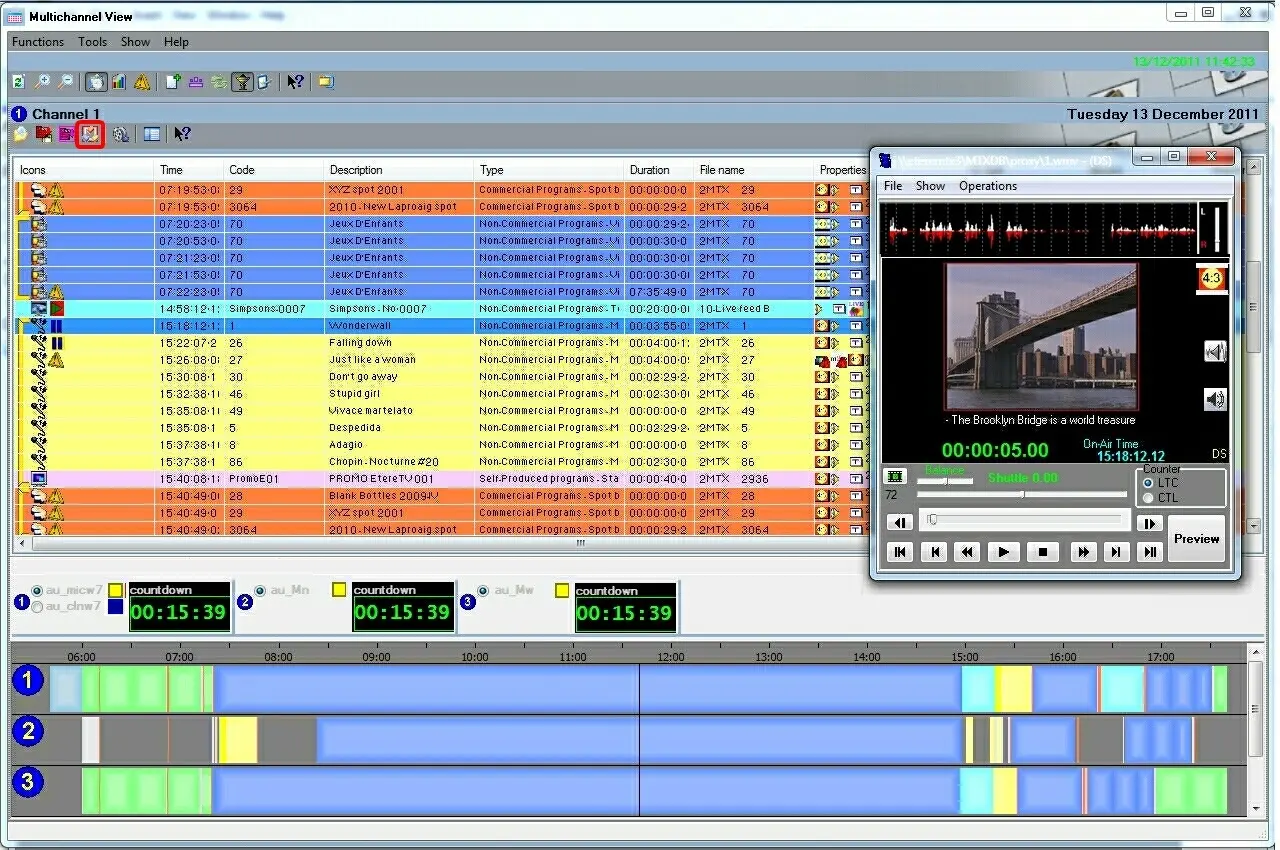
It's worthy mentioning that the experience of managing "synchronized playlists" can be greatly improved by using the Multichannel View module, the application that permits to have a global view of all stations playlists, allowing to make changes to the schedule in real-time:
4860_Multichannel_View
 Executive_Editor
 Multichannel_events
 Auto_Publish
 Synchronize_a_playlist
 Synchronized_Playlists
 Multichannel_View