1.3.2.1 self-installation
1. Go to your reserved area and under “software update” install “Etereinstall.exe” (Etere Install)
2. In the reserved area also download your license under “licenses” and then “newlicense” [License]
3. Launch Etere install
4. Click the cloud next to “installation package” and select the latest release (not release candidate) [Latest version]
5. Etere will automatically install everything, so just click next and select the modules you need (you’ll only be able to open modules according to your license) and choose configuration as that’s necessary to setup and use Etere in the future. You’re also able to add more modules later so don’t worry if you select the wrong one or you missed one.
6. Run as admin “Etere configuration” and connect to your SQL server
7. You’ll get this screen as you still haven’t set it up [First Error]
8. Enter your SQL server name and click the top left icon to connect [Connect SQL]
9. Click next and enter your license previously downloaded from the customer area
10. Now Etere is successfully installed, you can now launch your modules.
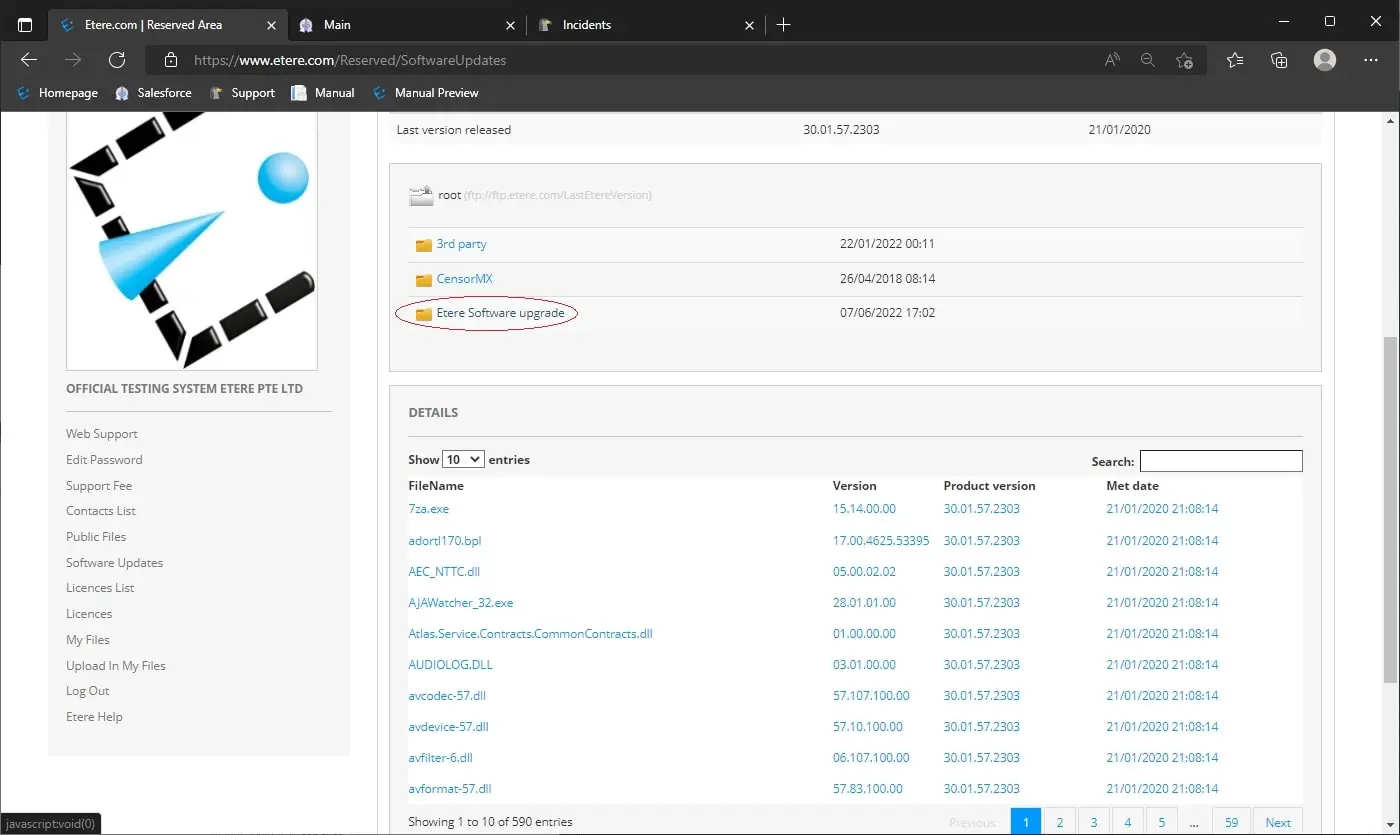 Etere_Install
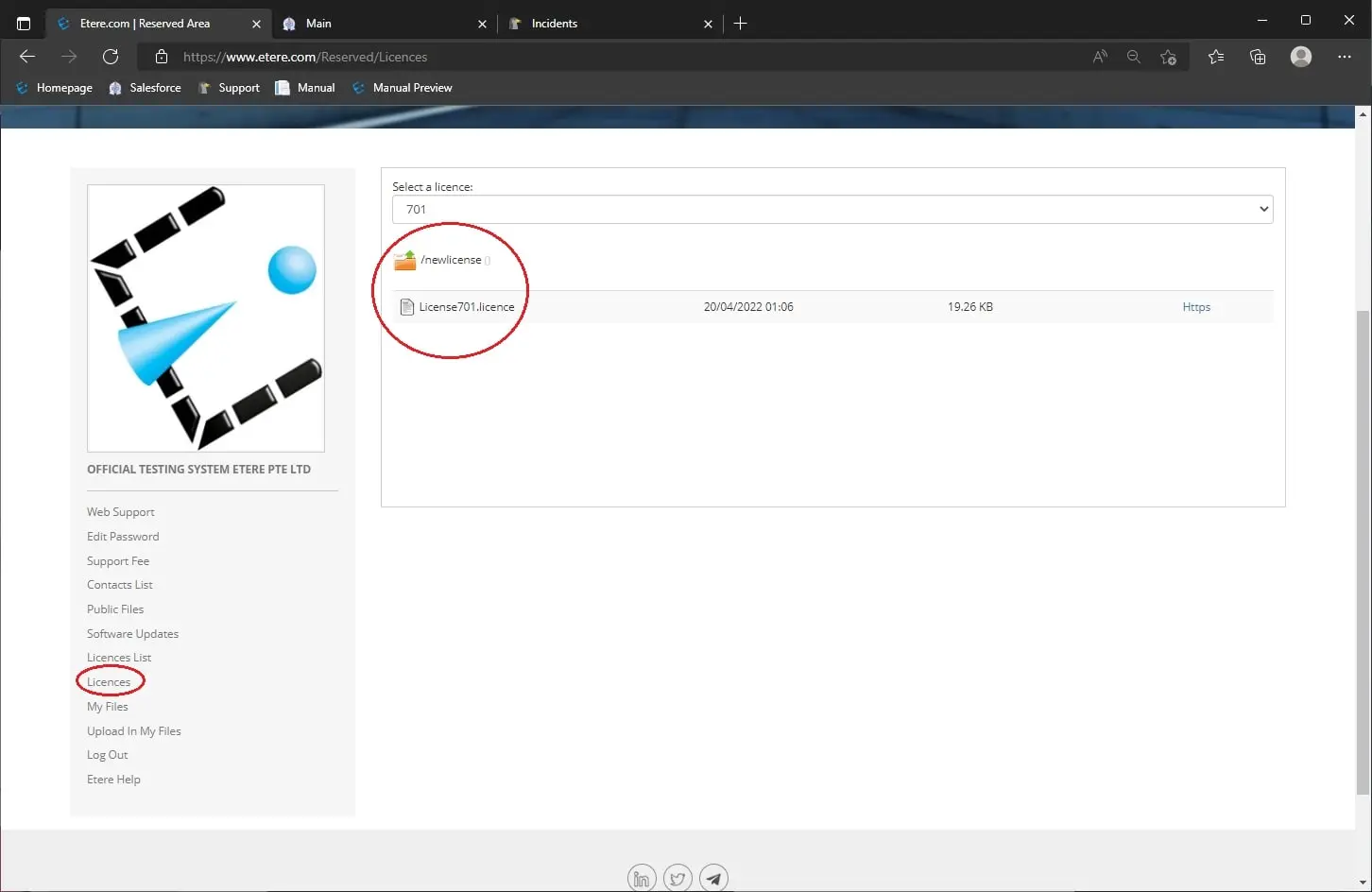 License
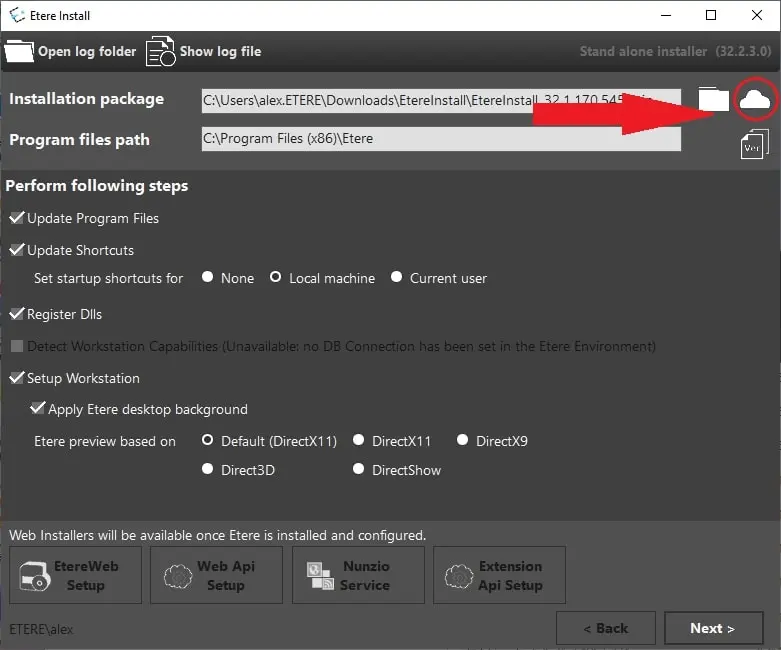 Latest_version
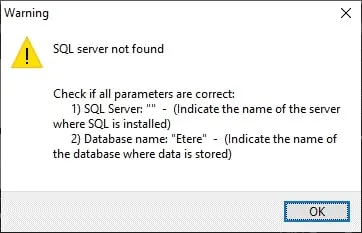 First_Error
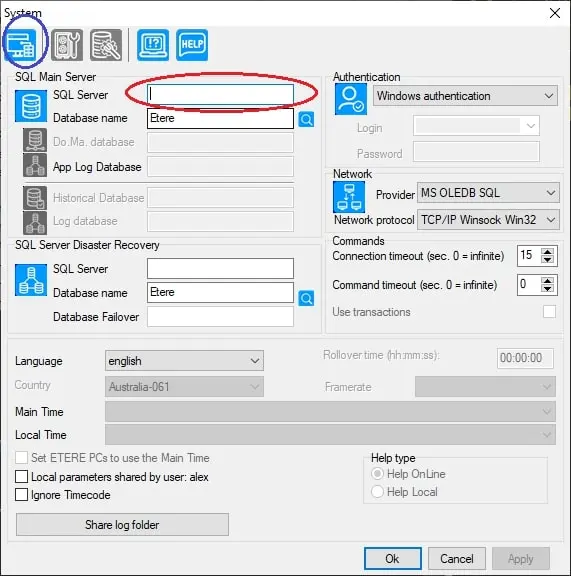 Connect_SQL