1.3.6 Etereweb setup
Starting with version 36, Etere changed the installation method for Etere Web by developing a new installer, EtereUpdate.exe, which also performs system maintenance faster than the old procedure in Etere Configuration.
In this chapter, it's described how it works and how to upgrade both Etere Web and the databases.
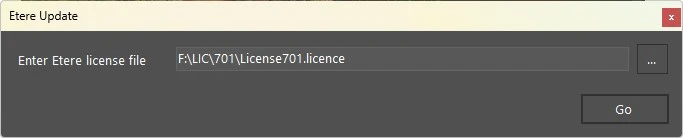
1. At the start, EtereUpdate.exe asks to select a valid license file.
etereupdate_license
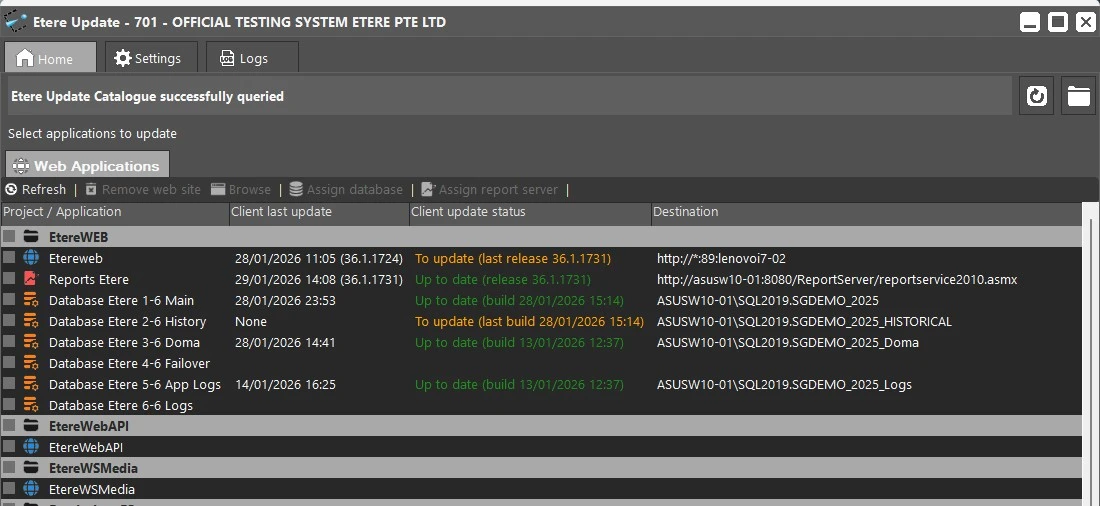
2. Etere Update queries the Etere Update server via the internet and shows all the projects and applications available for the customer. The program displays the last release for each application updated at least once, allowing to recognize which ones actually need to be updated, and checks also if a new EtereUpdate.exe version is available. If yes, it will be possible to download it clicking the button on the upper-right corner and the old .exe file will be renamed as .old, then deleted,
etereupdate_home
On the right, use the Refresh catalogue info button to query the server again. With the Get updates from file button, you can select a .dat file generated by Etere Support to load the applications to update if the customer has no access to the server and can't download updates automatically.
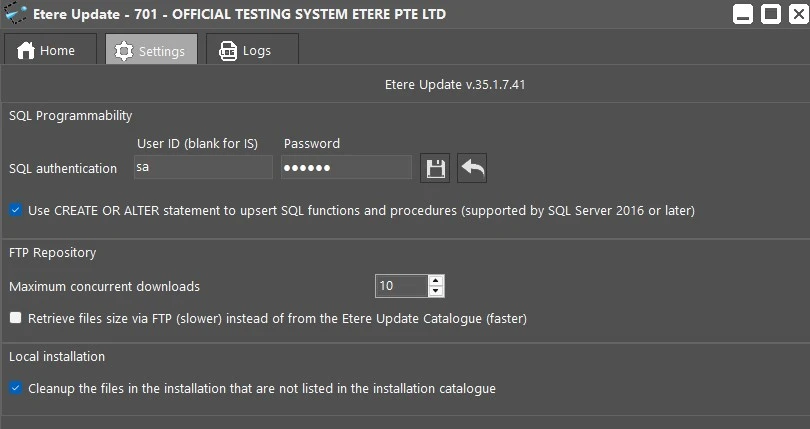
3. In the Settings tab, insert the authentication credentials to access the SQL server.
etereupdate_settings
Once the credentials are set, it will be possible, on the home page, to assign the databases to upgrade:
• Select "Database Etere 1-6 Main" by clicking on the checkbox or on the label.
• The "Assign database" button will become selectable.
• Click it to choose the SQL server and the main database.
• Confirm with the OK button or clear the fields with the Clear button.
Repeat the same procedure for all other entries on the home tab, assigning the appropriate database to each. Don't assign anything if the related database doesn't exist (e.g., if the historical db does not exist, leave the entry "Database Etere 2-6 History" empty).
If there are issues connecting to the SQL server, the user is warned with an error pop-up when trying to open the list of databases.
Note: It's not possible to assign the databases if more entries are selected.
For each assigned database, Etere Update displays the last update time and date, the database status (whether it has already been upgraded), and the just-assigned server and database in the Destination column.
In the same columns, if Etere Web is already installed, Etere Update shows whether the latest version is installed.
ETEREWEB INSTALLATION
First of all, on the server that will host the website, the Windows features mentioned in chapter 1.3.3.0 Etere Web Setup (old) should be installed.
To install Etere Web, select the checkbox on the Home tab, then press Next.
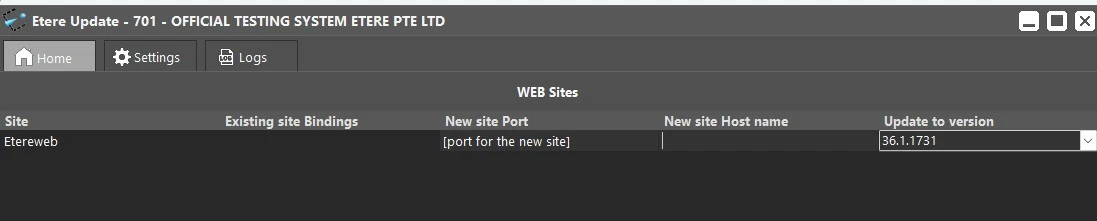
The next page lets you choose a port and a hostname for the website, as well as the version you want to update to.
etereupdate_web_install
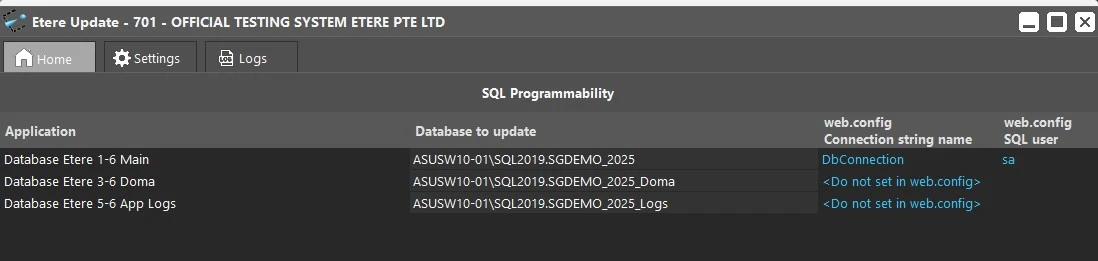
Clicking the Next button again, leads you to the SQL Programmability page, which shows a summary of the selected databases the application is going to upgrade, the connection string written in the web.config file inside the website folder (if the connection string is not supposed to be written in the web.config file, Etere Update shows <Do not set in web.config>) and the SQL user the website will use to connect to SQL.
Note: Before launching the Etere Web installation, you must also assign and select the databases; otherwise, no connection string will be written to the web.config file, and the website will return an error.
etereupdate_sql_programmability
To start the installation and upgrade of the previously selected databases, click the Start button now.
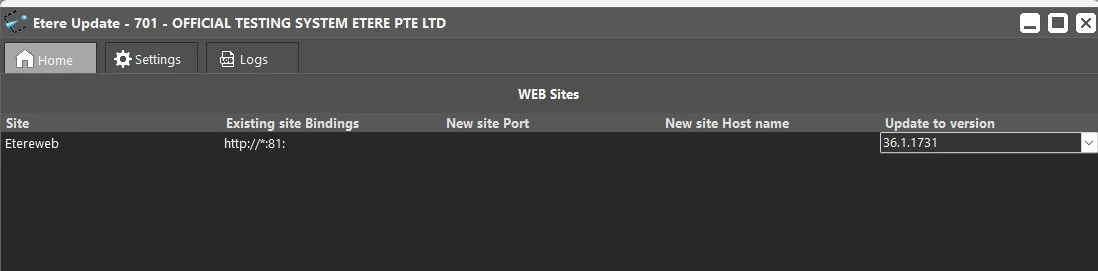
To upgrade Etere Web, the procedure is the same. The only difference is that EtereUpdate.exe overwrites the old web instance, so it doesn't allow selecting a different port and hostname.
etereupdate_web_upgrade
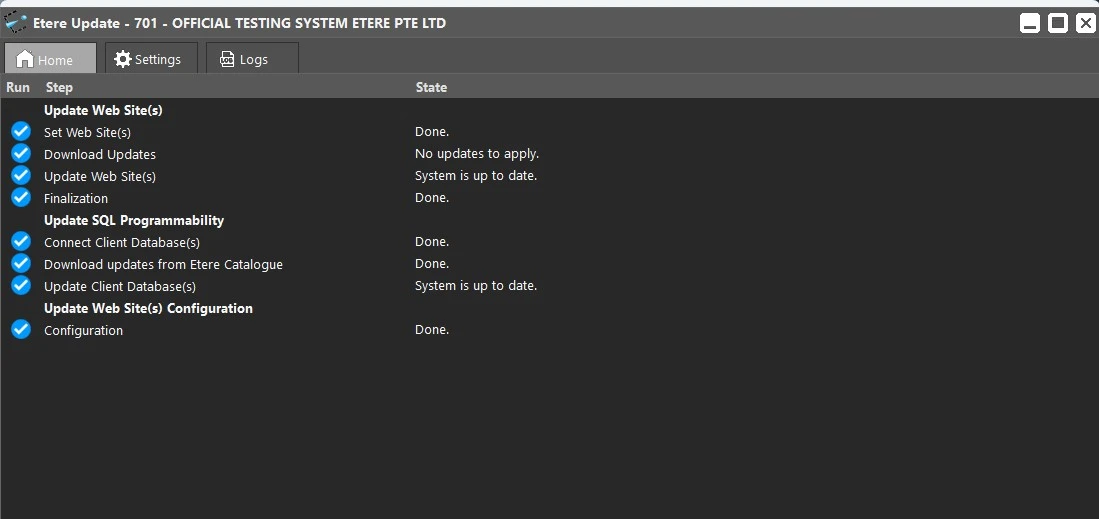
At the end of the installation procedure, this page shows the steps performed and their outcome:
etereupdate_web_install_end
From here, you can close the installer or go back to the home page.
Important note:
For the Etereweb site, besides the installation of the mentioned windows features, it's not required any additional operation on IIS, because the Etere Updater sets up everything automatically (application pool identity, impersonation, website authentication, etc.).
Once the installation ends, it is STRONGLY RECOMMENDED to leave everything as default, in order to ensure the proper isolation from external threats and security breaches.
Any modification on IIS or the network infrastructure should be first discussed with Etere support, to avoid unexptected issues.
Just for information purposes, here are the differences between application pool built-in accounts:
• ApplicationPoolIdentity: The default and most secure choice. It automatically creates a hidden, unique virtual account for each specific application pool, limiting rights strictly to that pool and preventing cross-site access on the same server.
• Network Service: A low-privilege built-in account that runs local tasks and uses the computer's actual network credentials to authenticate with remote network resources and databases.
• Local Service: A restricted local account similar to Network Service, but it presents anonymous credentials to the network and cannot access external network resources.
• Local System: A highly privileged account with full administrative control over the local computer. It poses a severe security risk if compromised and should generally be avoided.
REPORT SERVER
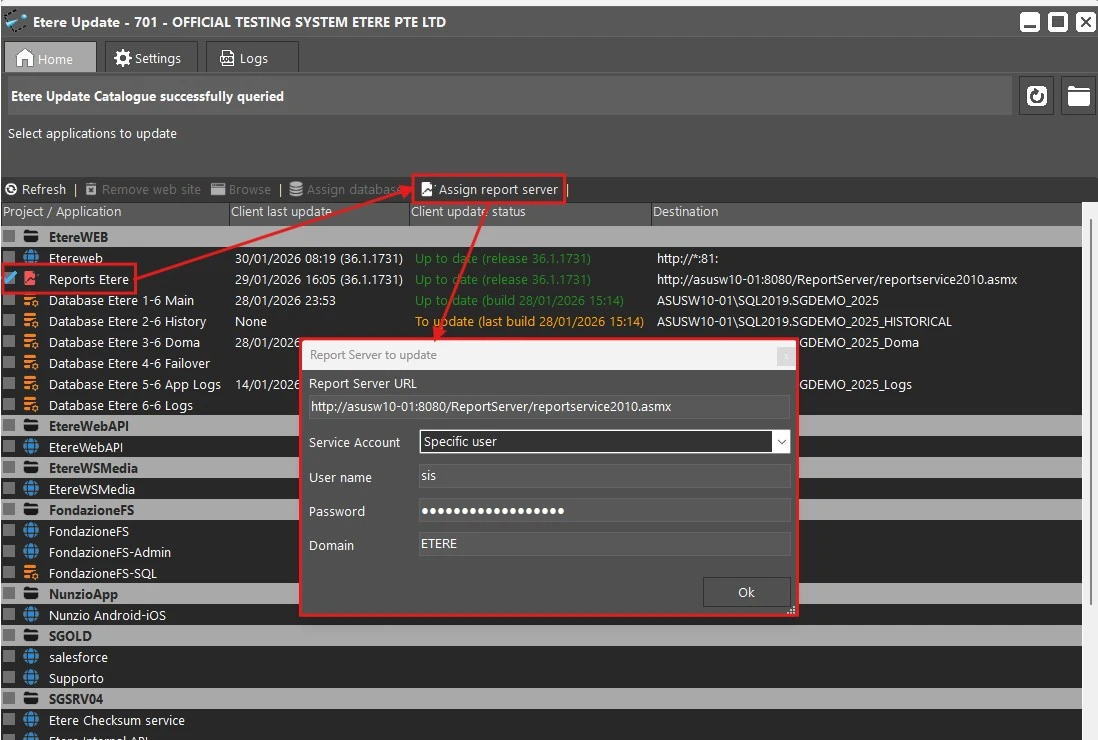
If the Reporting server configuration on the SQL side has already been completed, in Etere Update, you can set the connection to the Reporting server.
Enable the Reports Etere entry, then click Assign report server.
Provide the requested information (if already in use, they can be found in Etere Configuration > Configuration editor > Reporting service > Setup) and confirm. Etere Update will query the reports database and establish the connection to allow upgrading it as well.
etereupdate_reportserver
During the update, if the entry Reports Etere is selected, the REPORT Server page will display the information provided and allow you to choose the version to upgrade to.
etereupdate_reportserver_install
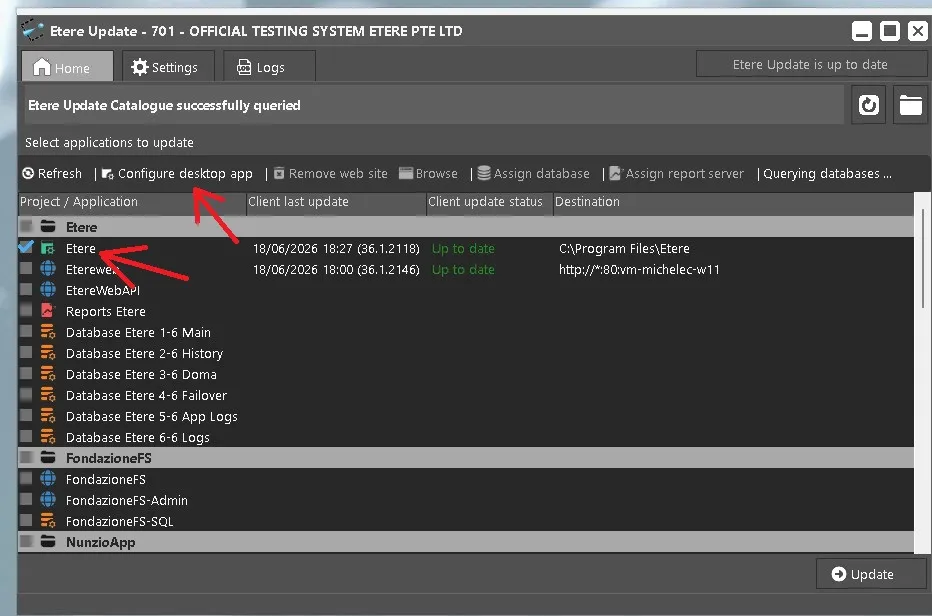
DESKTOP APP
In the latest and future versions, the services that are present in the old installer will be moved to this new section to unify the ETERE installation experience.
etereupdate_desktop_app
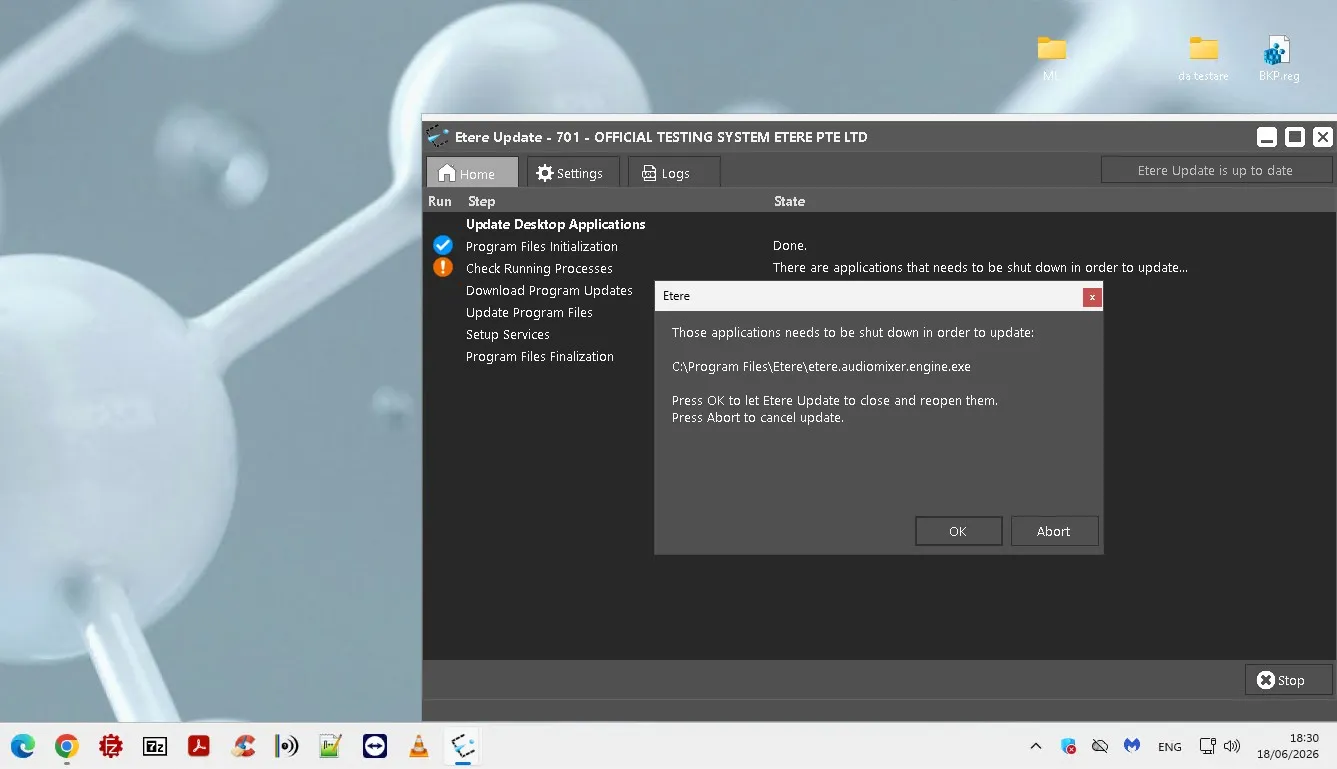
At this selection stage, the installer has a check for potential service processes not closed properly with the message, so as to warn the user before continuing.
etereupdate_message_warning
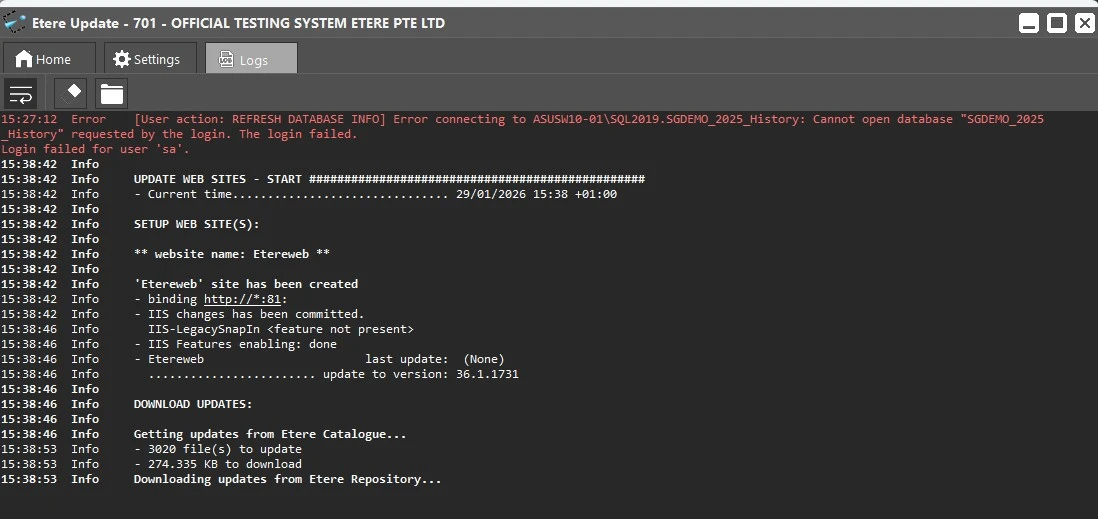
LOGS
In the Logs tab, you can find the details of all the operations executed by Etere Update since the last startup. Potential errors are highlighted in red.
The buttons on the left allow:
• Enable/Disable the word wrap
• Clear the logs view
• Open the folder to access the complete log files.
etereupdate_logs
 etereupdate_license
 etereupdate_home
 etereupdate_settings
 etereupdate_web_install
 etereupdate_sql_programmability
 etereupdate_web_upgrade
 etereupdate_web_install_end
 etereupdate_reportserver
 etereupdate_reportserver_install
 etereupdate_desktop_app
 etereupdate_message_warning
 etereupdate_logs