93.2.1.16 MMS - Advanced Quality Check
MMS - ETERE AQC is the action used by ETERE system to perform an advanced audio\video quality check from Etere re-calling an API of QUALES.
MMS---Advanced-Quality-Check---General-Tab
MMS---Advanced-Quality-Check---Advanced-QC
To create this action, the following fields must be filled.
NB: to use this action you need these license enabled for your customer: EA6774 and EA1454.
GENERAL TAB
Name: Give it a short name to identify the action.
Operation: Select "Advanced Quality Check" option.
SOURCE
Current metafile: Select this option to use the current metafile previously set.
Device/Codec: Select the source device and codec. If the metadevice contains multiple versions (codecs) of the file, select the codec you wish to copy or delete.
OPTIONS
Do not use media folders even if configured: Enable this option to ignore the translated path, even if it's configured.
Concurrent processes: Indicate the maximum number of actions that can be taken at the workstation simultaneously.
Never update DB files: The file won't be updated in the database.
Update all assets linked to the source file: If enabled (default), the copied file will be associated with all the asset forms linked to the source file.
Enabling this option is useful, for instance, when a single file is used by multiple assets (e.g. which transmit it overlaid with different logos); in this case, every time the file is copied, the new copy will be updated across all linked assets.
If disabled, the copied file will be associated only with the asset form for which the T-workflow has been launched.
Disabling this option is useful, for instance, when a single big file (e.g. a live feed recording) is used by multiple assets which partially retrieve a smaller file; in this case, only the support from which the partial retrieve has been executed will be updated.
Use SSL: Enable this option to use SSL (Secure Socket Layer) when saving the file in a destination path over the network. If enabled, the service media manager would attempt to complete the action using the following authentication steps in sequential order:
- FTP over TLS (Transport Layer Security)
- FTP over SSL (Secure Socket Layer)
- Plain FTP (without encryption)
If the FTP server supports SSL encryption, the Media Manager service will use a new set of libraries for copying files. Else, Plain FTP would be used.
Use passive mode: If checked, the FTP client will try to use passive mode for all file transfers (upload/download/move); otherwise (if disabled), the standard active way will be used.
Use "passive server to server" when moving between FTP servers: Enable this option if both source and destination devices use the FTP protocol and support 'passive mode'.
Check the file size with db value: If enabled, an additional check would be performed to compare the size of the copied physical file and the file size stored on db. This is useful to signal if the file has not been copied entirely into the destination folder. In this case, its file size differs from the original one, and this check can alert the operator by signalling an error in the wf. Not available for this kind of action.
Skip media check: Allow to avoid checking if the source file's device and codec match with the ones defined in the action. This is mandatory in the case of the Memory cut action because the Memory cut wf is attached to a new empty asset with no meta file, so the action would end in error if this parameter is disabled. Not available for this kind of action.
Maximum Bandwidth: The maximum bandwidth option is only supported for copies to limit the bandwidth used for data transfers.
ADVANCED QC TAB
Connection Parameters
URL: set the correct URL of the AQC api.
USERNAME: digit the correct UN to loggin and allow ETERE to oepn the api communication.
PASSWORD: digit the correct PSW.
Options
Analysis Profile: Select or digit the correct profile to use to analyze a file, you have to create from AQC site.
Source repository: Set the correct repository where AQC must find the file to analyze.
Remove web project after completion (recommended): Select this value to remove the project once completed.
Save in the EDL: indicate the correct EDL value where ETERE must write the information received from AQC api.
Save result file on DB: enable to save the PDF report provided from AQC api.
Exection timeout: modify this value to set a maximum time to define the timeout from the AQC api.
If quality check reports errors: set Exit with ERROR status or Proceed through the OK exit in error cases.
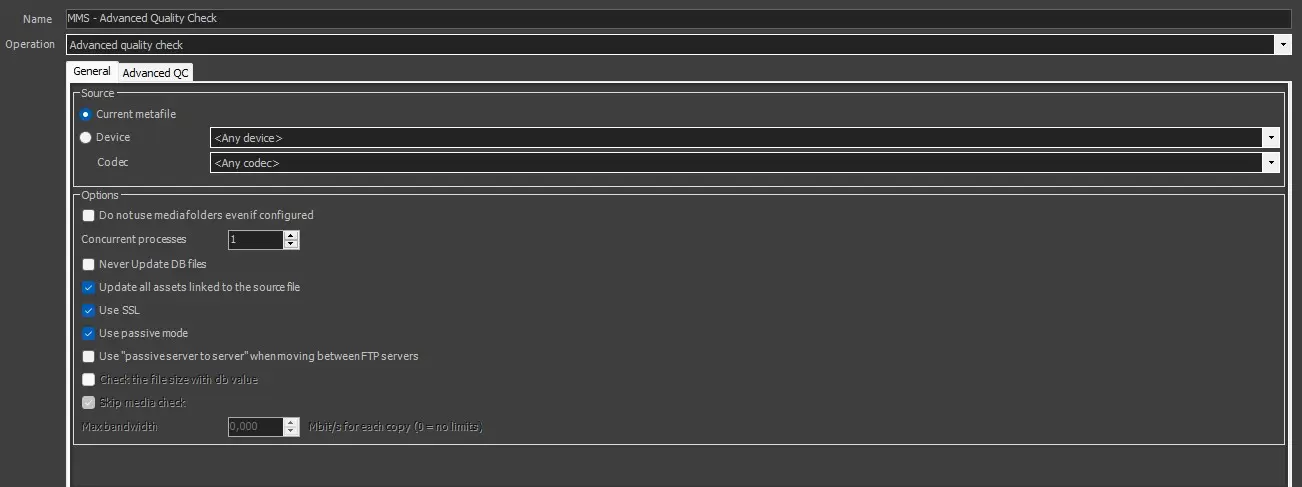 MMS---Advanced-Quality-Check---General-Tab
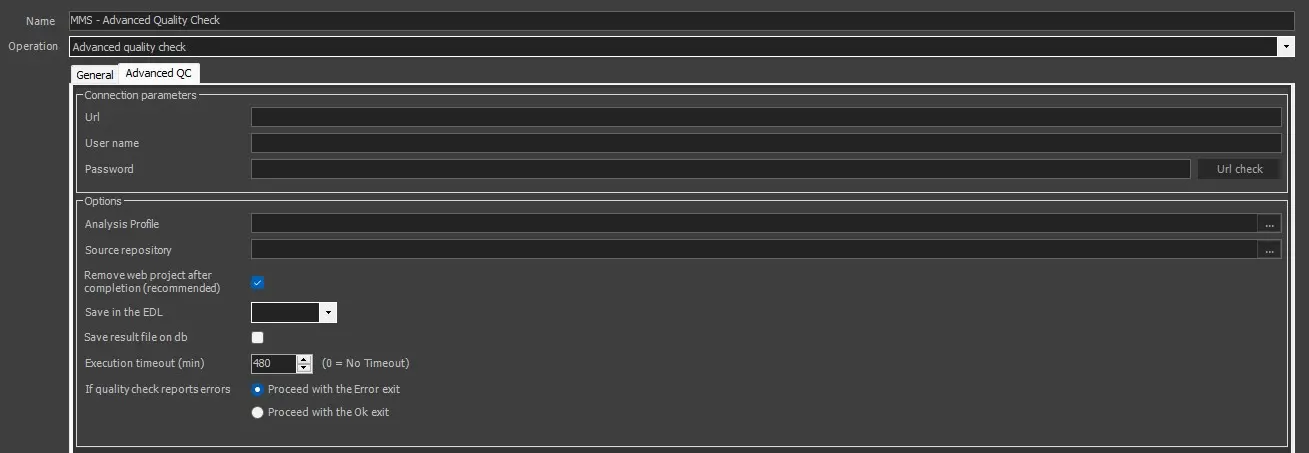 MMS---Advanced-Quality-Check---Advanced-QC