1.3.4.2 Etere desktop installation through EtereUpdate.exe
As described in the chapter 1.3.6.0 Etereweb setup, starting with version 36, Etere changed the installation method for Etereweb by developing a new installer, EtereUpdate.exe, which also performs system maintenance faster than the old procedure in Etere Configuration.
Etere desktop installation too has been integrated in the new installer.
In this chapter, it's described how this method works and how to upgrade both Etere and the databases.
1. At the start, EtereUpdate.exe asks to select a valid license file.
etereupdate_license
2. Etere Update queries the Etere Update server via the internet and shows all the projects and applications available for the customer. The program displays the last release for each application updated at least once, allowing to recognize which ones actually need to be updated, and checks also if a new EtereUpdate.exe version is available. If yes, it will be possible to download it clicking the button on the upper-right corner and the old .exe file will be renamed as .old, then deleted.
etereupdate_home
On the right, use the Refresh catalogue info button to query the server again. With the Get updates from file button, you can select a .dat file generated by Etere Support to load the applications to update if the customer has no access to the server and can't download updates automatically.
3. In the Settings tab, insert the authentication credentials to access the SQL server.
etereupdate_settings
Once the credentials are set, it will be possible, on the home page, to assign the databases to upgrade:
• Select "Database Etere 1-6 Main" by clicking on the checkbox or on the label.
• The "Assign database" button can now be selected.
• Click it to choose the SQL server and the main database.
• Confirm with the OK button or clear the fields with the Clear button.
Repeat the same procedure for all other entries on the home tab, assigning the appropriate database to each. Don't assign anything if the related database doesn't exist (e.g., if the historical db does not exist, leave the entry "Database Etere 2-6 History" empty).
If there are issues connecting to the SQL server, the user is warned with an error pop-up when trying to open the list of databases.
Note: It's not possible to assign the databases if more entries are selected.
For each assigned database, Etere Update displays the last update time and date, the database status (whether it has already been upgraded), and the just-assigned server and database in the Destination column.
ETERE INSTALLATION and SYSTEM MAINTENANCE
The Etere entry has been added to the list of available applications.
Select it to enable the button Configure desktop app.
configure_desktop_app
At the first installation with this method, it's necessary to set SQL server instance and database name, as well as the authentication type to use and the credentials. From the next update, entering these information won't be needed anymore (unless some changes occurred).
Click on Check connection button to verify if a connection to the database can be established successfully. In case of success, click on Save configuration to confirm.
In the next page, the user is required to choose the features to install, by selecting the checkbox on the left.
features_selection
In case of services, clicking on the cell below Installation configuration column, it's possible to enter the number of service instances and the Log on credentials.
service_config
To remove one or more features, simply deselect the related checkboxes and launch the upgrade. It's also possible to deselect all by clicking on Uninstall.
If any database has been selected in the home page, the next step before the process starts is called SQL Programmability. In this step, EtereUpdate.exe shows a summary of the selected databases the application is going to upgrade, the connection string written in the web.config file inside the website folder (if the connection string is not supposed to be written in the web.config file, Etere Update shows <Do not set in web.config>) and the SQL user the website will use to connect to SQL.
etereupdate_sql_programmability
Once everything is set properly, launch the installation and system maintenance using the Start button.
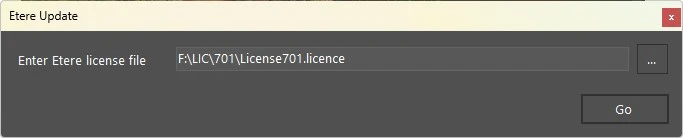 etereupdate_license
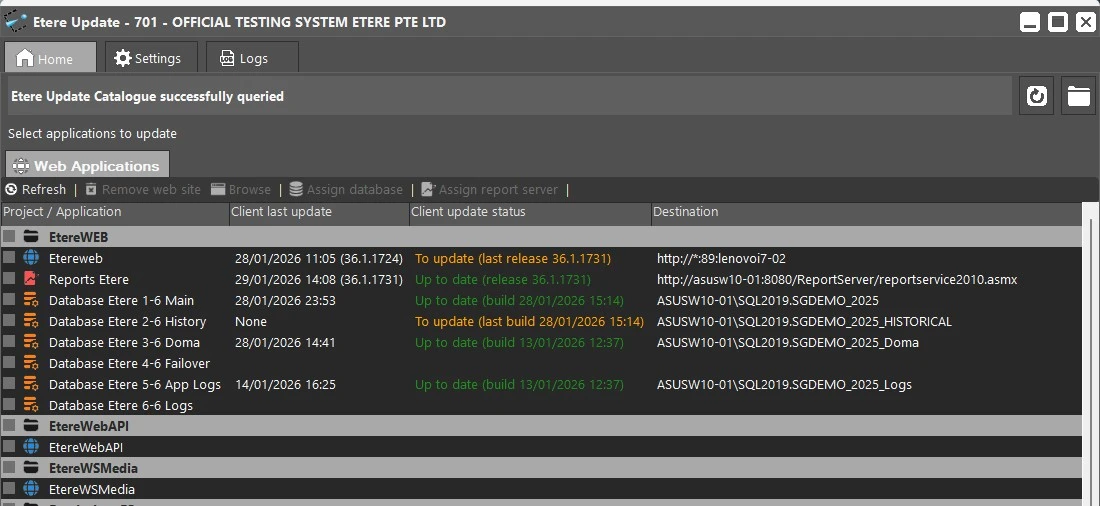 etereupdate_home
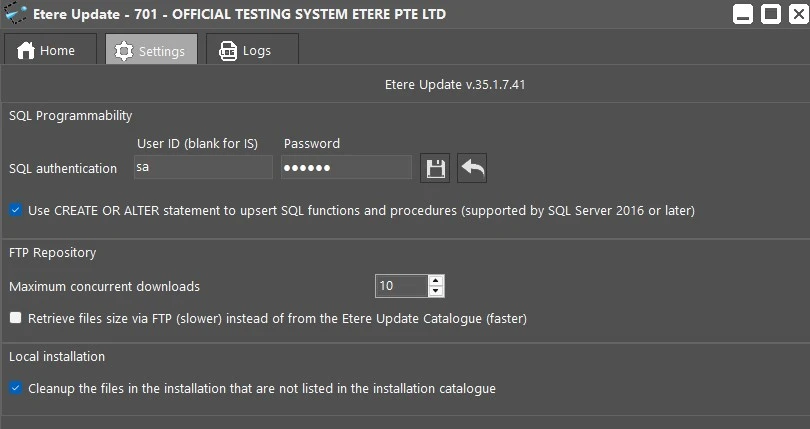 etereupdate_settings
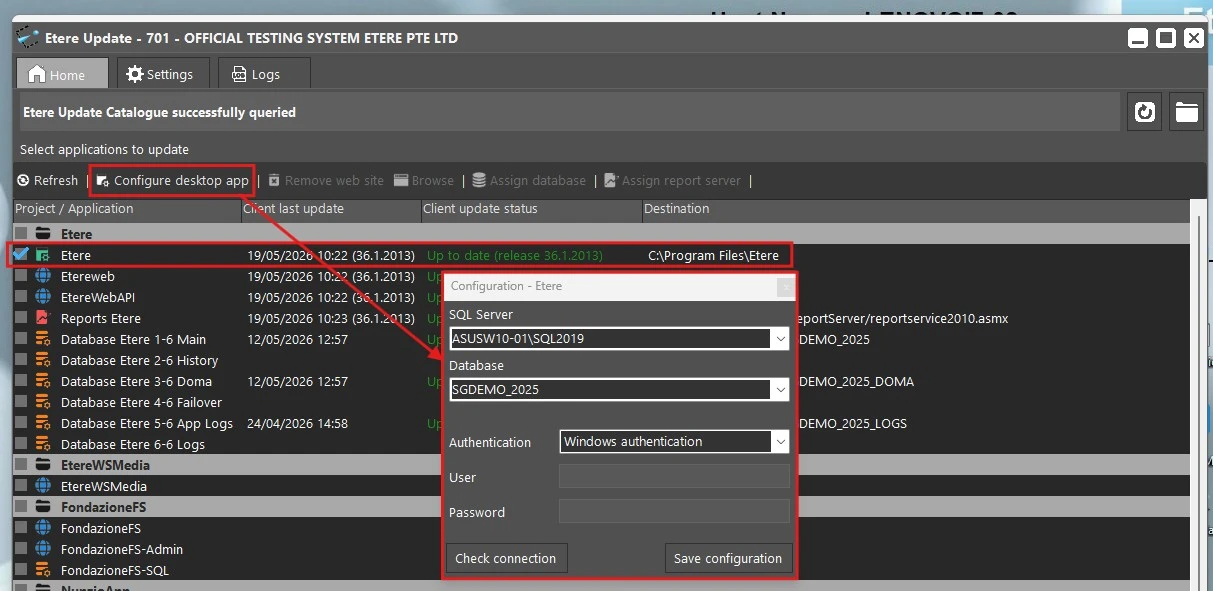 configure_desktop_app
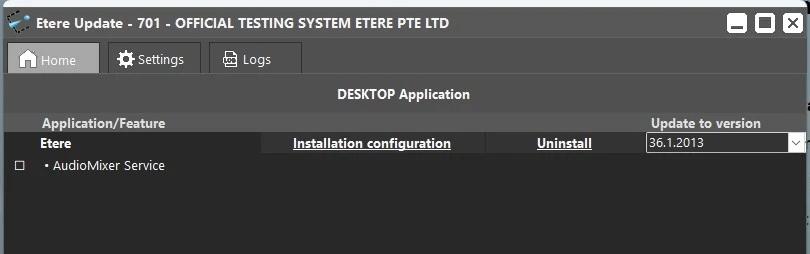 features_selection
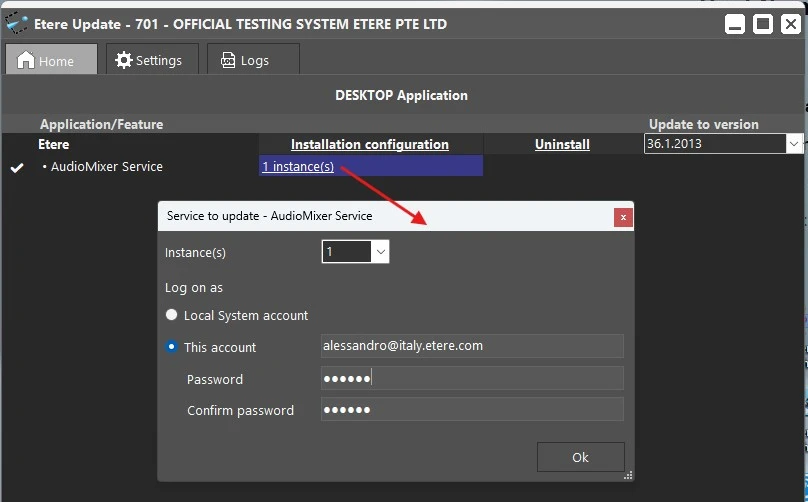 service_config
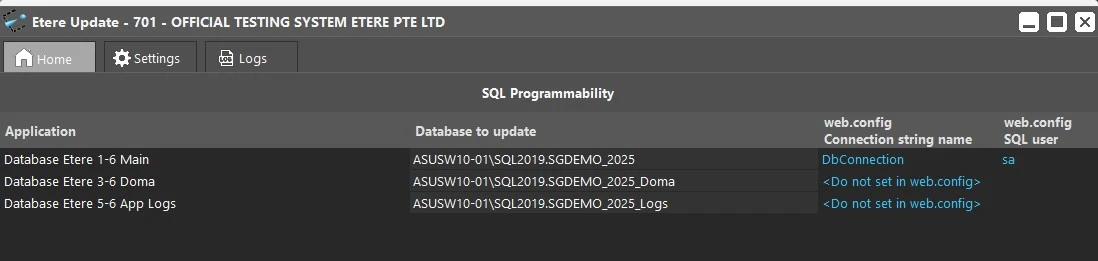 etereupdate_sql_programmability