1.5.1.5 Linux Shared Folders
in a mixed windows-linux system, the necessity to have a common storage between the OS could arise. This is given on linux side by SAMBA software to let it use the smb:// protocol, the same protocol that windows use to create shared folders.
install samba package on the linux server hosting the folder you want to share
sudo apt install samba -y
and edit its configuration file /etc/samba/smb.conf as follows
$ sudo nano /etc/samba/smb.conf
place the following configuration on the bottom of the file. This is a shared folder configuration example, modify it according to your needs if necessary:
[$SHARE_NAME] #name of the shared folder
comment = My Test Directory #comment, skippable
path = /home/my_directory #local path where the shared folder points
browseable = yes
read only = no
guest ok = yes #allows guest login. change with "valid users" if you want restricted access
writable = yes
create mask = 0775 # permissions that new files will have inside the shared folder
directory mask = 0775 # permissions that new directories will have inside the shared folder
force user = $MY_USER # force samba to use a specific user for the operations
force group = $MY_USER # force samba to use a specific group for the operations
samba have its own users database. If you need to access a shared folder from outside the hosting server with a specific user, you can populate its database with existing users:
sudo smbpasswd -a your_username #sets a samba password for your_username
note: if the user have already a samba password, it will simply rewrite it
Samba have its own identification layer, but you can also manage folder permissions on server side
sudo chmod 777 /home/my_directory
in this way you can decide which one can have remote access to the folder, and which one can have access to that folder only locally
to test the smb.conf synthax without executing it
testparm /etc/samba/smb.conf
note: after every new settings, restart samba service
sudo systemctl restart smbd nmbd
the following instructions will describe how to access a shared folder from each OS (they're valid to access both windows and linux shared folders)
Access the shared folder from Windows
you can access to the shared folder from windows file explorer with path \\ip.of.the.server\folder but, for linux shared folders, windows policies could prevent you from accessing it (at least for guest login) and file explorer wouldn't be able to find the path.
In that case, from cmd or powershell (open it as administrator if you want to access the folder with administrator software):
net use X: \\ip.of.the.server\folder /user: your_user 'password'
this will map the shared folder to X:\ , now it is accessible from File Explorer (if you have run it as administrator you'll need to open file explorer as administrator)
Access the shared folder from Linux
to access the folder from the terminal you have two options
smbclient # SMB shell client
cifs-utils # Tools to mount the drive locally
smbclient
install it:
sudo apt install smbclient -y
then you can already connect with:
smbclient //IP_ADDRESS/SHARE_NAME -U YOUR_USERNAME
ex: sudo smbclient //dc1/data -U jdoe@vmmaurlx01
it behaves like an FTP client, common commands are:
ls or dir # list files and folders
cd # enter the directory
pwd # print the current working directory path on the remote share
get # download a file
mget # download a set of files matching a wildcard (ex mget *.pdf)
put # upload a file
mput # upload a set of files matching a wildcard (ex mput *.pdf)
mkdir # create a directory
rmdir # delete a directory
rm # delete a file
rename <oldname> <newname> # rename a file
lcd <local_directory> # change your local directory without disconnecting from the share
! <command> # run any standard linux command on local machine without disconnecting
cifs-utils
this is a set of tools that lets the user to mount, manage and interact with network file systems using the SMB/CIFS protocol.
To mount temporarily from command line
sudo mount -t cifs //server/share /mnt/mountpoint -o username=user,password=pass,vers=3.0
make sure that the mount directory exists by creating it : sudo mkdir -p /mnt/mountpoint
note: "vers" refers to smb protocol version. It is mandatory that the SMB versions of the shared folder and the one declared match, otherwise the connection will fail
to mount the volume permanently you can edit /etc/fstab
sudo nano /etc/fstab
add this line example on the bottom. adjust it accordingly to your mount point you set before
//172.31.230.110/data /mnt/asusw1102ub_data cifs credentials=/etc/samba/smb_data.cred,vers=3.1.1,uid=1000,gid=1000,iocharset=utf8,_netdev,nofail,x-gvfs-show 0 0
now you can reboot the workstation or
sudo mount -a
and access the shared folder through /mnt/asusw1102ub_data or any mount point you've chosen
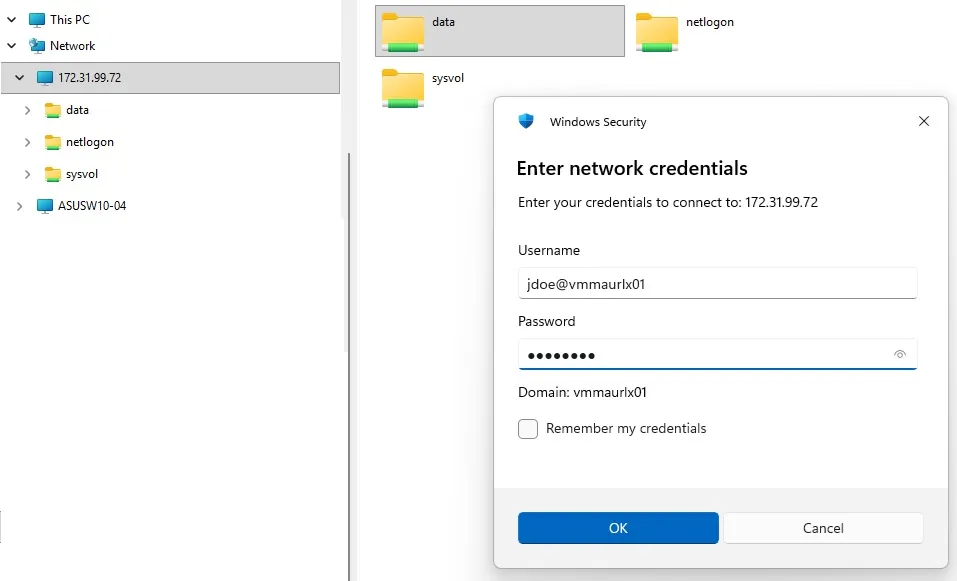 Linux-_shared_folder_user_jdoe