6.1.2 New Purchase Order
To create a new contract click on the plus button in Purchase order section and provide all the requested information.
New_Purchase_Order
• Description: Provide a brief description to identify the new purchase order. You can enter up to 100 characters to describe the purchase order.
• Start Date: Set the validity starting date of the new purchase order.
• End Date: Set a date to mark the purchase order as expired. To mark the Purchase Order with no expiry date or unlimited, you can set the year farther away from current year, e.g. 2200, 2500, 3000, etc.
• Supplier: Select or enter a supplier (or agency) to be associated to the new purchase order. You can use the search button to launch the search function and filter the suppliers.
• Producer: Select or enter a producer to be associated with the new purchase order. You can use the search button to lunch the search function and filter the producer.
When all parameters are fulfilled, click the Create button to create the new purchase order.
A new browser tab would be opened, displaying all the Order details, classified in 3 main tabs:
GeneralLinesVirtual Document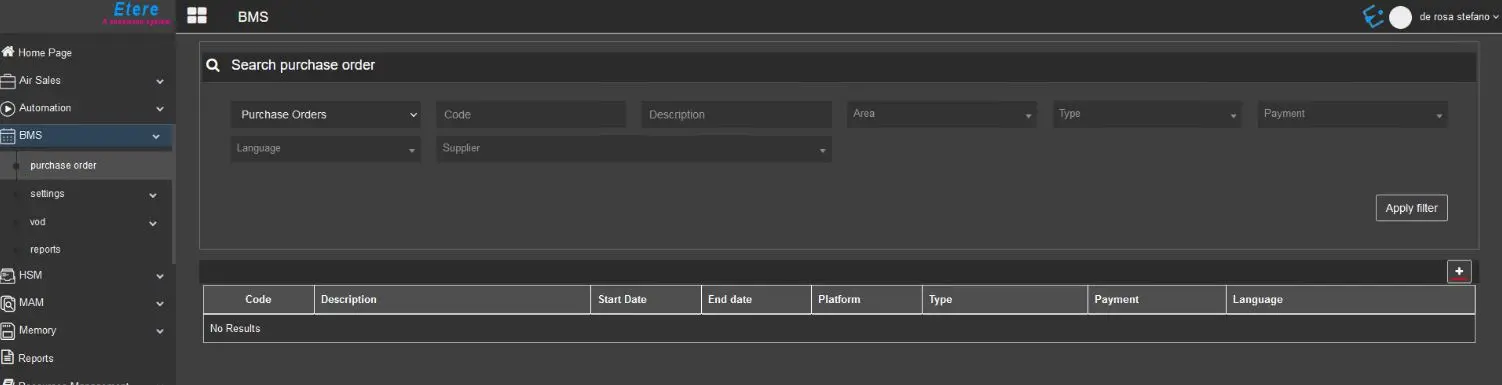 New_Purchase_Order