84.4.5.57 CUSTOM > DISCOVERY > PLAYLIST XML
Import Scope
The "Discovery - Playlist XML" import has been developed to help DMAX import broadcast playlists. This function imports an XML file named according to the format "ddmmyyyy.xml" (e.g. 30112013.XML), which contains information related to a specific daily playlist.
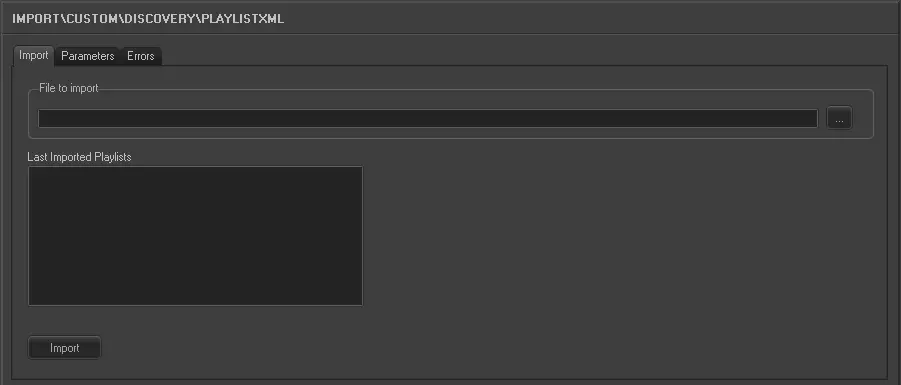
Import Tab
IMPORT_CUSTOM_DISCOVERY_PLAYLIST_XML
• File to import: Browse for the file from which data will be imported. Only .XML files are displayed, since this is the only supported format. The file is searched for in the path specified in the Default import path parameter.
• Last imported playlists: Displays the filenames of the last imported playlists. A maximum of 30 playlists can be displayed.
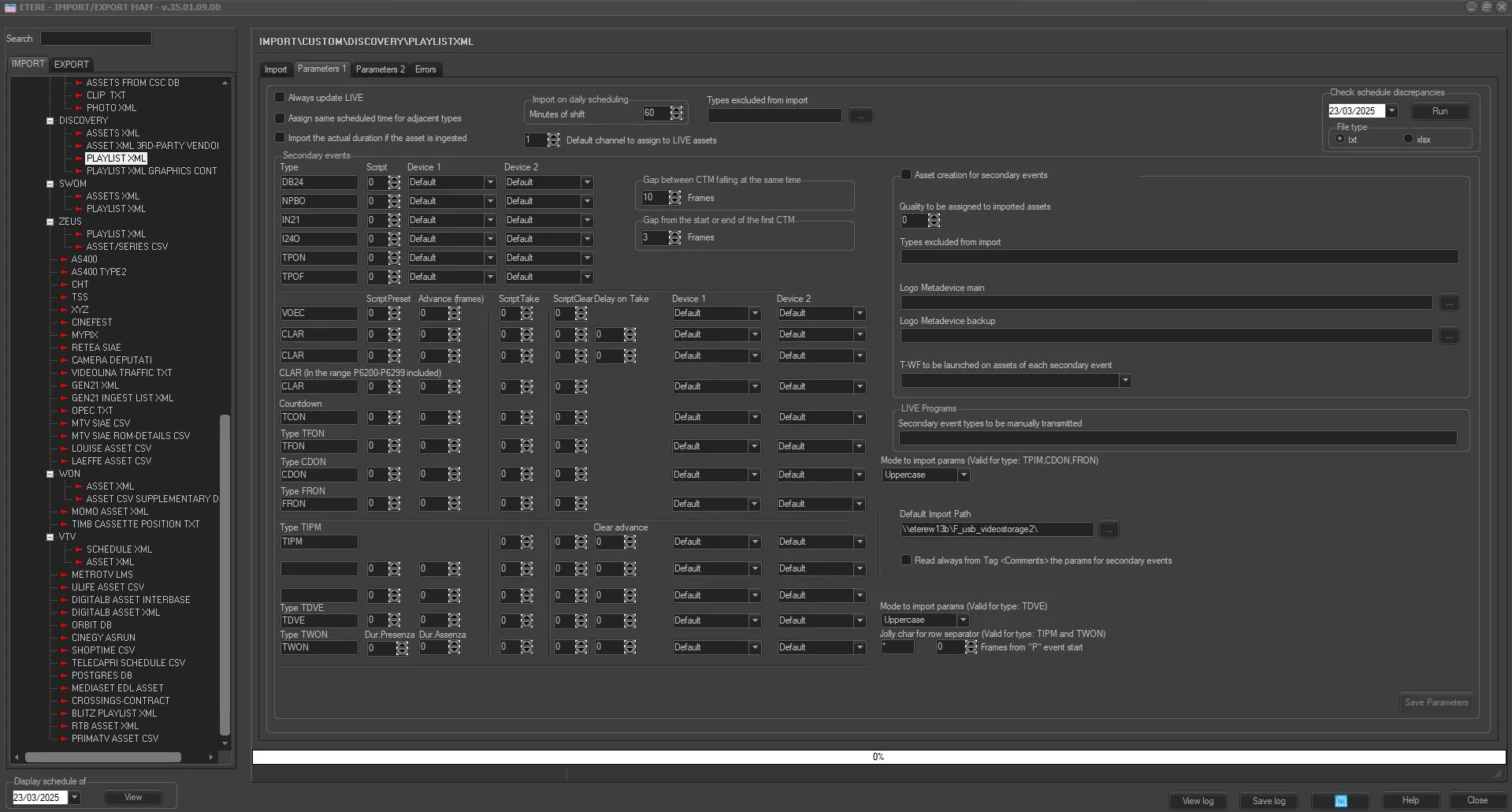
Parameters Tab
IMPORT_CUSTOM_DISCOVERY_PLAYLISTXML
• Always update Live: Allows Live events to be updated even if they already exist in the archive.
• Assign same scheduled time for adjacent types: For events of the same type that are adjacent to each other in the schedule, such as commercials within the same break, this parameter allows the same scheduled time to be assigned to all these events. For this parameter to work, the HOUR field must not be enabled in the Data to import section of the previous tab.
• Import the actual duration if the asset is ingested: Allows the actual duration of an asset to be imported when the asset has already been recorded, even if the scheduled duration is available in the imported file and differs from the actual duration.
• Default channel to assign to LIVE assets: Specifies the channel to be associated with LIVE events.
• Import on daily scheduling: When importing the schedule for the current day, this parameter determines the starting time of the import. The starting time is calculated as the current time plus the configured time shift. Events scheduled to start before the current time are not imported.
• Types excluded from import: Specifies the asset types to be excluded from the import process.
• Check Schedule Discrepancies: Enables the detection of discrepancies between the imported file and the scheduled playlists. The report can be generated as a text file (.txt) or a Microsoft Excel Open XML file (.xlsx) and saved to the configured path. The last 20 discrepancy reports are retained in the system.
During verification of the import file, the correspondence between the <Channel> tag and the broadcaster's name is checked to prevent files belonging to other broadcasters from being imported.
The discrepancy check also verifies the asset types of secondary events by comparing the type specified in the imported playlist with the type of the corresponding asset, if the asset already exists in the system. Any mismatch is reported in the Discrepancies Report.
Secondary Events
This section allows you to configure the import behavior for secondary events associated with primary events.
• Type: Specifies the code of the secondary object. Default values: DB24/NPBO, IN21/I24O, TPON/TPOF.
• Scripts: Specifies the identification number of the associated script. Default: 0.
• Device1: Specifies the main device to be assigned to the object. Default: default.
• Device2: Specifies the simulcast device to be assigned to the object. Default: default.
The following conditions also apply:
- For secondary event types TBON and TBIF, if they are placed at the end of a Live event, they are moved to the beginning of the next event.
- The interval between two secondary events is set to 6 frames.
- TPON/TPOF types behave like TBON/TBIF types, but their sequence must also be validated: TPON - TPOF - TPON - TPOF.
Note: Regardless of whether one or two devices are configured, only one secondary object is created.
• Gap between CTM falling at the same time (frames): Specifies the time gap applied to CTM scripts starting at the same time. Default: 10.
- For TWON and TWS1 event types, the CTM is placed at the 41st frame from the beginning of the next primary event.
- For TWON and TWS1 event types, events with Preset and Take scheduled in advance are moved to the previous primary event that can contain them, to prevent duration errors. If the Preset value is less than 6 frames, it is set to 6 frames.
• Gap to start or end the first CTM (frames): Specifies the time gap between the start and end of the first CTM script. Default: 3.
Scripts
This section allows you to configure the scripts associated with secondary events.
• Type: Specifies the code of the secondary object. Up to three secondary object types can be entered, separated by commas.
• Script preset: Specifies the identification number of the script preset.
• Advance (frames): Specifies how many frames before the event starts the Preset script is executed.
• Script take: Specifies the time at which the Take script is executed.
• Script clear delay on take: Specifies the delay after the Take script before the Clear script is executed.
- This option applies only to ELEVATOR objects, i.e. CLAR out-of-range.
- Double-typing fields are available in the parameters only for types TITI and TCIT.
• Device1: Specifies the main graphic device to be assigned to the object.
• Device2: Specifies the graphic device to be assigned to the object.
When importing secondary events, the following conditions apply:
- If a VOEC object is preceded by a CLAR object within range, only the Preset script is applied to the CLAR object. The Take and Clear scripts are omitted.
- The TCON (Countdown) parameter determines how title text is imported during playlist XML import and passes the parameter to CTM for processing. The title text can be converted to uppercase, lowercase, or retain its original case. TCON indicates the beginning of the title text, while TCOF indicates its end.
- TFON and TFOF have the same functionality as TCON and TCOF, except that they do not use a countdown.
- The CDON parameter imports the secondary graphic template title and passes the parameters to CTM with a calculated countdown. The graphic title can be converted to uppercase, lowercase, or retain its original case.
- FRON and FROF perform a function similar to CDON and CDOF, but without a countdown.
Automatic CTM Countdown Generation
The IMPORT_CUSTOM_DISCOVERY_PLAYLISTXML procedure supports the automatic insertion of a CTM secondary event to generate a countdown sequence (59, 58, 57, 56, ...).
The feature is controlled by the following parameters:
• How many secs before: Specifies how many seconds before the corresponding TFOF or CDOF event the CTM secondary event must be inserted. If set to 0, the functionality is disabled.
• CTM to use: Specifies the CTM script number assigned to the generated countdown event.
Automatic CTM countdown generation is supported only for the following event pairs:
TFON / TFOF
CDON / CDOF
When enabled, the import process analyzes all primary events between the opening and closing markers (TFON/TFOF or CDON/CDOF) and calculates the exact position at which the CTM event must be inserted.
The generated CTM event is positioned so that the countdown starts the configured number of seconds before the corresponding TFOF or CDOF event.
Example playlist:
TFON – 00:00:00
SPOT1 – 00:00:20
SPOT2 – 00:00:20
SPOT3 – 00:00:20
SPOT4 – 00:00:20
TFOF – 00:00:00
Configuration:
How many secs before: 55
In this example, the import process inserts the CTM event 5 seconds after the start of SPOT2, because exactly 55 seconds remain before the TFOF event.
The import process checks for the presence of the following secondary event pairs: TCON/TCOF, TFON/TFOF and CDON/CDOF. If any required ON/OFF command is missing, the import is aborted.
Note: in case the countdown with types TFOF and CDOF is managed and the break lasts less than the seconds specified in the parameter "How many secs before", the start of the countdown is inserted 1 second after the start of the break.
Additional Import Parameters
• Mode to import params: Specifies the character case used when importing parameter values: uppercase, lowercase, or original case.
• Type "TIPM": Manages the TIPM secondary event type. Only secondary events matching the specified condition, in uppercase, are imported.
• Type "TDVE": Manages the TDVE secondary event type. Two possible values are supported: DVN1 and DVL1.
DVN1: Uses the same import criteria as TIPM.
DVL1: Uses the following criteria:
- The value in the <Comments> tag is used as a reference. For example, if the value is TOD1020, the import searches the programme schedule for today at 10:20 AM.
- The values in the <EPGSeasonsName> and <SeasonsID> tags are used as references. For example, if the value is MON1125, the import searches for the corresponding programme scheduled for the next Monday at 11:25 AM.
The supported day codes are:
TOD – Today
TOM – Tomorrow
MON – Monday
TUE – Tuesday
WED – Wednesday
THU – Thursday
FRI – Friday
SAT – Saturday
SUN – Sunday
When importing TDVE secondary events, the following conditions apply:
- If a TDVE event is preceded by a CLAR object within range, the Preset, Take, and Clear scripts are applied.
- If another TDVE event preceded by a CLAR object within range occurs at the same time, the Take and Clear scripts are omitted.
- If the CLAR object is incorrectly configured, the secondary event is removed from the list of events to be inserted.
• Type "TWON": Manages the TWON secondary event type, which is broadcast during all P-type events scheduled between TWON and TWOF, starting at the configured frame offset from the beginning of each P-type event.
When a TWON secondary event is detected in the playlist, all subsequent P-type events are added to one or more sub-events with a PRESENCE DURATION and an ABSENCE DURATION. The subsequent P-type events are managed in the same sequence. The scheduling of TWON secondary events stops when TWOF is detected in the playlist.
Note: If the duration of a TWON secondary event in the import file is shorter than 00:03:30:00, the event is not imported into the program.
Type "TWS1" and "TWS2": Manages the TWS1 and TWS2 secondary event types:
TWS1 = STATIC AUTOMATIC WATERMARK ON
TWS2 = STATIC AUTOMATIC WATERMARK OFF
These events are scheduled between TWON and TWOF, starting at the configured frame offset from the beginning of P-type events.
The PRESENCE DURATION and ABSENCE DURATION fields are not populated in the database. The event graphics remain on air after the import.
The new and existing event types can be scheduled on the same daily schedule, occupying the same layer and screen position.
If TWON and TWS1 events overlap in the same time slot, the import process is aborted.
Note: If the duration of a TWS1 secondary event in the import file is shorter than 00:03:30:00, the event is not imported into the program.
• Type "DAS": Manages the import of DAS secondary events in the playlist, identifying the break to be replaced.
The import of DAS secondary events is based on the scheduled time and launches the Preset, Take, and Clear commands in sequence.
The following conditions apply:
- If the three commands are not launched in the correct sequence, the import is aborted.
- If other secondary events are scheduled at the same time, the DAS event takes precedence by shifting the timing of the other secondary events.
- If the duration of a DAS event is zero, the event is not imported.
- If the <Mode>, <UserData>, and <Comments> tags are absent, they are not checked during import.
- Two non-consecutive DAS events can be managed using Preset and Take.
- Consecutive empty DAS events with the same break ID are skipped during import.
- Preset frames relative to the end of the previous event are calculated based on the event timings rather than being fixed at 15 seconds.
- If DAS events overlap, type 1 and type 2 events are linked to the next primary event of DAS type 2, while type 3 events are linked to the previous primary event.
- If a DAS type 2 or type 3 event is found, the import checks for the corresponding type 1 and type 2 events, as well as the presence of DAS_type and DAS_BreakId in the import file.
Additional parameters:
• Advance on take: Specifies the number of frames before the Take command is launched.
• Clear Advance: Specifies the number of frames before the Clear command is launched.
• Mode to import params: Specifies the character case used when importing parameter values: uppercase, lowercase, or original case.
• Jolly Char for row separator: Specifies the wildcard character used to substitute one or more characters in a string of events.
• Frames from "P" event start: Specifies the frame offset from the beginning of a P-type event at which the TWON secondary event starts being managed.
• Read always from the Tag <Comments> the params for secondary events: When enabled, the number of the logo to be played during secondary events is read from the non-editable <Comments> tag in the XML file. The value can contain one to three digits.
Note: Enable this option to make the import compatible with the MTX video server.
• Default import path: Specifies the default directory in which Etere Import/Export searches for the import file when the Import button is clicked. This is also the directory opened when saving the discrepancy report as an XLSX file. This setting is not used when saving the report as a TXT file.
• Frames from the start of the event following the live: When a PPON event occurs during a Live event, specifies how many frames before the start of the break the event should be placed.
Notes on PPON and PPOF positioning
• From EtereInstall_34.2.423.8123.zip, the PPON secondary event is positioned 4 seconds after the end of the previous primary event.
• From EtImpExp.dll version 34.2.31.0, included in EtereInstall_34.2.429.8129.zip, the PPOF secondary event is positioned 4 seconds after the end of the previous primary event.
• From EtImpExp.dll version 35.1.7.0, included in EtereInstall_35.1.335.8480.zip, the PPON secondary event is positioned 1 second after the start of the break when it occurs inside a Live event.
Launch the Import
Once all parameters have been correctly configured, press the Import button to launch the import operation.
Sample file to Import
The file to be imported using this method must follow the XML structure below to be processed correctly.
<?xml version="1.0" encoding="UTF-8" standalone="yes"?>
<Playlist>
<!-- ... -->
</Playlist>
Discrepancies Report
When the import is completed, a log file containing discrepancies between the submitted or processed files and the scheduled playlists is generated automatically to alert users.
The comparison of the marks in the schedule is performed as if the asset had been exploded in the schedule.
The discrepancy log includes the following information:
• Asset ID
• Asset code
• Asset type
• Asset description
An additional Asset Type column is included in the discrepancy report to identify discrepancies between the asset type specified in the imported playlist and the type of the corresponding asset already present in the system.
For secondary events, the import checks whether the asset type specified in the imported file matches the type of the corresponding asset, if that asset already exists.
If the type specified in the playlist differs from the type of the existing asset, the following message is displayed in the discrepancy log:
newtype different from that of asset
The discrepancies captured in the log file include:
• The number of assets in the playlist compared with the number of scheduled assets.
• Discrepancies between the asset marks in the imported playlist and those in the on-air playlist.
• Discrepancies between the asset marks of the parties and those in the on-air playlist.
• Assets that do not contain a compatible Automation file.
• For secondary event type TIPM, only programme type P is taken into account.
• Mismatches between the asset type specified in the imported playlist and the type of the corresponding existing asset, where applicable.
The log file can be saved as a text file (.txt) or a Microsoft Excel Open XML file (.xlsx), or printed as a hard copy for further investigation.
Note: Saving the report as an .xlsx file requires Microsoft Office Professional Plus 2010 or later to be installed.
Asset Creation for Secondary Events
This feature allows assets to be created exclusively for secondary events.
The created assets use their Tag MediaID as their Code and the Type TAG as their asset type.
• Quality to be assigned to imported assets: Specifies the quality to assign to the imported materials.
• Type Executed from Import: Specifies the types to be excluded from the import procedure. Multiple types can be entered, separated by commas.
• Logo Metadevice Main/Backup: This feature is not yet managed.
• T-WF to be launched on assets of each secondary event: Specifies the Etere T-Workflow to be launched once the asset has been created.
 5267_Import_custom_discovery_playlist_xml
 Import_custom_discovery_playlist_xml_parameters